


Create a WordPress pre-production environment and put it online

Procédure

A staging site is an exact, independent copy of your website that allows you to carry out technical or graphical tests with no risk to your visitors. Thanks to the WP Manager tool integrated into your LWS hosting, you can duplicate your installation in just a few clicks. This lets you work with peace of mind before permanently applying your changes to your live site.

The steps

  1. Access your hosting management

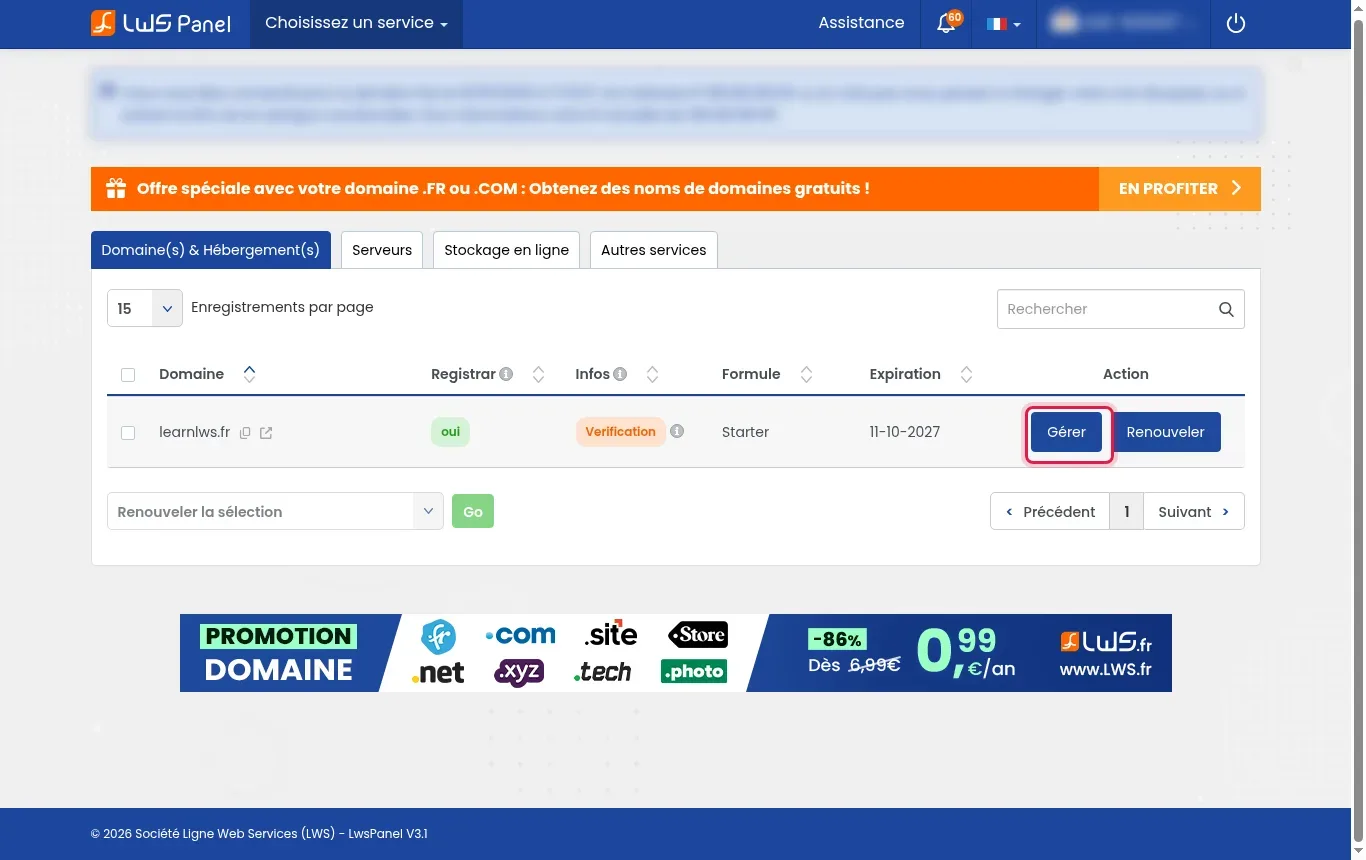
    Log in to your LWS customer area. In the Domain(s) & Hosting(s) tab, find the line corresponding to your domain name, then click the blue Manage button.

    Create a WordPress pre-production environment and put it online
  2. Perform a preliminary security backup

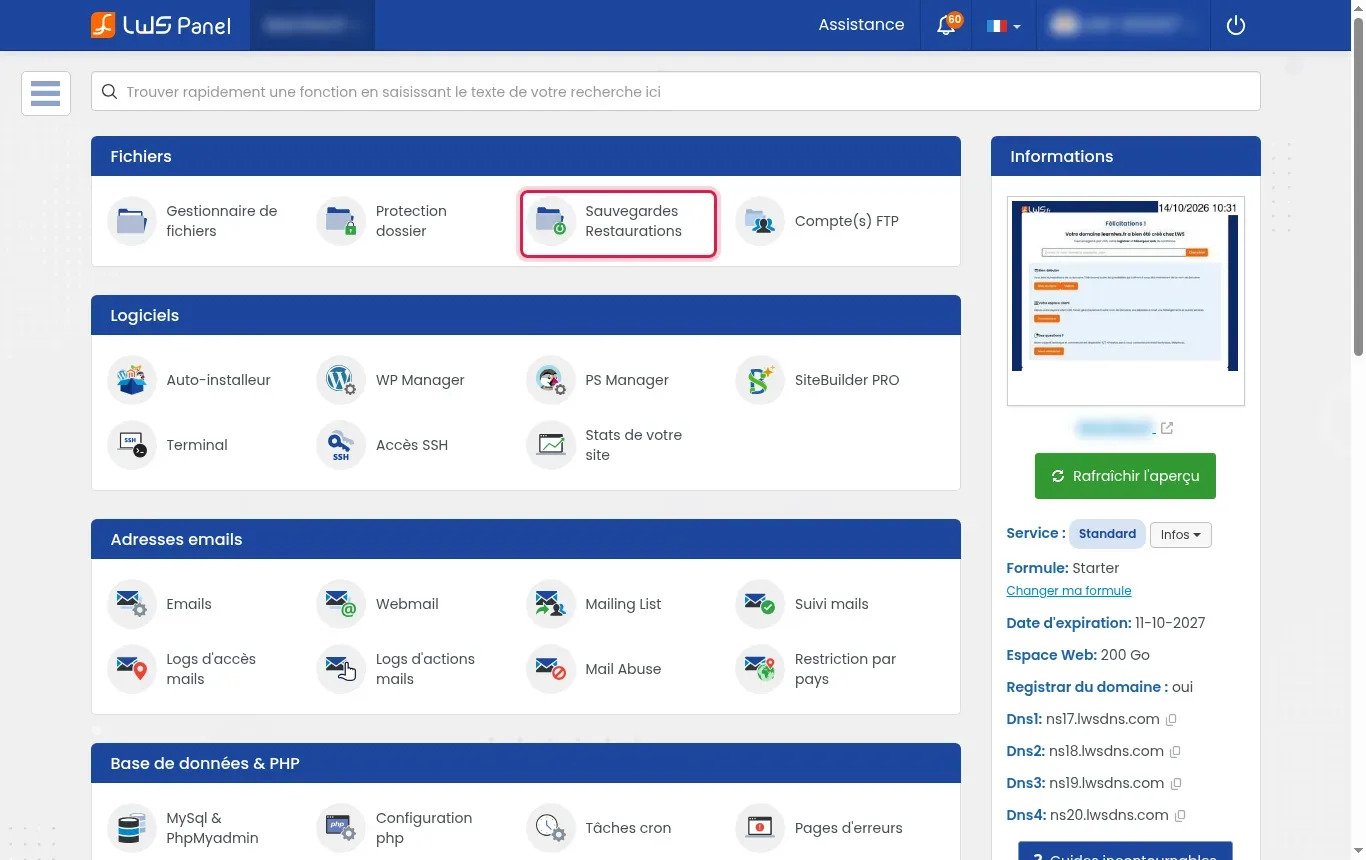
    In the Files section of your control panel, click Backups Restorations. Launch a full backup of your files and database before any cloning operation.

    Create a WordPress pre-production environment and put it online
  3. Open the WP Manager tool

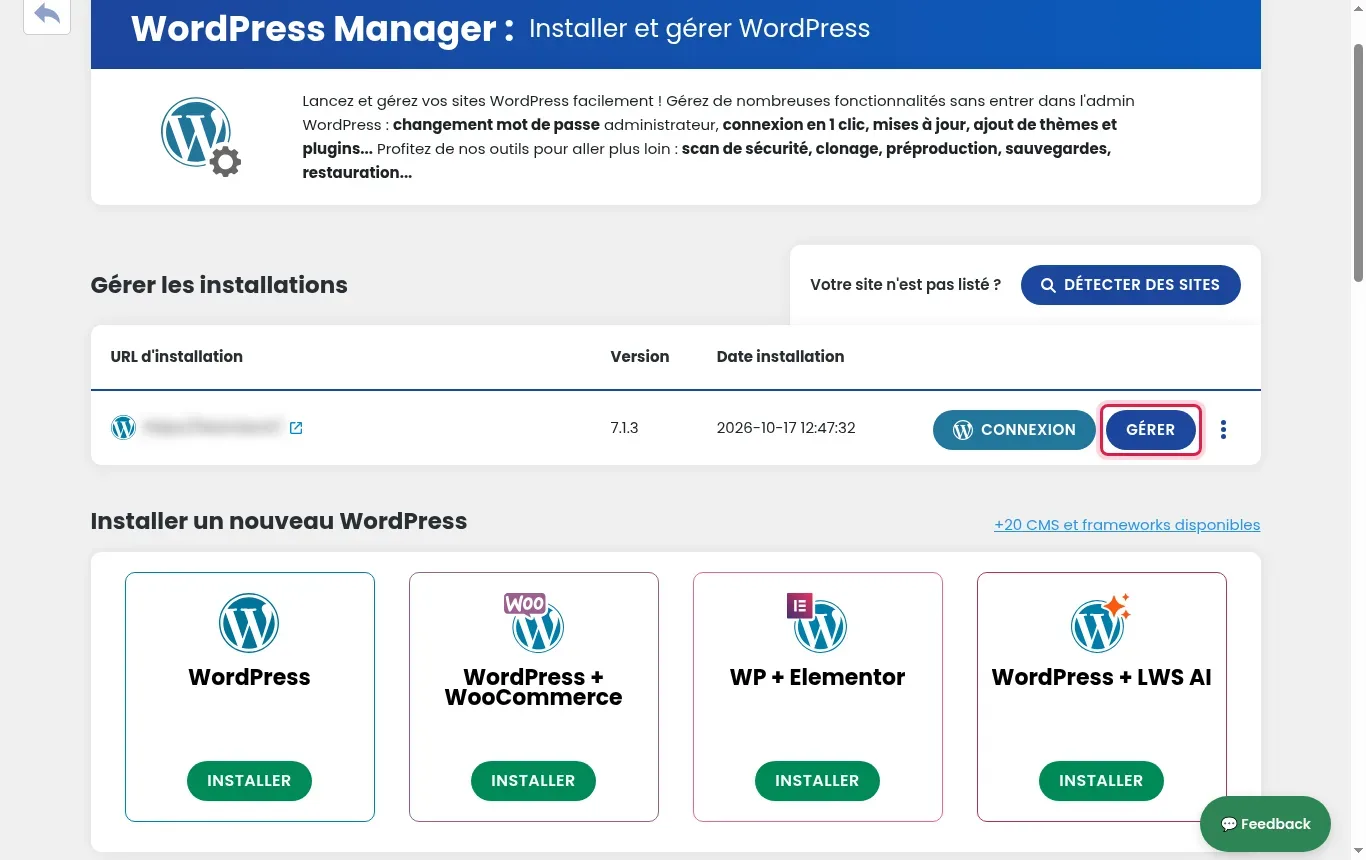
    Go back to the home page of your management panel and click the WP Manager icon located in the Software category. In the table listing your WordPress installations, locate your live site then click the MANAGE button.

    Create a WordPress pre-production environment and put it online
  4. Access the cloning function

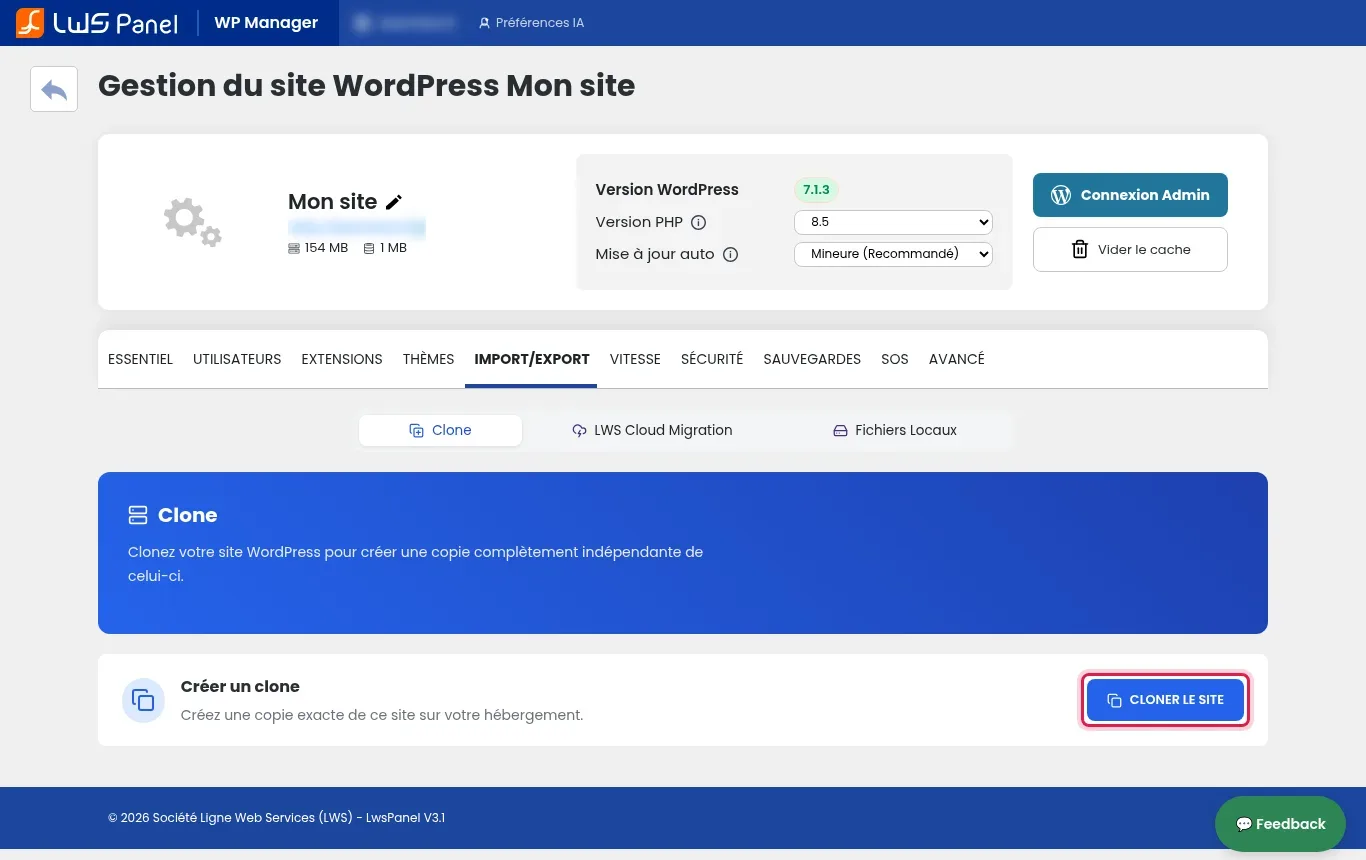
    In the management menu for your installation, click the IMPORT/EXPORT tab, then make sure you are on the Clone sub-tab. Then click the blue CLONE THE SITE button.

    Create a WordPress pre-production environment and put it online
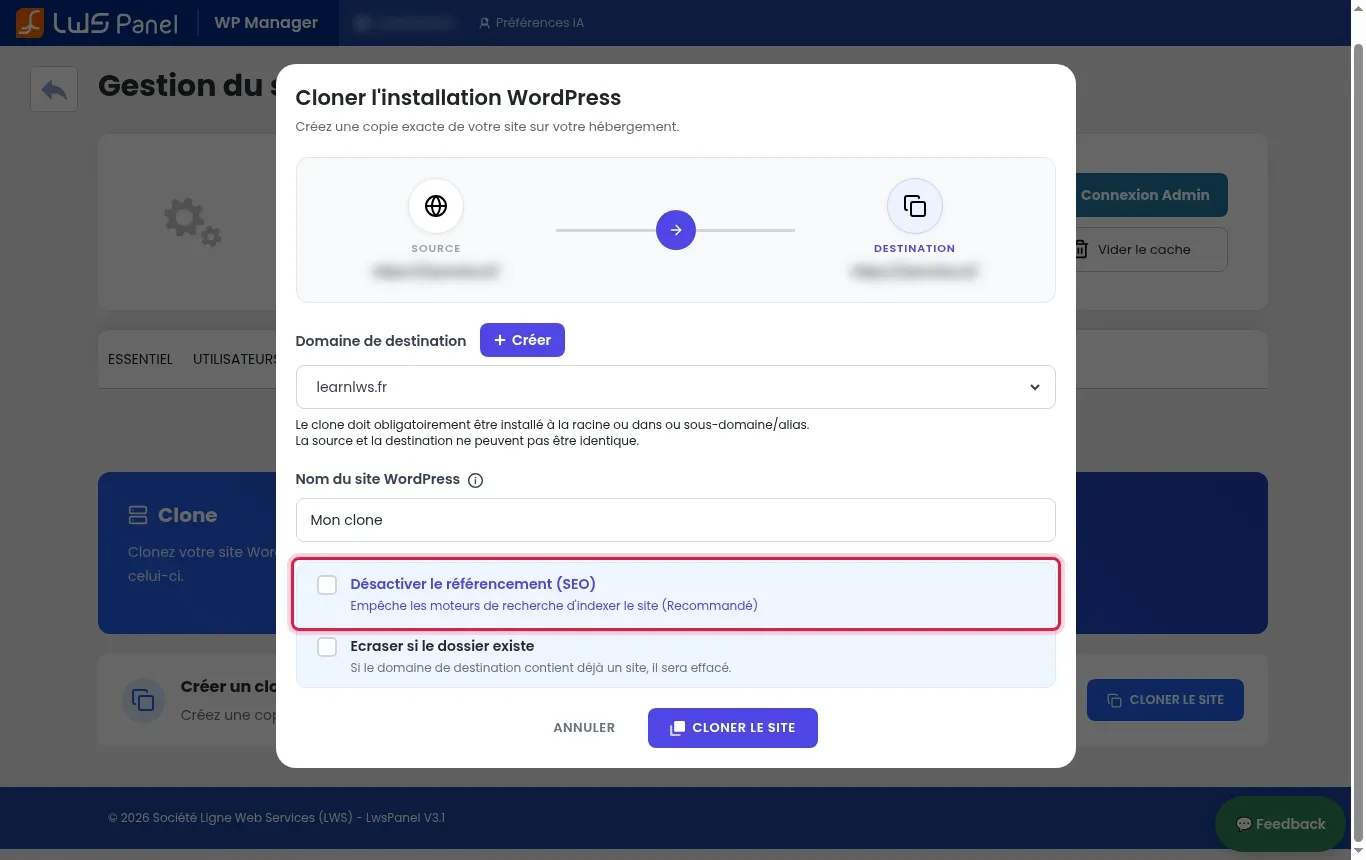
  5. Configure the staging parameters

    In the window that appears, choose your destination subdomain using the drop-down menu or click the + Create button. Assign a distinctive name to your copy in the WordPress site name field, then обязательно check the Disable indexing (SEO) box to prevent search engines from indexing this test version.

    Create a WordPress pre-production environment and put it online
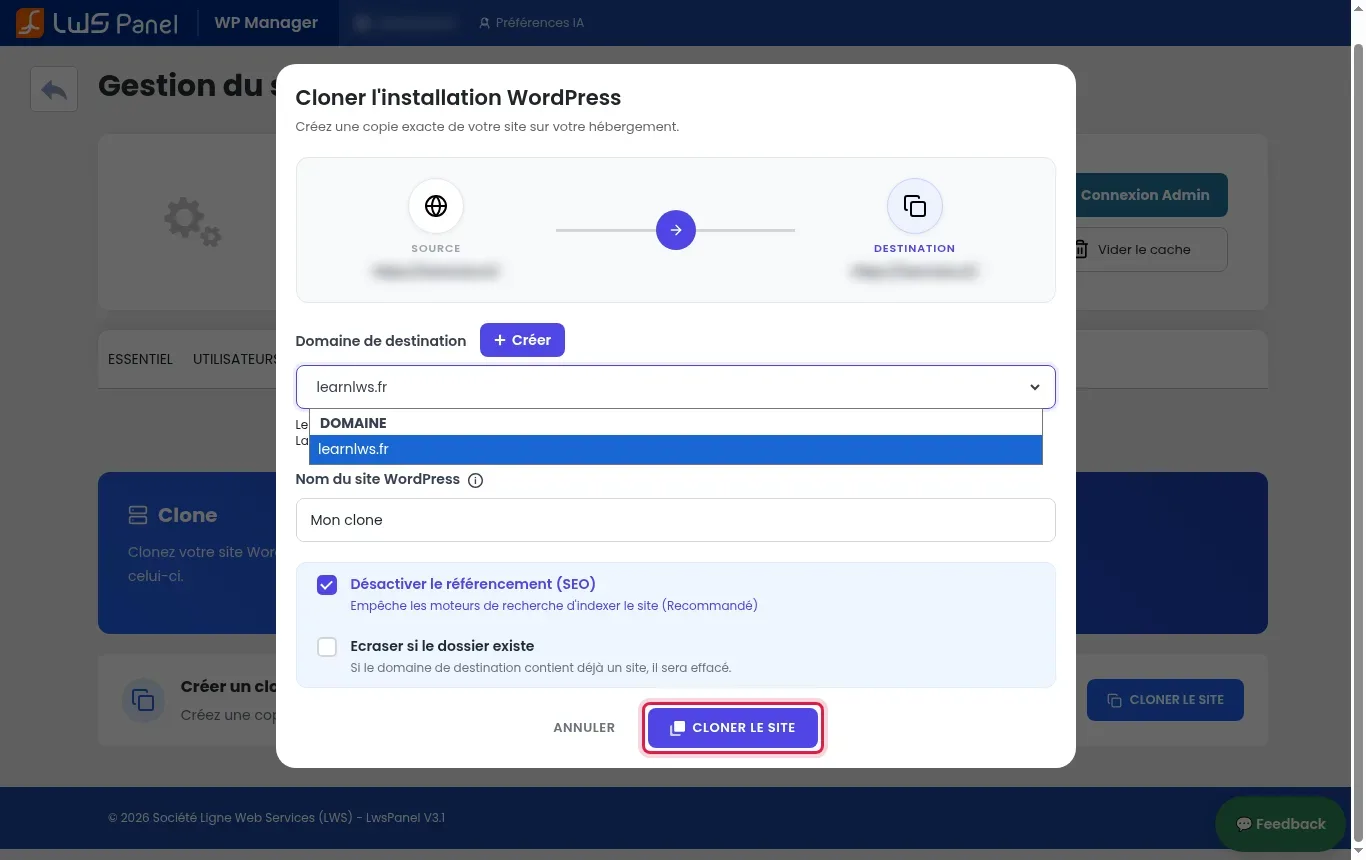
  6. Start creating the copy

    Carefully check all the information entered, then click the blue CLONE THE SITE button at the bottom of the window. Wait while the files are copied and the new database is created without closing or refreshing your browser page.

    Create a WordPress pre-production environment and put it online
  7. Test and validate the changes

    Once the operation is complete, access the administration dashboard of your new staging site. Carry out your extension updates, theme modifications or code adjustments, then check on your original site address that it remains perfectly intact and functional.

  8. Deploy your changes to production

    When all of your tests have been validated, return to WP Manager and open the management page for your staging site. Use the synchronization to production option to replace the live site with your finalized version, then verify that your public website displays correctly.

Frequently asked questions

Why is my WordPress site not listed in WP Manager?

If your site was transferred manually by FTP or installed outside the automatic tools, WP Manager may not see it immediately. Simply click the Detect Sites button at the top right of the WP Manager dashboard to scan your web space.

How can I prevent my staging site from being indexed on Google?

When configuring the clone in WP Manager, make sure to check the Disable indexing (SEO) box. This action tells WordPress to add a noindex directive that prevents your test pages from appearing in search results, thereby avoiding duplicate content penalties.

What should I do in case of an error related to quota or size limits?

The cloning process requires free storage space equivalent to the total size of your site (files and database). If your hosting plan has reached its limit, delete outdated local backups or free up disk space before starting the operation again.

Does the staging site use the same database as my live site?

No. The WP Manager tool automatically duplicates your MySQL database to a new independent database and modifies the wp-config.php configuration file. Your staging changes therefore have no impact on the main site database.

What are the essential technical terms to know?

Production refers to your public site accessible to your customers. Staging is the isolated test copy. Indexing is the process by which a search engine such as Google records a page. The database contains all of your texts, posts, user accounts and WordPress settings.

help.lws.net/a/1618
Was this article helpful?

Yes

No

Read 16 927 times

Thank you! Feel free to ask questions about our documentation if you would like more information, and help us improve it.

Similar articles

Questions about the article 1

Ask a question
Souvenir
il y a 1 mois
Bonjour, ces écrans ne sont plus d'actualité dans l'interface WP Manager, quand allez-vous publier la version correspondant à la nouvelle interface de WP manager?
Jordan-LWS Official answer
il y a 1 mois

Bonjour,

Merci pour votre retour.

Une demande de mise à jour de cette documentation a bien été réalisée afin qu’elle corresponde à la nouvelle interface de WP Manager.

Nous faisons de notre mieux pour maintenir nos documentations à jour et publier les évolutions dans les meilleurs délais. Nous vous remercions donc pour votre patience et votre compréhension.

Cordialement, L'équipe LWS

Was this answer helpful?

A question about this article?

Ask the LWS team and the community. Answers are published after moderation.

Ask the LWS team and its community a question

GDPR: Controller: LWS-Ligne Web Services. Purpose: moderation and public publication of your question, possible notification of an answer. Legal basis: consent (Art. 6(1)(a) GDPR). Email retention: 90 days after notification, 12 months maximum without an answer. To exercise your rights, see the GDPR section of our Terms and Conditions.