Procédure
How do I add an additional domain to Plesk?
Depending on the package you have, you may be able to add one or more additional domains to your Plesk package:
- ASP Perso: 1 Domain
- ASP Starter: 2 Domains
- ASP Standard: 3 Domains
- ASP Performance: 5 Domains
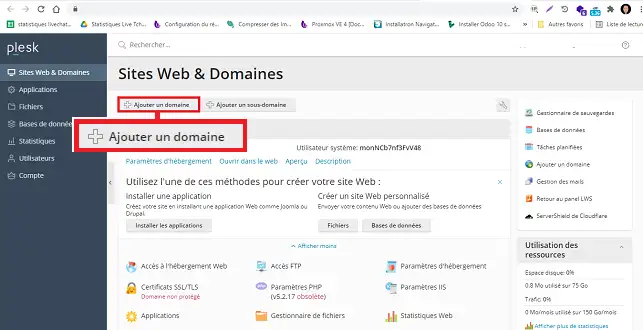
Log on to your Plesk interface and click on"Add a domain".
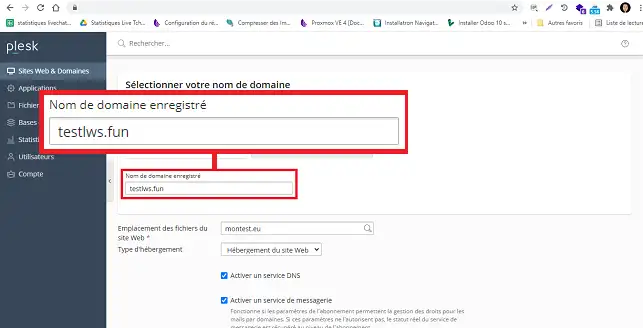
Enter the domain name registered in the space provided.
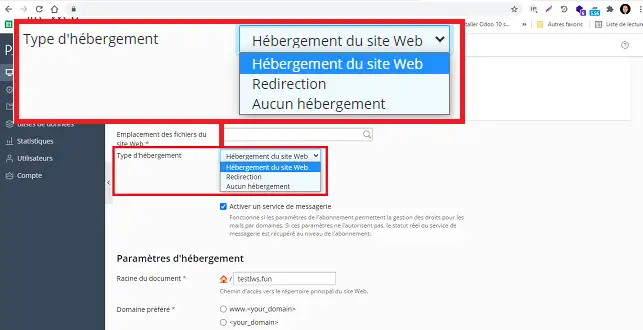
Choose the type of hosting you require as follows:
- Web site hosting: to host a new site on your web hosting package
- Web redirection: to redirect your domain name to another site
- No hosting: if you do not wish to activate hosting for your domain name
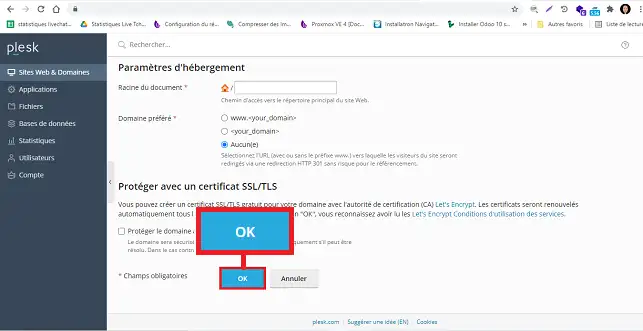
Click on the"Ok" button at the bottom of the page to confirm your request.
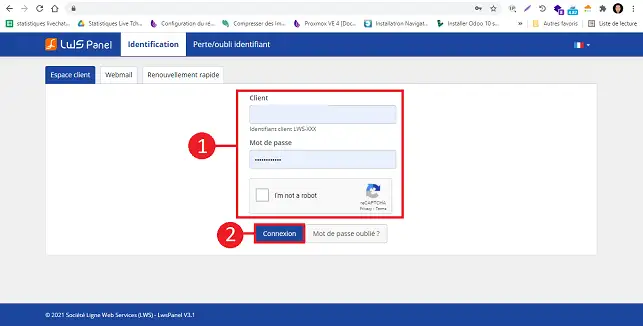
Once the domain has been added to your Plesk package, you will need to change the DNS Zone of your domain. To do this, log in to your LWS customer area.
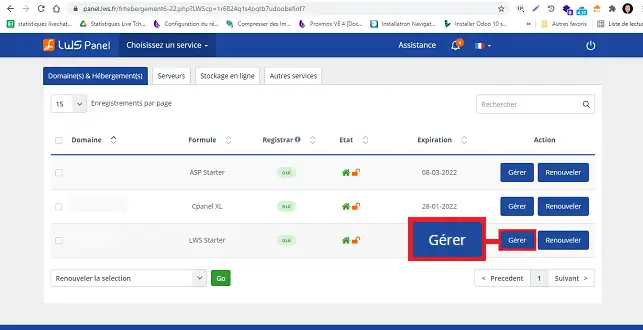
Click on"Manage" behind the package in question.
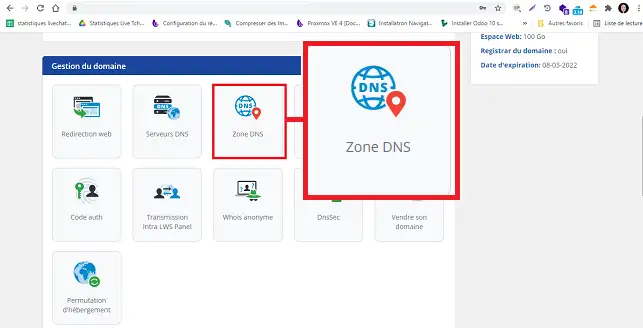
Click on"DNS Zone" in the"Domain Management" section.
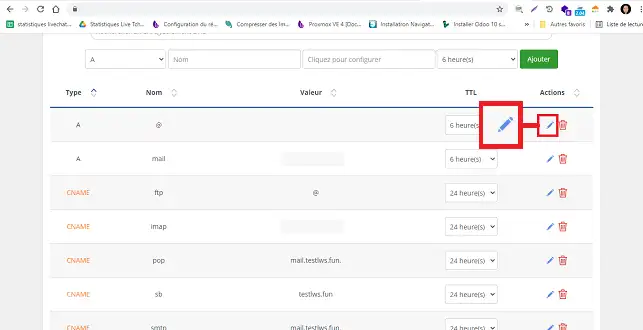
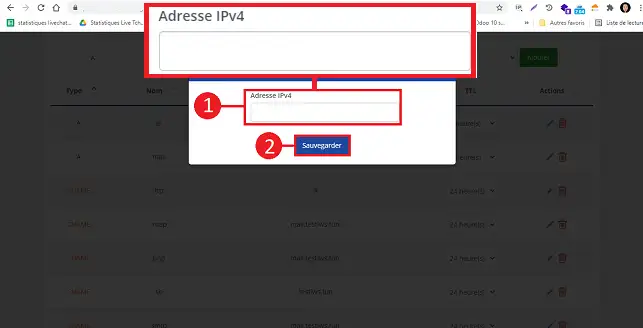
Change the DNS Zone for the name"@" to the IP of your Plesk package by clicking on the stylus behind the Zone.
Once the Zone has been modified, click on"Save" to validate your request. You will need to wait 3 to 4 hours for the DNS Zone to propagate and for your domain to be linked to your cPanel package.
How do I add a sub-domain to Plesk?
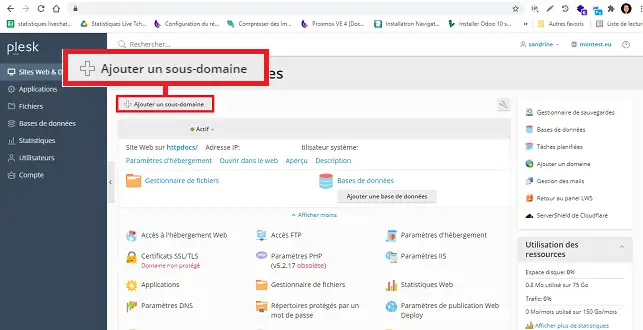
Log in to your Plesk interface and click on the"Add a sub-domain" button.
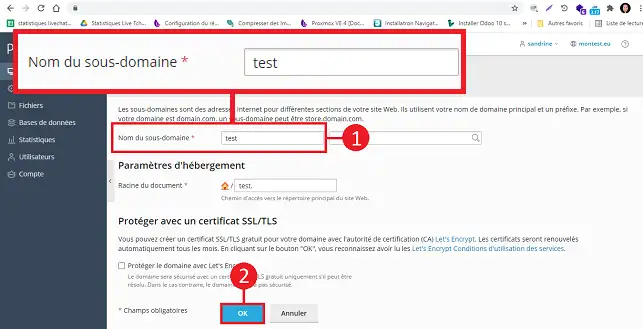
Enter the name of the sub-domain and click on the "OK" button to validate your request.
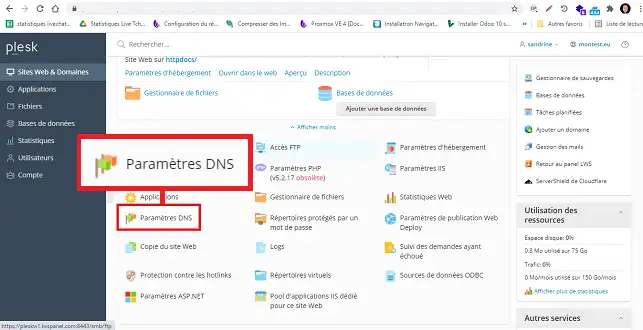
Click on"DNS settings" for the domain for which you have created the sub-domain".
Click on the"Add a record" button.
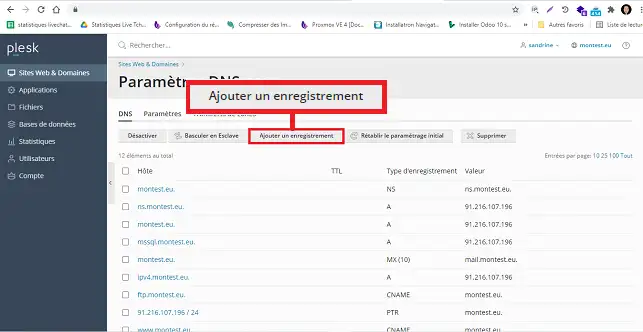
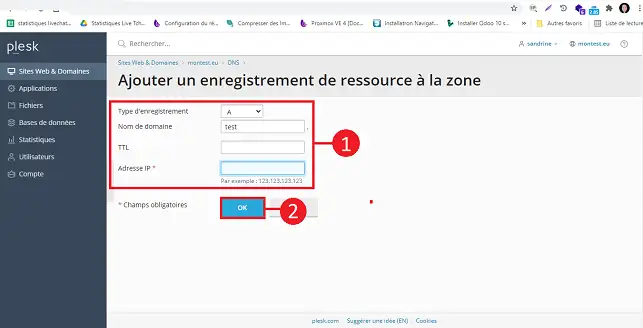
Fill in the fields as follows:
- Record type : A
- Domain name: indicate the sub-domain concerned
- TTL: you can leave this value blank
- IP address: enter your Plesk IP address
Click on the"OK" button to validate your request.
Finally, click on the"Update" button to update your DNS Zones.
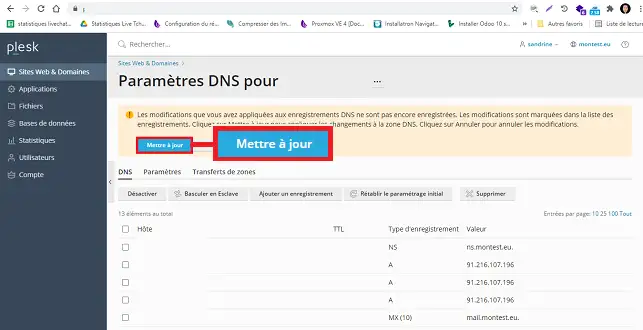
You will then need to wait 3 to 4 hours for the DNS Zone to propagate and for your sub-domain to be accessible.



 Yes
Yes No
No About
About 