
Online help
The web host accessible to all
Procédure
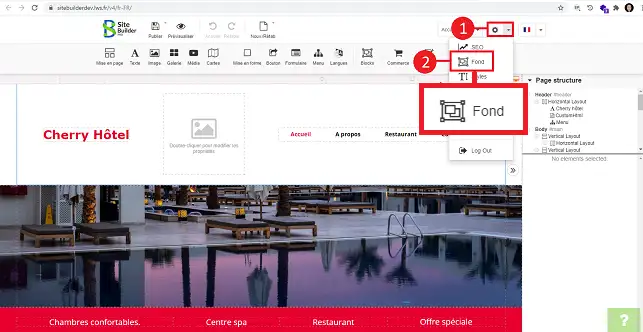
The background allows you to personalise your website by adding a background image or background colour. SiteBuilder Pro also lets you add a different background image for each of your pages to make your website more attractive.
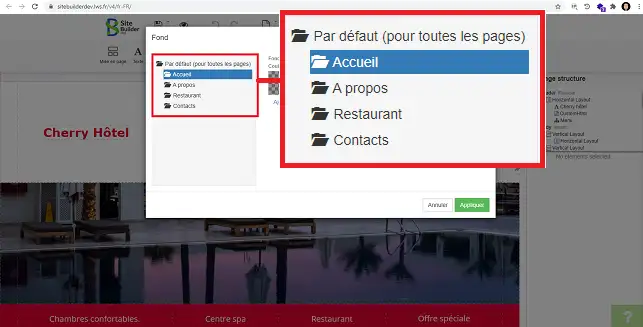
If you want to make the same change on all pages, you will need to click on"Default (on all pages)" in the left-hand column of this new window. Otherwise, you can define the page for which you want to make the change.
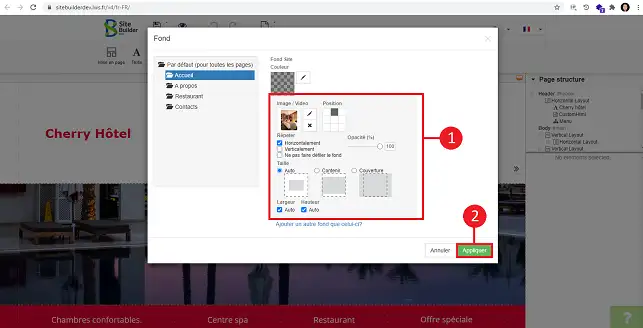
You can change the background colour or the background image. To do this, click on the stylus behind the element in question. Once you have made the change, click"Apply" to save your request.
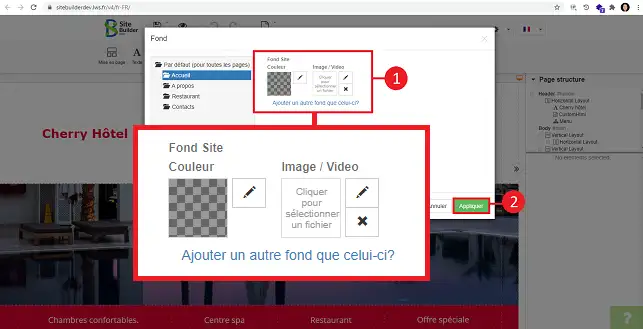
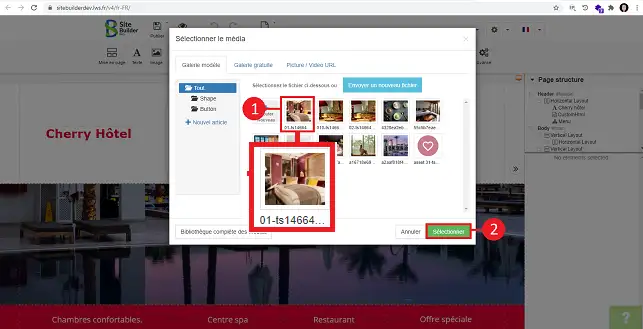
To modify a background image, after clicking on the styl us behind the"image" element, the media window will open, allowing you to choose a media file from your library or download one from your computer. Choose the image you want and click"Select".
A new window will appear, allowing you to define the size of the image and whether or not it should scroll. You can also set the opacity of the image. Once you have made your changes, click on the"Apply" button to save your request.
You can now add a background to your website created with SiteBuilder Pro on your LWS package. The background allows you to personalise your site and make it more attractive.
Don't hesitate to share your comments and questions!
Ask the LWS team and the community. Answers are published after moderation.
 About LWS :
LWS is a 100% French web hosting company that focuses on quality and innovation and offers a responsive and competent technical service at affordable prices.
About LWS :
LWS is a 100% French web hosting company that focuses on quality and innovation and offers a responsive and competent technical service at affordable prices.



 Yes
Yes No
No