Procédure
What is Google Search Console?
Google Search Console has over time become a valuable resource for many people such as marketing professionals and online shop owners. It's a free service that allows you to learn a lot about your website. You can use this service to find out how many people visit your website and how they find it.
This service can also help you find and correct errors on your website, send a sitemap, create and consult your robots.txt file.
How do you link your domain to Google Search Console using an HTML file?
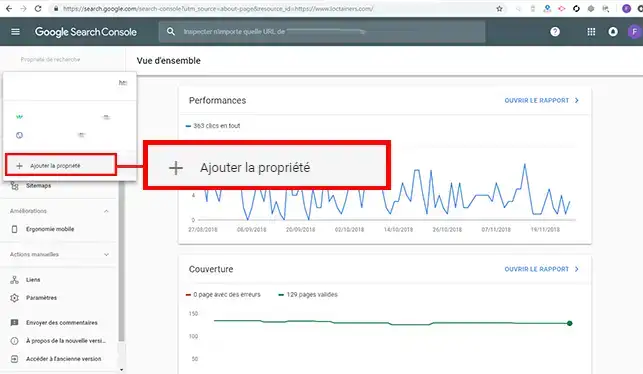
11. Connect to your Google Search Console interface and click on the"Add property" button.
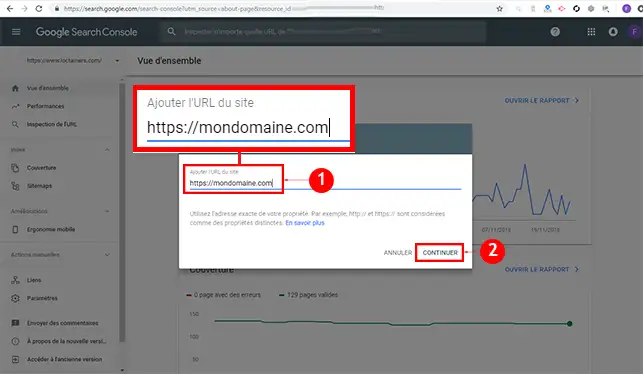
22. Indicate the domain name you wish to link to your console and click on the "Continue" button.
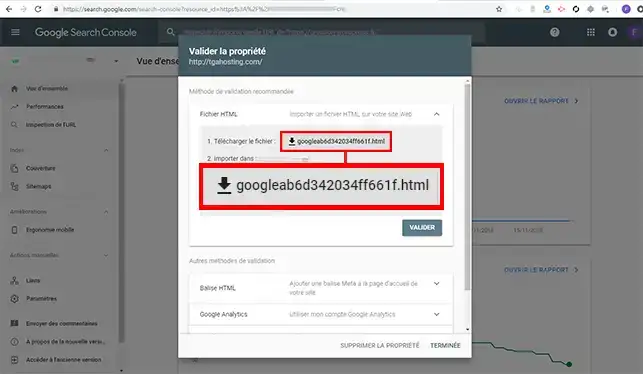
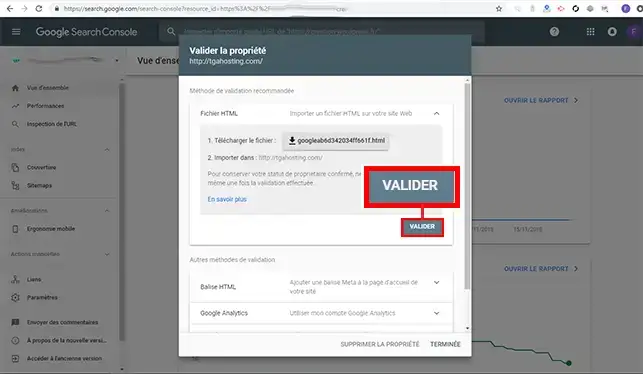
33. Download the file by clicking on it.
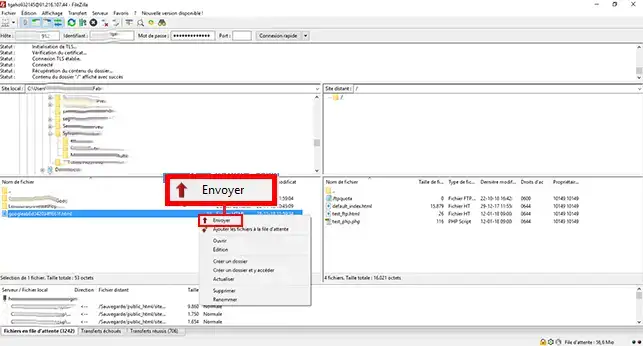
44. Publish the file you have just downloadedusing your FileZilla client. The file must be uploaded to the root of your web space.
55. Return to your Google Search Console and click on the"Submit" button.
How to link your domain using a TXT Zone
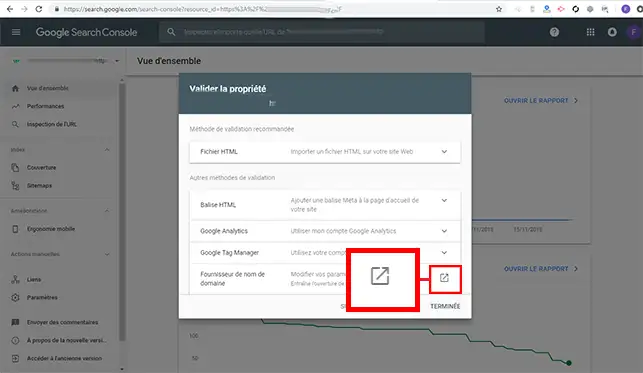
11. Click on the button behind"Domain name provider".
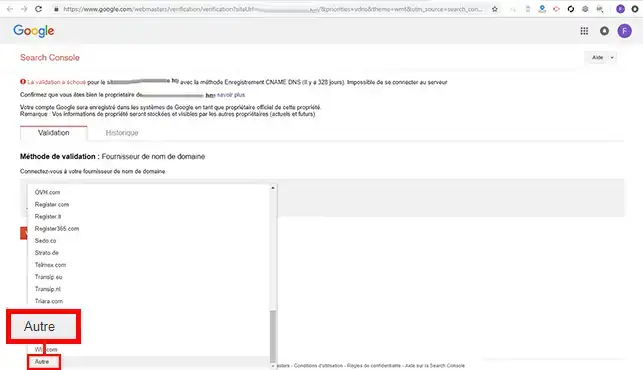
22. Choose"Other" in the drop-down window asking you to choose the domain name provider.
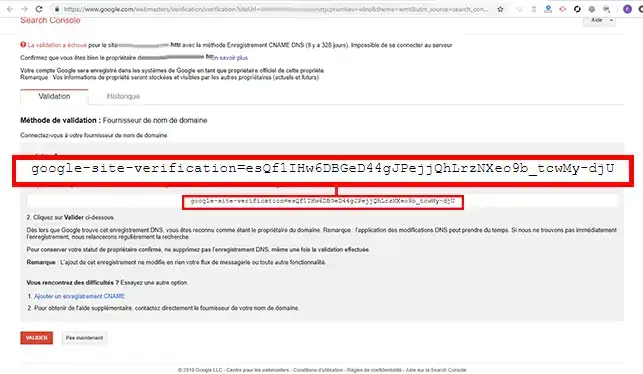
33. Google Search Console will send you a DNS Zone of type TXT which you will need to add to the Zones of your domain name.
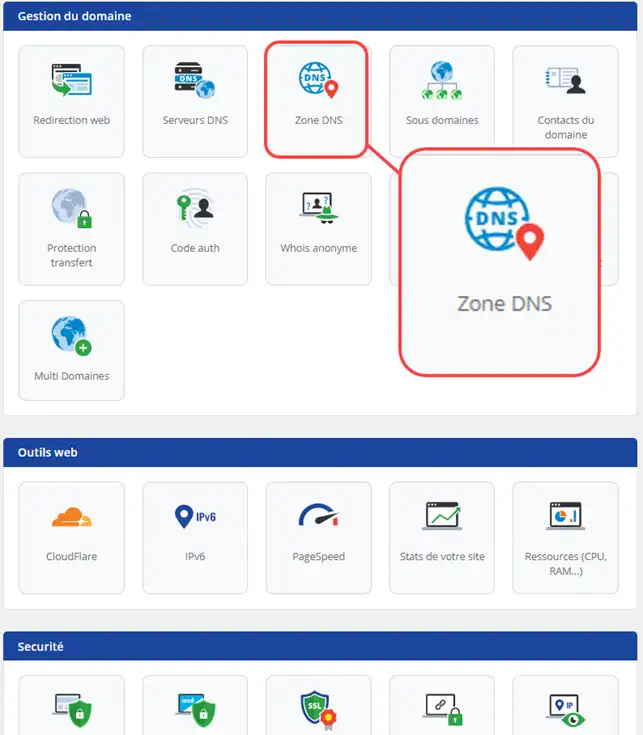
44. Connect to your customer area, click on"Domains and Hosting" and then on"Admin/Administrer" behind the domain name concerned. Then click on"DNS Zone".
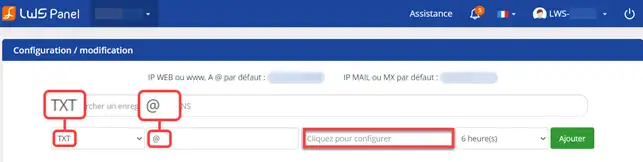
55. Choose a Zone of type"TXT" and enter the"@" sign as the value.
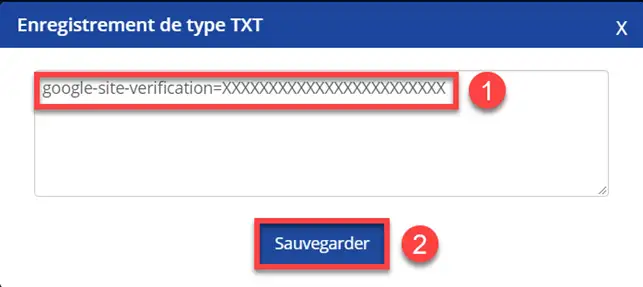
66. Click on the"Click here to configure" box and enter the TXT Zone provided by Google. Save your TXT record.
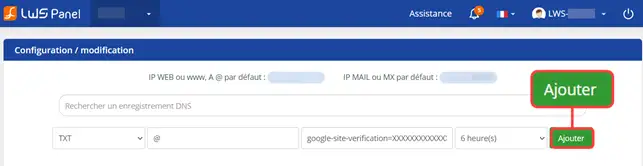
77. Click on the"Add" button to register your DNS Zone.
8. Return to your Google Search Console and click on the "Validate" button to link your domain name.
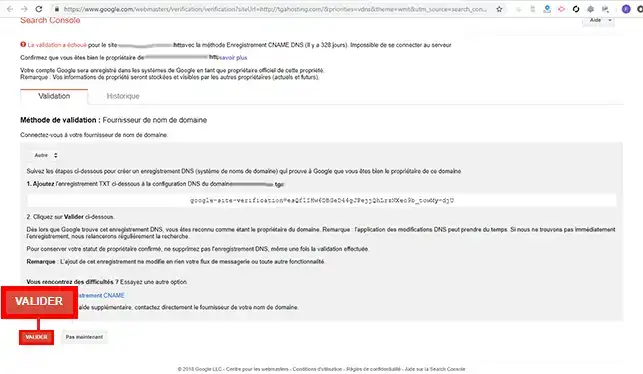
How to link your domain name using a cName Zone ?
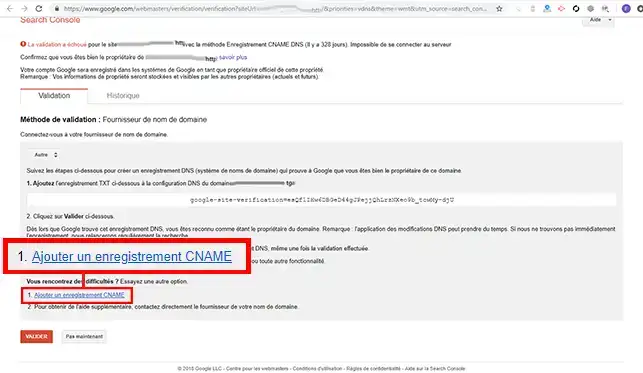
11. Click on the"Add a CNAME record" tab.
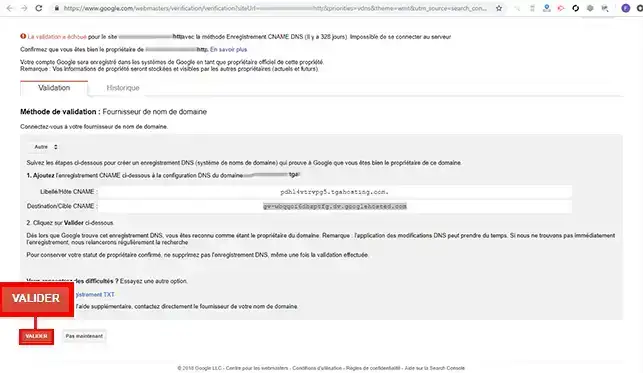
22. Google Search Console will tell you the Host of your cPanel and the destination.
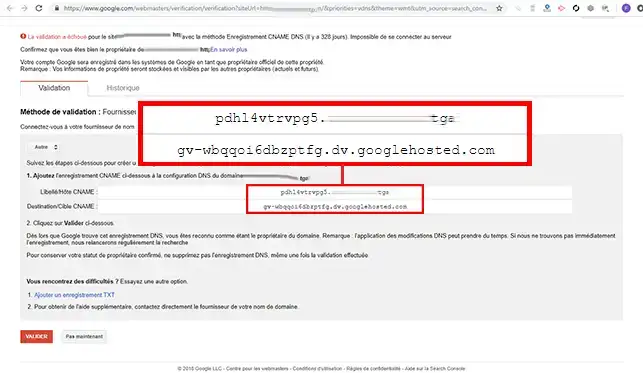
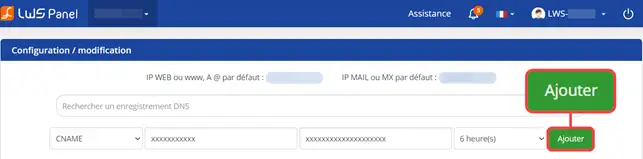
33. Log in to your customer area, click on"Domains and Hosting" and then on"Admin" behind the domain name in question. Then click on"DNS Zone". Choose a Zone of type cName and enter the Host Label supplied by Google as the value.
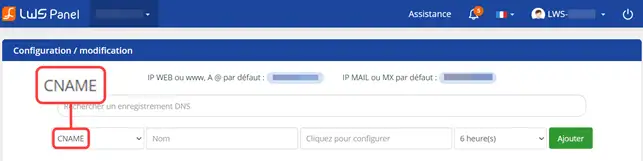
44. Click in the"Click here to edit" box and enter the destination provided by Google Search Console. Save your entry.
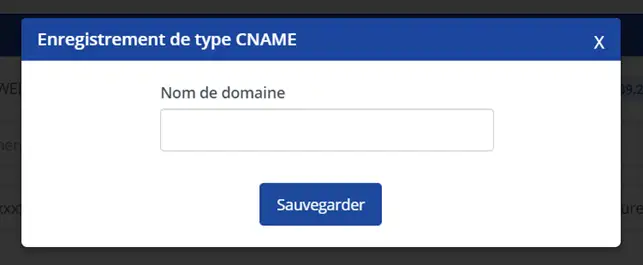
55. Click on"Add" behind the cName box to save your request.
66. Return to the Google Search Console and click on the "Validate" button to link your domain name.
Conclusion
You are now able to link your LWS-hosted domain name to your Google Search Console account. Google Search Console can help you find and correct display errors on your website.



 Yes
Yes No
No About
About 