





How to link your domain name to a Minecraft server

Procédure

How do you link your domain name to a Minecraft server?

🎥 Find out how to link your domain to your Pterodactyl game server in the video:

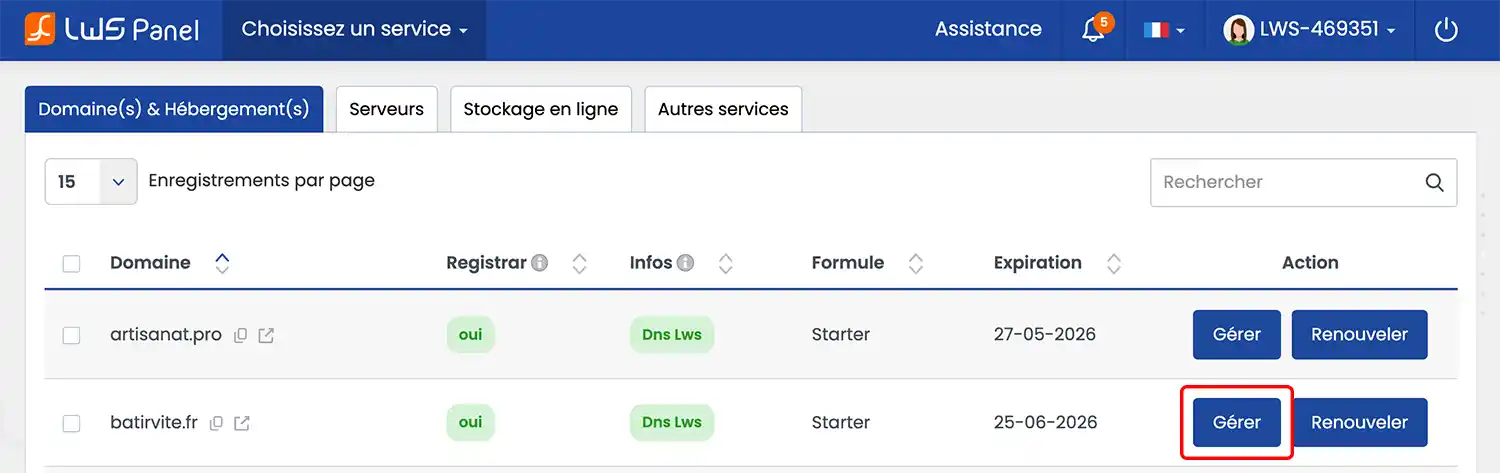
1. Log in to your LWS customer area and go to the management page for the domain you want to link to the Minecraft server.

How to link your domain name to a Minecraft server

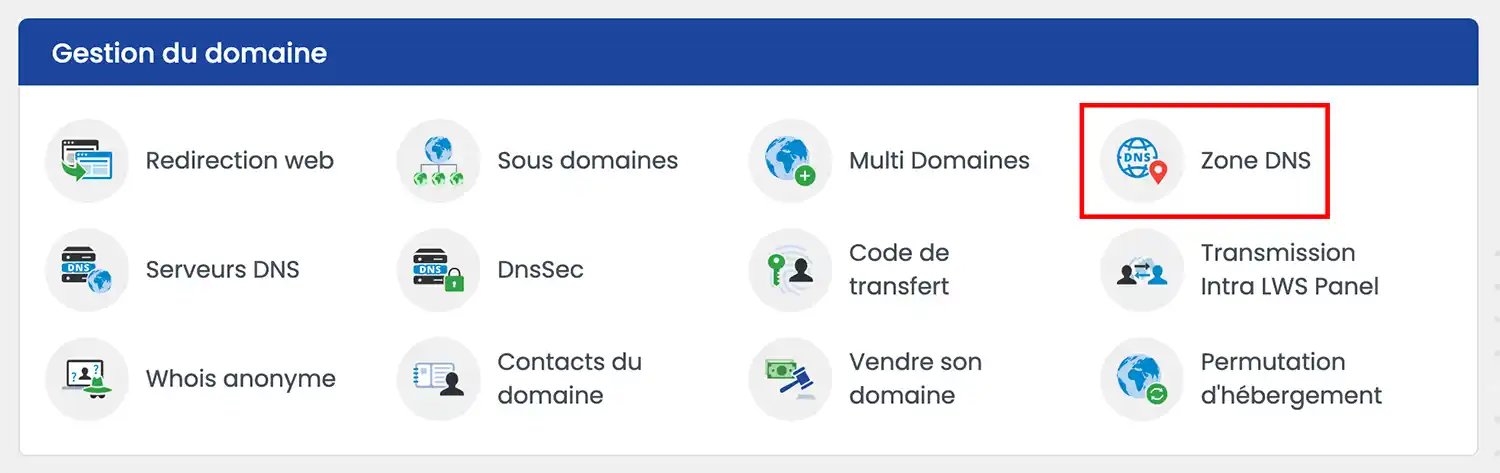
2. In the "Domain management" section, click on "DNS zone"

How to link your domain name to a Minecraft server

3. Set up a first Minecraft Zone of type CNAME in order to redirect a subdomain to the relevant Minecraft server:

  • Choose the type "CNAME"
  • In the "Name" field, enter the subdomain you want to configure (for example: mc). If you have already configured the desired subdomain in an A record, delete it.
  • In the third field where it says "Click here to configure", enter your VPS server name (example: vps12345.serveur-vps.net).
  • For the "TTL" field, you can leave the default TTL

Then click the "Add" button to save your new Zone.

How to link your domain name to a Minecraft server

4. Set up a second Zone of type SRV. For the subdomain, enter the value: _minecraft._tcp.subdomain (subdomain being the subdomain you defined above in CNAME, here: mc)

How to link your domain name to a Minecraft server

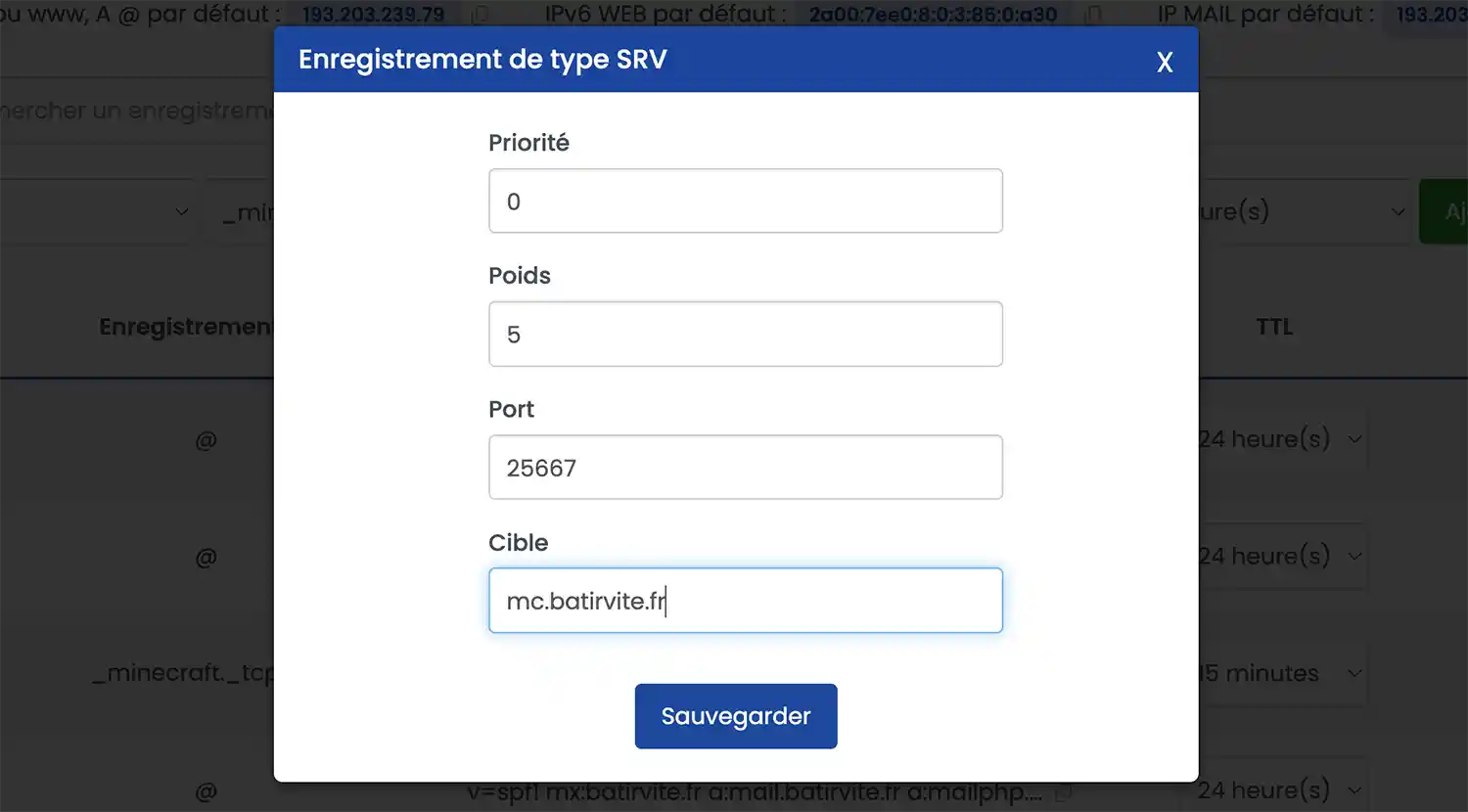
5. Click on the field marked "Click to configure" and, in the modal window that appears, fill in the form as follows:

  • Priority: 0
  • Weight: 5
  • Port: enter your Minecraft server port (here: 25667)
  • Target: enter the subdomain you just configured in CNAME, here "mc.batirvite.fr"

How to link your domain name to a Minecraft server

Click "Save" to save your SRV Zone. The record should look like this:

How to link your domain name to a Minecraft server

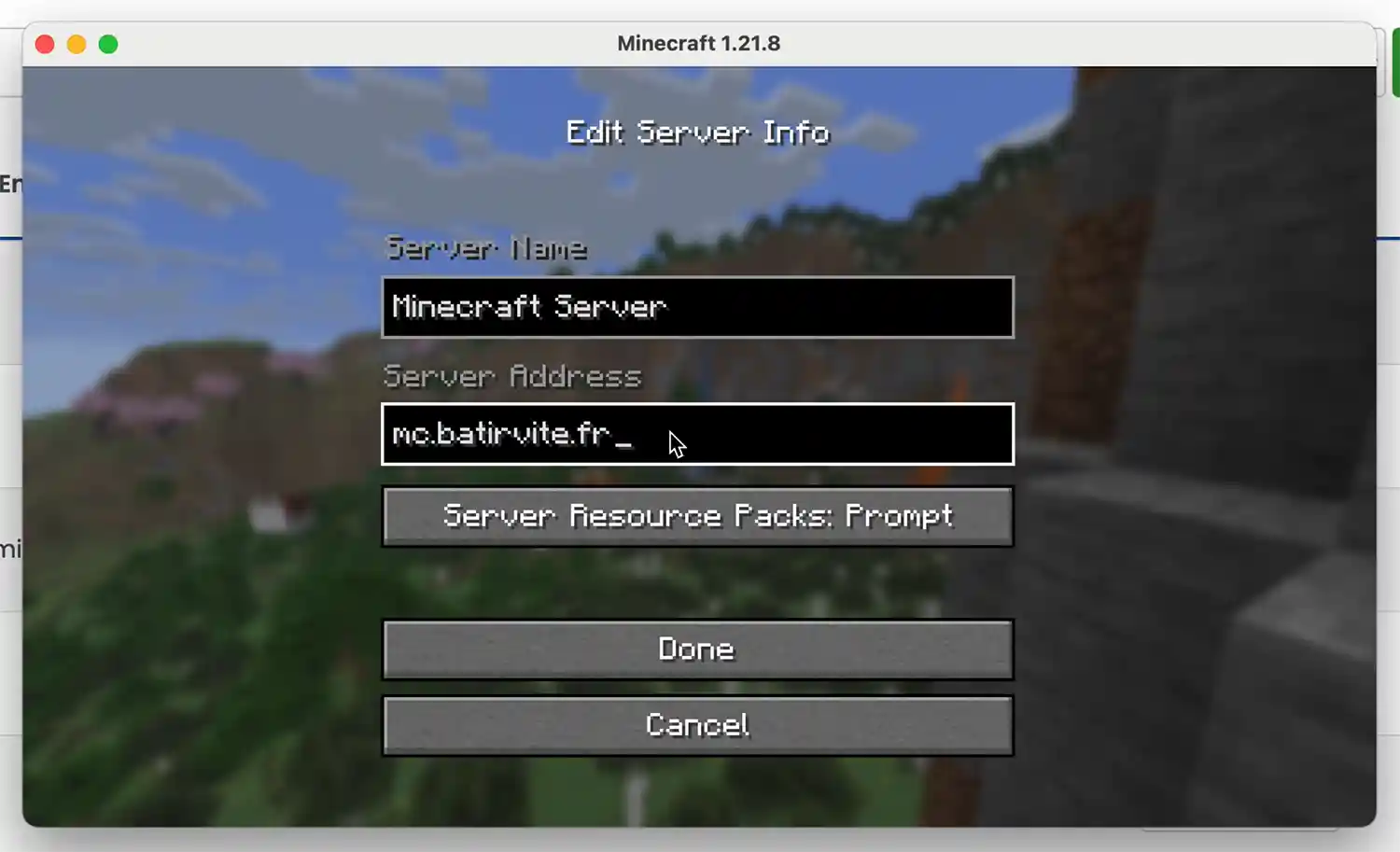
Once the configuration is in place, you will need to wait 4 to 6 hours for the DNS Zones to propagate.

You can then share your domain name directly with your friends so they can join you!

How to link your domain name to a Minecraft server

Conclusion

You are now able to link your LWS domain name with a Minecraft server. You can at any time open a request with the technical support team so that a qualified technician can carry out the DNS Zone configuration for you.

Feel free to share your comments and questions.

help.lws.net/a/1319
Was this article helpful?

Yes

No

Read 47 187 times

Thank you! Feel free to ask questions about our documentation if you would like more information, and help us improve it.

Similar articles

Questions about the article 1

Ask a question
l0r3i5
30 Jul 2022
Bonjour, lors de l'ajout du DNS, j'ai une erreur me disant "Votre configuration DNS ne peut pas être ajoutée car sa valeur est erronée ou un champ avec le même nom existe déjà dans votre listing." , pourtant, l'Ip rentrée est bel et bien valide...
fabrice-LWS Official answer
3 Aug 2022
Bonjour, cette erreur est souvent due à l'un des problèmes suivants : - Vous avez déjà une Zone DNS pour cette même valeur. Par exemple, vous essayez d'ajouter la zone WWW en cName alors qu'une autre zone WWW existe déjà. Dans ce cas, il est nécessaire de modifier/supprimer la Zone DNS concernée avant d'ajouter la nouvelle. -Vous essayez d'ajouter une Zone cName en y indiquant une IP. En effet, pour ajouter une Zone contenant une ip, il est nécessaire de choisir une zone de type A et non cName.
Was this answer helpful?

A question about this article?

Ask the LWS team and the community. Answers are published after moderation.

Ask the LWS team and its community a question

GDPR: Controller: LWS-Ligne Web Services. Purpose: moderation and public publication of your question, possible notification of an answer. Legal basis: consent (Art. 6(1)(a) GDPR). Email retention: 90 days after notification, 12 months maximum without an answer. To exercise your rights, see the GDPR section of our Terms and Conditions.