
Online help
The web host accessible to all
Procédure
You may be hosting your website with another provider, but you want to continue receiving emails with LWS. In that case, instead of changing the DNS servers, you only need to modify one of the zones of your domain name.
By changing the IP of the A-type zone, you will be able to redirect the domain name with and without WWW.
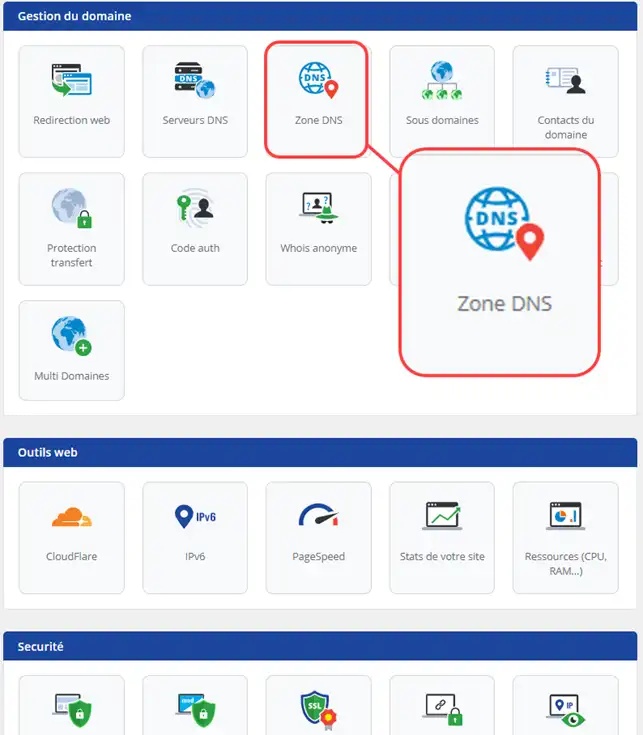
1. Log in to the administration of your domain name and click the "DNS Zone" button.
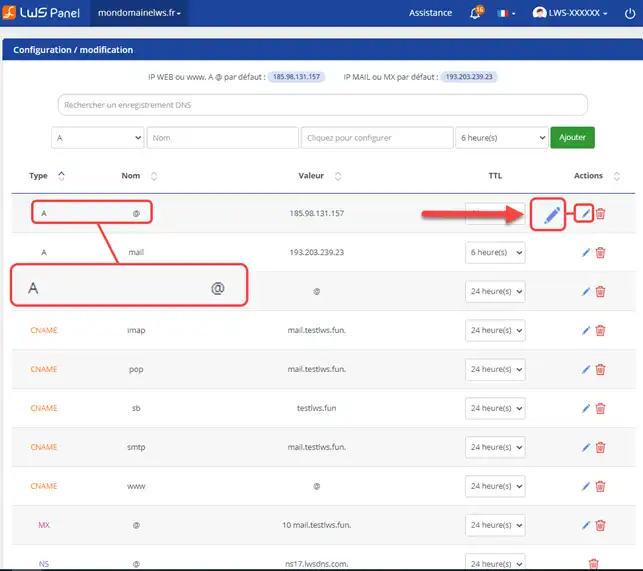
2. Find the A-type DNS zone named "@". The at sign replaces your domain name. Click the "Edit" pencil behind this line.
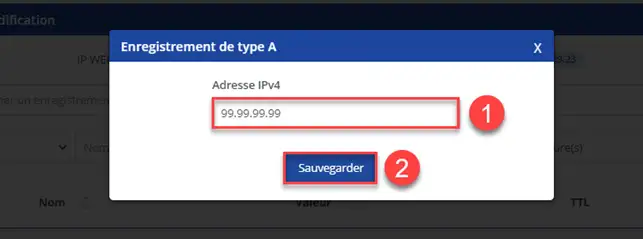
3. A new window will open. Change the IP to your new IP and click the "Save" button to validate your request.
If the change has been made successfully, you should see the modified zone. For a zone to update and for your domain name to point to the new IP, it may take a few hours.
Note: it is not possible to redirect directly to a specific port (for example port 465) by creating a record such as "99.99.99.99:465". You must make a simple redirection to the IP by following the instructions above. Redirection to the specific port will need to be done via a setting on the router of the device that manages this IP.
If your server is at your home, its IP address may change. A dynamic DNS service such as DuckDNS or No-IP then keeps a name up to date that follows this address, for example monserveur.duckdns.org. With the LWS DNS zone, only the address with www can automatically follow this name; the address without www keeps a fixed IP.
In the DNS zone, find the CNAME line named www (its default value is @). Click its Edit pencil, replace the value with the name of your dynamic DNS ending with a dot, for example monserveur.duckdns.org., then click Save. Without the final dot, the name would be completed by your own domain.
The address without www (@) cannot receive a CNAME: it already carries the domain's NS and MX records, and a CNAME cannot coexist with other records on the same name (RFC 1034, section 3.6.2). Two options:
@ on the address of your LWS hosting (value shown at the top of the DNS Zone page: "IPv4 WEB or www, A @ by default") and create a redirect of type domain.ext -> www.domain.ext (it is done through the .htaccess file of your LWS web space), as explained in the help article Redirect a domain name to another web address. Visitors will then arrive on the address with www, which follows your IP.@ with your server's current IP (steps 2 and 3 above). When your IP changes, you must make this change again yourself. Choose a short TTL (for example 15 minutes) in the TTL list on the line: the change will be taken into account more quickly.If the zone contains an AAAA line named @ and the address without www must go to your server, replace its value with your server's IPv6 address. Otherwise, visitors using IPv6 will continue to arrive at the address indicated by this line.
To check, open your address with www in a browser: your site hosted at your home should display. If you chose the redirect, the address without www should take you to the address with www.
You are now able to point your domain name to an external IP. If, however, this does not work, you can reset your DNS zones. Resetting the zones restores the default configuration.
Feel free to share your comments and questions!
Ask the LWS team and the community. Answers are published after moderation.
 About LWS :
LWS is a 100% French web hosting company that focuses on quality and innovation and offers a responsive and competent technical service at affordable prices.



 Yes
 No