Procédure
Download and install the Caldavsynchronizer extension
11. First, you need to download the outlook extension from sourceforge.
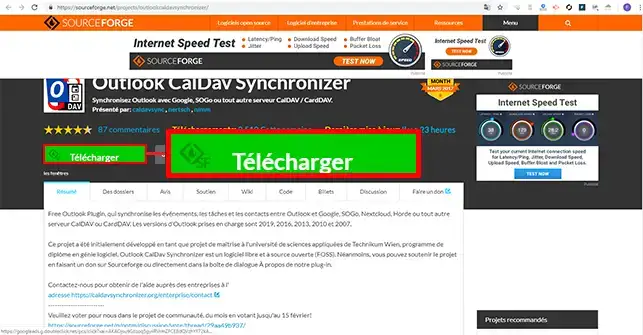
22. Unzip the two files and click on the"setup.exe" file to install the extension.
33. Click on the "Next" button.
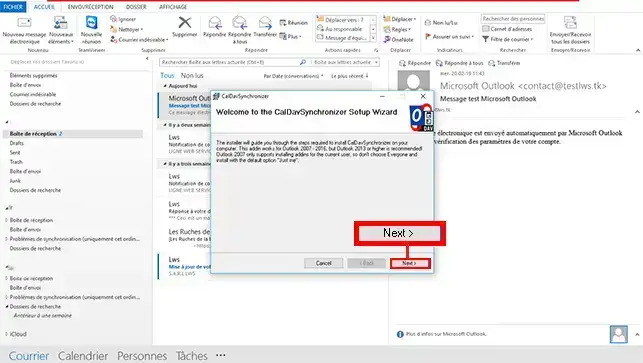
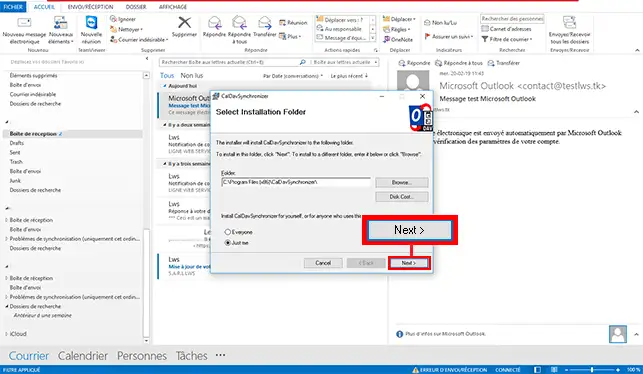
44. Choose the installation directory for your extension and click on "Next".
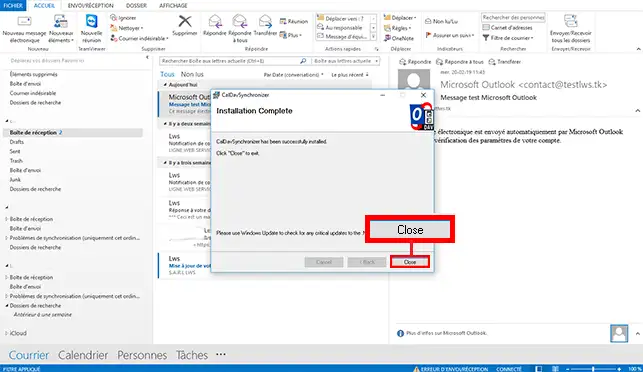
55. Once the installation is complete, click on the "Close" button and restartOutlook so that the extension can be installed.
How do I retrieve the CalDav URL from Webmail?
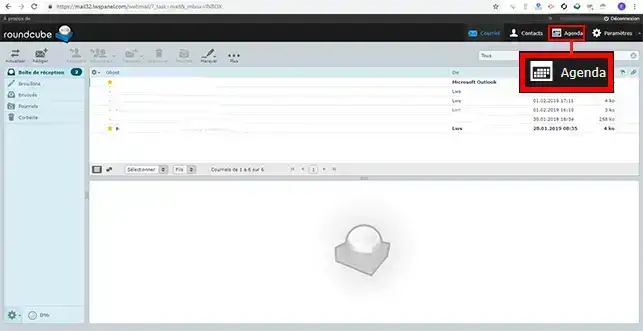
11. Connect to your Webmail and click on the"Agenda" tab at the top right of your page.
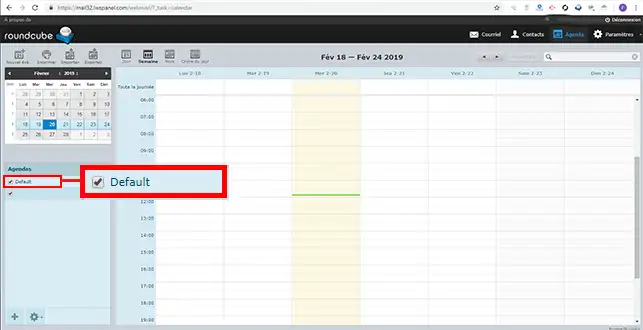
22. Double-click the calendar for which you want to retrieve the CalDav URL.
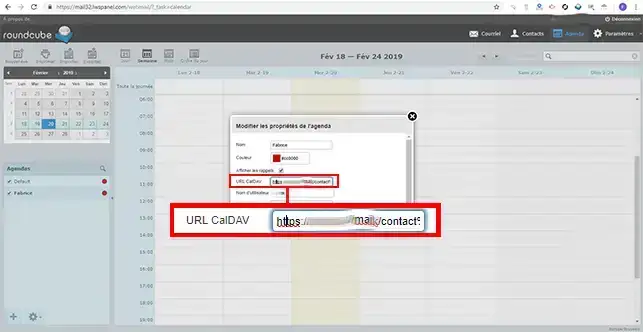
33. On your Webmail, the URL takes the form of https://mail.domaine.com/. When you copy your URL, it is advisable to change mail.domaine.com to the URL of your Webmail, for example mail32.lwspanel.com. If you leave mail.domaine.com, synchronisation may not work.
How do I synchronise the Calendar with Outlook?
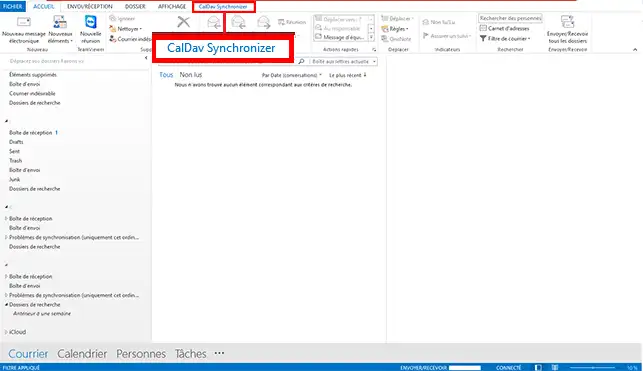
11. Open your Outlook software and click on the"CalDav Synchronizer" tab at the top of your screen.
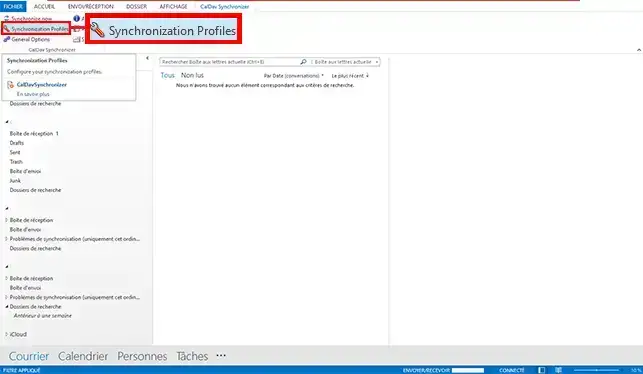
22. Then click on the"Synchronization Profiles" button to begin configuration.
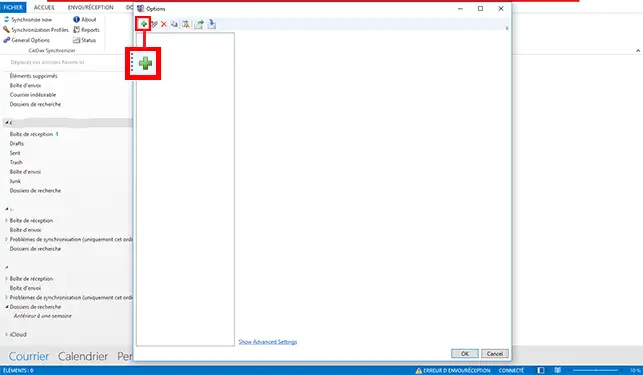
33. A new window will open. Click on the"+" to add a calendar to be synchronised.
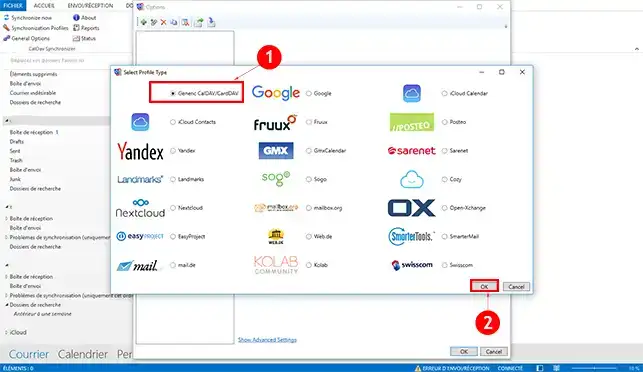
44. Choose"Generic CalDav" and click on the"Ok" button at the bottom of the window.
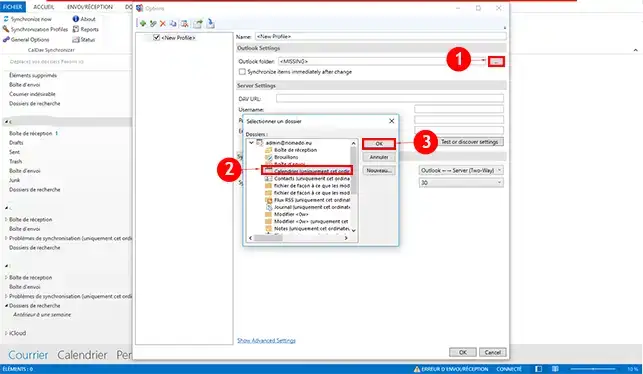
55. To configure the calendar, click on the "..." tab in the"Outlook Settings" section. Then select the"Calendar" folder and click "Ok" to save your request.
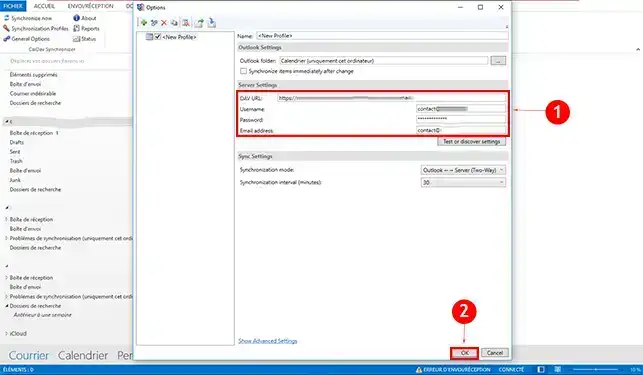
66. Configure the"Server Settings" section:
- DAV URL: This is the URL you saved in Webmail.
- Username: The username associated with your calendar.
- Password: The password associated with your calendar
- Email Address: This is your email address.
Once you have completed your configuration, click on the"Ok" button to save it.
Conclusion
You are now able to synchronise your CalDav calendar with Outlook on your personalised email with LWS thanks to a plugin. You can synchronise several calendars and delete calendars that you have already synchronised.
Don't hesitate to share your questions and comments.



 Yes
Yes No
No About
About 