
Online help
The web host accessible to all
Procédure
cPanel is a control dashboard that allows you to manage your shared hosting with a very user-friendly web interface. Thanks to this interface, you can make changes using a graphical interface without any technical knowledge.
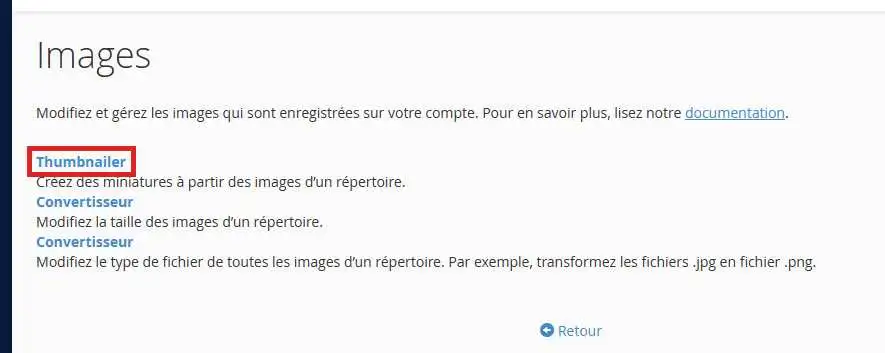
This allows you to modify and manage the images stored on the account. This feature includes the following tools:
A tool for creating thumbnails from images in a directory and allowing you to store them in a subdirectory.
Use this tool to resize individual images.
You can change the file type you want.
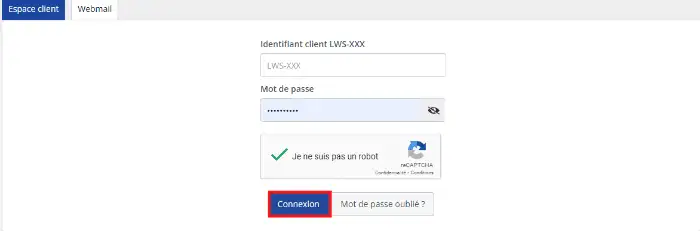
To access your shared hosting, log in to your client area. Then enter your login information, the LWS identifier (which is in the form LWS-XXXX) and your password and click "login"
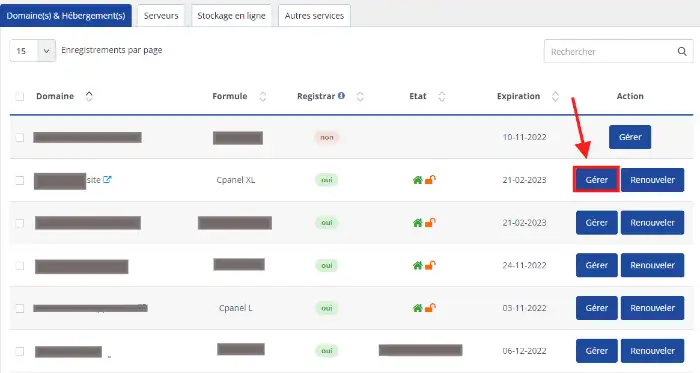
You will arrive on a page that lists all the hosting plans you have with LWS. Click "Manage" next to your plan
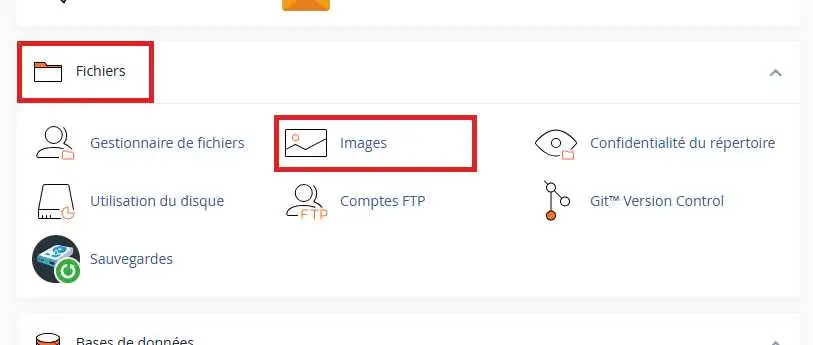
You are now in the central cPanel area. To access the cPanel image tool, go to the "Files" section and then click on "Images":
Here is your "images" interface:
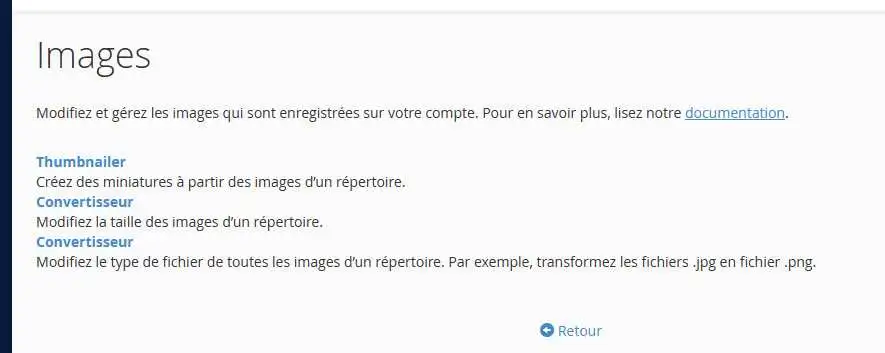
The "images" interface allows you to modify and manage the images you save on your account. This feature includes the following tools:
To modify an image in the "images" interface, you must first upload it via one of the file management interfaces on your cPanel :
Click "Thumbnailer" to create smaller versions of your images.
You are now on the interface for creating smaller versions of your images:
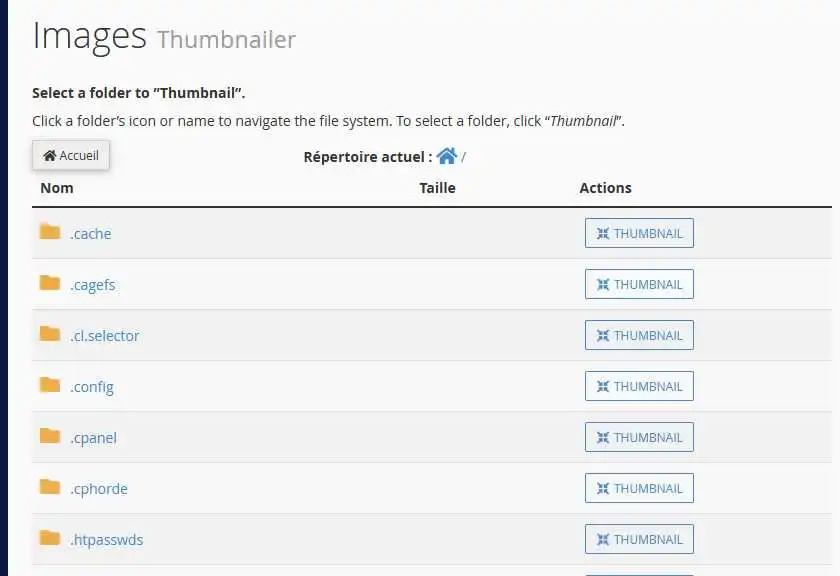
Locate the folder containing the images you want to convert.
You must select an entire folder to convert into thumbnails. The Thumbnailer tool cannot convert images individually.
Click on "Converter" in your interface:
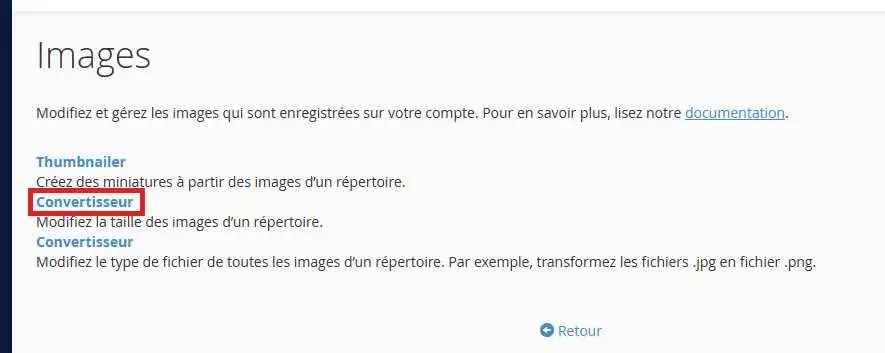
Then browse to your images folder and click "Scale" to resize an image.
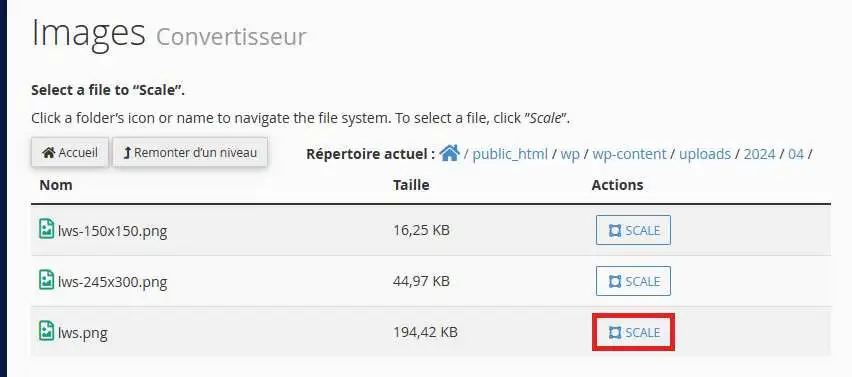
Now you can reduce or enlarge your images to the desired size.
Click on "Converter" in your interface:
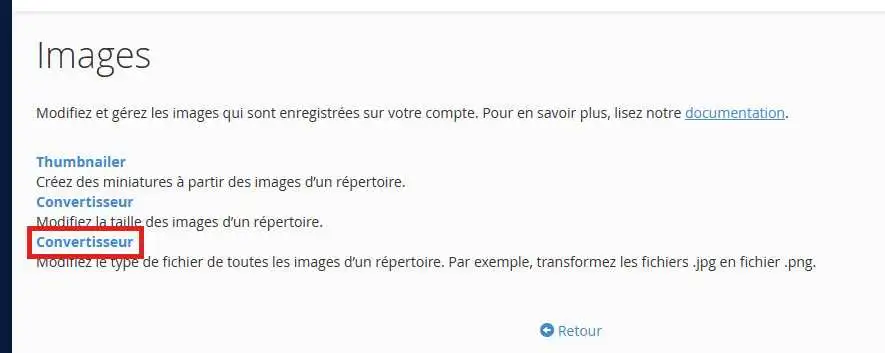
Then browse to the folder containing your images and click "Convert" to convert one supported file type to another.
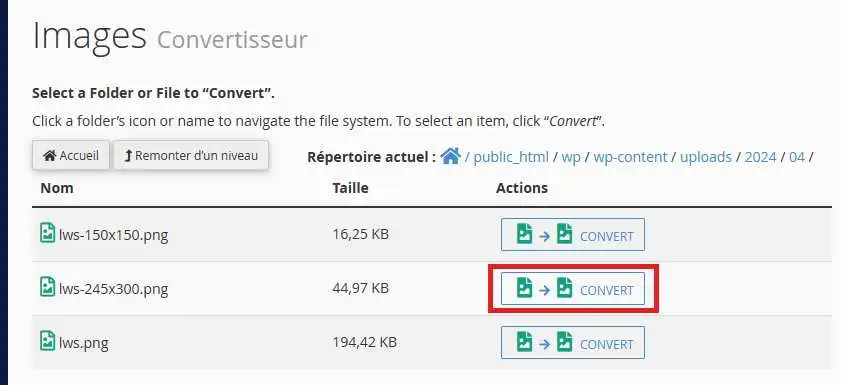
You can select the file format to which you want to convert your images. The file formats are as follows:
By clicking on "convert" you will see a success message appear. The system saves the new file in the same directory as the original file.
You are now able to use the image tool on your cPanel, create thumbnails, and change the file size and type.
Feel free to share your feedback and questions.
Ask the LWS team and the community. Answers are published after moderation.
 About LWS :
LWS is a 100% French web hosting company that focuses on quality and innovation and offers a responsive and competent technical service at affordable prices.
About LWS :
LWS is a 100% French web hosting company that focuses on quality and innovation and offers a responsive and competent technical service at affordable prices.



 Yes
Yes No
No