
Online help
The web host accessible to all
Procédure
Service concerned : LWS Panel and cPanel hosting plan
Panel concerned : SiteBuilder Pro editor
Level : beginner
SEO helps search engines understand the content of your site. With SiteBuilder Pro, you can enter a title, a description, and a custom URL for each page.
This information does not guarantee a specific ranking in Google, but it helps present your site more clearly to search engines and visitors.
This help article concerns sites created with SiteBuilder Pro.
Are you using another tool?
Before changing your site's SEO, make sure that:
After a change, you must publish your site for the changes to be visible online. Search engines may then take several days or weeks to display the new information in their results.
In SiteBuilder Pro, SEO settings let you enter several important pieces of information.
The page title is the text that may appear in the browser tab and in search engine results. It should be short, clear, and accurately describe the page.
The description summarizes the page content. It may be displayed in search results. It should make people want to visit the page without being too long.
The custom URL makes it possible to have a more readable address for the page. For example, a contact page can have a simple URL such as contact.
The keywords can be entered, but they now have little impact on Google. It is better to focus on the title, description, visible text on the page, and content structure.
Good SEO starts with useful, clear, and well-organized content. SEO settings complement this work, but they do not replace the content of your site.
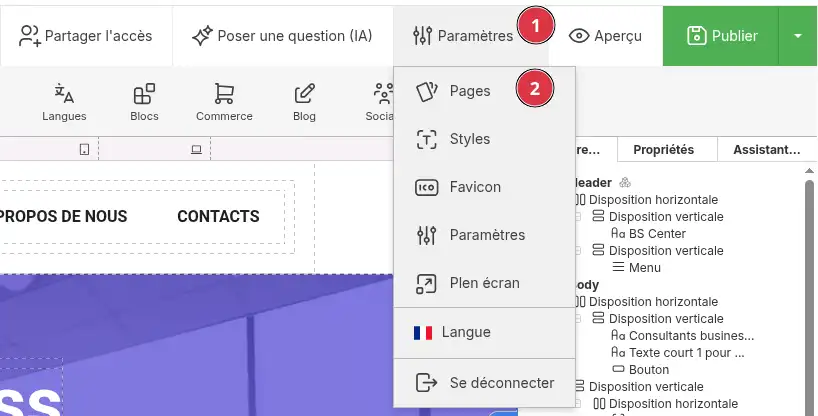
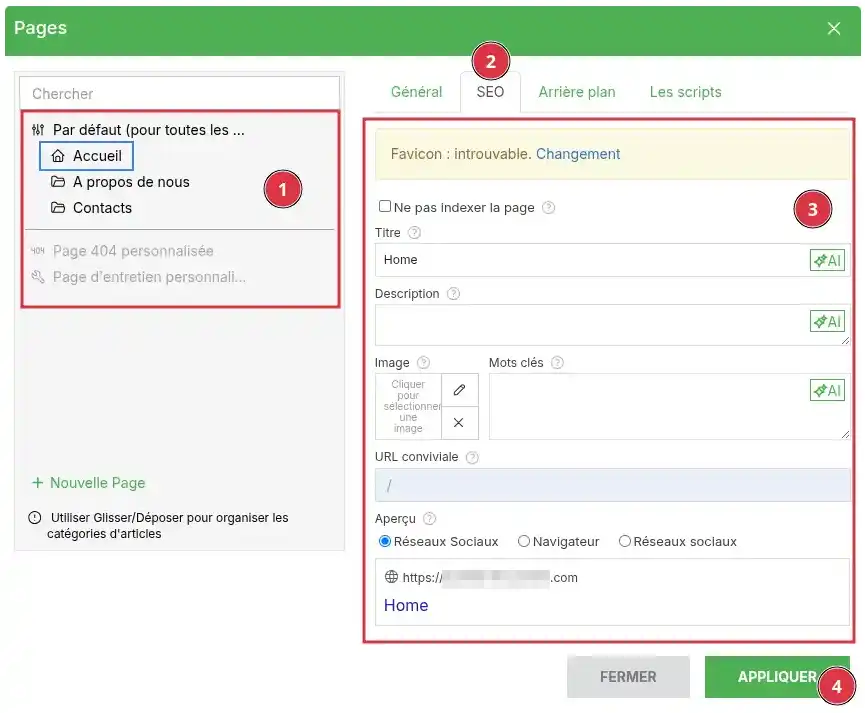
Enter the page title.
Example:
Plumber in Lyon - Repairs and installation
Enter the page description.
Example:
Plumbing company in Lyon for repairs, sanitary installations, and bathroom renovations.
If necessary, customize the page URL.
Example:
depannage-plomberie-lyon
Avoid changing the URL of a page that has already been published if it is shared or already visible in Google. Old links to this page may no longer work.
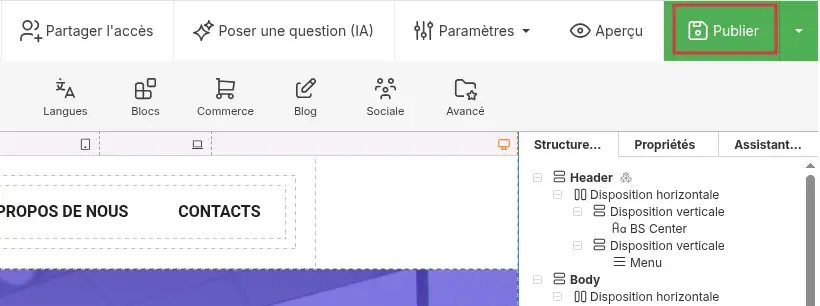
After publication, the SEO information is saved for the relevant page. You can open the published page in a new tab to check that the URL and tab title are correct.
SEO settings are not always enough. Search engines also analyze the visible content of your page.
To improve a page, you can:
For example, a page called “Services” will be more useful if it clearly explains the services offered, the cities covered, indicative prices, or contact methods.
Google Search Console lets you check whether Google is correctly detecting your site, submit a sitemap, and track the indexing of your pages.
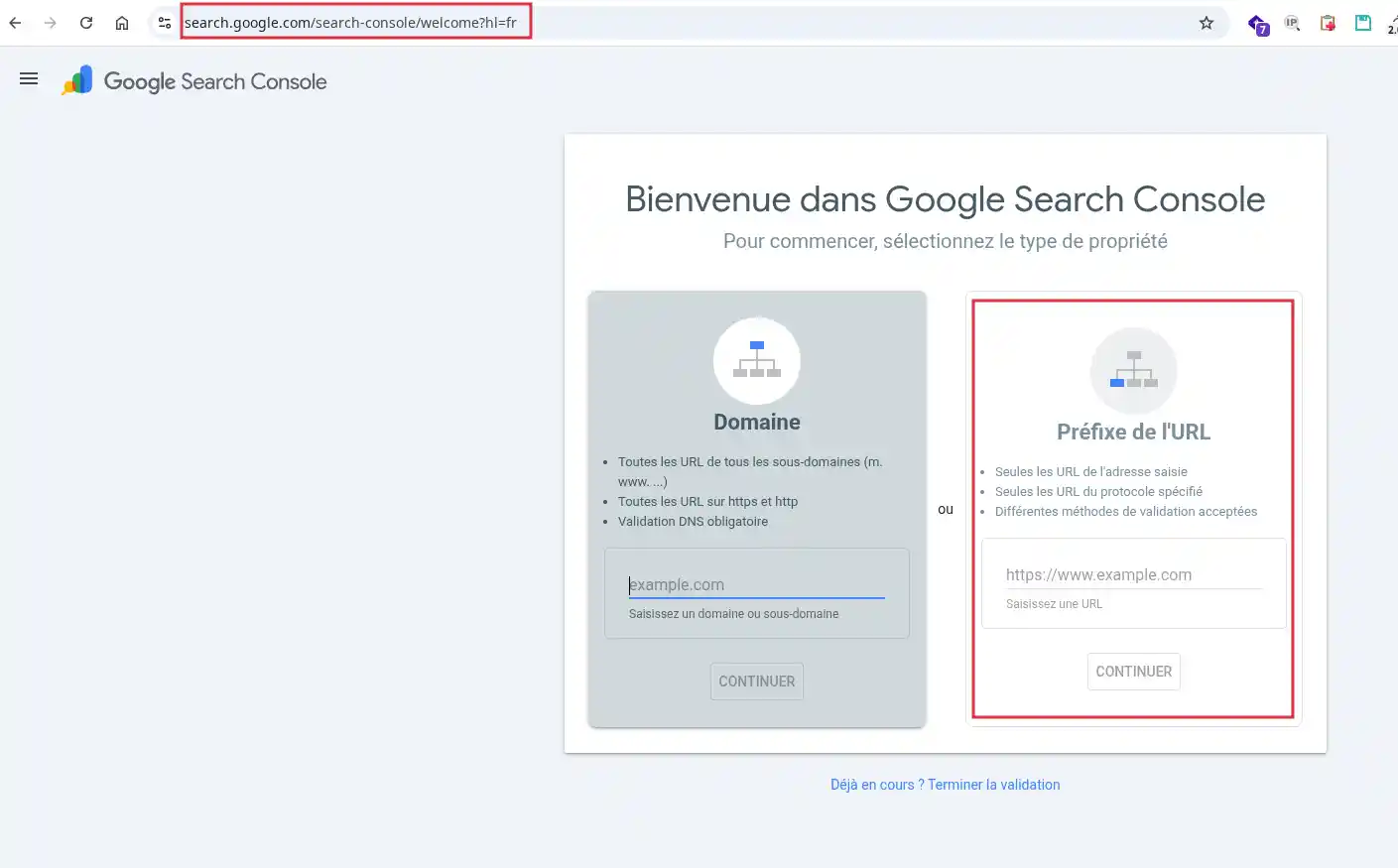
Enter your site's full address.
Example:
https://www.mondomaine.fr
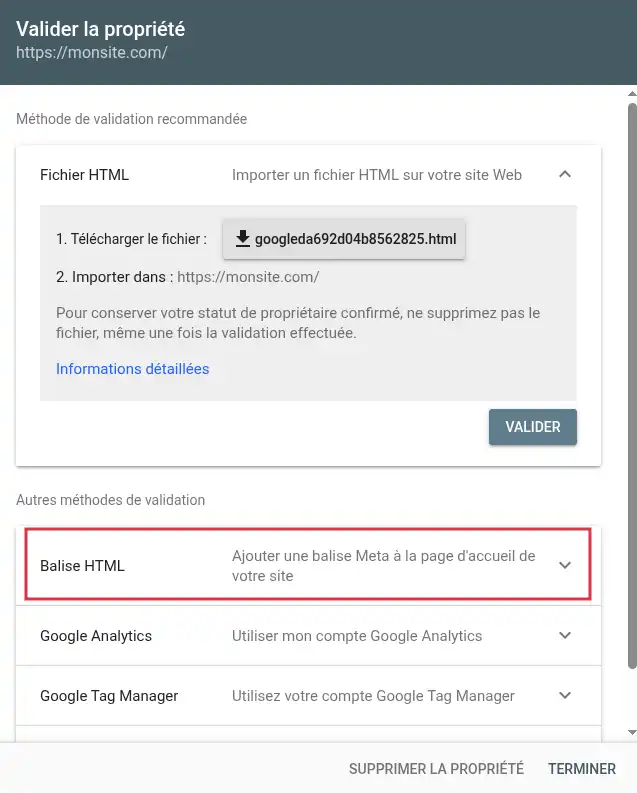
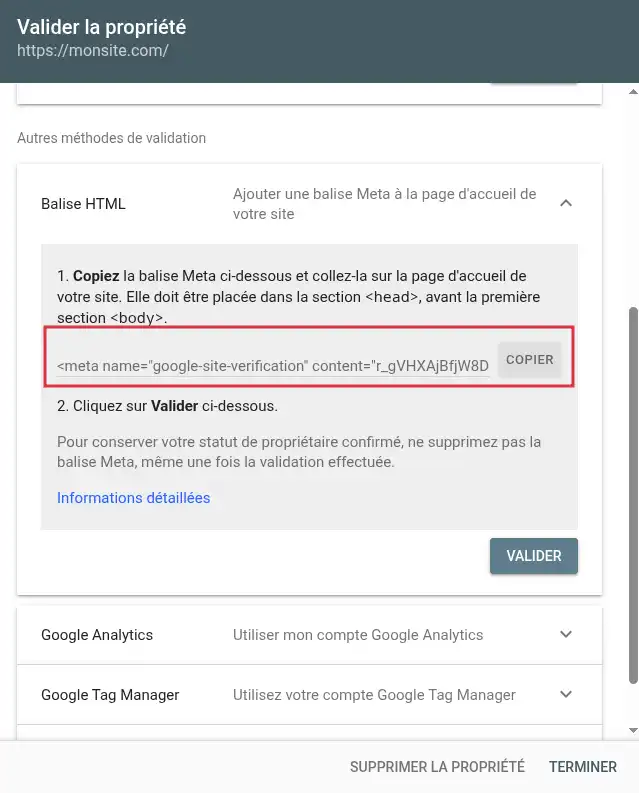
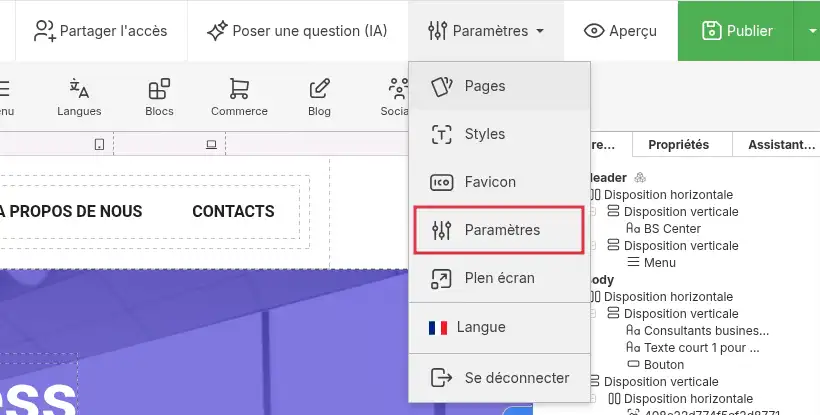
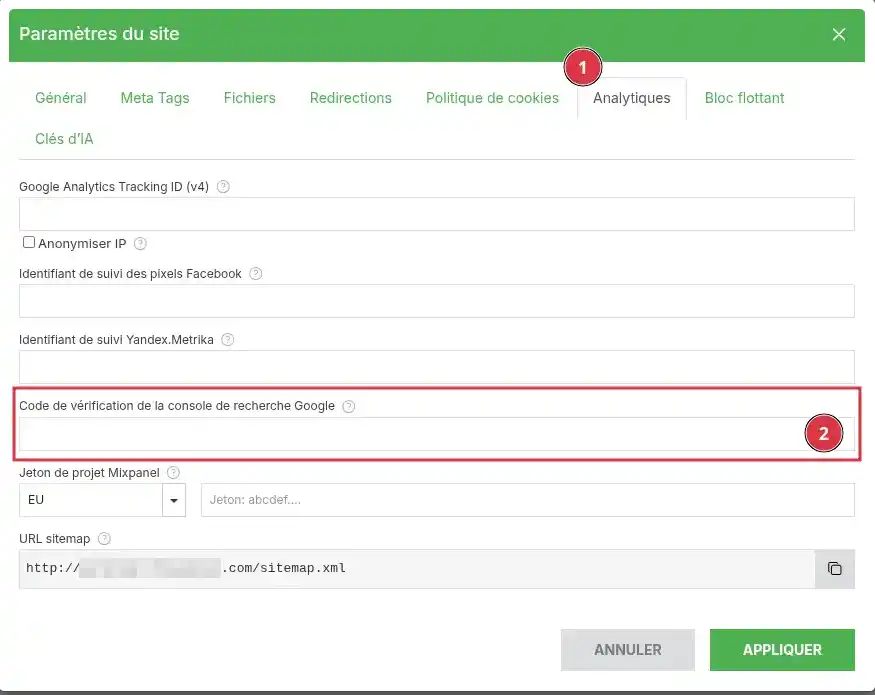
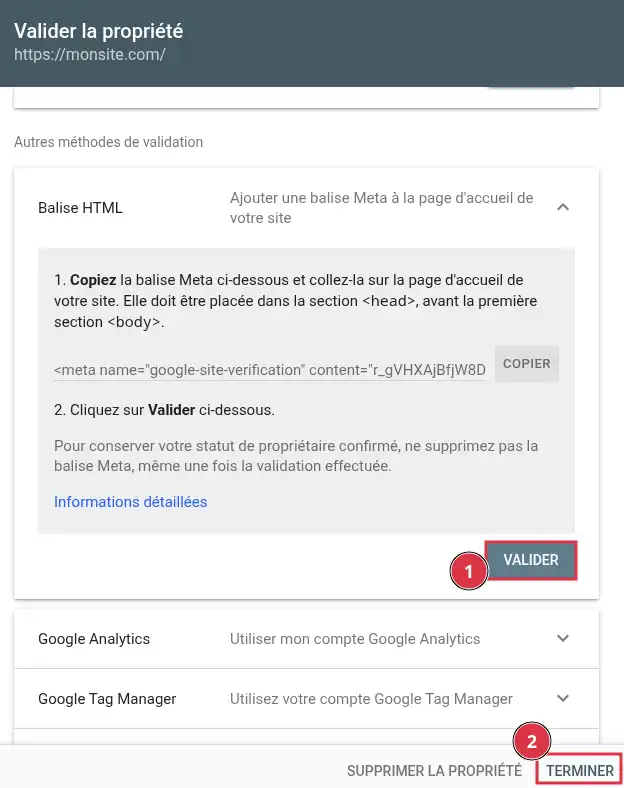
If validation succeeds, Google Search Console confirms that you are indeed the owner of the site. You can then track the indexing status of your pages from Google Search Console.
If you choose the domain validation method in Google Search Console, Google may ask you to add a TXT DNS record. In this case, validation is not done directly in SiteBuilder Pro, but in your domain's DNS zone.
Google Analytics lets you track visits to your site: number of visitors, pages viewed, traffic sources, and other statistics.
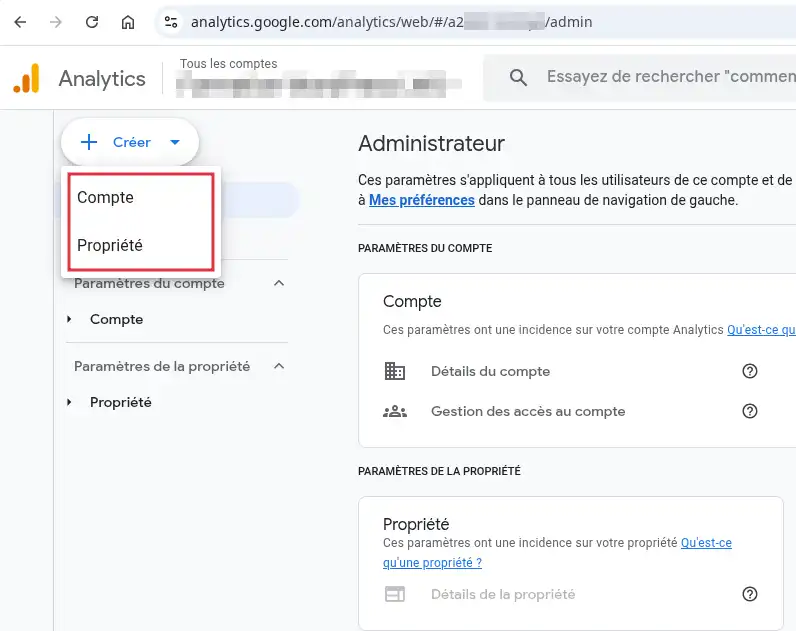
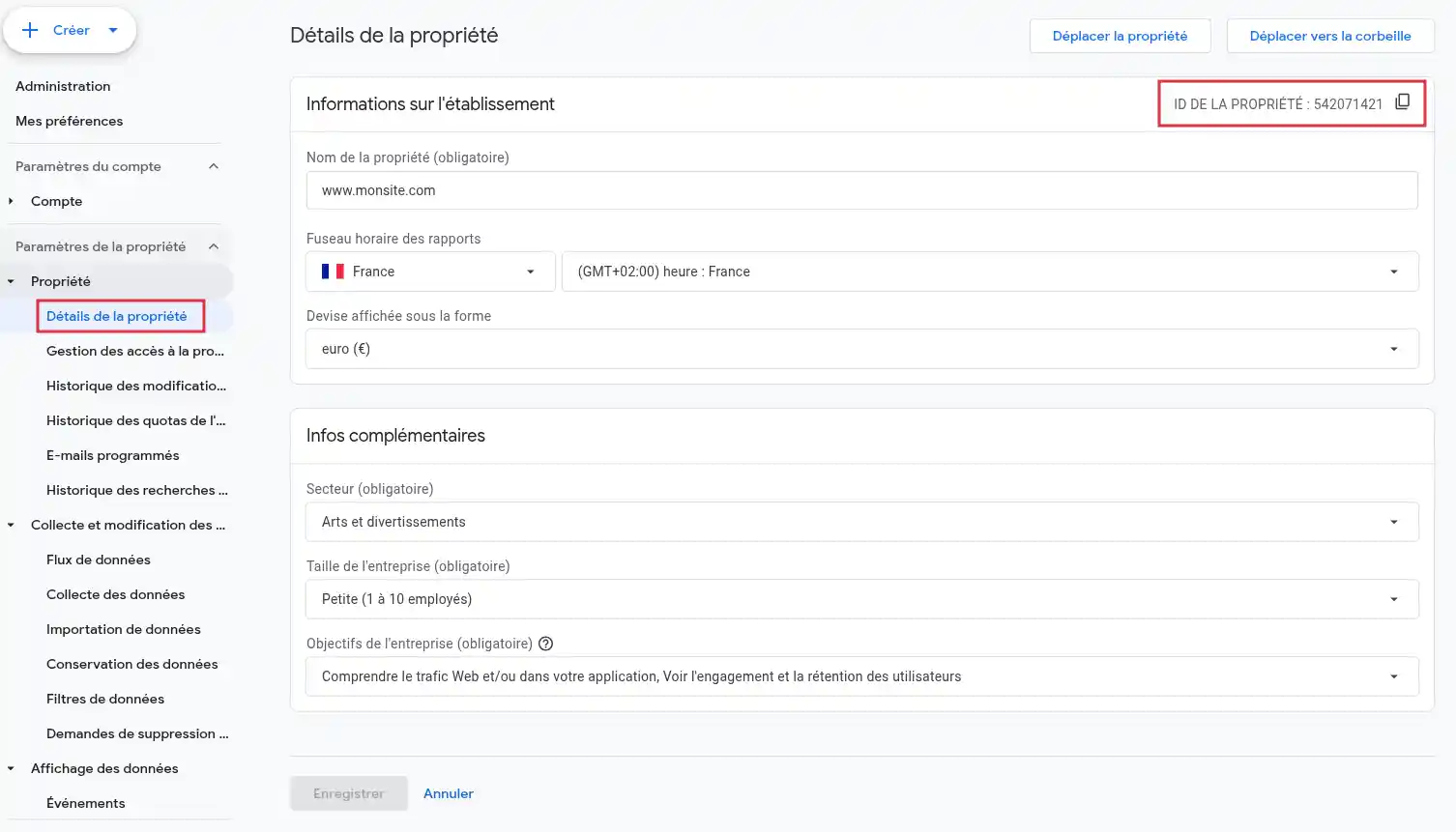
Retrieve the measurement ID from Google Analytics.
It usually looks like this:
G-XXXXXXXXXX
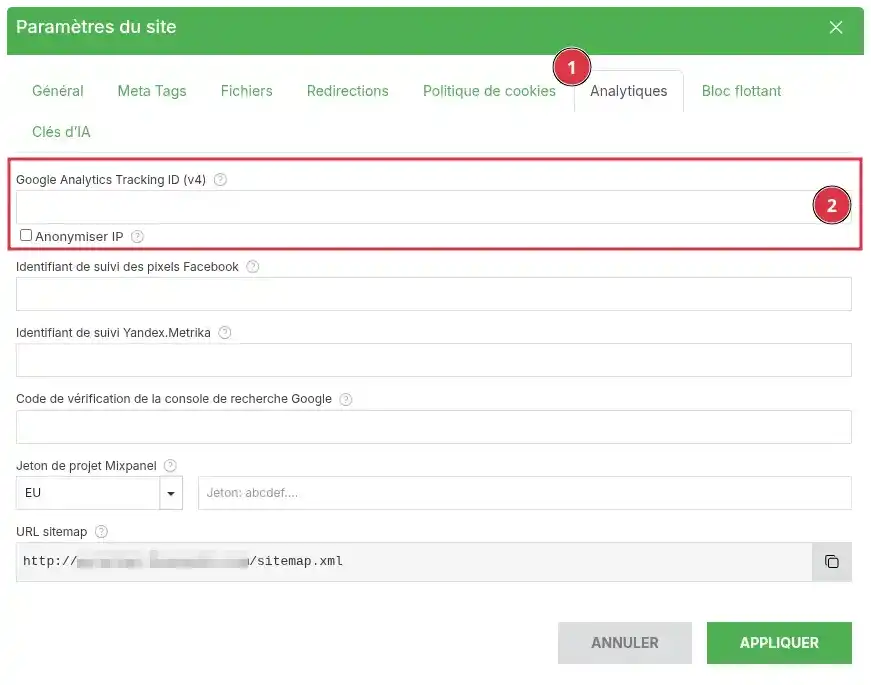
Google Analytics statistics do not always appear immediately. It may be necessary to wait for the first visits to the site before data appears.
A sitemap is a file that lists the pages of your site. It helps search engines discover the pages to crawl more easily.
With SiteBuilder Pro, the sitemap is generated automatically after the site is published.
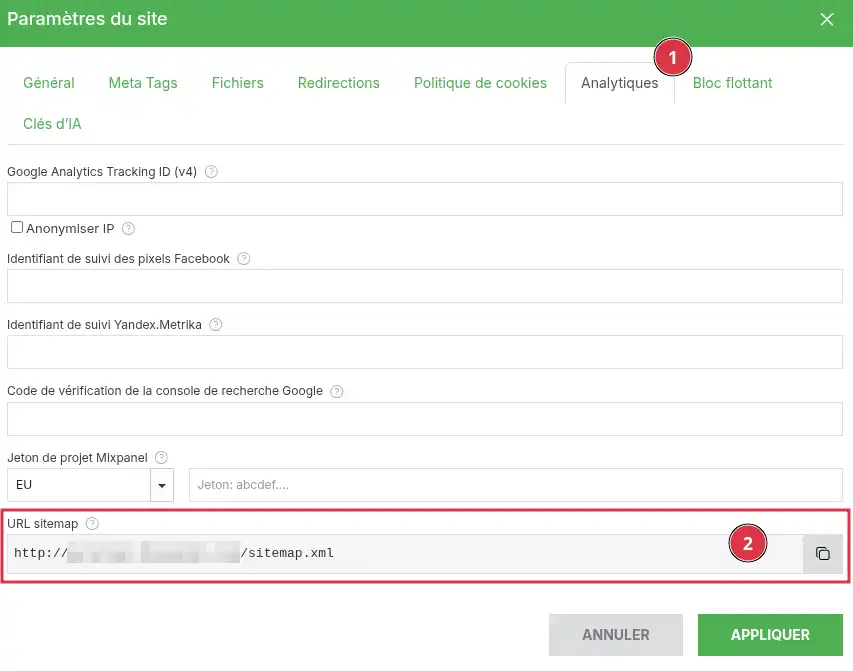
Copy the sitemap address.
It usually looks like this:
https://www.mondomaine.fr/sitemap.xml
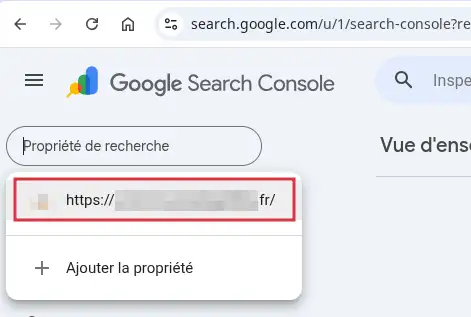
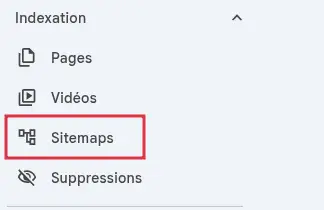
sitemap.xml if Google already displays the domain name before the field.
Google Search Console shows the sitemap as submitted. Processing may take some time. Once analyzed, Google indicates whether the sitemap was read correctly.
If Google Search Console cannot read sitemap.xml, you can try the alternative address sitemap-alt.xml if it is available for your site.
The robots.txt file gives instructions to search engine robots. It can allow or restrict the crawling of certain parts of the site.
A bad configuration of the robots.txt file can prevent search engines from crawling all or part of your site. Do not block the entire site if your goal is to be visible in Google.
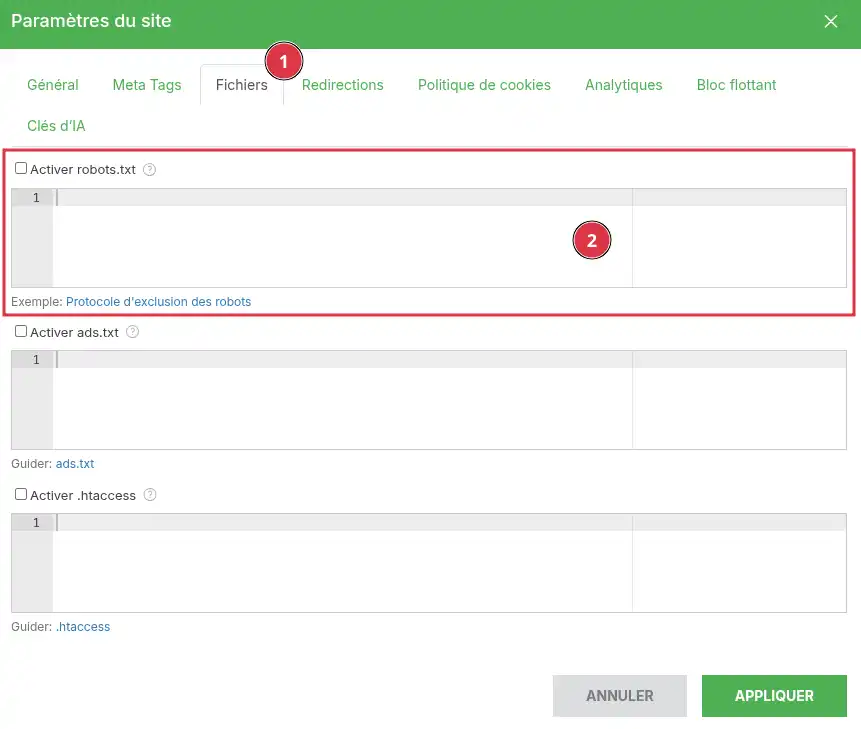
Add the desired rules in the field provided.
Simple example to allow site crawling:
User-agent: *
Allow: /
Example to indicate the sitemap location:
User-agent: *
Allow: /

Sitemap: https://www.mondomaine.fr/sitemap.xmlDo not use a rule like Disallow: / if you want your site to be visible in search engines. This rule tells robots not to crawl the site.
After publishing your site, open the modified page in your browser.
Check that:
You can also check the SEO-related elements:
https://www.mondomaine.fr/sitemap.xml ;https://www.mondomaine.fr/robots.txt.SEO changes are not always immediately visible in Google results. The site must be recrawled by search engines before the new titles or descriptions are displayed.
I don't see my changes on my site
First check that you published the site after making your changes. If the displayed page still seems old, clear your browser cache or open the page in a private browsing window.
I can't find the SEO tab
Depending on the editor version, the settings may be grouped under Settings, Pages, then SEO. First select the page to edit, then look for the settings related to the title, description, or URL.
My title or description does not change in Google
This is normal if the change was just made. Google must revisit the page before updating its results. It may also choose to display a different snippet if its system considers it a better match for the user's search.
Google Search Console does not validate my site
Check that the validation code has been pasted into the field provided in SiteBuilder Pro. Then check that the site was published after the code was added.
If you chose DNS validation, make sure the TXT record has been added to the domain's DNS zone. It may take some time for DNS propagation to take effect.
Google Analytics shows no visits
Check that the measurement ID starts with G- and that it was copied without any extra spaces. Then publish the site and wait for the first visits. Data is not always visible immediately.
The sitemap is rejected in Google Search Console
Check that the site is published, then open the sitemap address in your browser. If sitemap.xml does not work, try sitemap-alt.xml.
My site no longer appears in Google after modifying robots.txt
Check the contents of the robots.txt file. If you see a rule like this, it may block crawling of the site:
User-agent: *
Disallow: /
Remove this rule or replace it with an appropriate configuration, then publish the site again.
Ask the LWS team and the community. Answers are published after moderation.
 About LWS :
LWS is a 100% French web hosting company that focuses on quality and innovation and offers a responsive and competent technical service at affordable prices.
About LWS :
LWS is a 100% French web hosting company that focuses on quality and innovation and offers a responsive and competent technical service at affordable prices.



 Yes
Yes No
No