
Online help
The web host accessible to all
Procédure
The PageSpeed module available on the cPanel interface makes it easy to manage and configure mod_pagespeed on your websites. These rules enable you to improve the loading speed of your site by forcing certain practices almost immediately.
Google's Pagespeed insight tool can be used to check the loading speed of your website on both mobile and desktop computers. You will be given a score between 0 and 100 after analysis with this tool. Thanks to the PageSpeed module, you can automate your site's performance and improve loading speed.
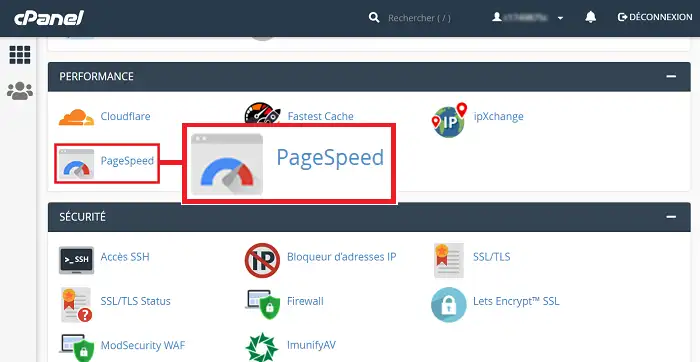
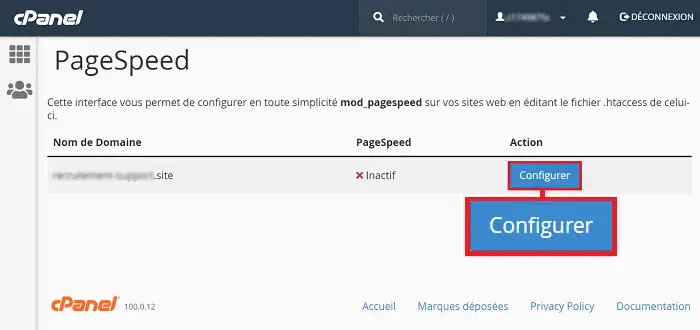
You can access the PageSpeed tool by going to your cPanel interface and clicking on the"PageSpeed" button in the"Performance" section.
The new page will allow you to see, for each domain, whether any customisation has been carried out, and also whether the PageSpeed tool is active or not.
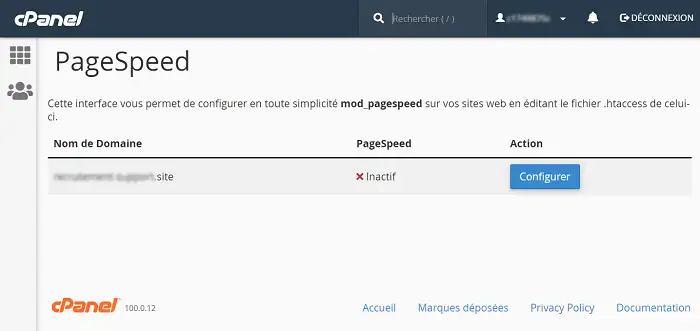
Please note that the PageSpeed module makes changes to your website. For this reason, your site must be compatible with the various active options.
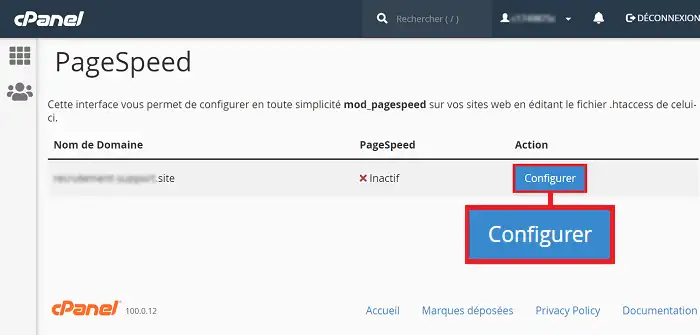
Once you have clicked on"Configure" behind the domain concerned, you will be taken to a new page listing all the filters available on the module.
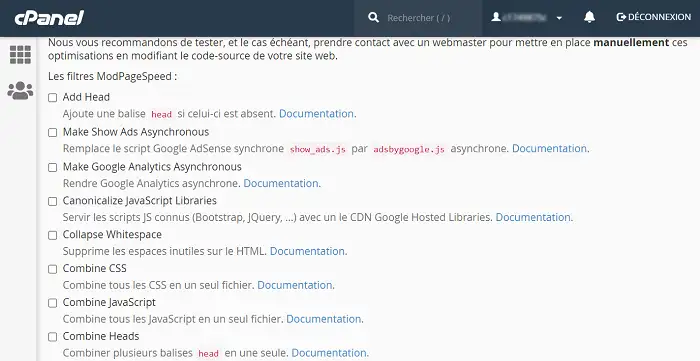
Activate the desired filters one by one and click on the"Save changes" button at the bottom of the page to save your request.
It is advisable to check the operation of your site after each filter activation. Some filters may be incompatible with your site, which could cause it to malfunction. Changes to the PageSpeed module are taken into account instantly.
For example, the PageSpeed module can be used to combine all JS or CSS files into a single file, to minimize JavaScript code (remove empty lines) or to defer JavaScript execution.
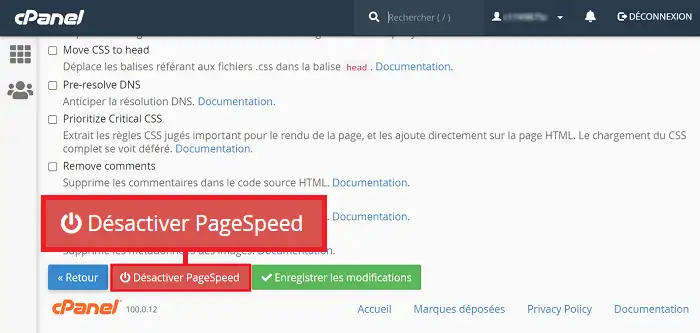
You can deactivate PageSpeed by going to the PageSpeed module and clicking on'Configure' behind the domain for which you want to deactivate it.
At the bottom of the page, click on the"Deactivate PageSpeed" button.
Ask the LWS team and the community. Answers are published after moderation.
 About LWS :
LWS is a 100% French web hosting company that focuses on quality and innovation and offers a responsive and competent technical service at affordable prices.
About LWS :
LWS is a 100% French web hosting company that focuses on quality and innovation and offers a responsive and competent technical service at affordable prices.



 Yes
Yes No
No