Procédure
Why should I reset my Wordpress password on cPanel?
If you've forgotten your password, you need to reset it. This tutorial suggests three methods for resetting your WordPress password:
- Resetting the password by email
- Resetting the password via the database(PhpMyAdmin)
- Resetting your WordPress password via FTP
How do I reset my WordPress password by email?
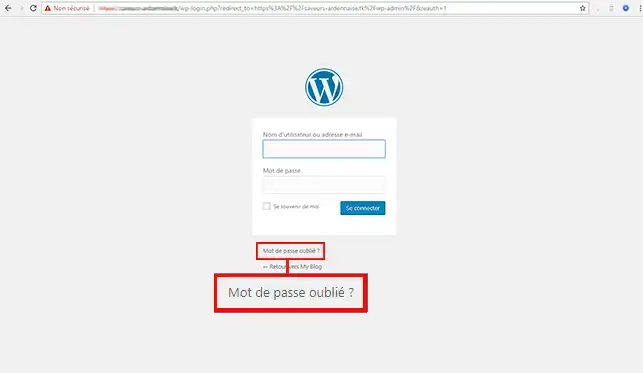
11. Log in to your WordPress dashboard and click on the"Forgot password" button.
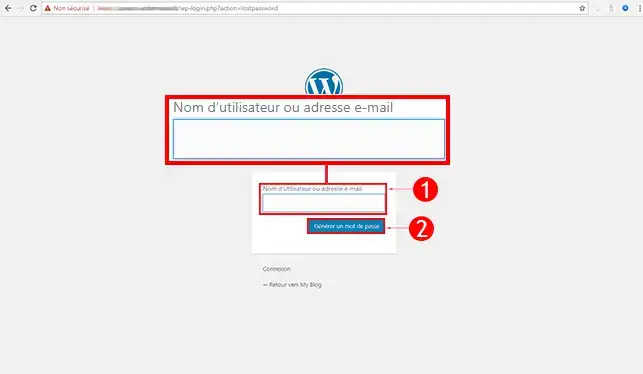
22. Enter your WordPress username or your email address then click on the"Generate password" button.
33. Within a few minutes, your new password will be sent to the email address associated with your WordPress user. If you haven't received it, check your spam folder.
How do I reset my WordPress password using PphpMyAdmin?
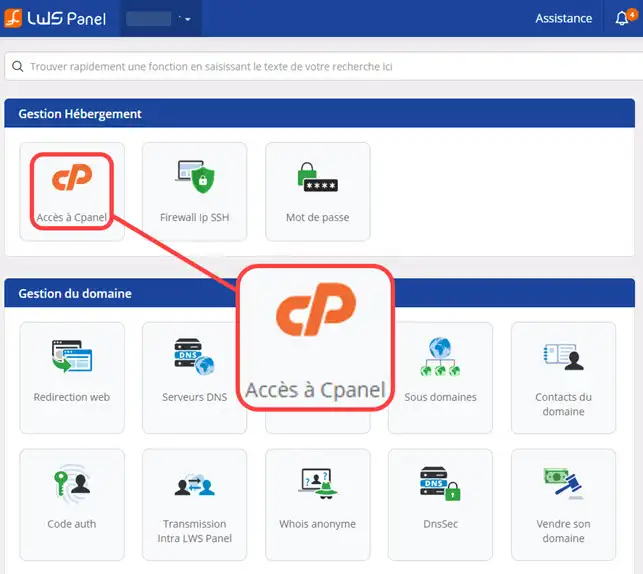
11. Log in to your client interface and click on the"Access cPanel" button.
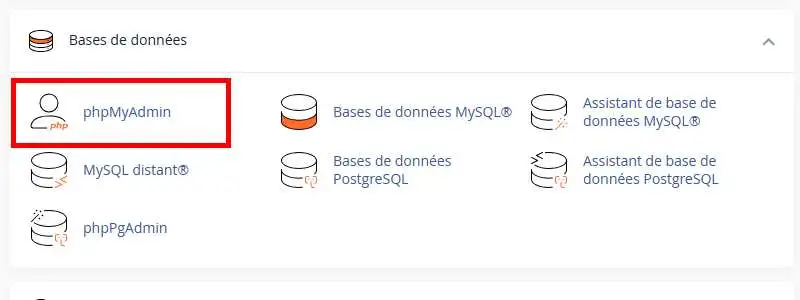
22. Go to the"Databases" section and click on the"PhpMyAdmin" button.
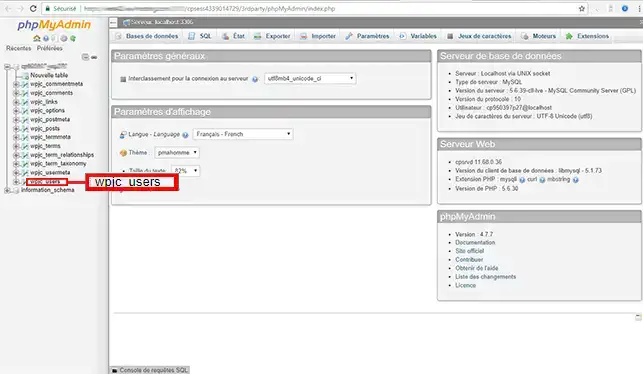
33. Click on the table ending in"_users" to access all the connection identifiers.
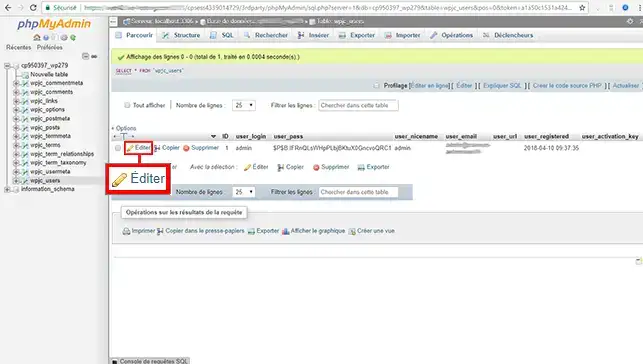
44. Click on the "Edit" tab in front of the login you wish to modify.
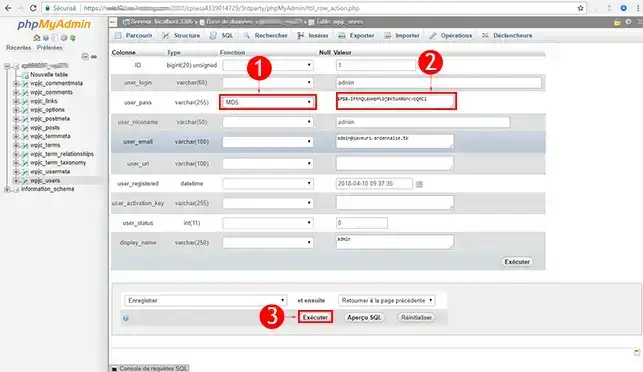
55. Go to the"user_pass" line, select"MD5" (MD5 is a password hashing method), then enter your new password and click on the"Execute" button to save your new settings.
How do you reset your password using FTP?
11. Log in to your cPanel management interface.
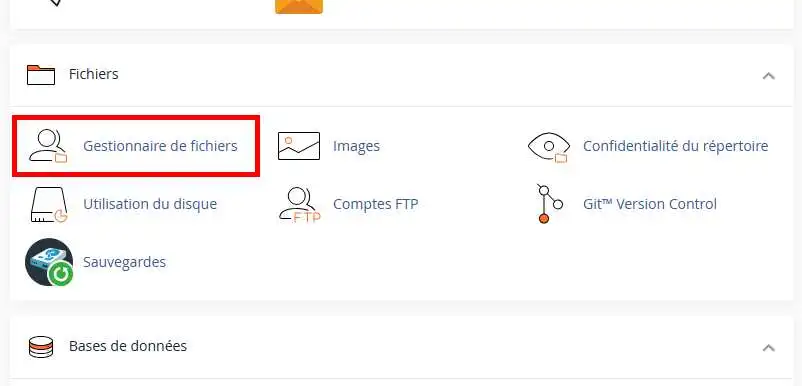
22. Click on the"File Manager" button in the"Files" section to access FTP.
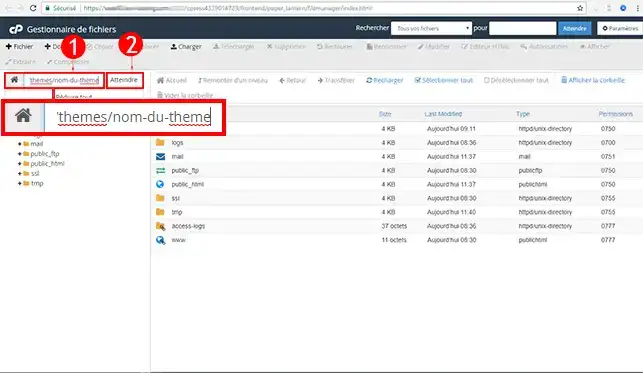
33. Enter the path to your current theme in the field provided(example: /wp-content/themes/theme-name). Click the"Enter" key to access it.
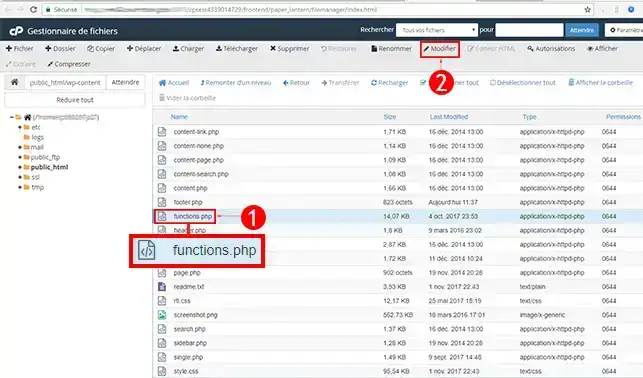
44. Click on the"functions.php" file and then on"Modify" to access the coding for this file.
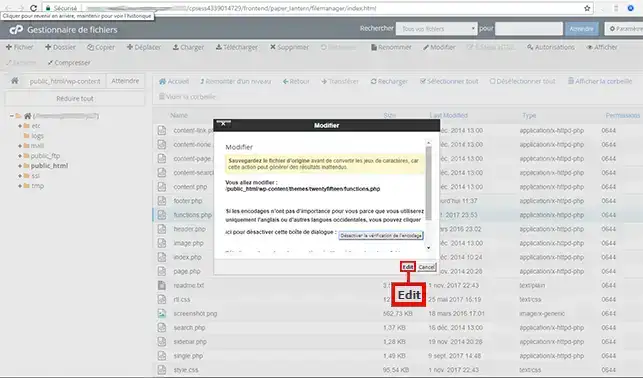
55. A pop-up window will open. Click on"Edit" to access the coding.
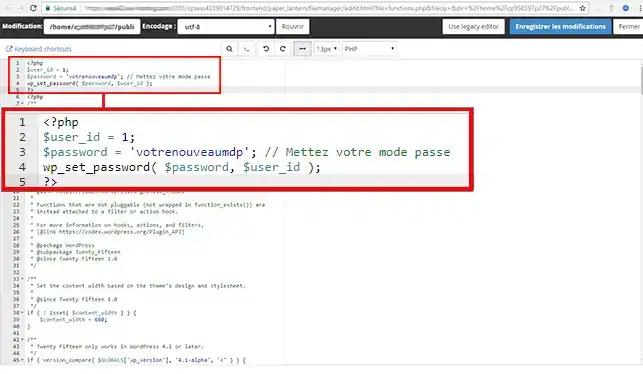
66. Place the following lines of code at the beginning of your file. Before making any changes, it's best to make a backup.
<?php $user_id = 1; $password = 'votrenouveaumdp'; // Set your password wp_set_password( $password, $user_id ); ?>
Once you have changed the password, make sure you have removed the code to prevent your site from being hacked.
Conclusion
You can now reset your WordPress website password in several ways with LWS.
Don't hesitate to share your comments and questions!



 Yes
Yes No
No About
About 