Procédure
How do I change my password via your LWS customer area?
11. Log in to the administration of your Web formula.
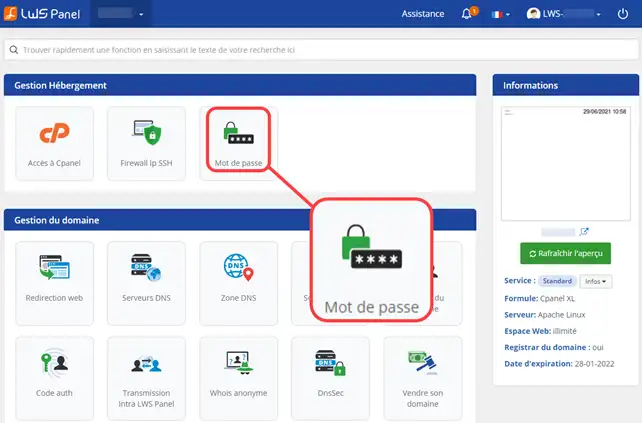
22. Click on the " Password " button in the " Hosting Management " section.
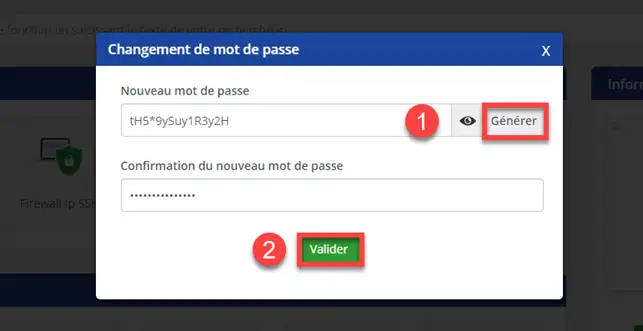
33. Change the password for your cPanel interface by clicking on " Generate " (1) and click on " Validate " (2).
How do I change my password in cPanel?
It is often advisable to change your password regularly. It is advisable to use a different password for each system that you manage through different suppliers. It is not advisable to give out your login and password unless you are certain of the person's identity.
To generate a complex password, you can use the password generator on your cPanel interface. You can use the generator to choose the complexity of your password.
cPanel has certain constraints regarding passwords:
- The password must be sufficiently secure to be accepted by the system. It must contain at least 8 to 10 characters and be made up of upper case, lower case and numbers.
- Your password must not contain your cPanel ID.
To prevent your cPanel web hosting account from being hacked, we advise you not to use your date of birth, telephone number or any other information that can easily be found.
Please note that if you change your password directly on your cPanel space, the automatic connection to this interface via your LWS customer space will no longer work.
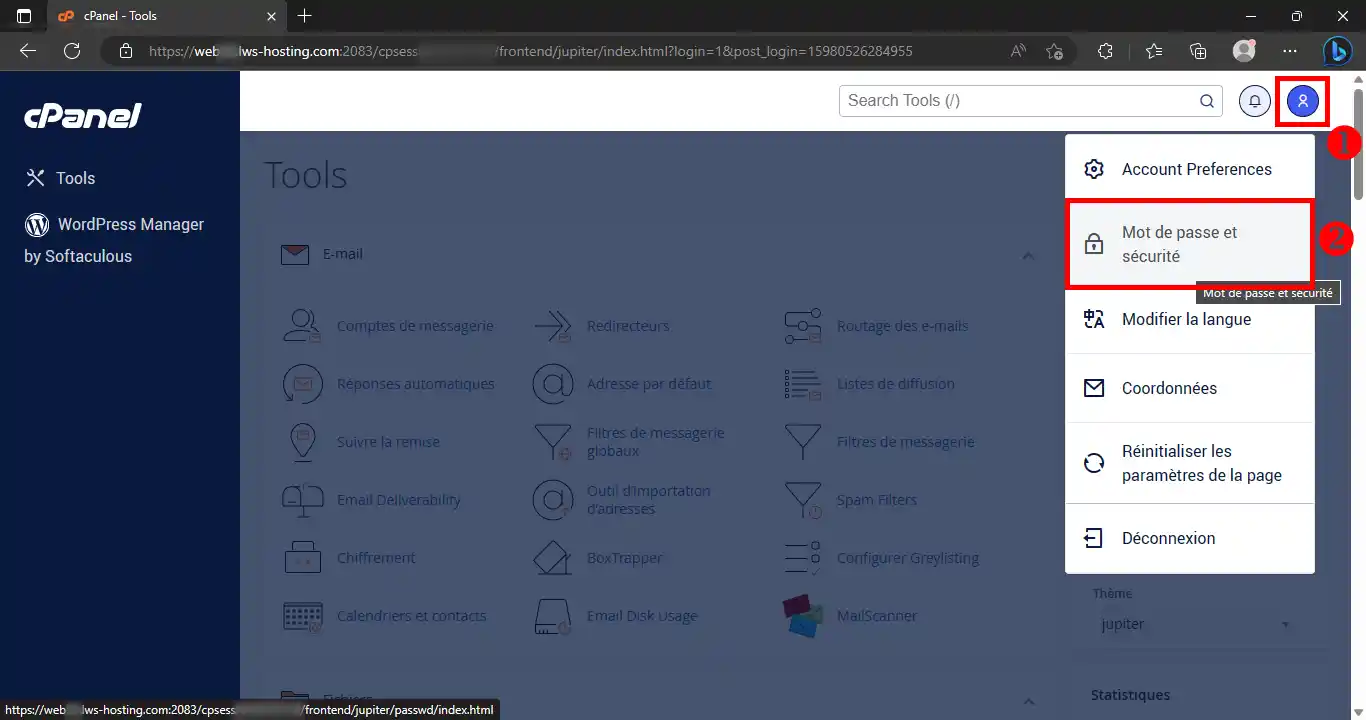
11. Log in to your cPanel account and open the drop-down menu at the top right of your home page.
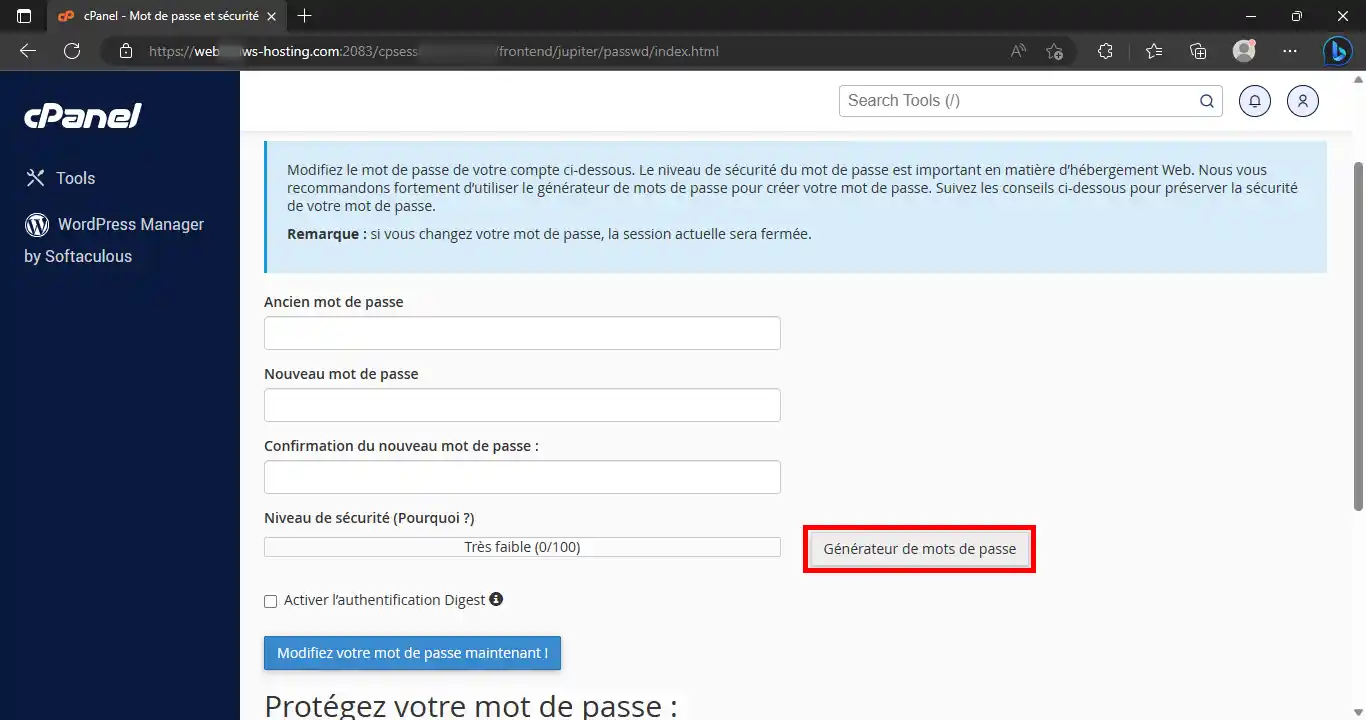
Click on the " Password and Security " menu.
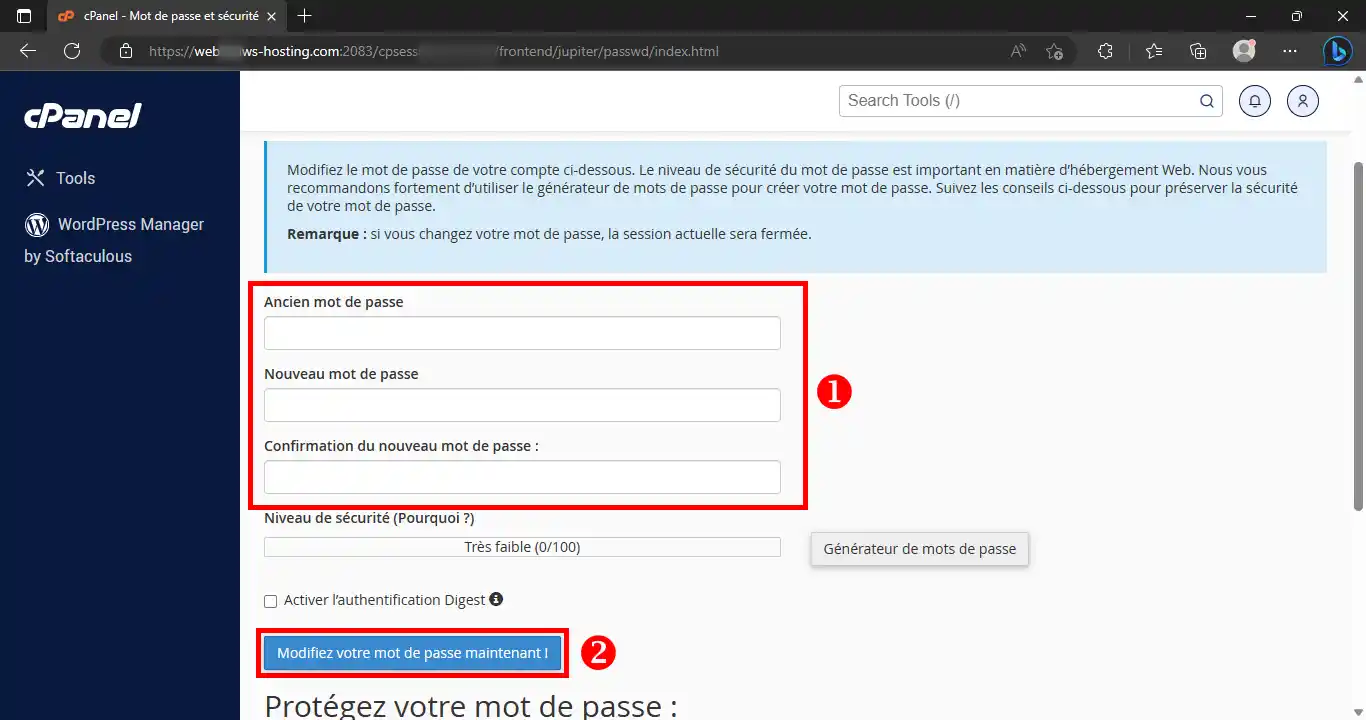
22. Enter the password you are currently using, then the new one.
For greater security, your password must contain more than 8 characters, including letters, numbers, capitals and symbols.
To confirm, click on the " Change your password now " button.
cPanel video tutorial: How do I change my password in cPanel?
Need help using cPanel?
See all our cPanel training videos
Using the password generator
The password generator allows you to have a complex password
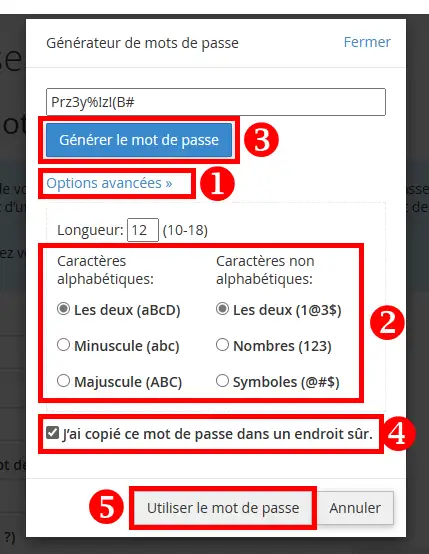
11. As soon as you are on the page allowing you to change your password, click on the " Password Generator " button.
22. First, you can choose the complexity of the password by clicking on the " Advanced options " link. Copy the password into a safe place and then tick the " I have copied this password into a safe place " box before clicking on the " Use password " button.
Active sessions
Resetting your cPanel access password means deleting active sessions: all active connections will be disconnected immediately after the password is changed.



 Yes
Yes No
No About
About 