
Online help
The web host accessible to all
Procédure
CapRover makes it possible to install dozens of ready-to-use services directly from its built-in one-click app catalog. CapRover is an open-source Docker application and container manager that simplifies web hosting and deployment on your VPS server. Follow this guide to deploy the Uptime Kuma monitoring application and secure access to it with an SSL certificate.
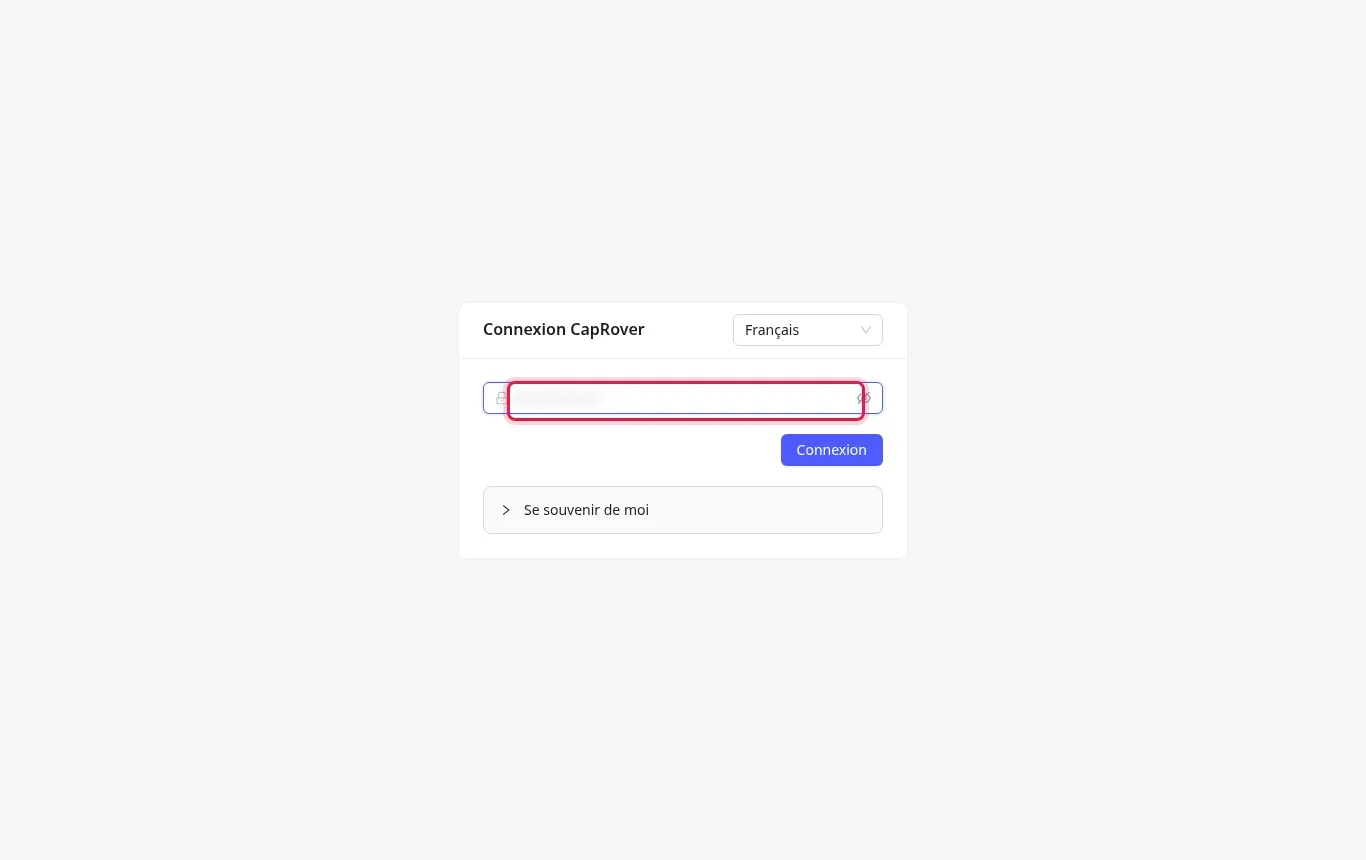
Open the administration interface of your CapRover instance in your web browser. Enter your administration password in the provided field, then click the Login button.
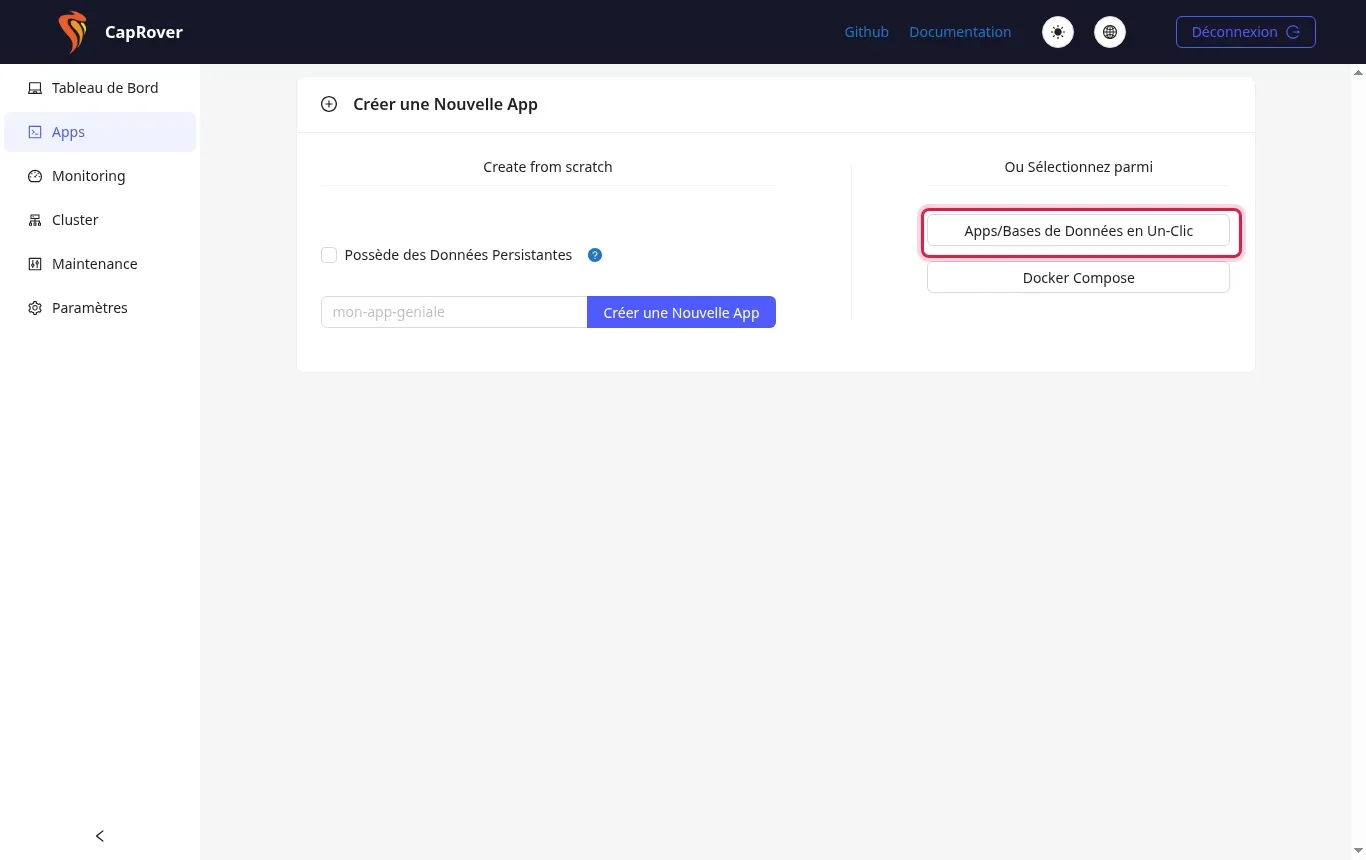
In the left-hand sidebar menu, click on the Apps section. On the page that appears, click the One-Click Apps/Databases button on the right.
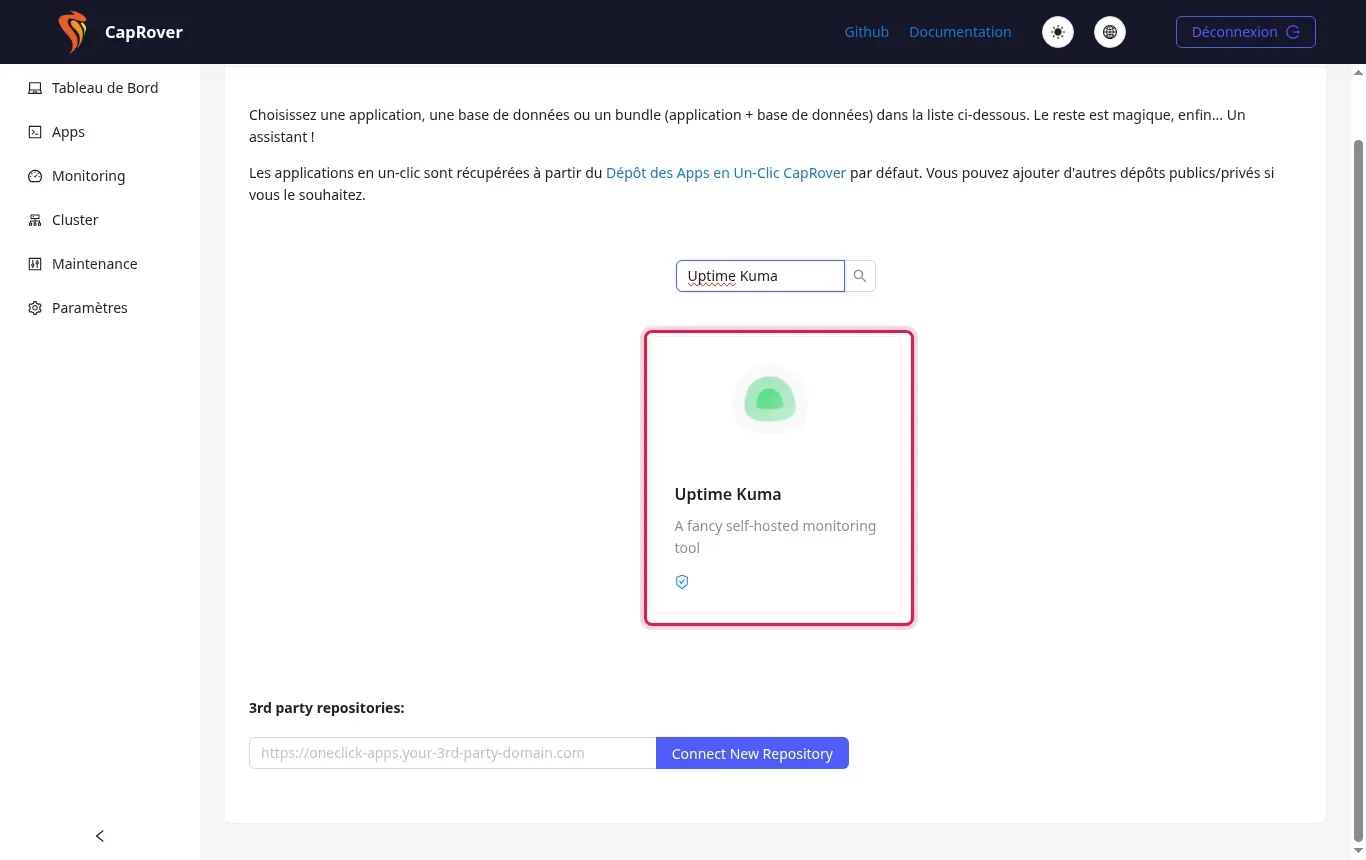
In the search field at the top of the list, type the name of the desired software, for example "Uptime Kuma". Then click on the corresponding app tile to open its installation form.
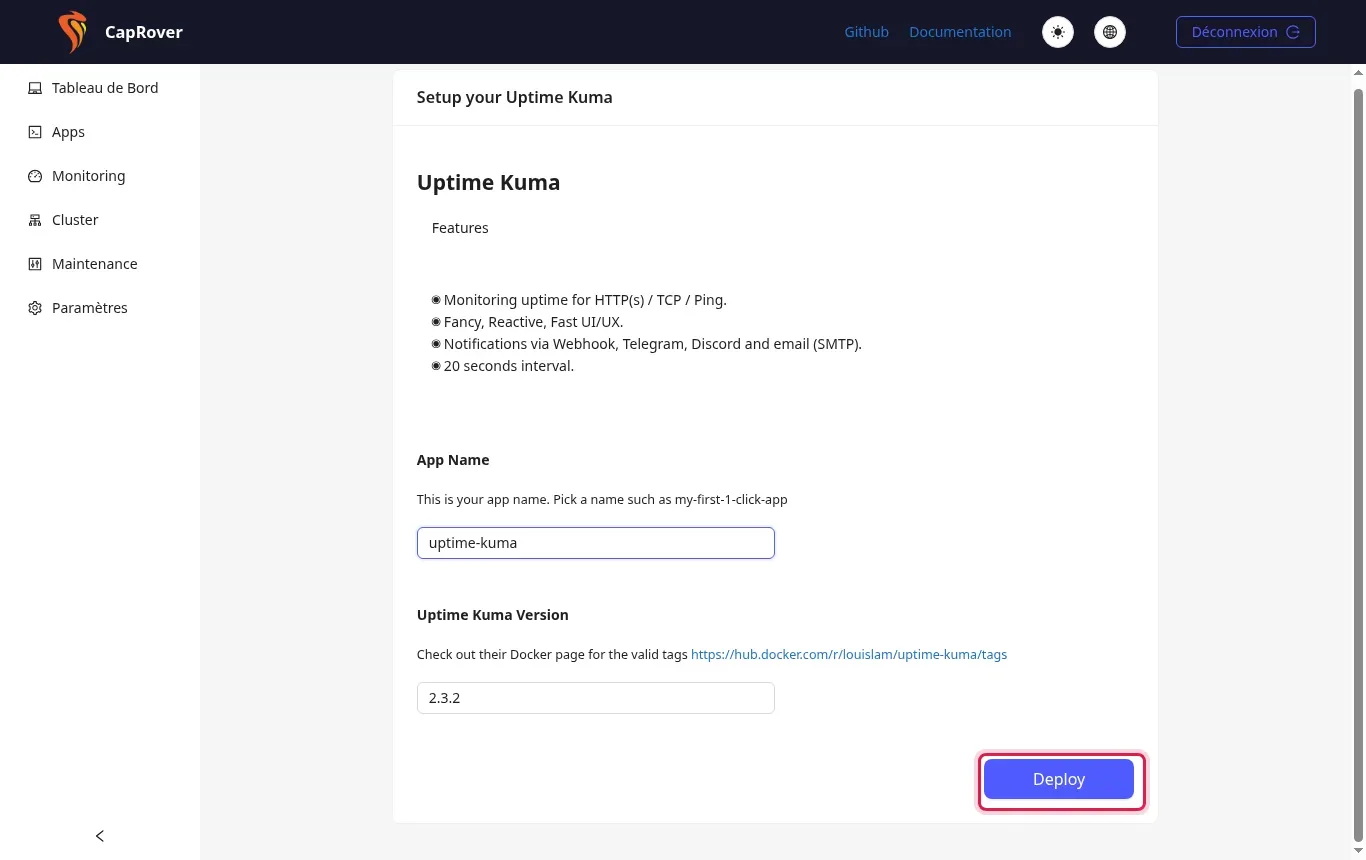
Enter the desired technical name in the App Name field, for example "uptime-kuma". Then click the blue Deploy button to start downloading and deploying the container.
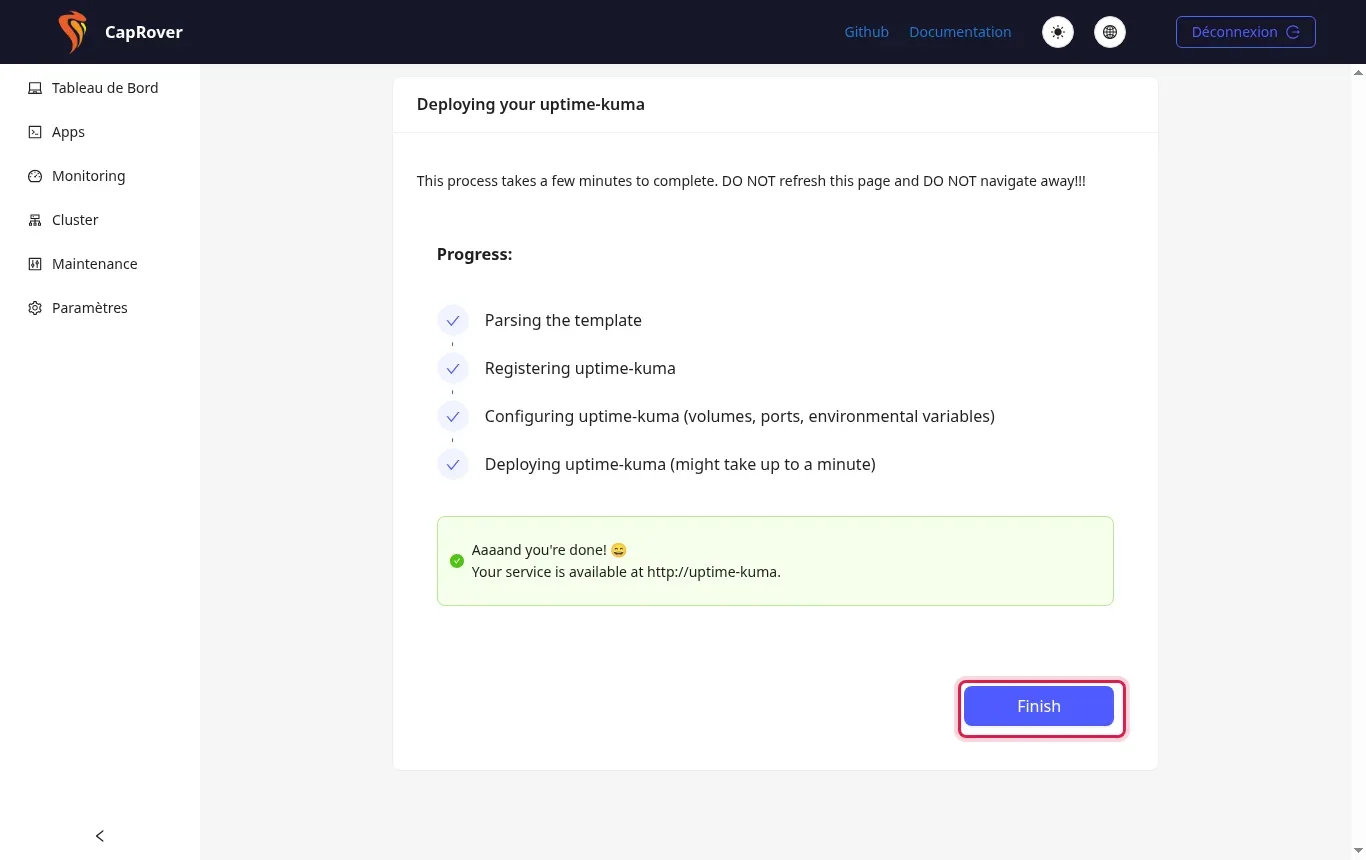
Wait during the installation process without refreshing the page or closing the tab. As soon as the success message "Aaaand you're done!" appears, click the Finish button.
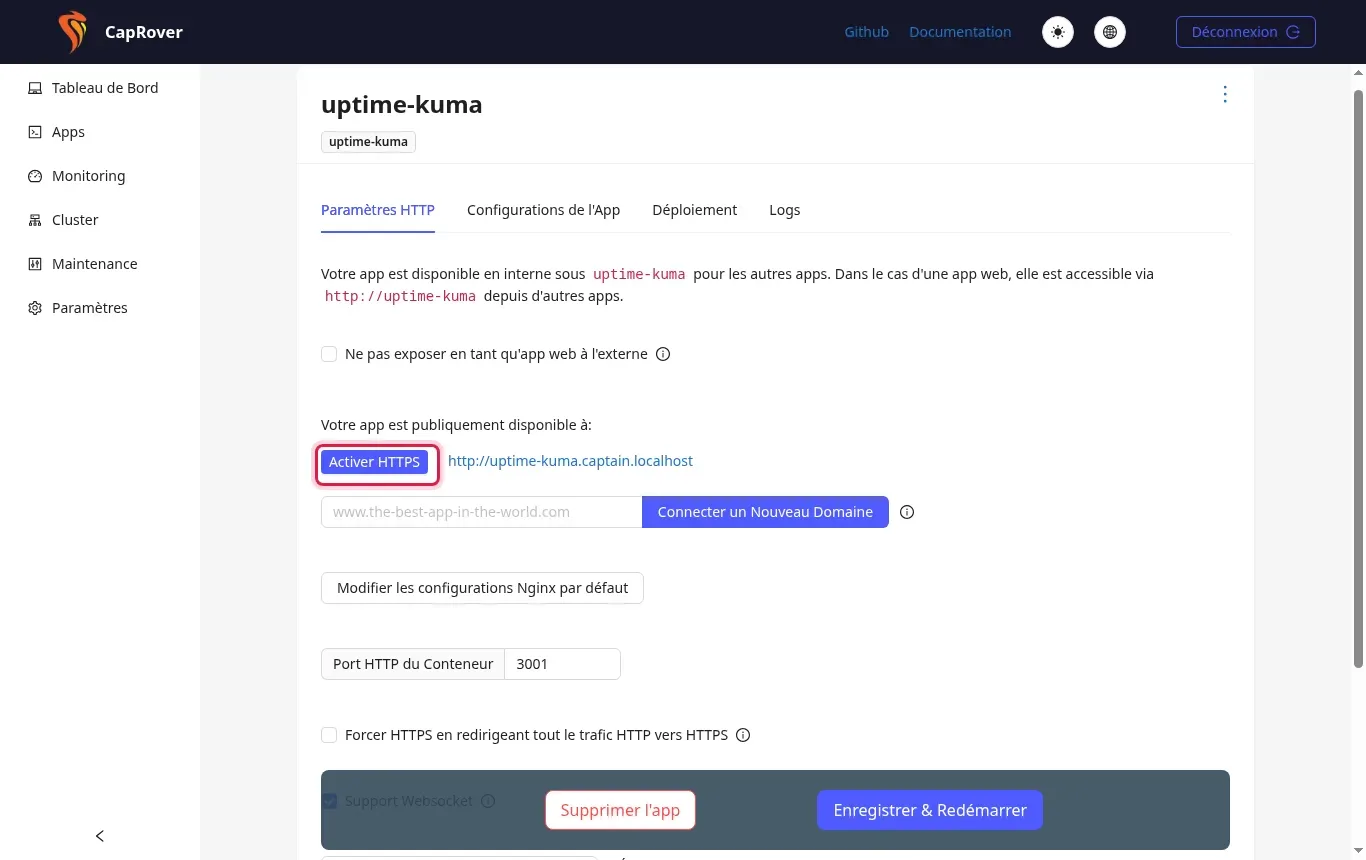
Go to the HTTP Settings tab on your application's page. Click the Enable HTTPS button to automatically generate the free Let's Encrypt SSL certificate.
The catalog contains 361 applications as of 10/18/2026. You can find the desired application using the search field on the One-Click Apps/Databases page.
No, all application templates available in CapRover's One-Click catalog are free and open source. Only your VPS server's hardware resources are used.
Open your service's page in the Apps tab, then click the red Delete App button at the bottom of the page.
Check that your wildcard DNS record (*.caprover.yourdomain.fr) is correctly pointing to your VPS server's IP address and that DNS propagation is complete.
The number depends on the resources (RAM and processor) of your VPS plan. Monitor overall consumption from CapRover's Monitoring menu.
Yes, in the application's HTTP Settings tab, you can enter a custom domain in the provided field and click Connect a New Domain.
Ask the LWS team and the community. Answers are published after moderation.
 About LWS :
LWS is a 100% French web hosting company that focuses on quality and innovation and offers a responsive and competent technical service at affordable prices.
About LWS :
LWS is a 100% French web hosting company that focuses on quality and innovation and offers a responsive and competent technical service at affordable prices.



 Yes
Yes No
No