
Online help
The web host accessible to all
Procédure
To secure and customize access to CapRover, you need to link your domain name via a wildcard DNS record and enable the HTTPS certificate. CapRover is an open source application deployment platform (PaaS) that simplifies Docker container management on your server. This guide walks you step by step from a simple connection by IP address to a secure interface with your own domain name.
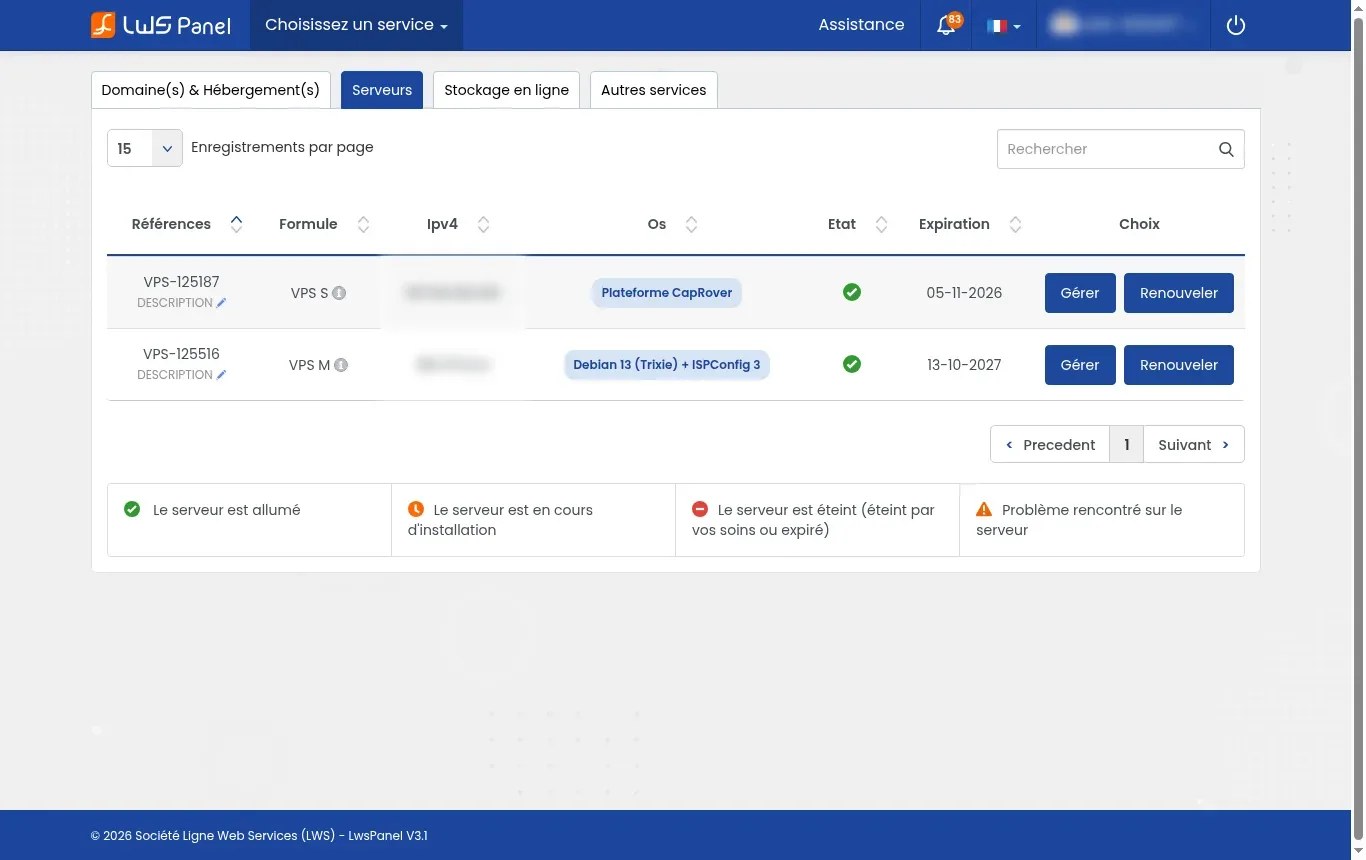
Log in to your LWS client area and click the Servers tab. In the summary table, find the line corresponding to your CapRover machine (with the green status indicating that the server is on) and note its public address shown in the Ipv4 column (for example 203.0.113.10).
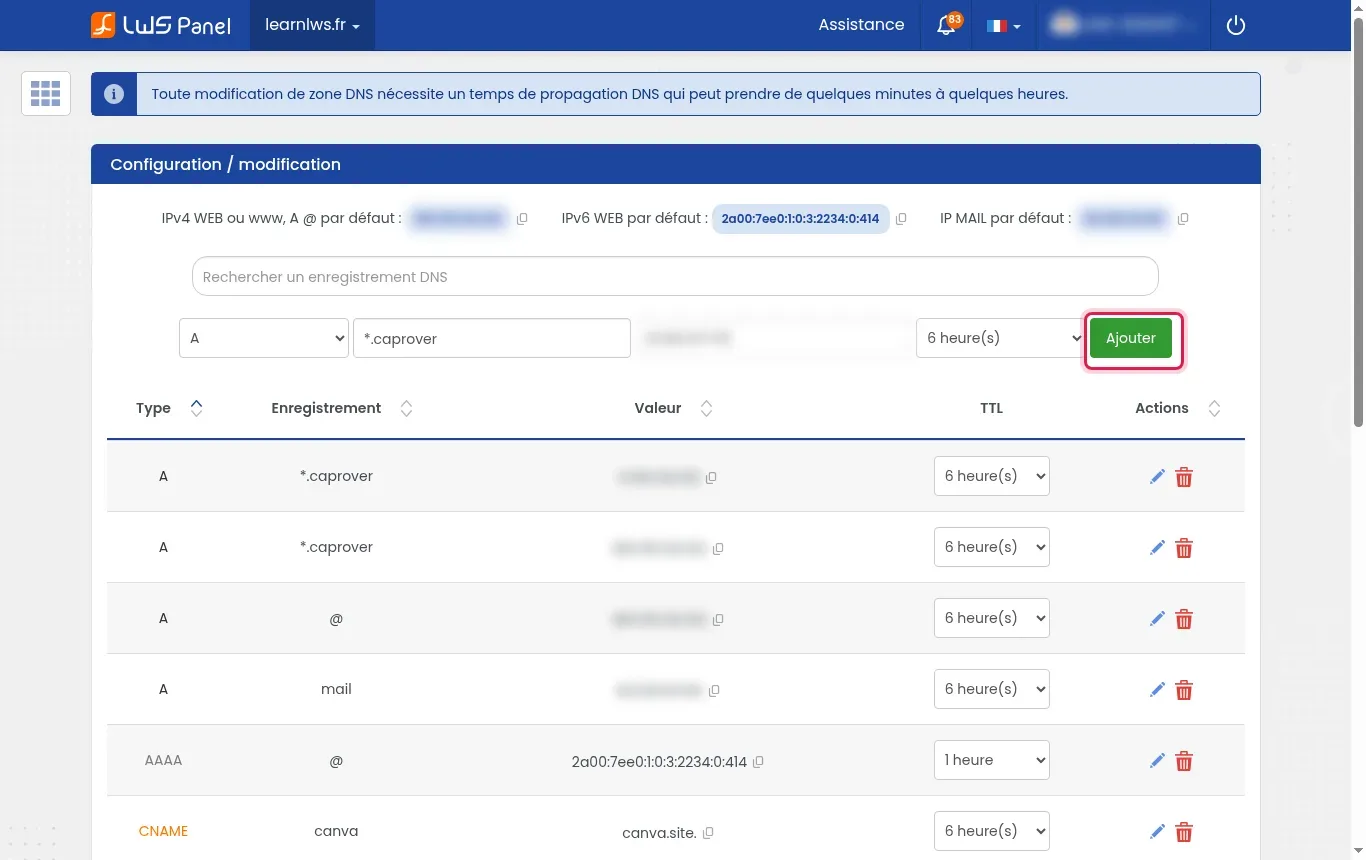
Go to the Domain(s) & Hosting(s) section, click Manage next to your domain, then access DNS zone management. Select the A type, enter *.caprover in the subdomain field, enter your VPS's IPv4 address in the destination field, then click Add.
Open a terminal on your computer and perform a ping test to captain.caprover.learnlws.fr (adjusting it to your domain). Make sure the command correctly resolves the IPv4 address of your server noted previously.
Open your web browser and go to http://IP_DE_VOTRE_VPS:3000 replacing it with your machine's IP. Enter your administrator password to log in to the dashboard.
In the CapRover admin interface, go to the Settings section and find the Change Root Domain box. Enter your root domain in the form caprover.learnlws.fr (without the captain prefix or the asterisk) and click the Update Domain button.
Your browser is automatically redirected to http://captain.caprover.learnlws.fr. Log back in with your admin credentials to continue the configuration.
In the CapRover settings, locate the HTTPS section and enter a valid email address for SSL renewal notifications. Then click Enable HTTPS to automatically generate and install the free Let's Encrypt certificate.
Reconnect to your dashboard via the secure URL https://captain.caprover.learnlws.fr. Go back to the domain settings and enable the Force HTTPS option to automatically redirect all HTTP requests to HTTPS.
The wildcard allows CapRover to assign a unique subdomain to each new container or deployed application (for example mon-app.caprover.learnlws.fr) without having to manually create a new DNS record each time.
Check that DNS propagation is fully complete and that ports 80 and 443 are not blocked by a firewall. Let's Encrypt needs to query these ports on your server to validate domain ownership.
No, adding the domain and SSL certificate allows access to the interface through the standard web ports (80 and 443). Port 3000 is no longer needed in your address bar.
Yes, you are free to choose another term (for example apps.yourdomain.com). You will simply need to adapt the wildcard DNS record (*.apps) and the Root Domain entered in CapRover accordingly.
Yes, CapRover includes an automatic background renewal mechanism for all Let's Encrypt certificates installed on your domains and subdomains.
Ask the LWS team and the community. Answers are published after moderation.
 About LWS :
LWS is a 100% French web hosting company that focuses on quality and innovation and offers a responsive and competent technical service at affordable prices.
About LWS :
LWS is a 100% French web hosting company that focuses on quality and innovation and offers a responsive and competent technical service at affordable prices.



 Yes
Yes No
No