LWS Linux shared hosting and domain package9 July 2024By Aurélien T. 8 min read
How do I connect to my Prestashop site using the Manager?
Procédure
Why use the PS Manager Prestashop autologin?
Do you need to access your Prestashop site urgently but can't remember your login details? Do you have several Prestashop sites on the same hosting, but find it tedious to fill in the login details each time you connect to their dashboard? Several people work on the Prestashop sites and you don't want to distribute the login details to all of them.
Here are a few situations that may justify taking advantage of the auto-login functionality offered via PS Manager.
How do I use PS Manager to connect to my Prestashop site?
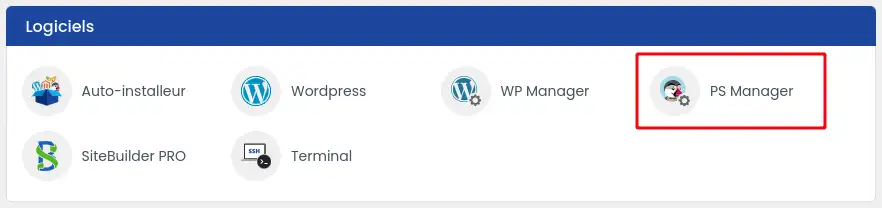
Then click on"PS Manager" in the"Software" section of your web hosting.
Then click on the"Connect" button of the site you wish to connect to.
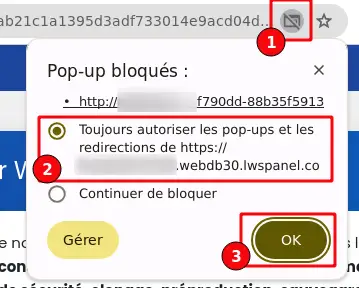
When you first connect automatically from your browser, it may block auto-connection, so you need to authorise it by following this procedure:
Click on the icon (1) which appears on your navigation bar and select that you want to authorise the connection in the suggestions (2) before confirming (3).
This function, although very practical, still requires at least one SuperAdmin user to exist in the shop. Consequently, if there is no SuperAdmin, the action will fail. Also, the user chosen for the connection will always be the 1st SuperAdmin found on the site.
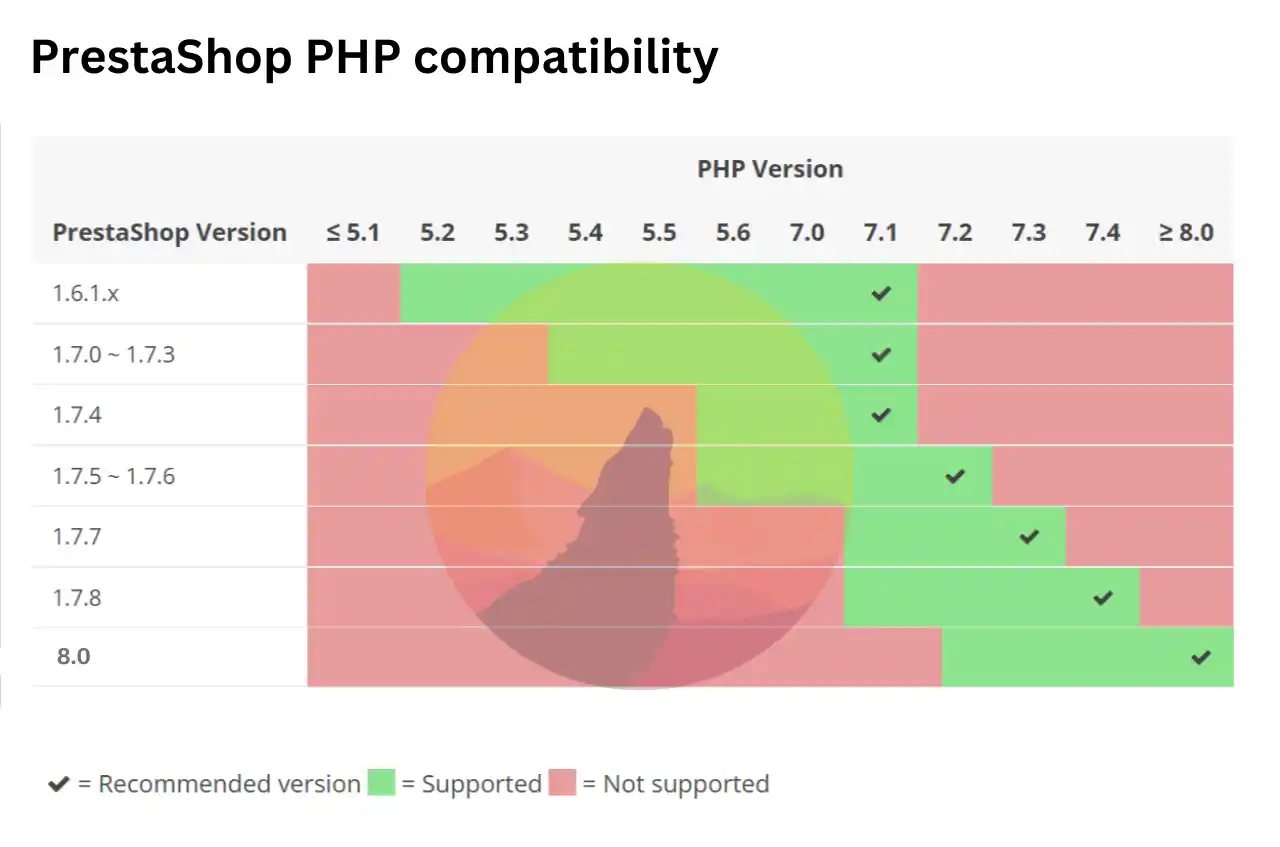
As you may already have noticed from the illustration, the login button may be greyed out and therefore unusable. This happens when the PHP version of your hosting is not compatible with the version of Prestashop installed on the site in question. The PHP versions that are compatible are as follows (image taken from the Prestasoo site):
If you don't know how to change the PHP version of your hosting, you can follow this tutorial.
Conclusion
You now know how to :
Identify situations where PS Manager 'sauto-login feature is particularly useful 😌
Access your LWS account and shared hosting 🌐
Use PS Manager to quickly connect to your Prestashop site without entering your credentials each time 🔐
Resolve a possible auto-login block by your browser by authorising this feature 🛠️
Thanks to these clear and concise steps, the administration of your Prestashop sites is now smoother and more secure, allowing you to concentrate fully on growing your online business. Thank you for following us so far! 👍
Please feel free to share your experience or ask any questions by leaving a comment on the service. Your feedback is invaluable in helping us improve our content and provide you with the best tips! 💬
Vous ne disiez pas comment accéder à l'interface admin . J'ai déjà installer le prestashop
J✓
Jordan-LWS Official answer
il y a 10 mois
Bonjour,
Merci pour votre message.
Si PrestaShop est déjà installé, vous pouvez accéder à l’interface d’administration en ajoutant simplement /admin (ou le nom du dossier admin personnalisé) à la fin de l’URL de votre site.
Exemple : https://votredomaine.fr/admin
ou https://votredomaine.fr/adminXXX (si le dossier a été renommé automatiquement lors de l’installation).
Si vous ne connaissez plus le nom exact du dossier admin, vous pouvez le retrouver en vous connectant à votre espace d’hébergement puis en ouvrant le dossier où PrestaShop est installé (par exemple htdocs ou public_html). Le dossier d’administration s’y trouvera.
Je vous remercie de votre attention et reste à votre disposition pour toute autre question ou complément d'information.
Cordialement, L'équipe LWS
Was this answer helpful?
A question about this article?
Ask the LWS team and the community. Answers are published after moderation.
Ask the LWS team and its community a question
!
To enable this form, please tick the two consent boxes below.




 Yes
Yes No
No About
About 