
Online help
The web host accessible to all
Procédure
To install Docker on your LWS VPS in just a few minutes, the fastest method is to use the preconfigured Docker CE template available in your customer area. This ready-to-use system frees you from having to manually install the repositories, the container engine, and the various add-ons. We will see how to reset your virtual machine with this template, connect via SSH, check the services, and deploy a first website with Nginx.
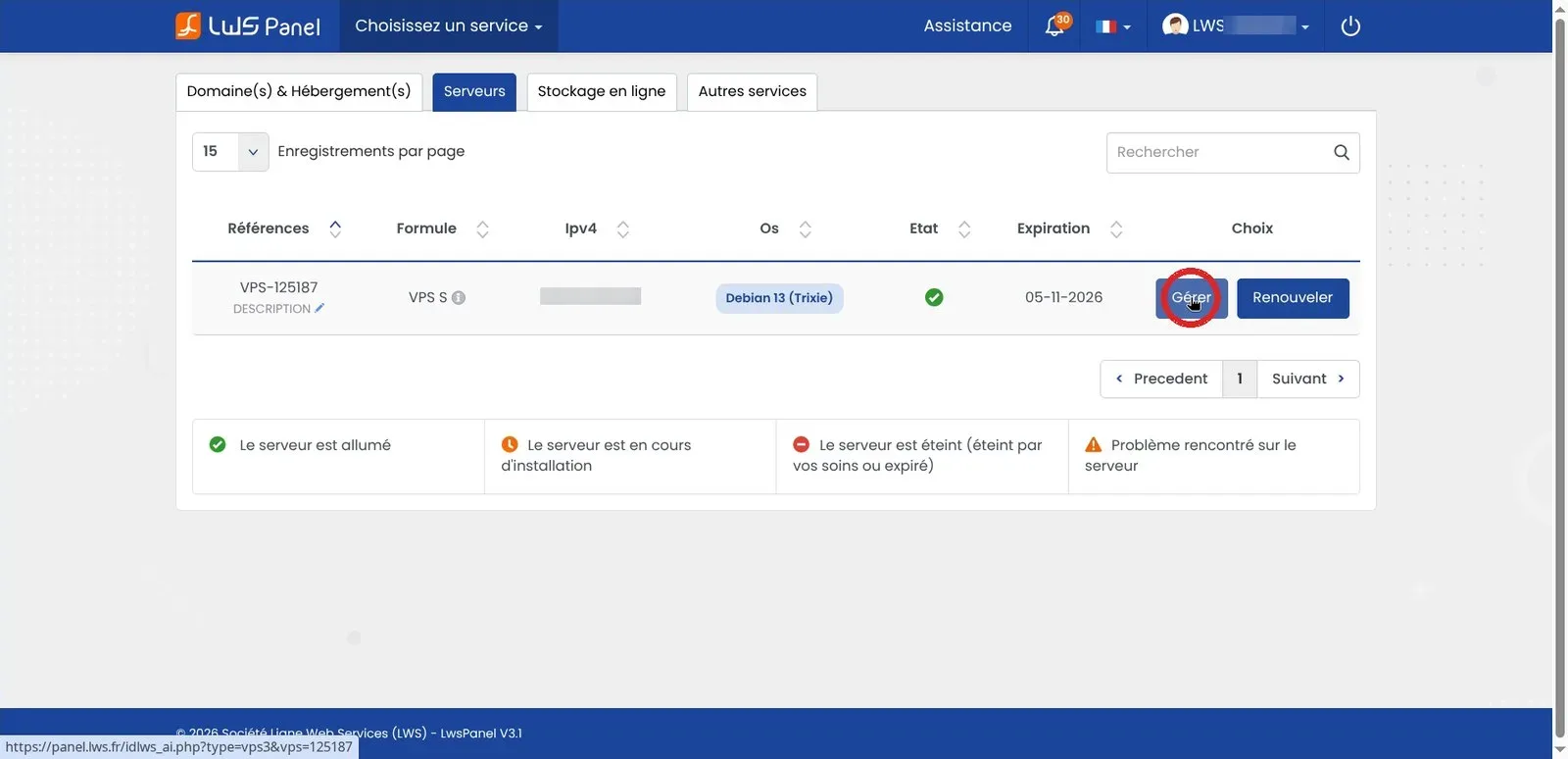
Log in to your LWS customer area and go to the Servers tab. On the line corresponding to your virtual machine, click the Manage button to open the KVM administration panel of your VPS.
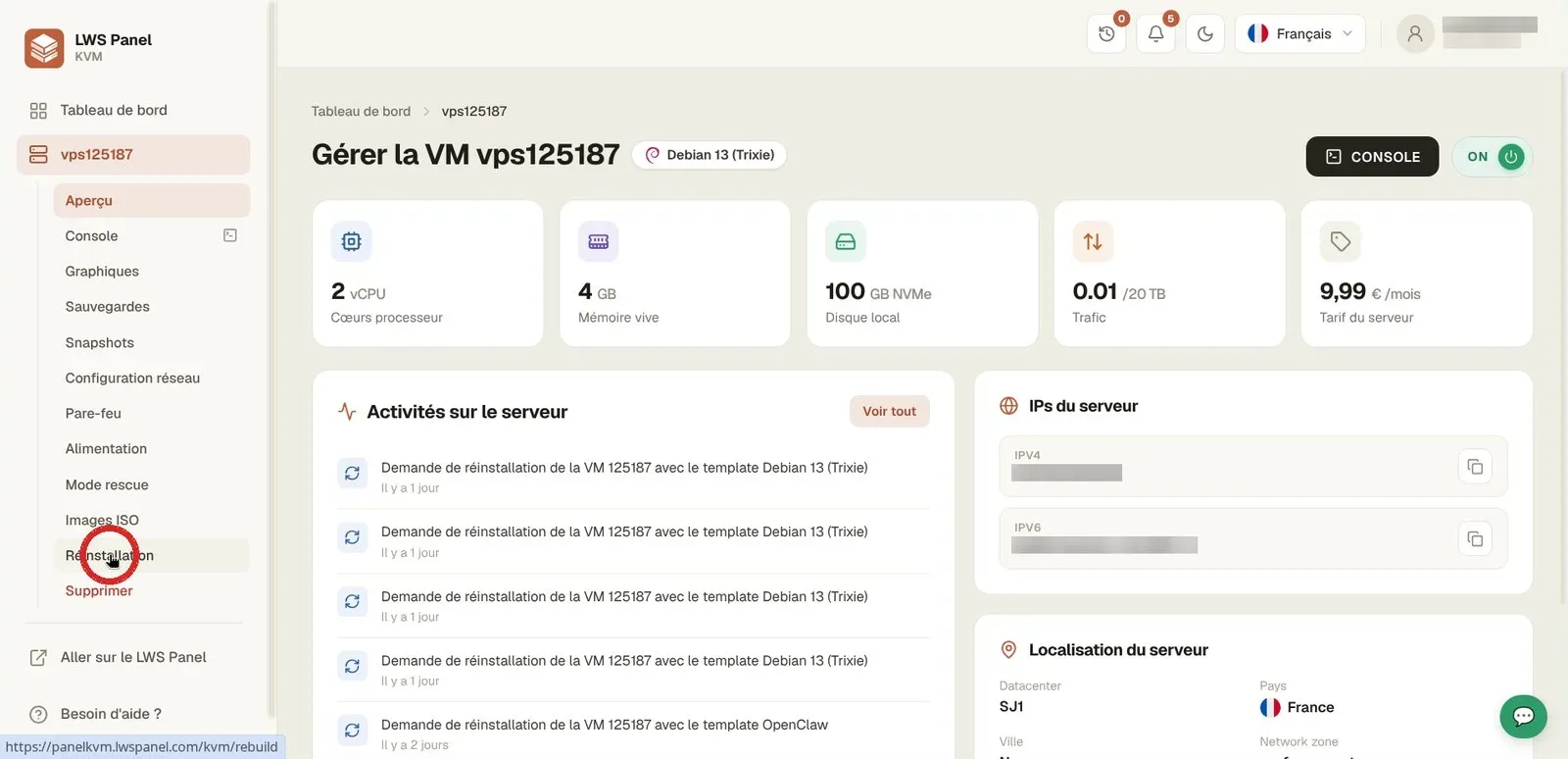
In the side menu on the left of the administration panel, click Reinstallation. This interface lets you completely reset the operating system of your machine.
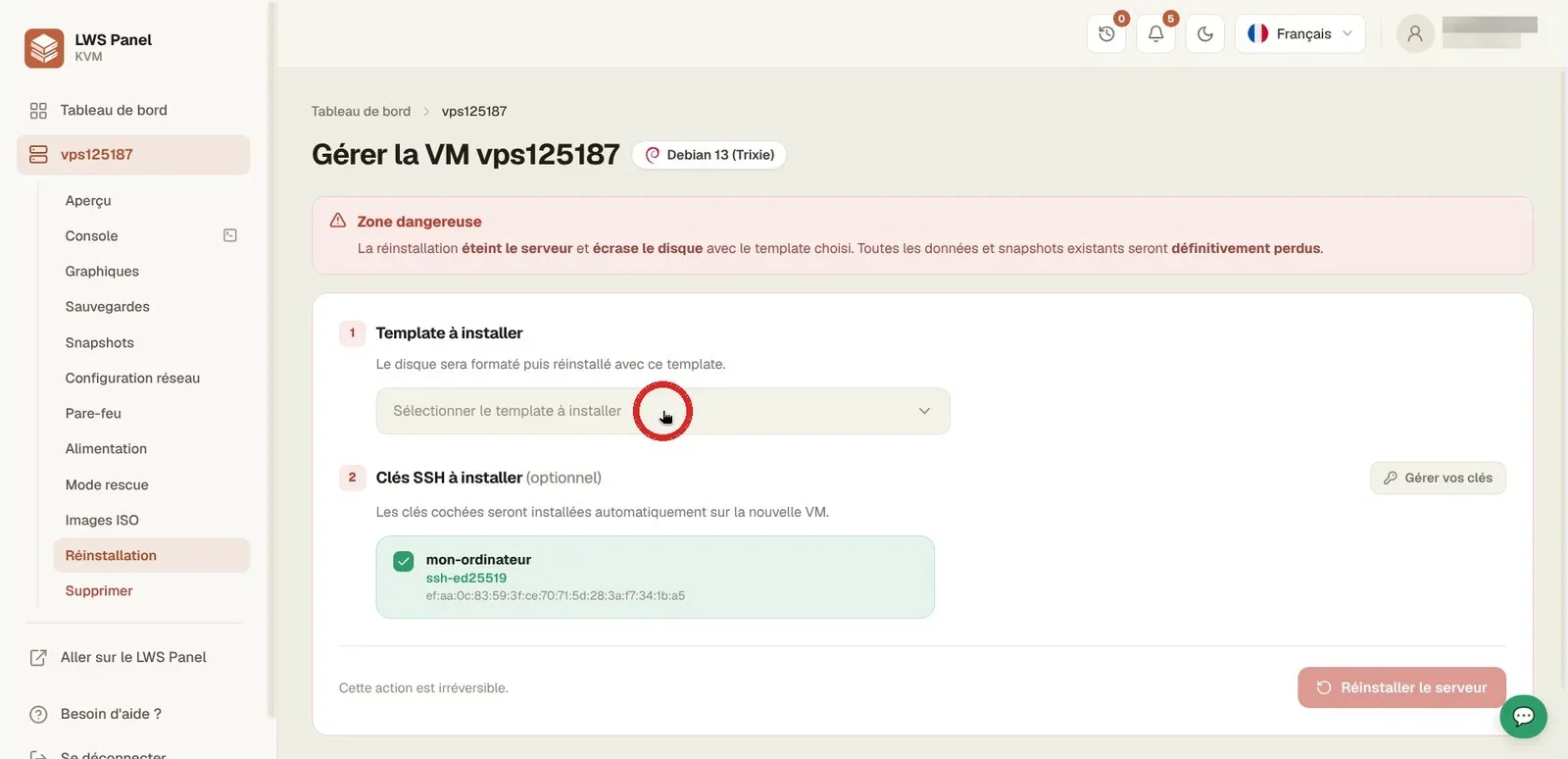
Click the Select the template to install field and type “Docker” to filter the list. Two Docker CE templates are offered: one based on Ubuntu 24.04, the other on Debian 13; choose the one you prefer (this tutorial uses Debian 13). Then make sure your SSH key is checked under SSH keys to install: you will be able to connect without a password.
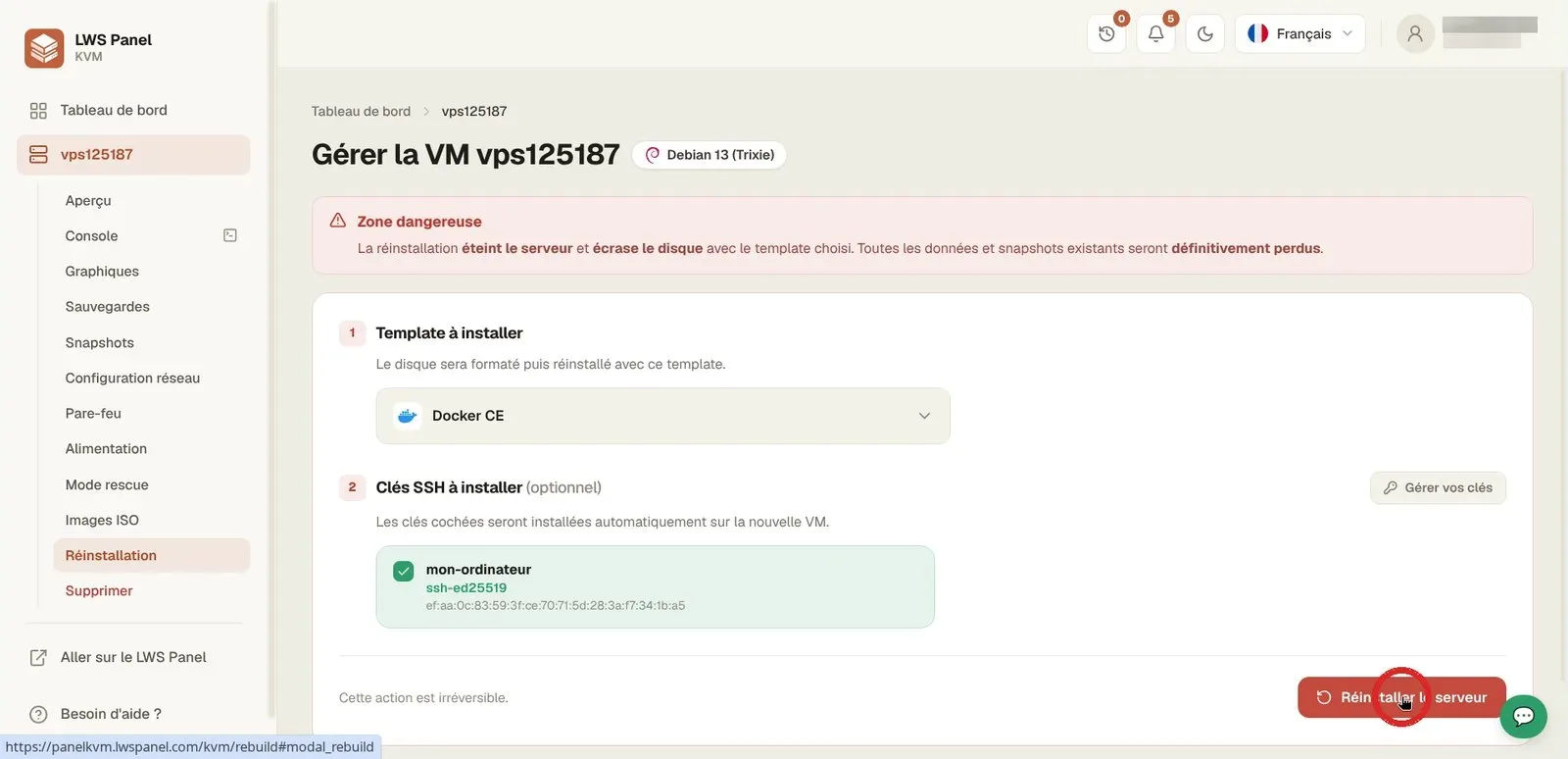
Once the Docker CE template has been selected and your SSH keys have been verified, click the red Reinstall the server button located at the bottom right of the page.
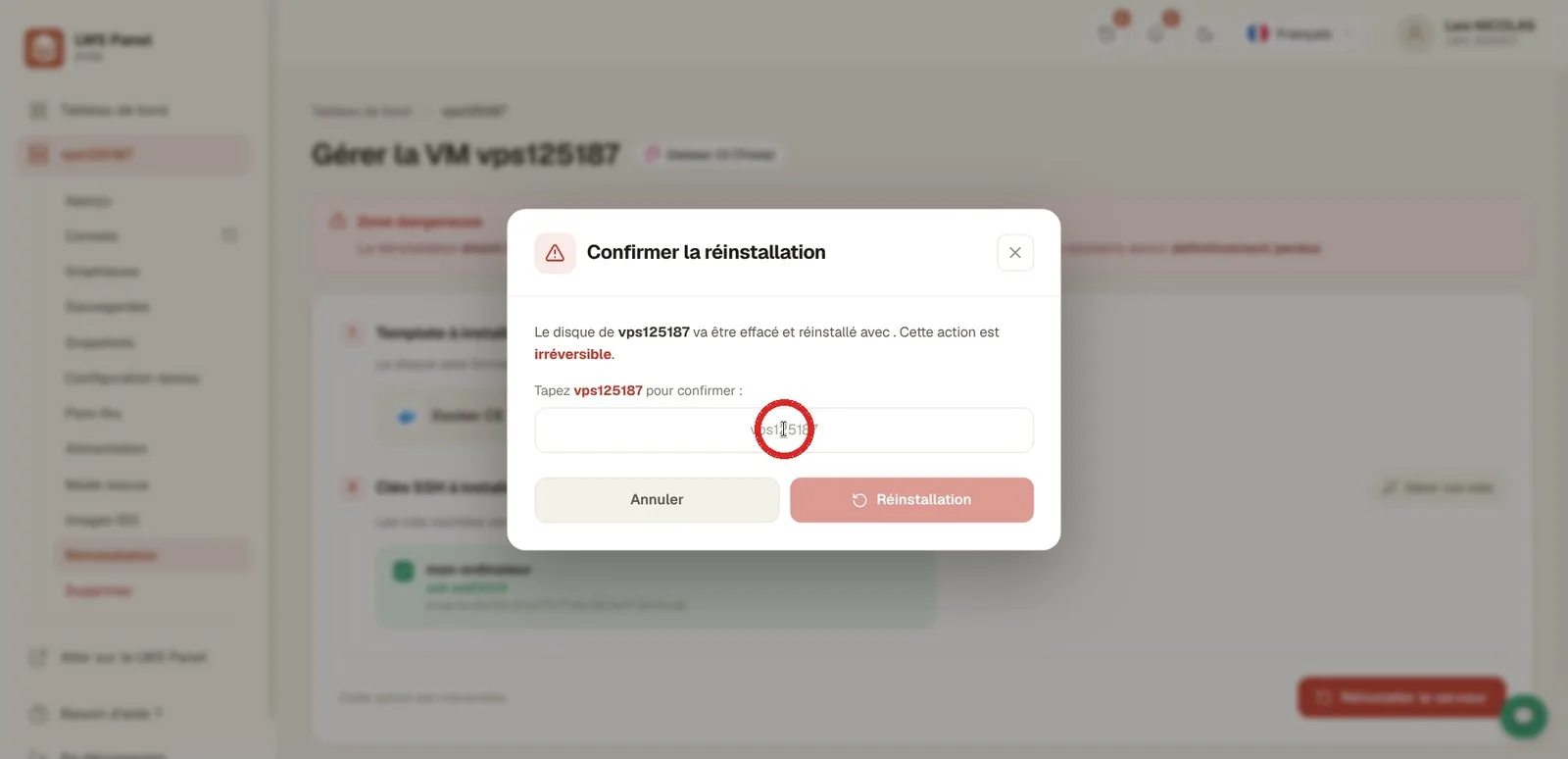
A security modal window appears to warn you that the disk contents will be permanently deleted. Copy your server identifier exactly into the input field, then click the Reinstallation button to start the process.
Open a terminal on your computer and start the SSH connection to your server using the root account. Replace the example IP address 203.0.113.10 with the actual IP address of your VPS, visible in your customer area. During the first exchange, validate the security fingerprint by typing “yes”.
ssh root@203.0.113.10The authenticity of host '203.0.113.10 (203.0.113.10)' can't be established.
ED25519 key fingerprint is SHA256:…
Are you sure you want to continue connecting (yes/no/[fingerprint])? yesQuery the Docker binaries to make sure that the daemon and the Compose plugin are properly installed and working on your machine.
docker --version
docker compose versionDocker version 29.9.0, build f415da8
Docker Compose version v5.6.0Download and run the official verification container. This command confirms that the Docker engine communicates correctly with the Docker Hub registry and can instantiate containers without any issues.
docker run hello-worldHello from Docker!
This message shows that your installation appears to be working correctly.Start an Nginx container in the background with the -d option by linking port 80 of your VPS to port 80 of the container. Then check the status of the active container with the docker ps command.
docker run -d --name web -p 80:80 nginx
docker psCONTAINER ID IMAGE COMMAND CREATED STATUS PORTS NAMES
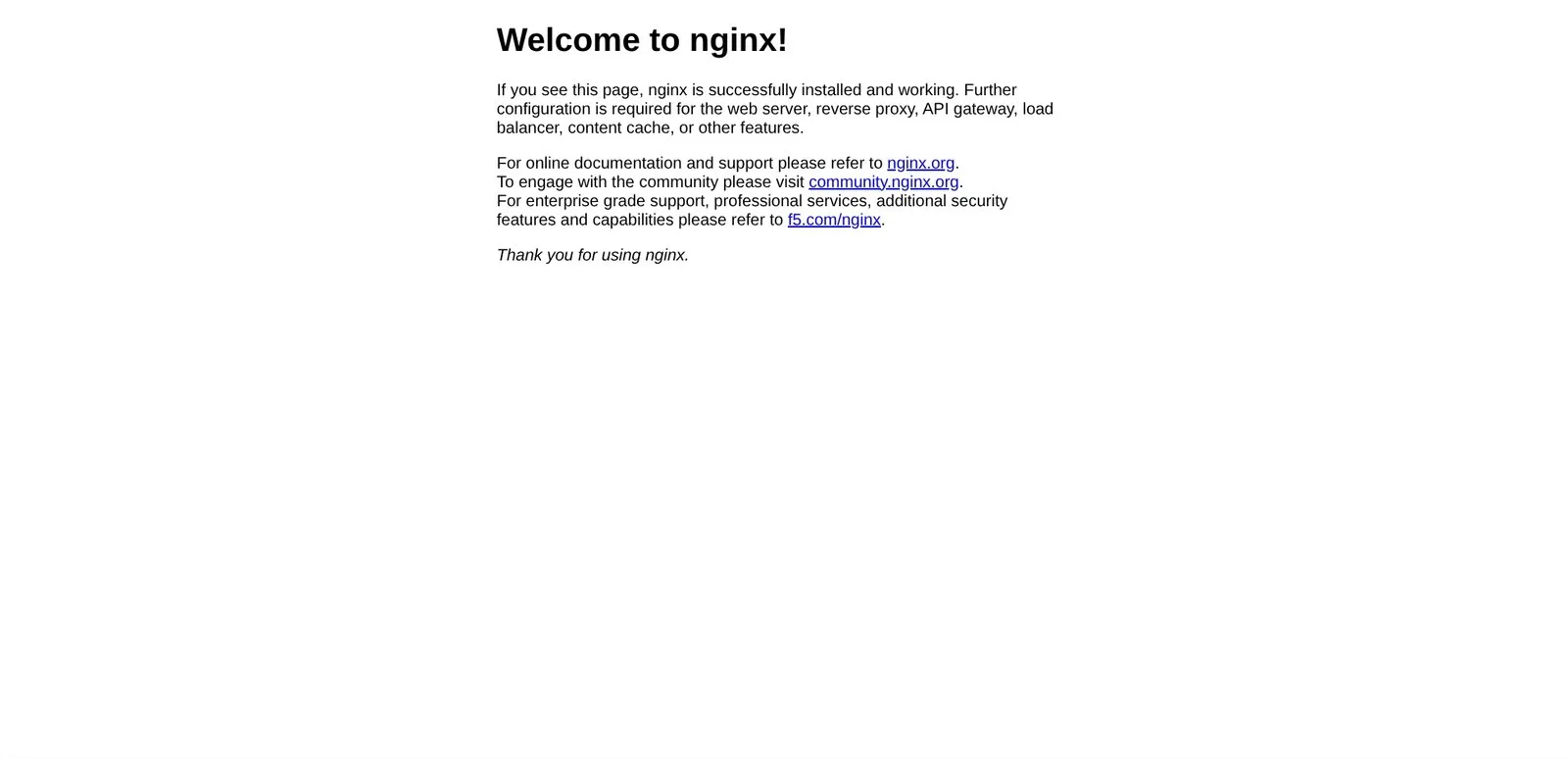
c3b46a4e354c nginx "/docker-entrypoint.…" 2 seconds ago Up Less than a second 0.0.0.0:80->80/tcp, [::]:80->80/tcp webOpen your web browser and enter your VPS's public IP address in the address bar. The default Nginx home page appears, proving that HTTP requests are reaching the container correctly.
Return to your terminal and end the remote session by entering the disconnect command. Your web container will continue running in the background on the server.
exitdisconnection
Connection to 203.0.113.10 closed.No. Choosing a new template performs a full format of your VPS hard drive. You must back up all your files and databases to an external medium before starting the procedure.
When no SSH key is selected, a random password is generated by the system. It is automatically sent to the contact email address associated with your LWS customer account at the end of the installation.
The template exists in two versions, on Ubuntu 24.04 or Debian 13. Both include the Docker Community Edition engine (docker-ce), the docker-ce-cli command-line tool, the containerd.io runtime, as well as the Docker Buildx and Docker Compose plugins.
Yes: thanks to the -d option (detached mode), the container runs in the background and remains accessible after the exit command. However, it does not restart automatically if the server reboots; for that, launch it with the --restart unless-stopped option.
Ask the LWS team and the community. Answers are published after moderation.
 About LWS :
LWS is a 100% French web hosting company that focuses on quality and innovation and offers a responsive and competent technical service at affordable prices.
About LWS :
LWS is a 100% French web hosting company that focuses on quality and innovation and offers a responsive and competent technical service at affordable prices.



 Yes
Yes No
No