
Online help
The web host accessible to all
Procédure
You can reset the CapRover password directly from the command line by connecting to your VPS server via SSH. CapRover is an open-source application deployment platform that makes managing Docker containers easier without complex handling. By running an official Docker command, you redefine administrator access without losing your applications or your configuration.
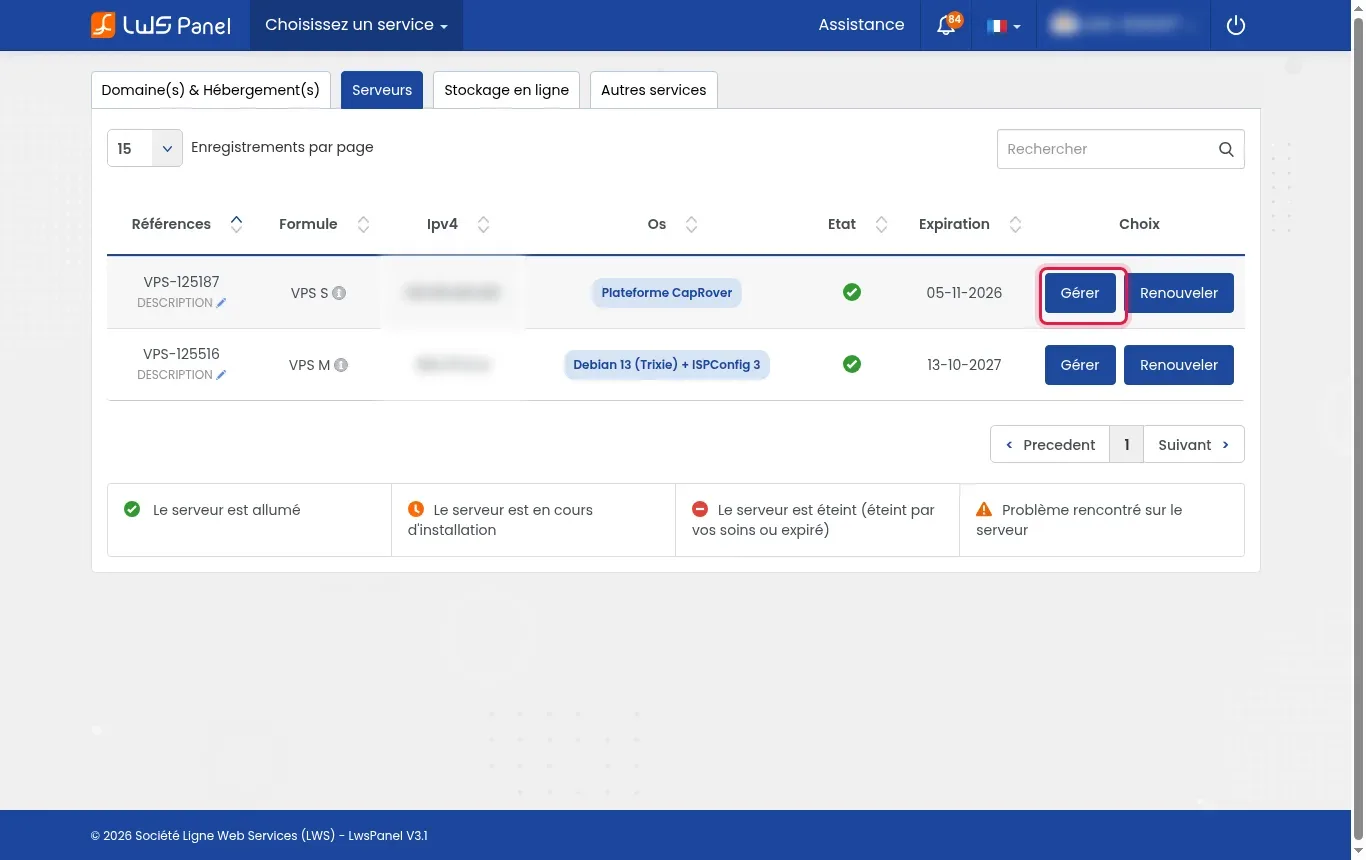
In your LWS customer account, go to the Servers tab in the list of your services. Locate your VPS deployed with the CapRover model, then click the corresponding Manage button.
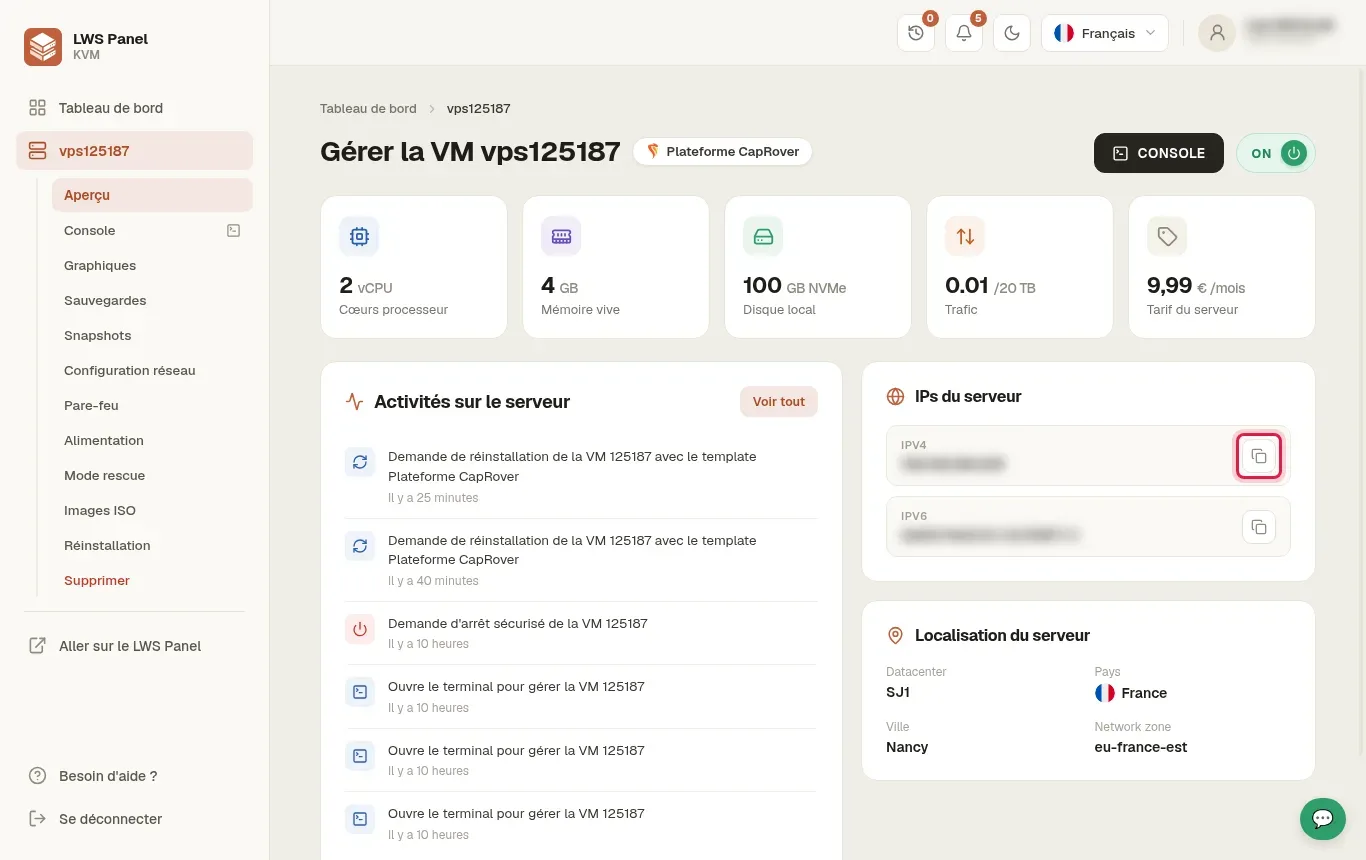
On the management dashboard of your virtual machine, locate the Server IPs block. Copy the address displayed next to the IPV4 label (for example 203.0.113.10) by clicking the copy icon, and check that the power status is active with the green indicator.
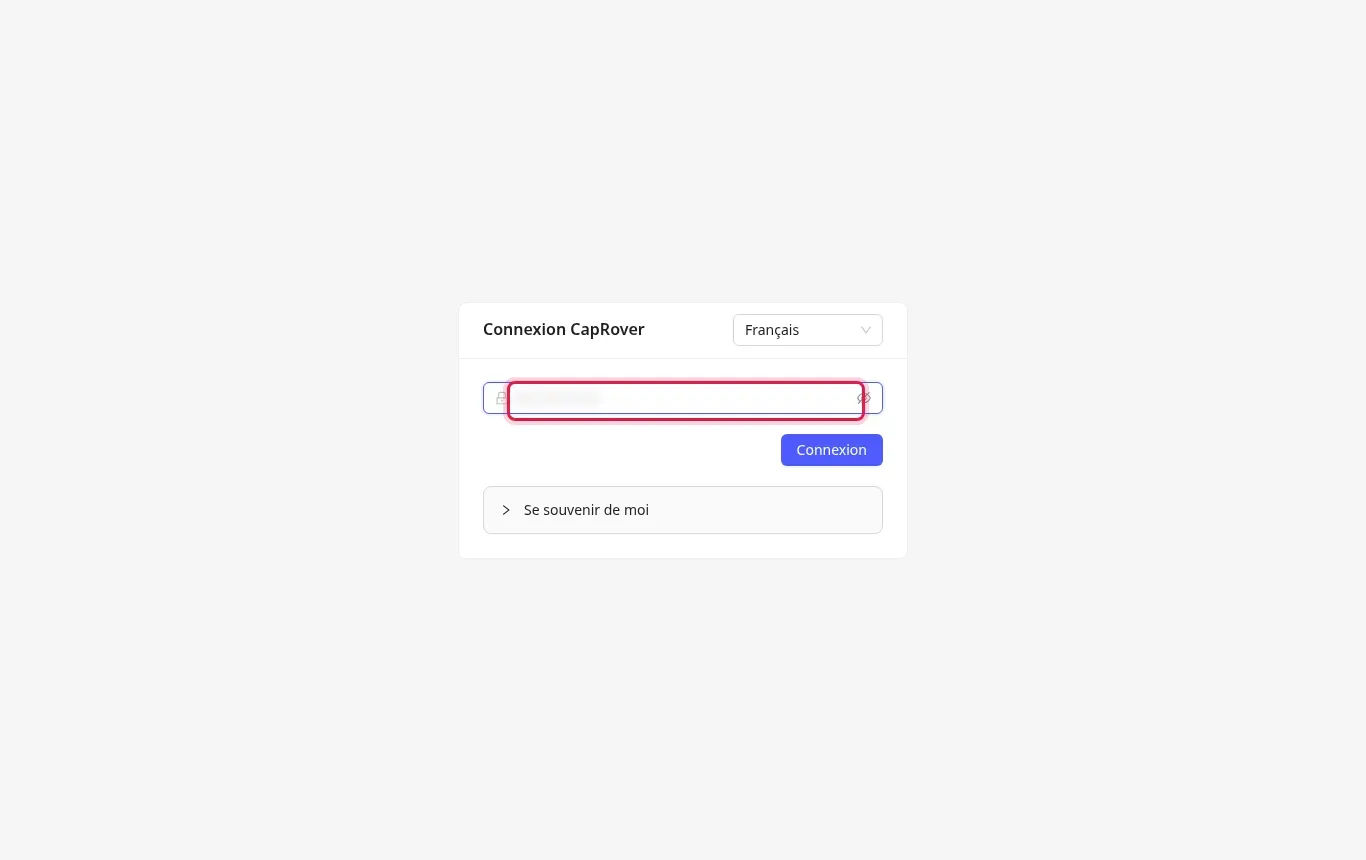
Open your web browser and go to your server address followed by port 3000, in the form http://203.0.113.10:3000 (replacing it with the actual IP address of your VPS). If your usual or default credentials no longer work in the input field, leave the page open.
Open your computer's terminal to establish the connection with your VPS. If you have already reinstalled your machine before, clear the old key fingerprint with the command ssh-keygen -R 203.0.113.10, then connect with ssh root@203.0.113.10 replacing this value with your server's IP.
Once connected from the command line, enter docker ps to list the active containers. Make sure the main container named captain-captain appears in the list with an active status.
Launch the official reset command: docker exec -it $(docker ps -aqf "name=captain-captain") node dist/server.js --resetPassword. This command resets the administrative access of the CapRover instance.
Run the docker ps command again in your terminal to make sure the CapRover container has restarted correctly and is working normally.
Return to your web browser at http://203.0.113.10:3000 (or to the custom address https://captain.caprover.learnlws.fr if you had already configured your root domain). Log in with your new credentials to regain full access to the Dashboard and to manage your applications.
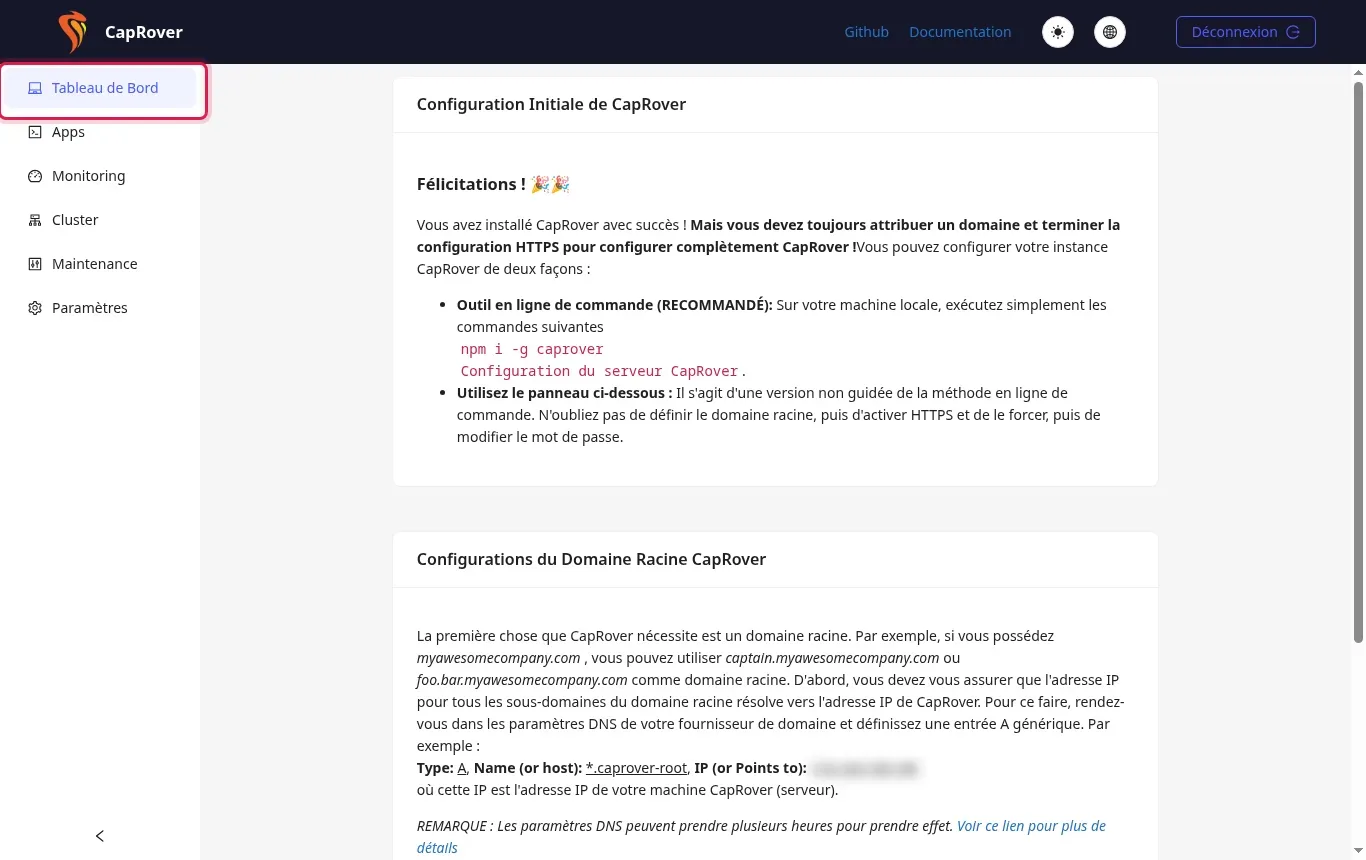
During the initial deployment of CapRover via the template, the default administrator password configured by the solution is captain42. It is essential to change it as soon as you log in for the first time.
Check that your VPS is powered on in the LWS KVM panel and make sure that port 3000 is not blocked by an intermediate firewall. The main Docker container must also be started.
This warning usually occurs after a server reinstallation because the security fingerprint has changed. Simply run ssh-keygen -R on your computer to delete the old entry from your known_hosts file.
Access via port 3000 corresponds to direct mode without an SSL certificate. Once your root domain name is configured in CapRover, the panel becomes securely accessible over HTTPS via the captain subdomain (for example https://captain.caprover.learnlws.fr).
No. The procedure only changes access to the CapRover administrator account. Your hosted applications, databases, and Docker volumes remain intact.
Ask the LWS team and the community. Answers are published after moderation.
 About LWS :
LWS is a 100% French web hosting company that focuses on quality and innovation and offers a responsive and competent technical service at affordable prices.
About LWS :
LWS is a 100% French web hosting company that focuses on quality and innovation and offers a responsive and competent technical service at affordable prices.



 Yes
Yes No
No