Procédure
The recurring email functionality on Roundcube webmail, offered by LWS as part of the Professional Email offering, allows users to schedule and automate the sending of emails at regular intervals. Whether for newsletters, reminders or regular communications, this option guarantees simplified management of repetitive tasks, while ensuring that your correspondence arrives at the right time. Easy to configure from Roundcube's intuitive interface, this feature is an invaluable asset for businesses wishing to maintain effective communication without any extra effort.
How do I configure the recurrence of an email?
Step 1: Log in to the webmail of the e-mail account for which you want to schedule a delivery.
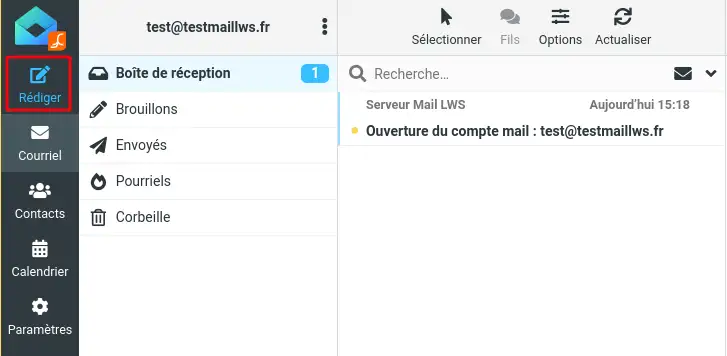
Step 2: Click on the"Send" icon on the left-hand side of your screen.
Step 3: Enter the recipient who will receive the recurring email, as well as a subject and a message. Then, on the right-hand side, activate the "Schedule sending" function .
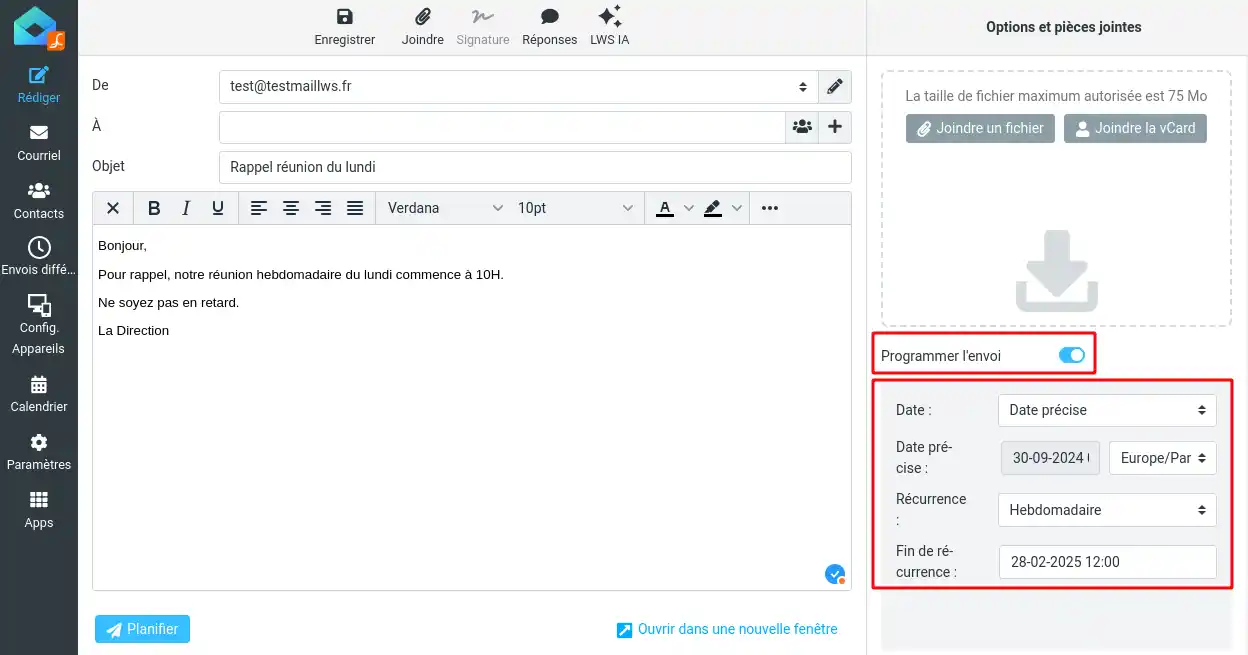
Step 4 : You will then be offered various settings for scheduling the recurrence of your mailings.
Date: You can choose whether the email will be sent Now or at a specific date and time that you can schedule.
Recurrence: You can choose the recurrence for sending the email from Daily, Weekly, Monthly, Yearly or None if you just want to postpone sending the email without scheduling a recurrence.
End of recurrence: You must indicate the date on which the recurrence will end definitively.
Step 5: Click on"Schedule" to confirm that you wish to send recurring emails to the recipient.
How do I modify a schedule?
You may need to modify or cancel a schedule. To do so, simply follow the steps below:
Step 1: Connect to the webmail of the email account for which you want to modify a schedule.
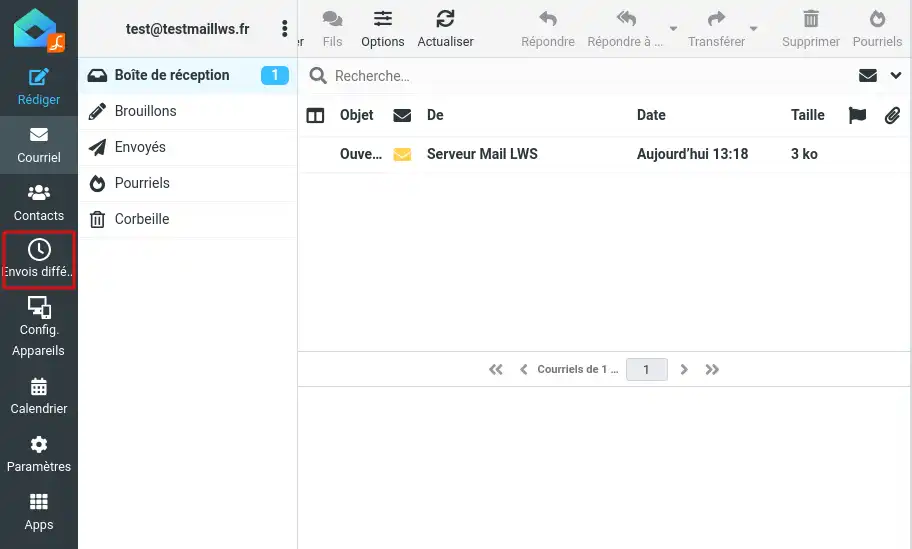
Step 2: Click on the"Deferred Sending" icon on the left-hand side of your screen.
Step 3: A new page will appear listing your various scheduled emails.
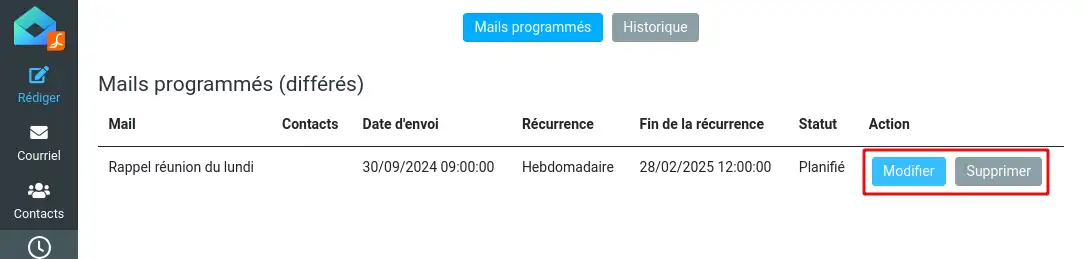
For each email, you can perform the following actions:
- Modify: opens the email, allowing you to change the recipient, subject, message or schedule settings.
- Delete: permanently deletes the mail schedule.
Conclusion
You now know how to :
- Configure the sending of recurring emails on Roundcube to optimise your communication and automate tasks.
- Precisely plan the date and time of your mailings, as well as the frequency of recurrence that best suits your needs.
- Modify or cancel a schedule in the event of a change, giving you total flexibility and control over your email campaigns.
📧 With these tools at your disposal, maintaining regular and effective communication with your customers or subscribers becomes child's play and allows you to concentrate on other important aspects of your business. Don't forget that automation is the key to optimised time management and increased productivity! 😊
Thanks for reading! If you have any questions, additional tips to share or would simply like to discuss your experiences with the Roundcube webmail service, please feel free to leave a comment below. Your feedback is valuable and helps us to constantly improve our services to serve you better. 🌟



 Yes
Yes No
No About
About 