
Online help
The web host accessible to all
Procédure
To run a Node.js application on your VPS with ISPConfig, you need to configure Apache as a reverse proxy to the local port of your script. Node.js is a server-side JavaScript runtime that makes it possible to create fast and scalable web applications. By combining a process manager such as PM2 with ISPConfig directives, you ensure service persistence and SSL certificate security.
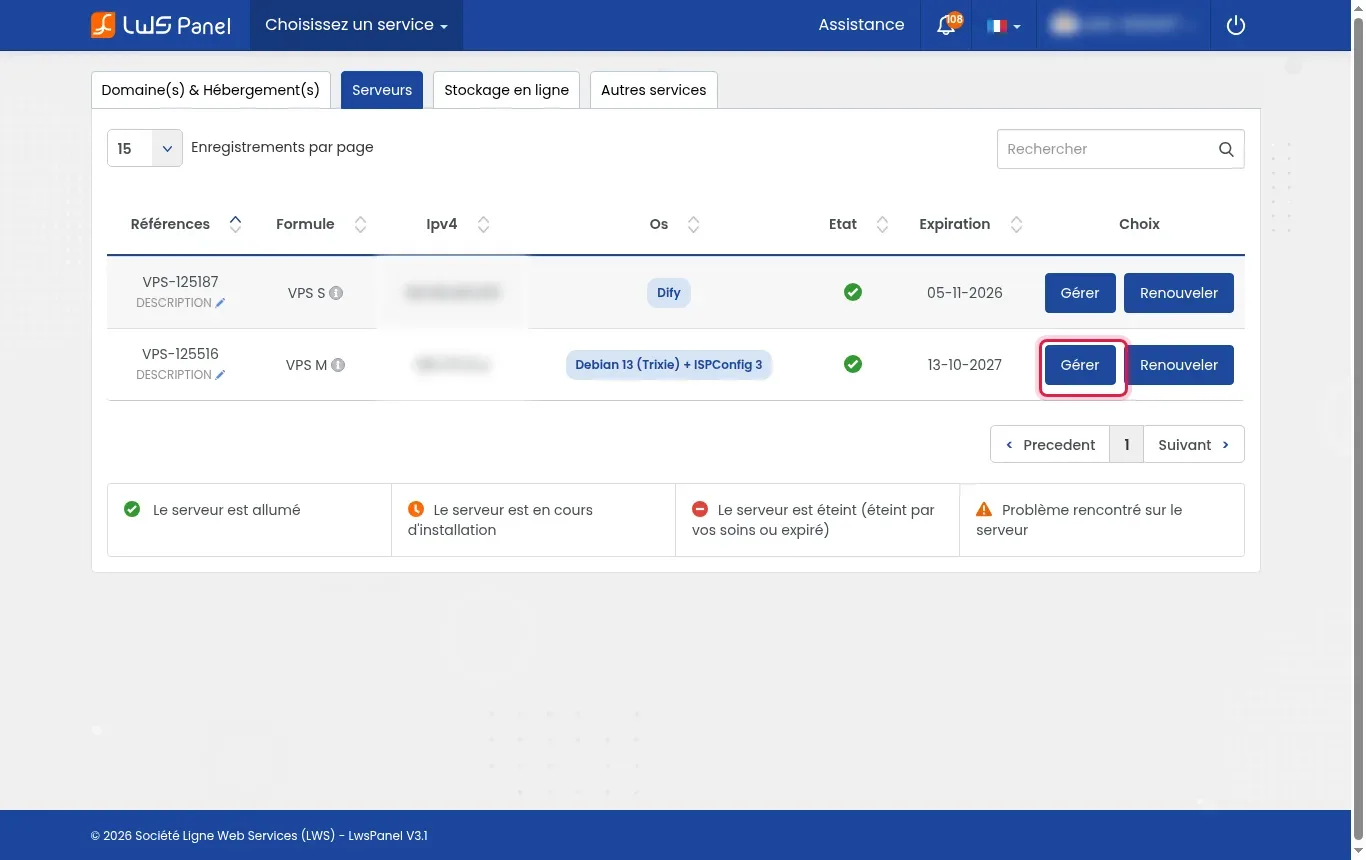
Log in to your customer area, go to the Servers section, then click Manage next to your VPS machine under ISPConfig.
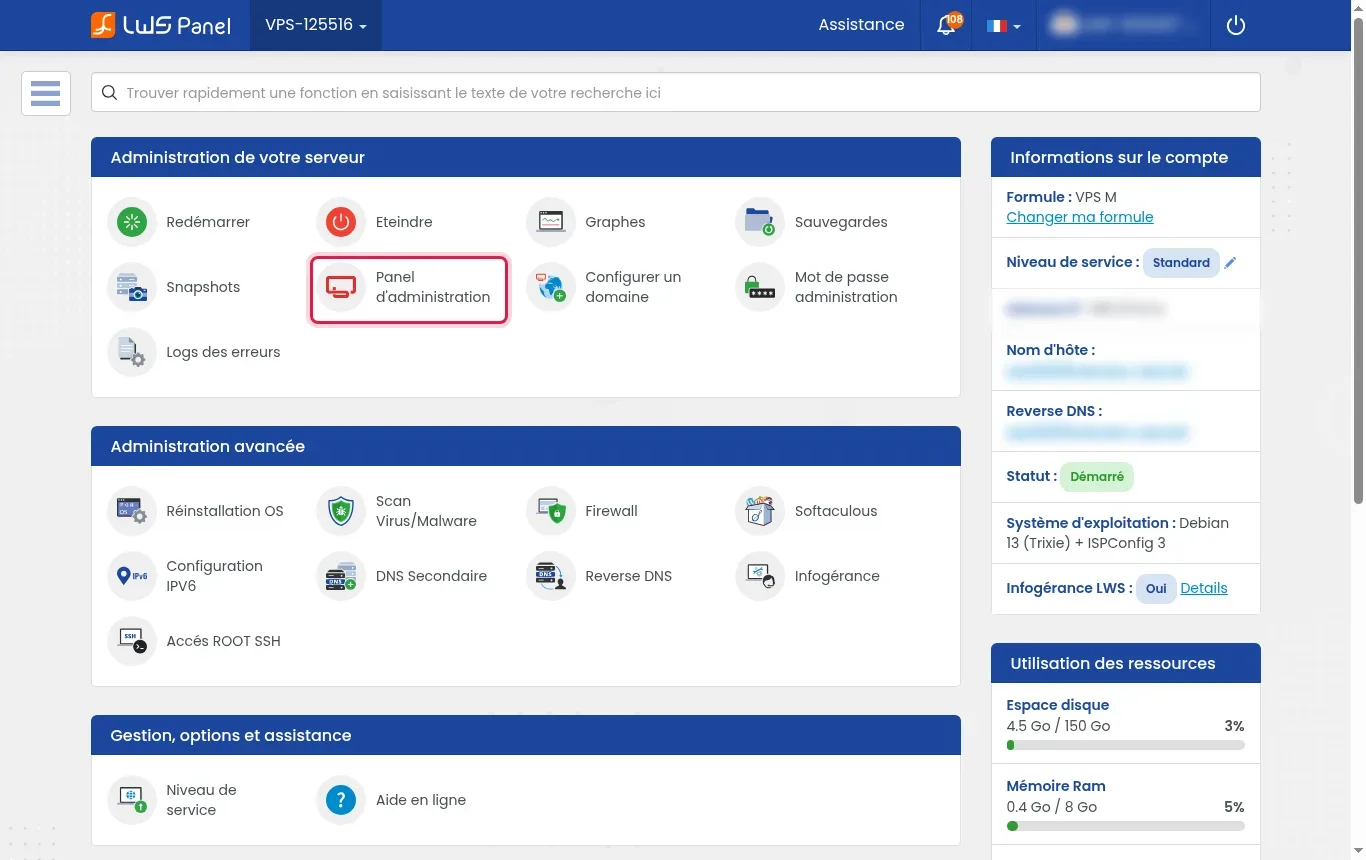
In your server dashboard, click Administration Panel to connect to the ISPConfig console.
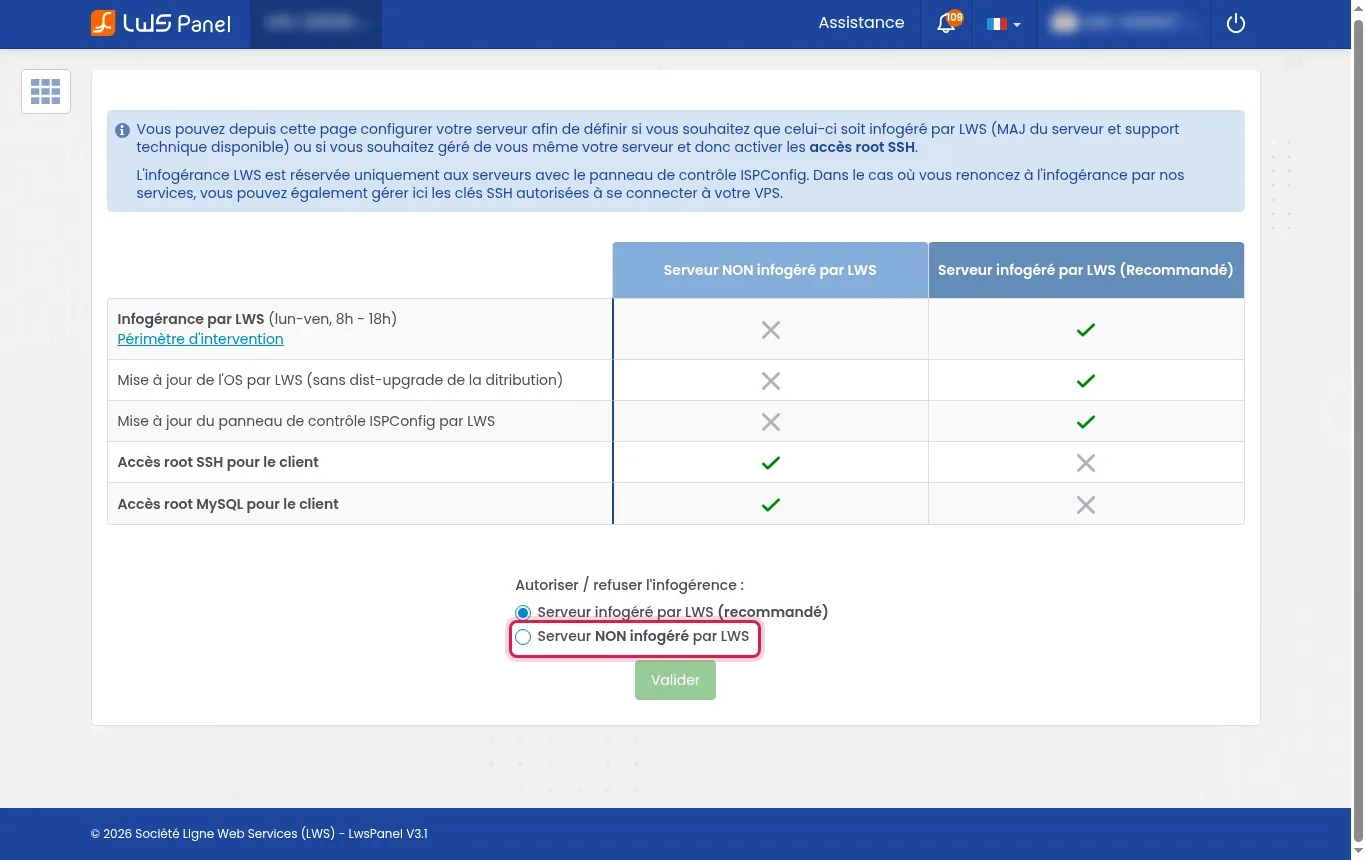
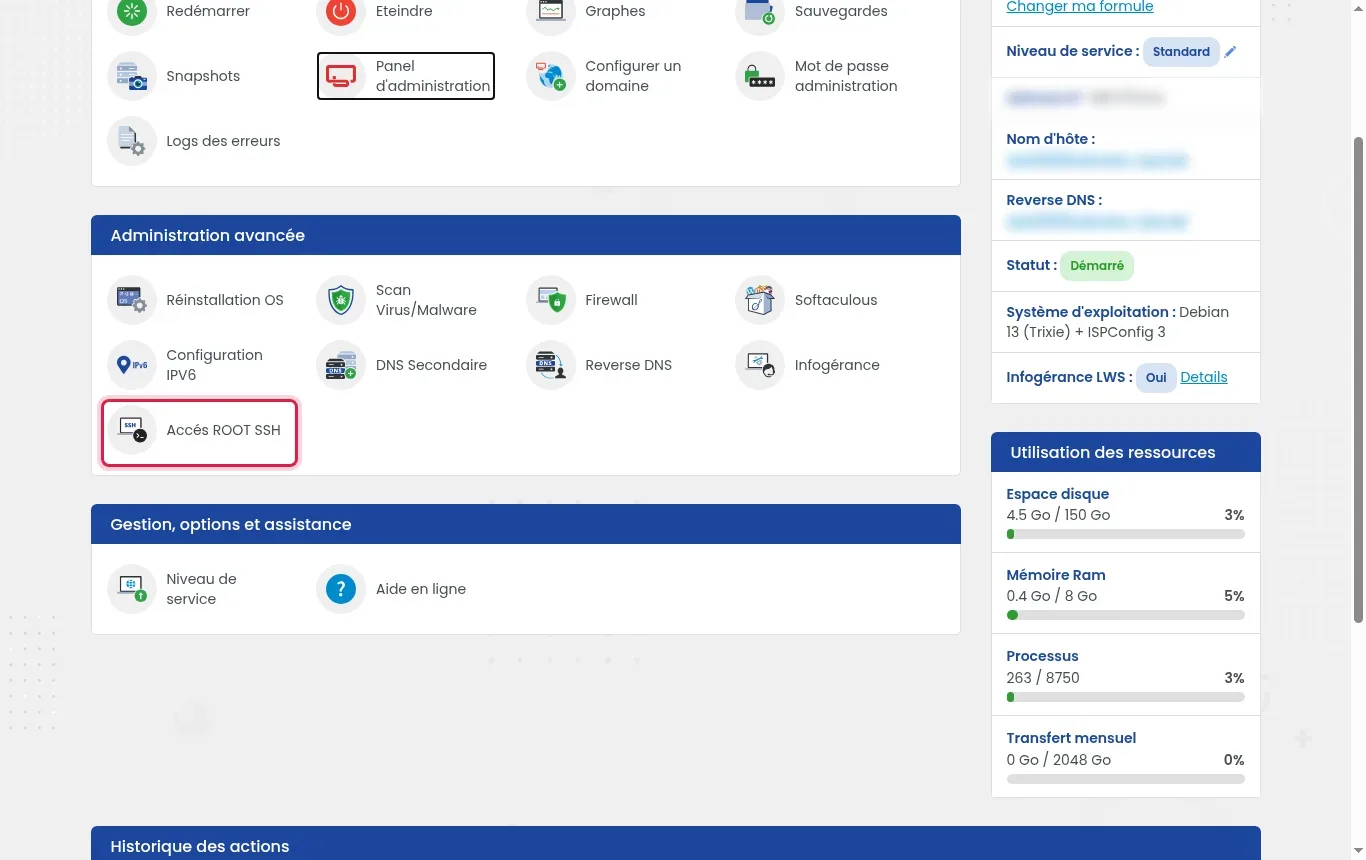
If you choose to install Node.js globally for the whole system rather than for the site's local account, click Managed service, check the Server NOT managed by LWS option, and confirm with Validate. LWS will then no longer manage the server, which unlocks the credentials in ROOT SSH Access.
In ISPConfig, open the Sites tab, add your domain (for example "example.fr"), then check the SSL and Let's Encrypt SSL boxes before saving.
Open your terminal and establish the SSH connection with your account (ISPConfig site user or root user if managed service has been removed).
To redirect HTTP traffic to your application, enable the required modules with the a2enmod proxy proxy_http command, then restart Apache via systemctl restart apache2 (an action requiring administrative rights or already active depending on your plan).
Install the LTS version of Node.js on your session using nvm or your distribution's repositories, then verify the installed version by entering the node -v command.
Go to your website directory, initialize a project with npm init -y, install the Express framework with npm install express, and create a server.js file configured to listen on local port 3000.
PM2 is a process manager for Node.js that keeps applications running continuously and restarts them after an incident. Install it with npm install -g pm2, start your script via pm2 start server.js --name mon-app, and save the state with pm2 save.
A reverse proxy is an intermediary server that receives visitors' web requests and forwards them to the internal application server. In ISPConfig, edit your site, go to the Options tab, then add the following in the Apache Directives field: ProxyPreserveHost On followed by ProxyPass / http://localhost:3000/ and ProxyPassReverse / http://localhost:3000/.
Open your browser and enter your site's address (for example https://example.fr) to see your secure Node.js script displayed.
Several approaches are possible for integrating Node.js packages according to your administration requirements and the maintenance of your managed service.
A 502 Bad Gateway or 503 Service Unavailable error indicates that Apache cannot reach Node.js on the configured port. Check that your application is properly started under PM2 with the pm2 status command and that it is indeed listening on local port 3000.
No. The ISPConfig VPS is managed by default, which ensures support for your server. You can run Node.js without root thanks to nvm under your site's shell account. If you remove managed service to get root access, you are responsible for the full administration of the server yourself.
Yes, provided you have run the pm2 startup command and then pm2 save. PM2 automatically reactivates your scripts when the system starts.
Yes. Simply assign a different local port to each application (for example 3000, 3001) and configure the corresponding Apache ProxyPass directives for each domain in ISPConfig.
No. The Node.js application listens only on the local address (203.0.113.10 or localhost). Apache is the server that receives secure web connections on the standard ports 80 and 443 and redirects them internally.
Ask the LWS team and the community. Answers are published after moderation.
 About LWS :
LWS is a 100% French web hosting company that focuses on quality and innovation and offers a responsive and competent technical service at affordable prices.
About LWS :
LWS is a 100% French web hosting company that focuses on quality and innovation and offers a responsive and competent technical service at affordable prices.



 Yes
Yes No
No