
Online help
The web host accessible to all
Procédure
Related service : VPS server with ISPConfig
Related panel : ISPConfig
Level : intermediate
FTP or SFTP access allows you to transfer a website’s files between your computer and your VPS server. You can use it in particular to publish a website, modify its files, or give separate access to a provider.
This guide explains how to create an FTP or SFTP user, change the password of an FTP account, and configure the connection in FileZilla.
This guide applies to VPS servers using ISPConfig.
Are you using another environment?
The site you want to grant access to must already be created in ISPConfig. You must also have the necessary permissions to manage this site.
To test the connection from your computer, install software compatible with FTP and SFTP, for example FileZilla.
FTP and SFTP both allow files to be transferred, but they do not use the same type of account in ISPConfig.
For an FTP connection, you must create an FTP User.
For an SFTP connection, you must create a Shell User.
An FTP user cannot be used for an SFTP connection, and vice versa.
An FTP connection can be encrypted when it uses the FTPS protocol, usually in the form of an explicit FTP connection over TLS. SFTP, on the other hand, uses the SSH protocol: it is therefore a different technology.
When possible, prefer SFTP. Otherwise, use an explicit FTP connection over TLS rather than an unencrypted FTP connection.
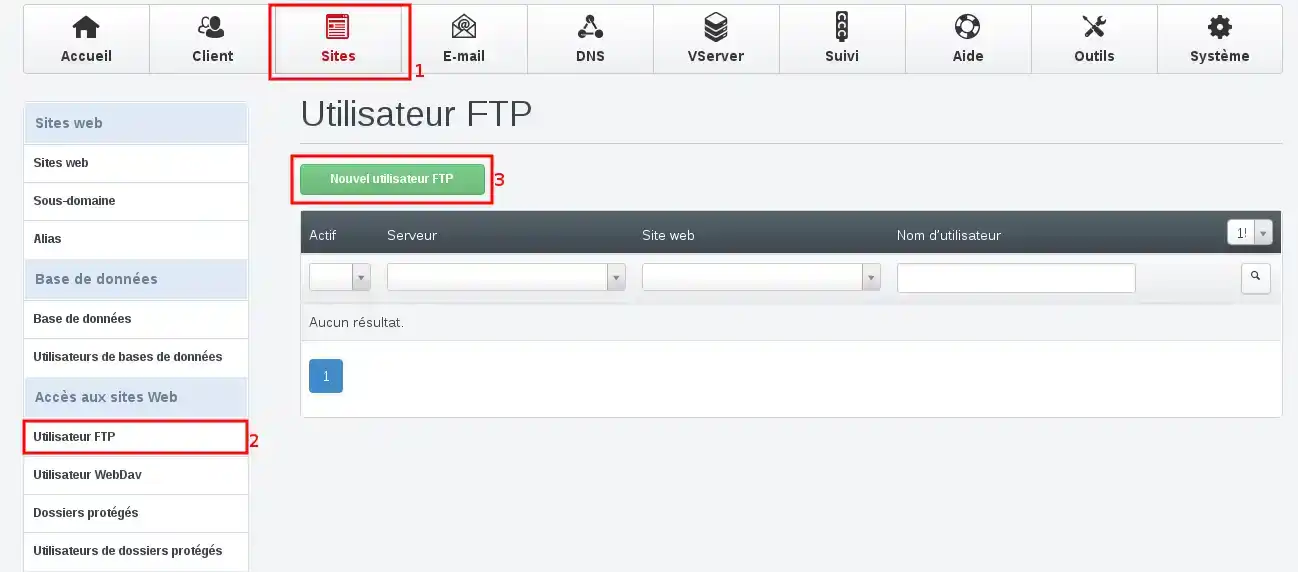
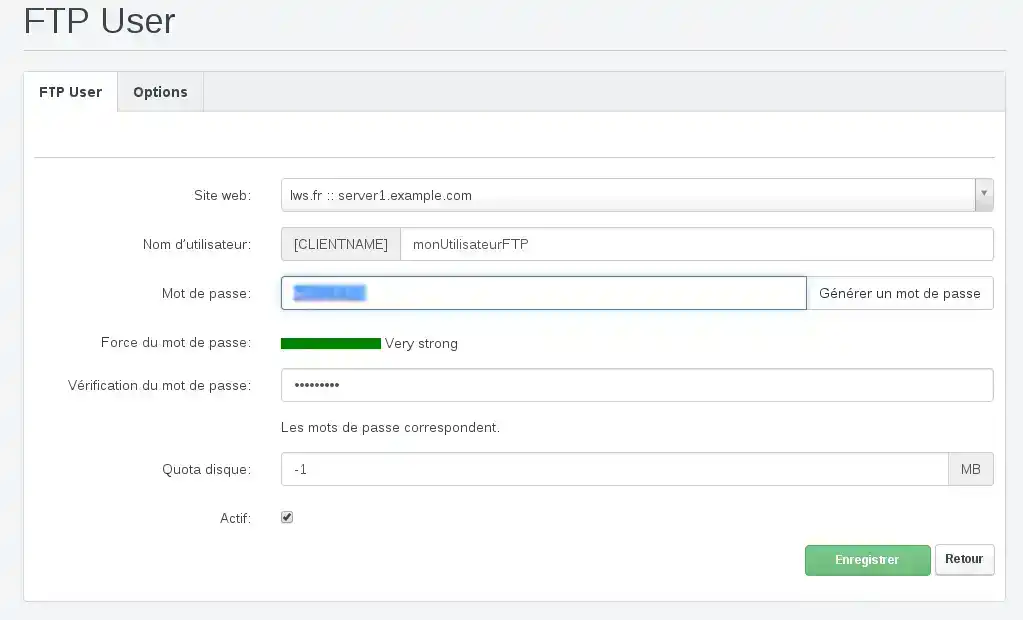
On VPSs using LXC virtualization, quotas configured in ISPConfig at the FTP user or website level are not applied.
So leave the Disk quota field at -1 or Unlimited.
The new user then appears in the FTP user list.
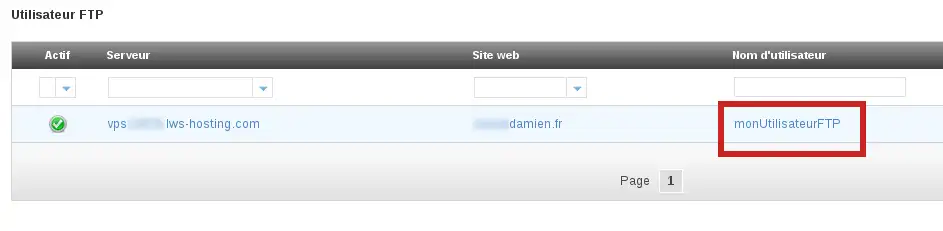
To connect with this user, use the following settings:
21;If your domain does not yet point to the VPS, use the server’s IP address as the connection host.
To learn how to configure FileZilla, Cyberduck, or WinSCP and transfer your website files, see: How do I publish a website via FTP with FileZilla, Cyberduck or WinSCP?
Once connected, the site’s public files are located in the web folder.
You can change an FTP user’s password if it has been forgotten, shared with someone else, or saved in software you no longer have access to.
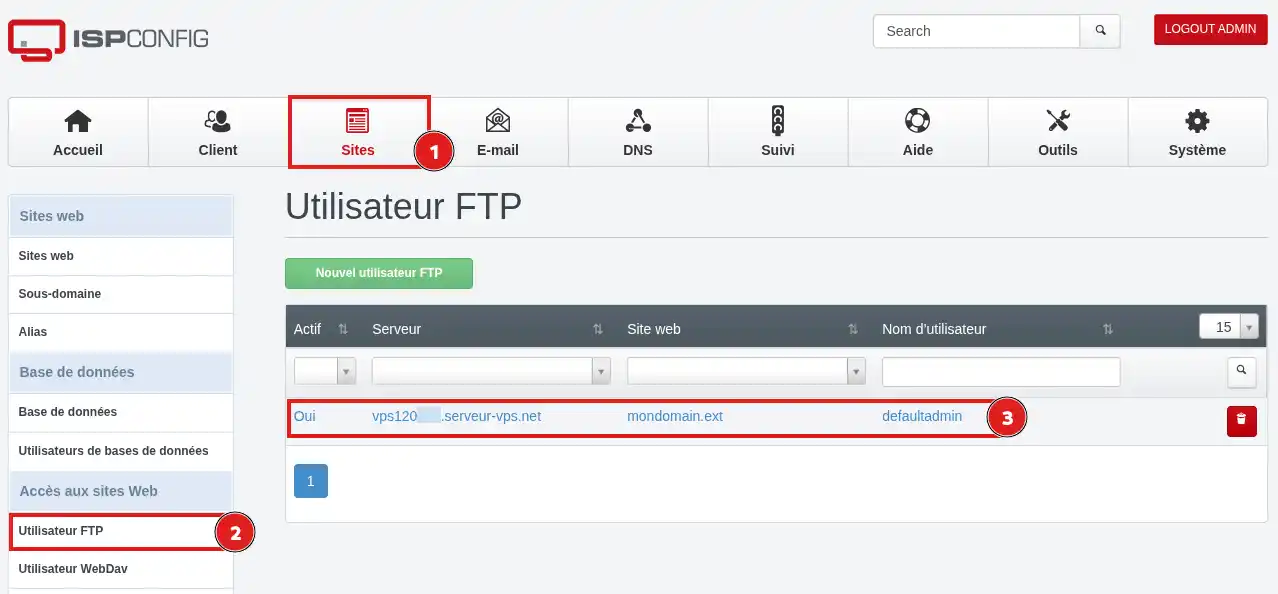
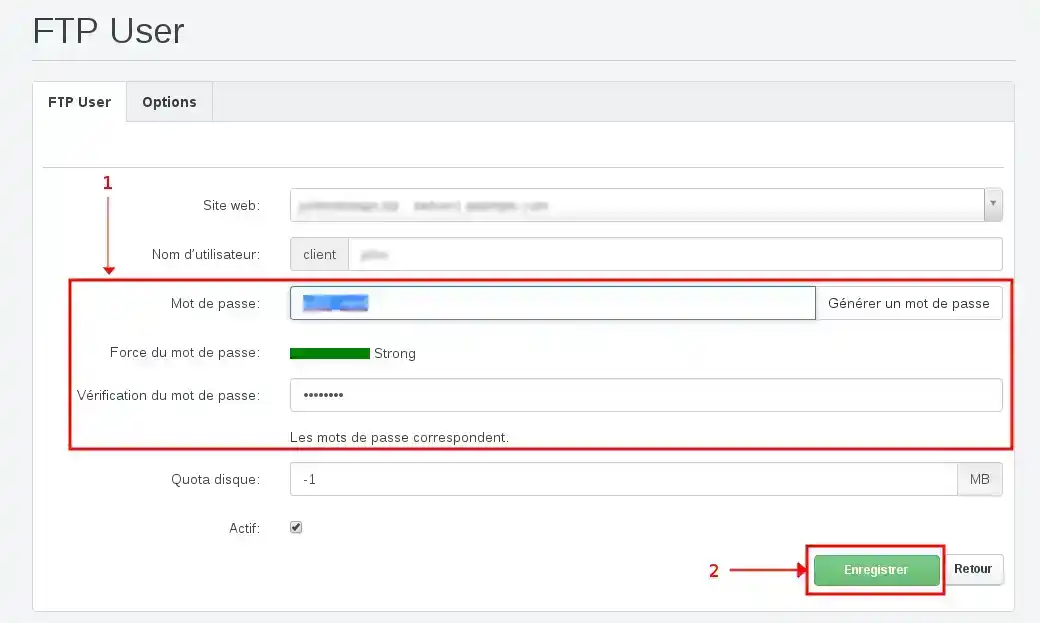
As soon as the new password is applied, the old one can no longer be used to log in.
Remember to update the password saved in FileZilla or in other software using this account.
An SFTP connection uses a Shell user, not an FTP user.
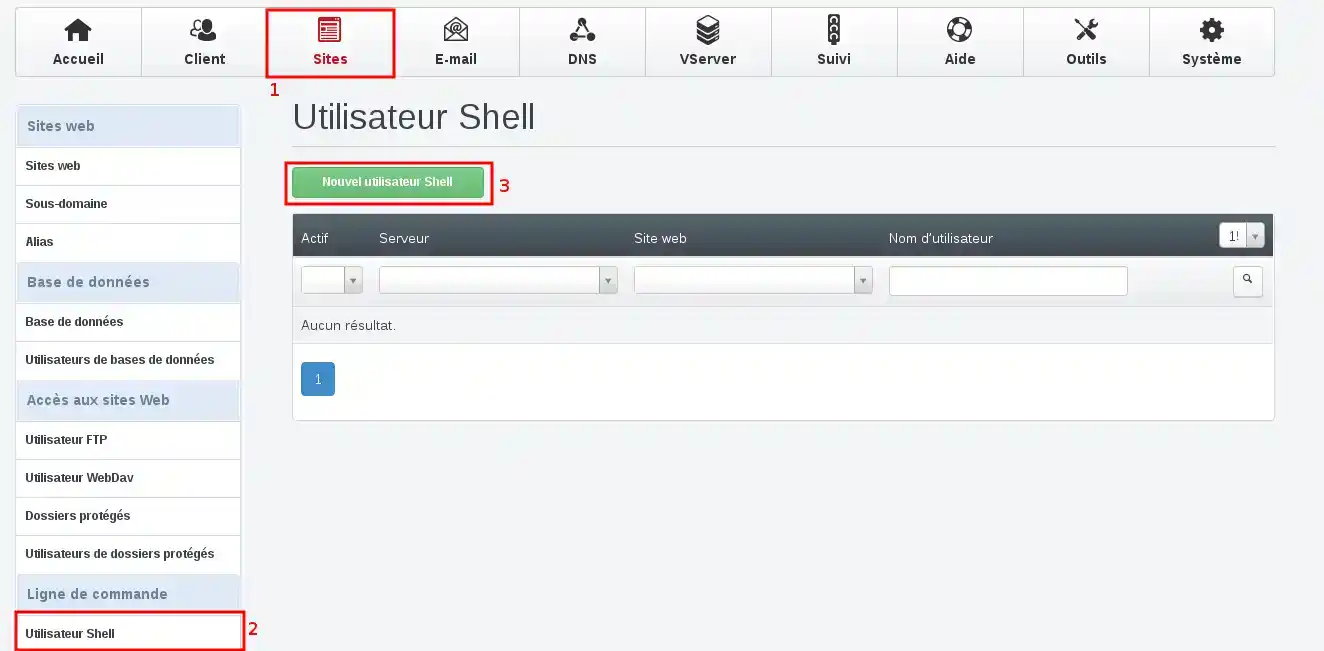
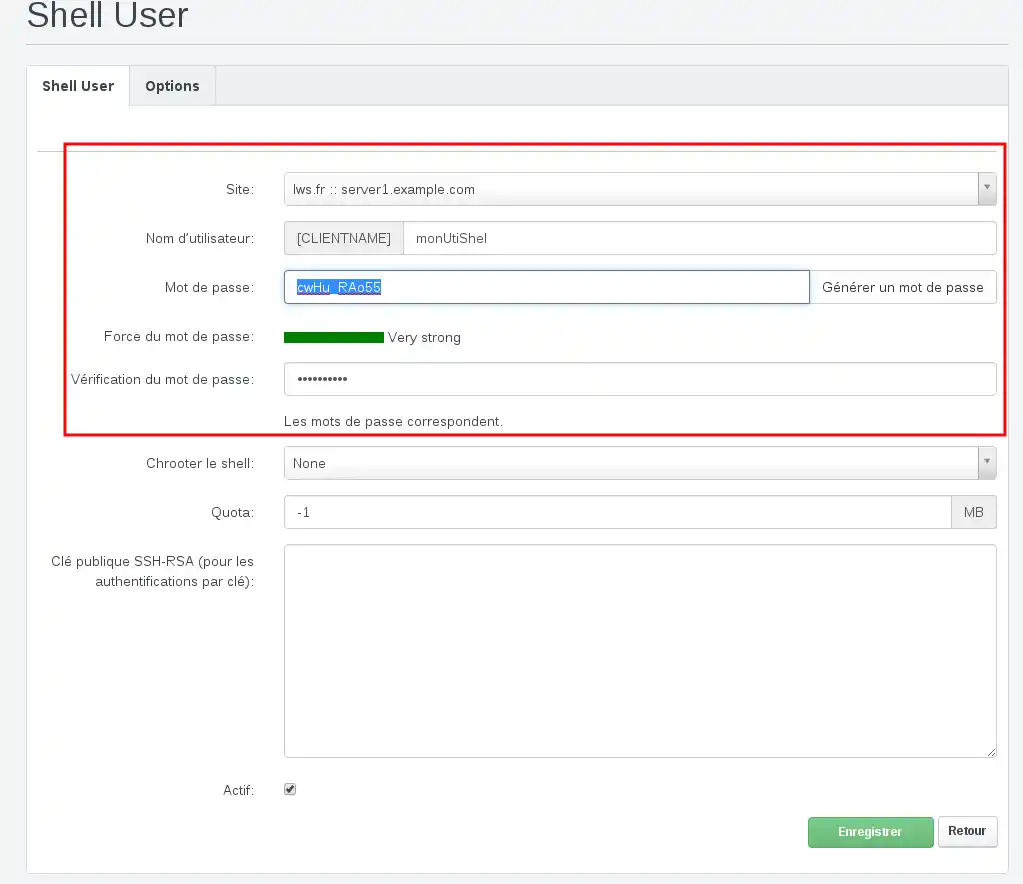
As with an FTP user, ISPConfig can automatically add a prefix to the chosen name. Always use the full name displayed in the panel.
The account then appears in the Shell user list.
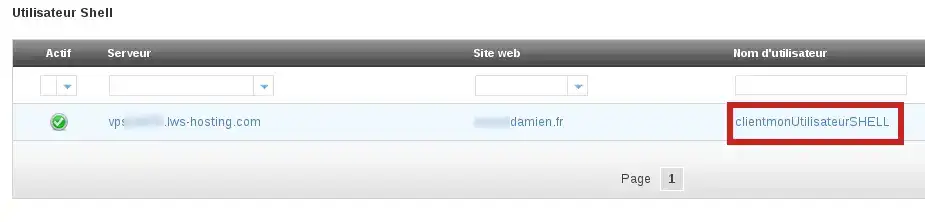
To connect with this user, use the following settings:
The SFTP port depends on your VPS configuration. If you are using an unmanaged VPS and have changed the SSH port, use that custom port for the SFTP connection.
You can use FileZilla or another SFTP-compatible software. The browsing and file transfer process is similar to the one presented in the following guide: How do I publish a website via FTP with FileZilla, Cyberduck or WinSCP?
During the first SFTP connection, the software may display the server’s identification key. Make sure you are connecting to your VPS’s IP address before accepting it.
Access is correctly configured when your software displays the site folders without authentication errors.
With an FTP account, open the web folder to find the site’s public files.
You can also transfer a small test file, verify that it appears on the server, then delete it.
Your access is operational if the site content displays and you can transfer a file without error.
I get a username or password error
Check that you are using the full name displayed in ISPConfig. It may contain a prefix automatically added by the panel.
Manually retype the password to avoid spaces added during copy and paste.
Also make sure you are using the account appropriate for the chosen protocol:
The connection no longer works after changing the password
Your software is probably still using the old saved password.
Open the settings for the relevant connection and replace the old password. You can also delete the saved password so that the software asks for it at the next connection.
The connection is refused
Check that the protocol and port match the type of account used:
Also check that you are using the correct account type: an FTP user for FTP or FTPS, and a Shell user for SFTP.
Also verify that the IP address or hostname matches the VPS on which the account was created.
I am connected, but I cannot see my website files
With an FTP account, open the web folder.
If the expected files are not there, check in ISPConfig that the user has been associated with the correct website.
I do not see the Shell User menu
The account used to access ISPConfig may not have the necessary permissions to create a Shell user.
Log in again with an account authorized to administer the site, or ask the VPS administrator to create the SFTP access.
If you think the FTP or SFTP credentials have been shared with an unauthorized person, change the password immediately.
Then check the website files for any unknown changes.
Ask the LWS team and the community. Answers are published after moderation.
 About LWS :
LWS is a 100% French web hosting company that focuses on quality and innovation and offers a responsive and competent technical service at affordable prices.
About LWS :
LWS is a 100% French web hosting company that focuses on quality and innovation and offers a responsive and competent technical service at affordable prices.



 Yes
Yes No
No