
Online help
The web host accessible to all
Procédure
Relevant service: LWS Panel hosting plan, cPanel and Cloud cPanel
Relevant panel: SiteBuilder Pro editor
Level: beginner
SiteBuilder Pro offers three distinct artificial intelligence features. You can get explanations on how to use the builder, ask the assistant to directly modify your site, or generate a new site from a description.
These functions are not used [PERSON_NAME]. It is therefore important to choose the one that matches your need.
The Ask a question (AI) feature is used to get help on how the builder works. [PERSON_NAME] can guide you step by step.
For example, you can [PERSON_NAME]
Click Ask a question (AI) in the bar at the top of the editor.
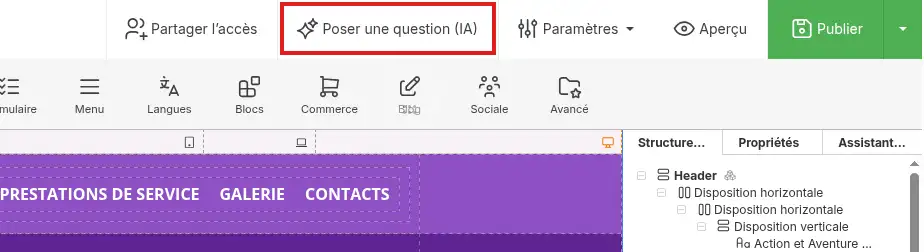
Then enter your question.
For example:
How do I add a new page to my site?
or:
How do I change the [PERSON_NAME] background of a section?
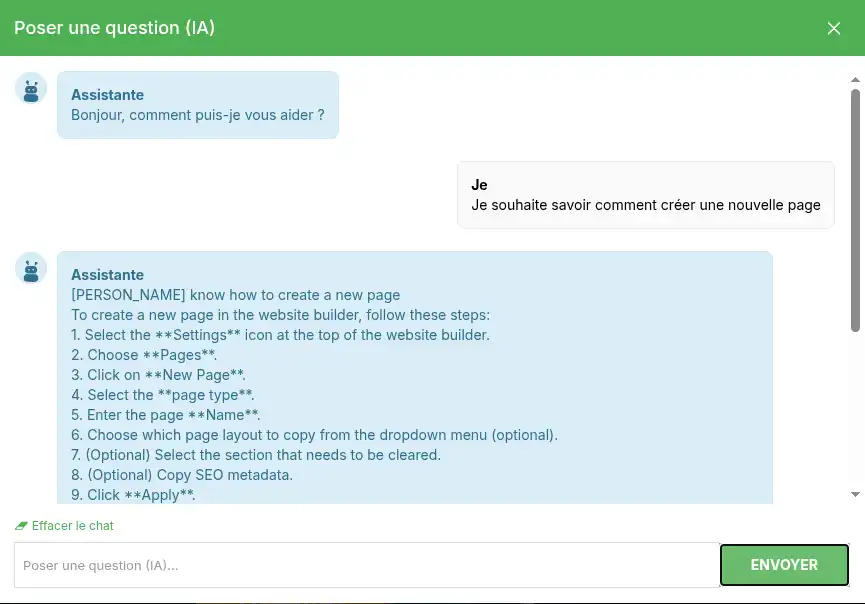
The assistant tells you which menus and actions to use. It guides you, [PERSON_NAME] performs the requested modifications.
Use this feature when you want to understand how to perform an action yourself in SiteBuilder Pro.
The AI Assistant tab, located in the right-hand column of the editor, lets you directly request the creation or modification of site elements.
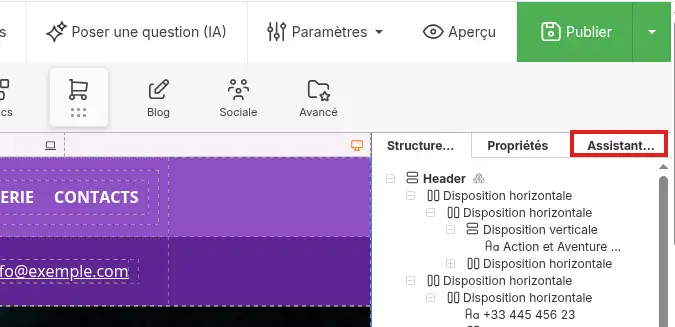
Unlike the Ask a question (AI) feature, this assistant [PERSON_NAME] project.
You can ask it to:
Open the AI Assistant tab in the right-hand column, then clearly describe the change to make.
For example:
Add a section below the home page menu with a title, an introductory paragraph and a [PERSON_NAME] Contact page.
You can also specify the desired style:
[PERSON_NAME] the presentation section of the [PERSON_NAME] page, with a light background, a dark blue title and a green button.
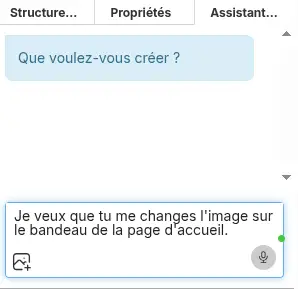
To get a more precise result, indicate:
It is better to request only one important change at a time. This way, you can more easily check the result obtained.
Always proofread the text and check each change before publishing the site. A response generated by artificial intelligence may be incomplete or may not exactly match your needs.
If the result does not suit you, use the Undo arrow located in the editor’s top bar, then rephrase your request with more details.

SiteBuilder Pro can generate a complete first version of your site from a description of your business.
Changing the template replaces the presentation and content currently present in your project. If your site already contains important modifications, make a backup before continuing.
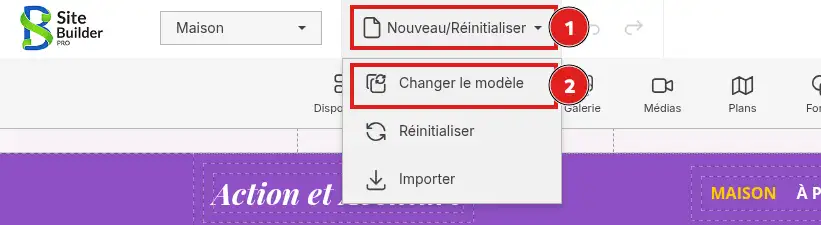
In the top bar of SiteBuilder Pro, open the New/Reset menu, then click Change template.
In the left-hand column, select Create with AI.
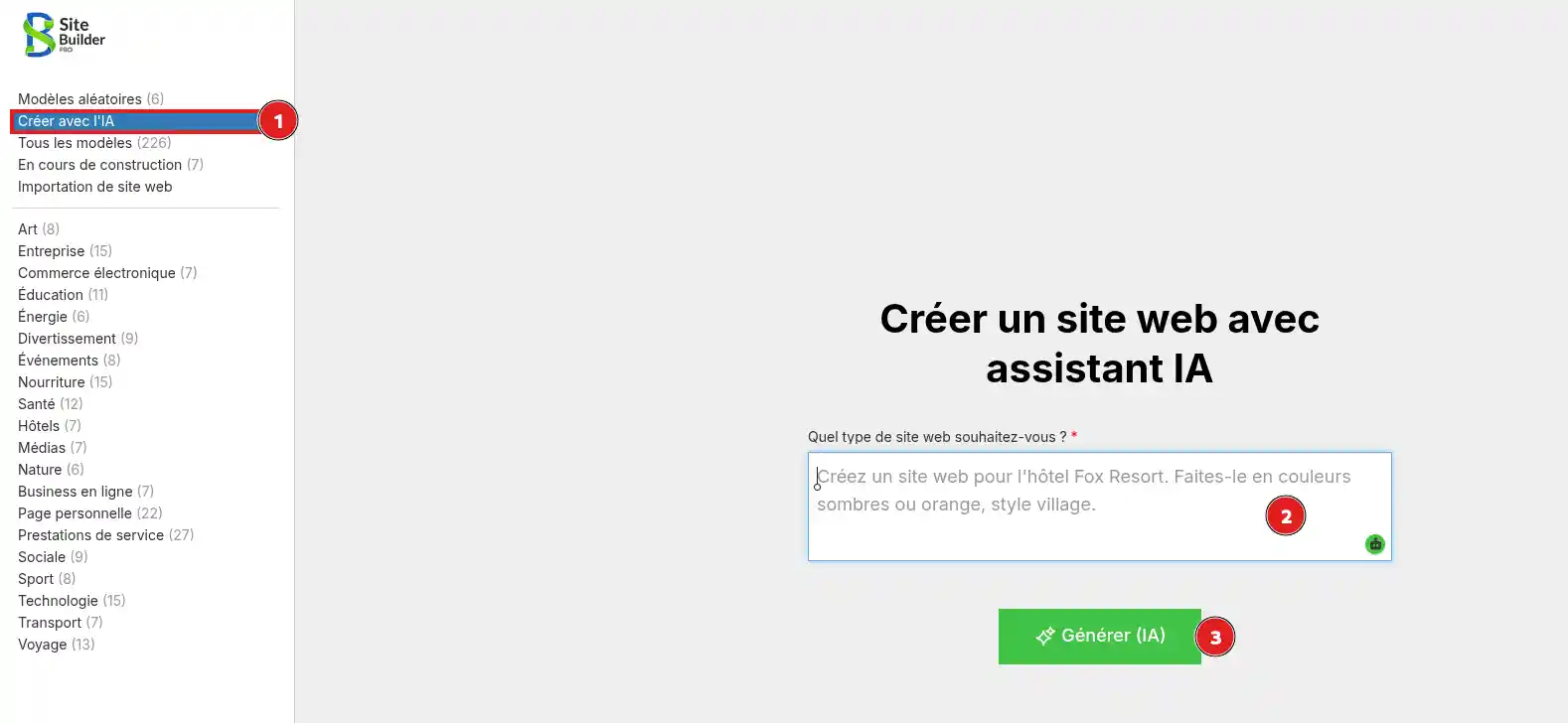
Then describe the site you want to create in the What kind of website do you want? field.
You can specify:
For example:
Create a showcase website for a gardening company. Use green and natural colors. Add a home page, a services presentation page, a project gallery and a contact page.
Click [PERSON_NAME] (AI).
SiteBuilder Pro then creates a site base matching your description. When generation is complete, check all pages and replace the text, images, contact details and information that do not match your business.
SiteBuilder Pro includes 24 free [ADDRESS] requests per day. [PERSON_NAME], you can wait for the quota to renew or enter a personal API key.
A personal API key allows you to use an artificial intelligence service associated with your own account.
You must first create a key with the provider you want to use. This provider may require you to add a payment method or purchase credits.
In the top bar of SiteBuilder Pro, open the Settings menu, then click Settings.
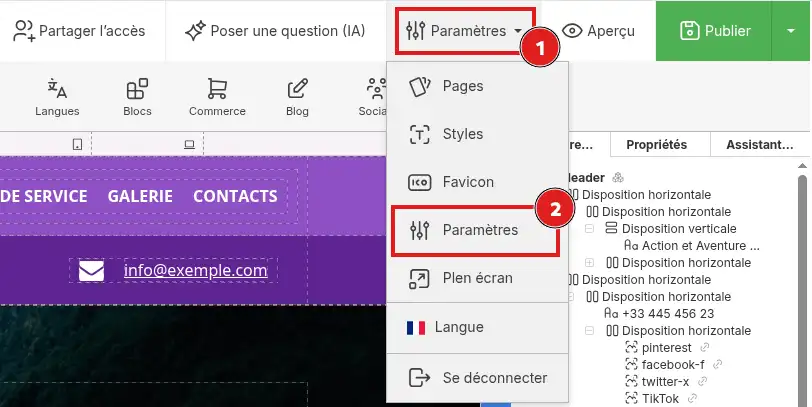
Open the AI Keys tab.
In the AI list, select the provider corresponding to your key:
Then paste your key into the field on the right.
To use a personal key dedicated to image generation, also fill in the Prodia (Image generation) field.
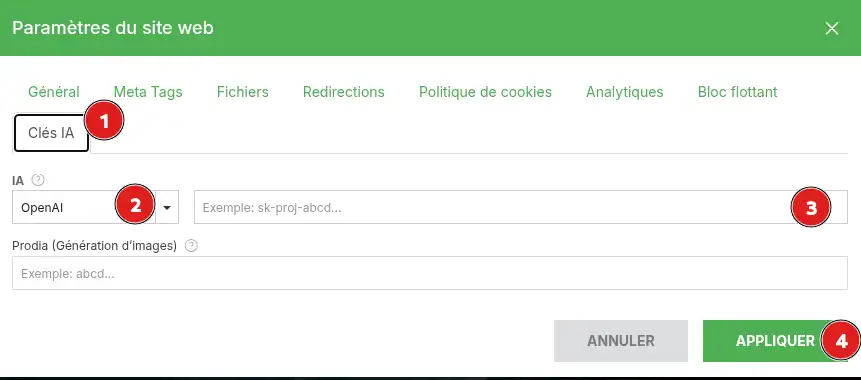
Click Apply to save the configuration.
Requests made with a personal key may be billed directly by the selected provider. Check its pricing and your account limits before using it.
An API key is confidential. Never enter it in a question sent to the assistant and never display it [ADDRESS] screenshot. [PERSON_NAME] has been shared with another person, deactivate it from the provider’s account and create a new one.
After a modification or generation performed by the AI assistant [ADDRESS], browse the relevant pages in the editor.
Then click Preview and check:
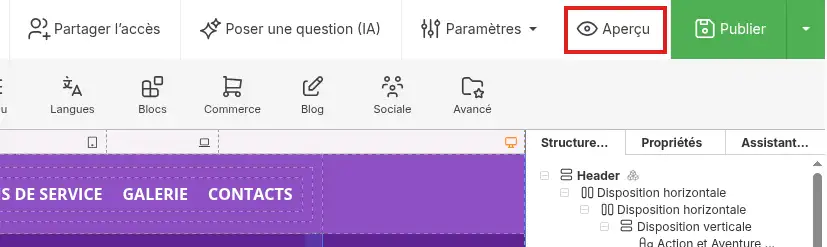
Changes made in the editor are only visible to visitors after clicking Publish.
[bcolor_green]
Changes are correctly applied when they appear [ADDRESS], then on the public site after it is published.
[/success]
The “Ask a question ([ADDRESS])” feature explains the procedure to me, but does not modify my site
This behavior is normal. This feature is used only to guide you in using the builder.
To request a direct modification, use the AI Assistant tab located in the right-hand column.
The AI assistant does not modify the correct element
Indicate precisely the page, location and content concerned.
For example:
On the home page, replace the title of the first section with “Our services” without changing the other text.
The result does not match my request
Use the Undo function, then send a new, more precise request. Avoid grouping several important changes into a single message.
The changes are [PERSON_NAME] site
Click Publish in the top bar of SiteBuilder Pro. Then refresh the site page in your browser.
The daily limit has been reached
Wait for the quota to renew or add a personal key from Settings > Settings > AI Keys.
My API key does not work
Check that:
Ask the LWS team and the community. Answers are published after moderation.
 About LWS :
LWS is a 100% French web hosting company that focuses on quality and innovation and offers a responsive and competent technical service at affordable prices.
About LWS :
LWS is a 100% French web hosting company that focuses on quality and innovation and offers a responsive and competent technical service at affordable prices.



 Yes
Yes No
No