
Online help
The web host accessible to all
Procédure
CapRover can be installed in just a few clicks on your VPS server thanks to the preconfigured template available in your customer area. CapRover is an open source PaaS (Platform as a Service) platform that simplifies the deployment and management of your web applications and containerized databases with Docker. This guide details the procedure for deploying this template and connecting to your administration interface.
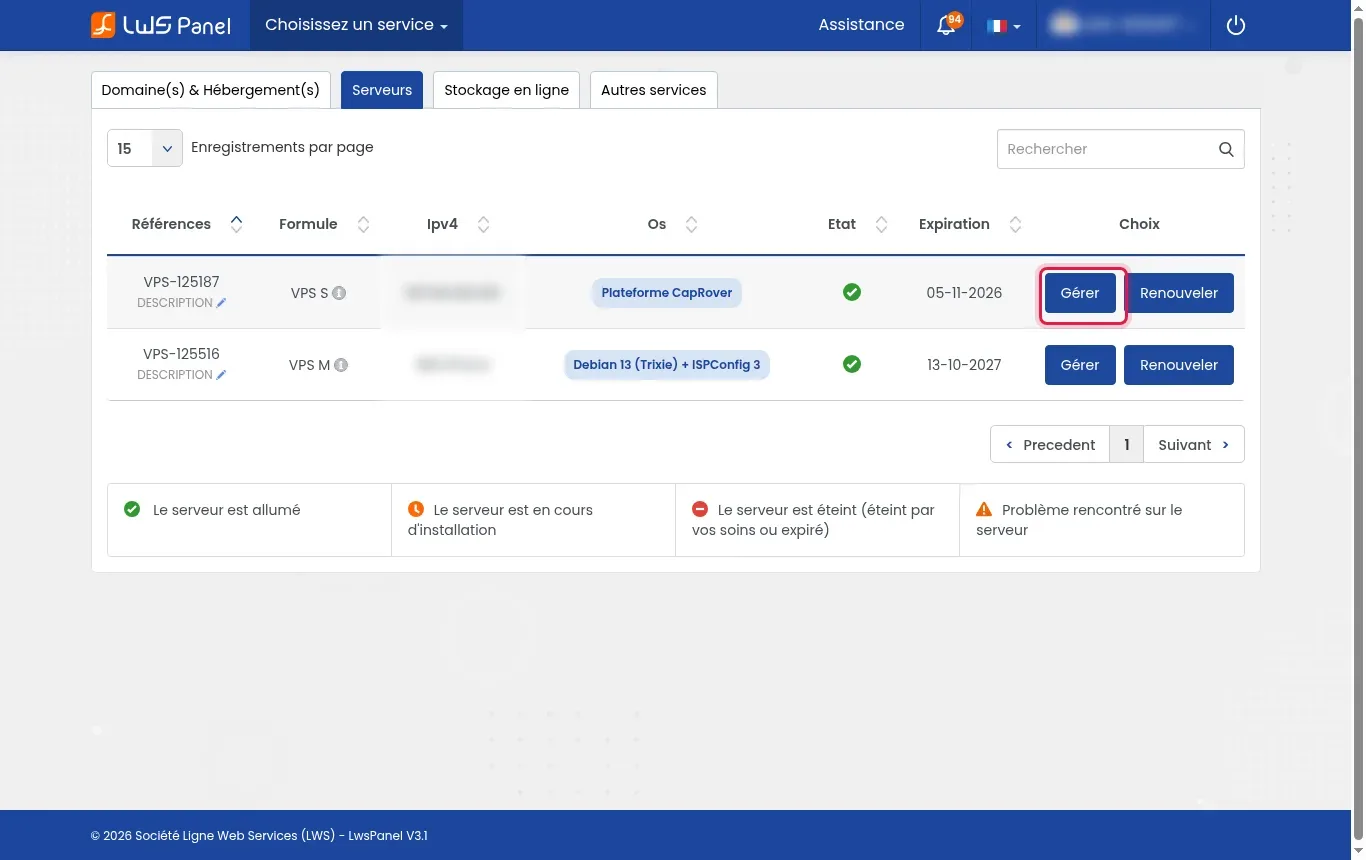
Log in to your customer area, go to the Servers tab, then click the Manage button opposite the VPS concerned.
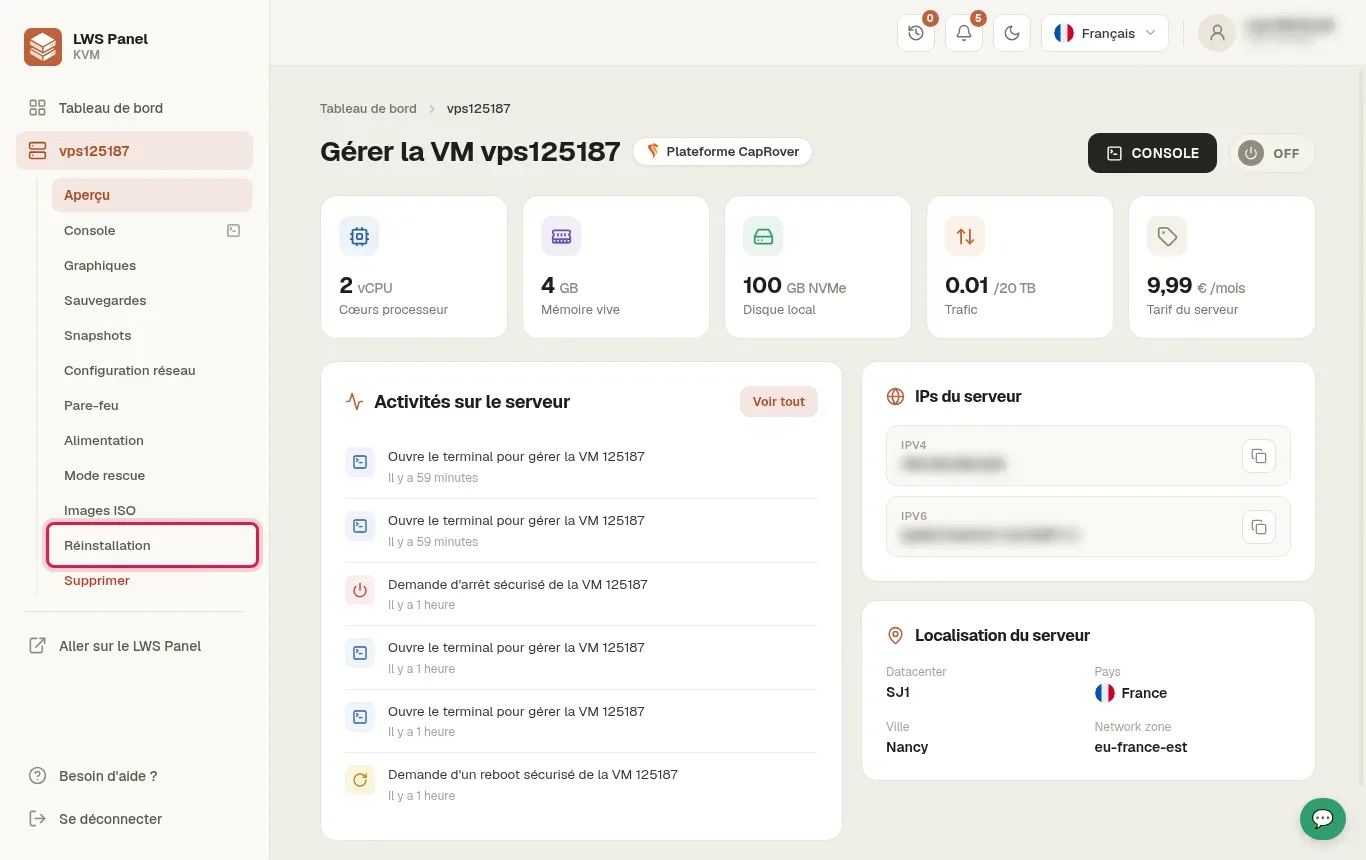
In the left sidebar menu of your virtual machine management interface, click on the Reinstallation section.
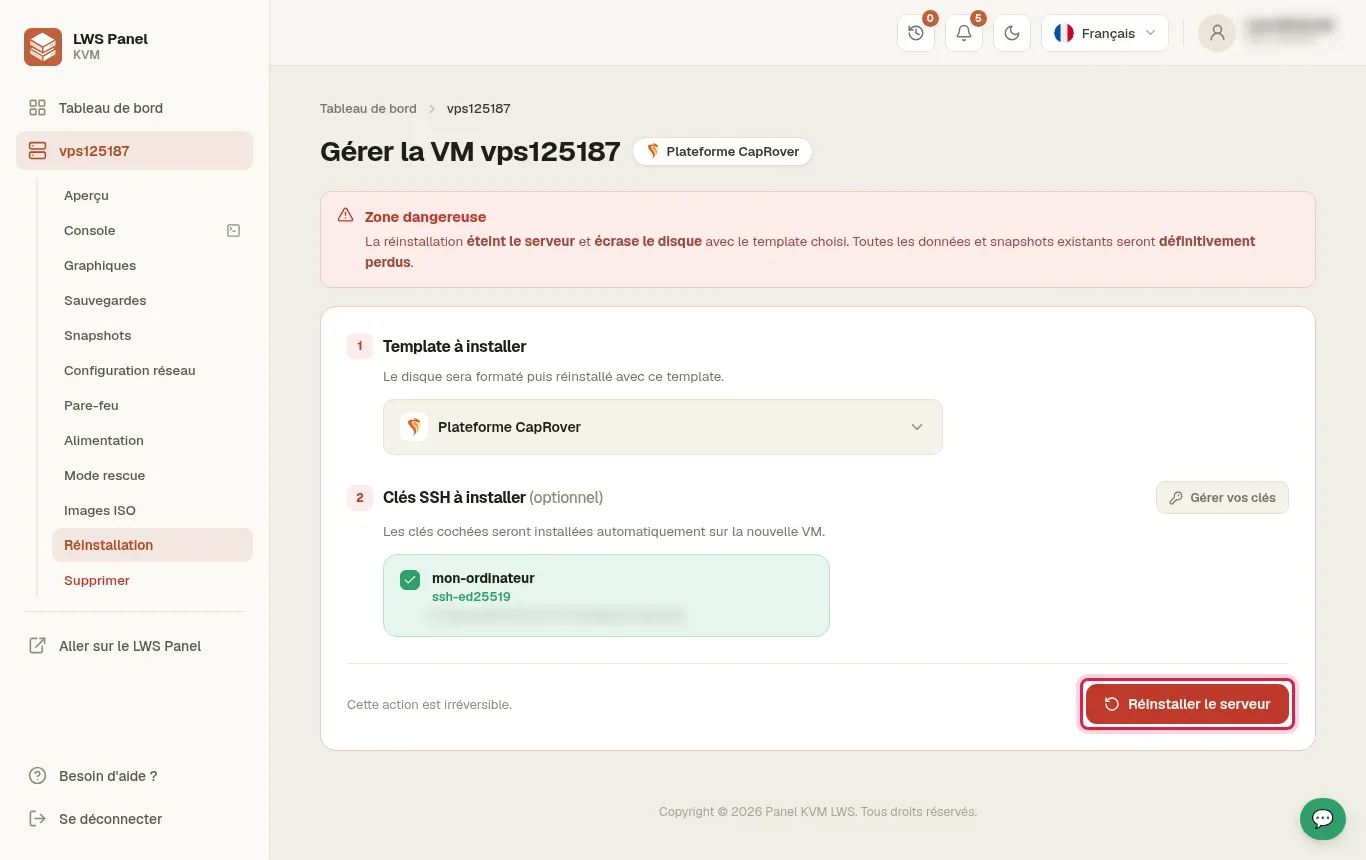
In the Template to install field, choose CapRover Platform. Make sure your SSH key remains checked in the keys to install section, then click the red Reinstall server button.
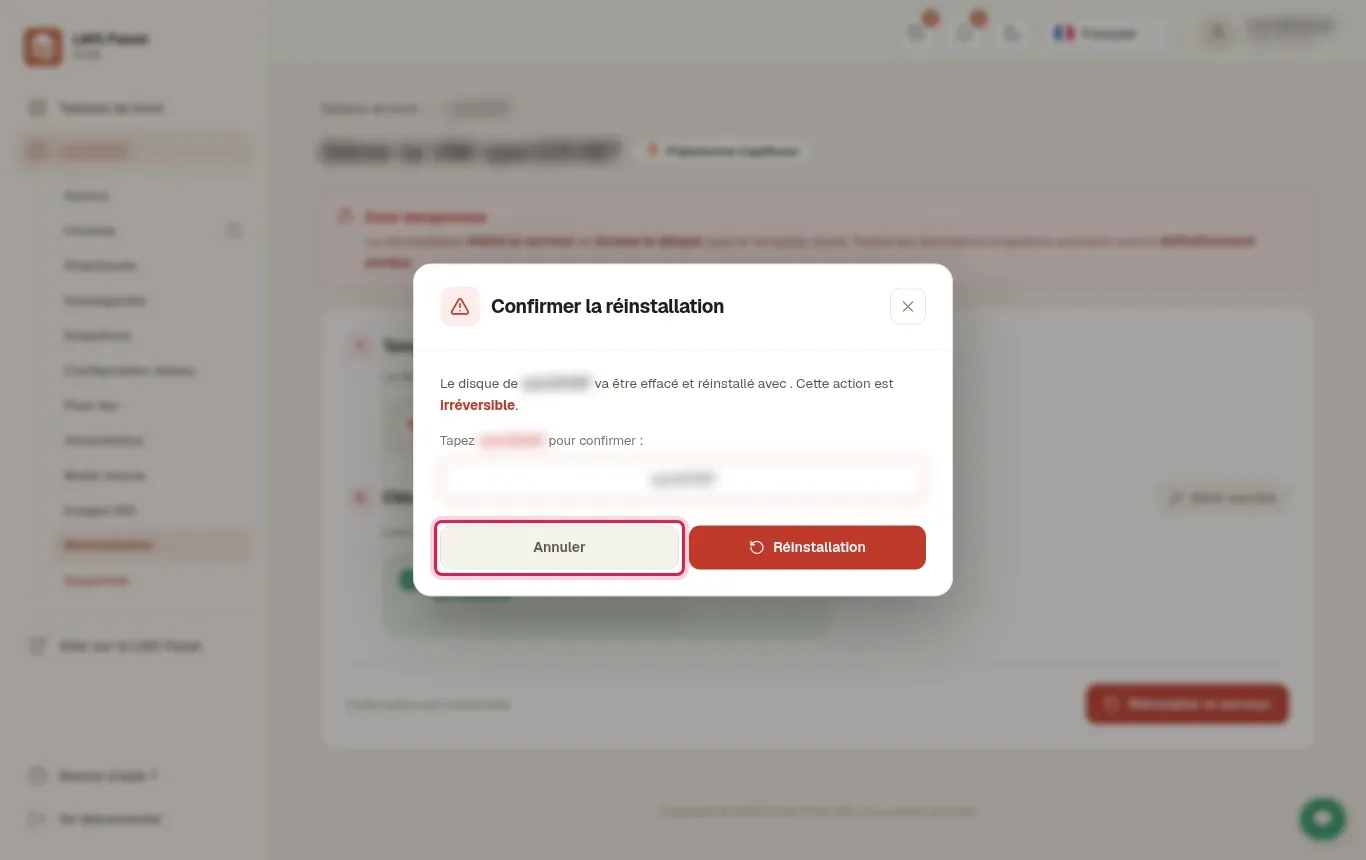
A modal window titled Confirm reinstallation appears to remind you that the disk will be erased irreversibly. Enter the exact identifier of your server (for example vps123456) in the confirmation field, then click Reinstallation.
The system formats and performs the complete installation of the system with Docker and CapRover. Wait about 4 to 5 minutes for the operation to complete automatically.
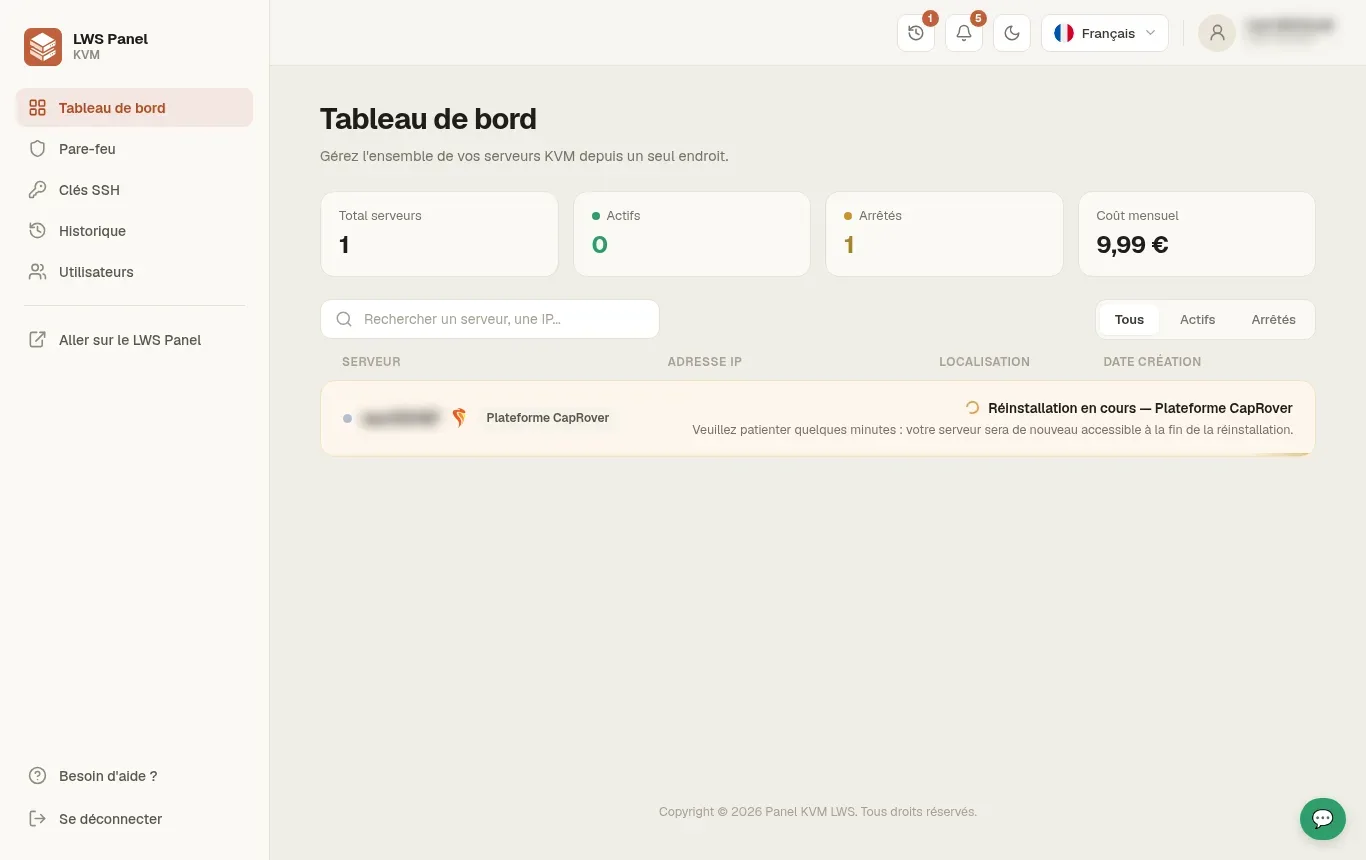
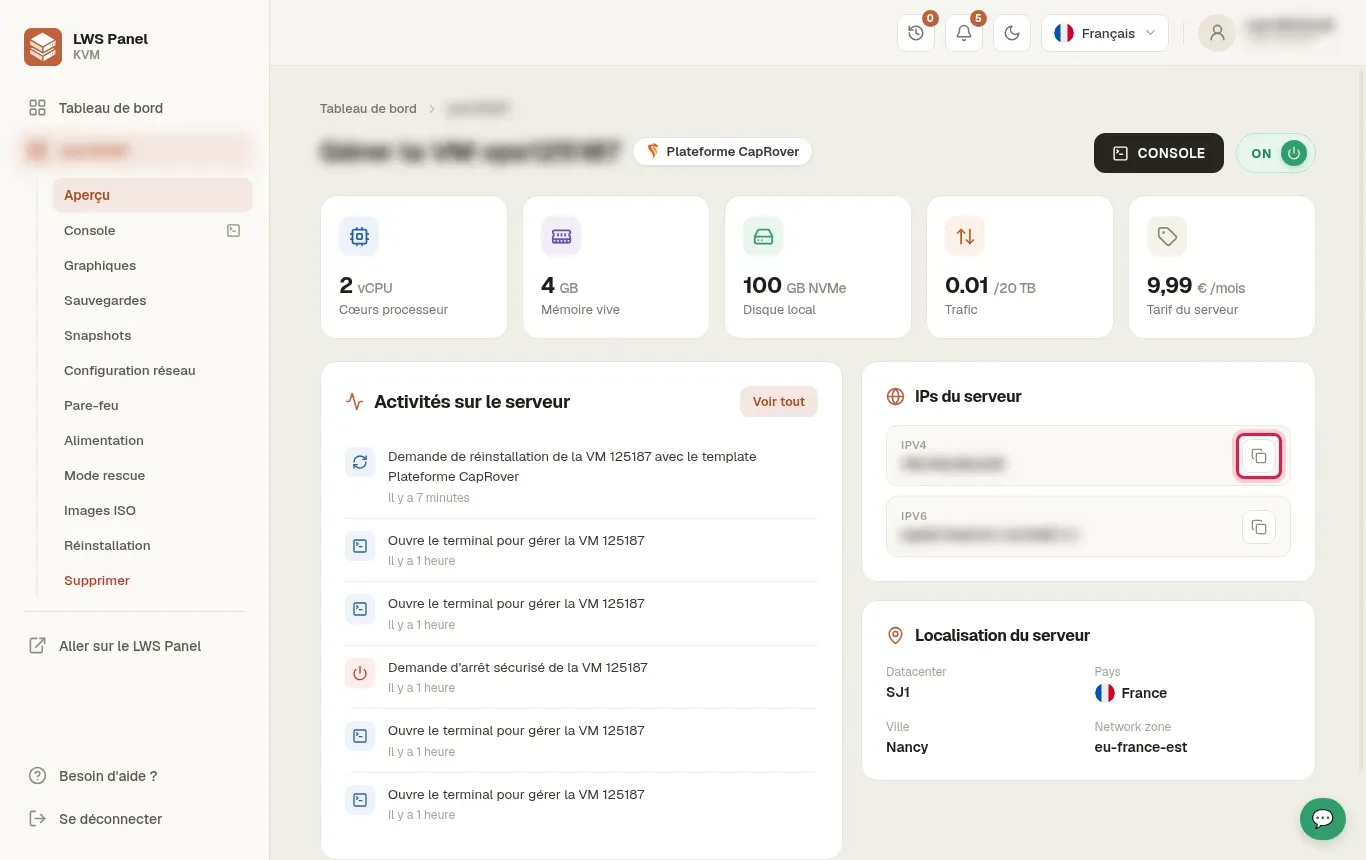
Once the installation is complete, go back to the Overview section of the sidebar menu. Find the Server IPs block and copy your IPv4 address.
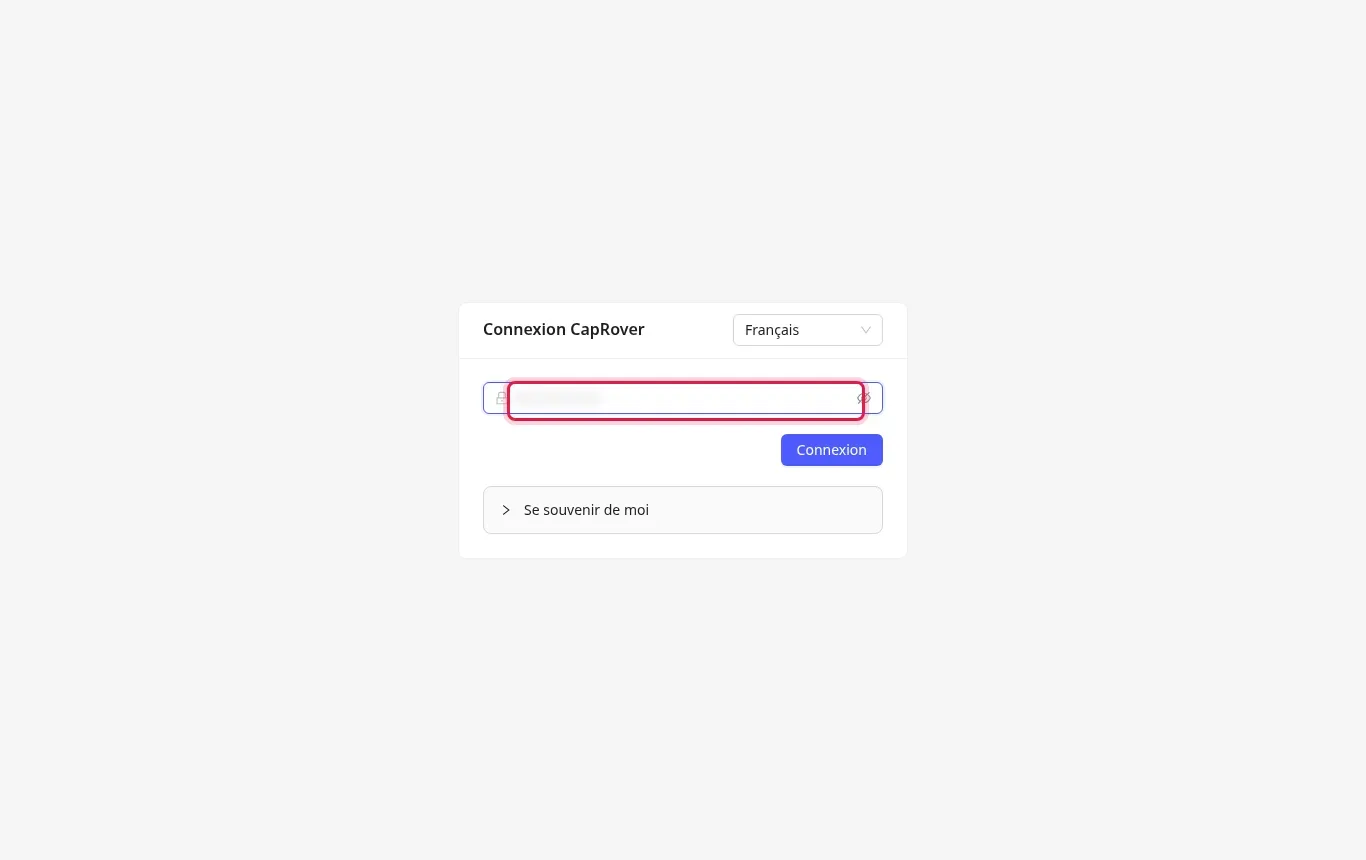
Open a new tab in your web browser and go to the URL http://203.0.113.10:3000 (replacing 203.0.113.10 with your real IP address). Enter the platform's initial password in the required field then click Login.
The dashboard is displayed, confirming that your instance is working properly. You can browse the side menus such as Apps, Monitoring or Cluster to manage your future containers.
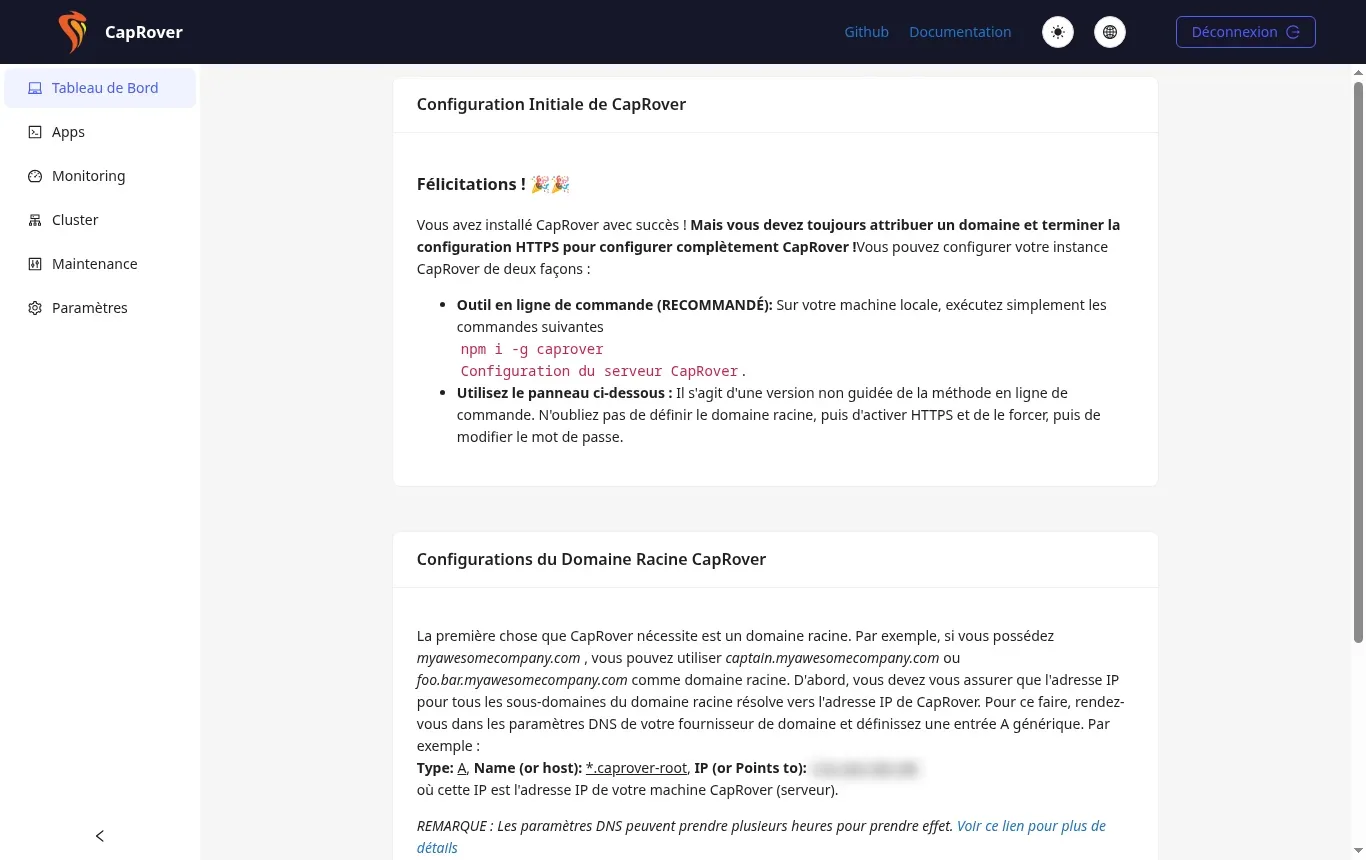
At this stage, your server is only accessible via its raw IP address on port 3000. SSL/TLS security certificates require a valid domain name, which will be configured in the next step via a DNS record.
No. Applying the template fully resets the virtual hard drive of your VPS. All pre-existing data is permanently deleted.
Starting all of CapRover's Docker containers completely may take an additional one to two minutes after the task finishes in the panel. Wait a short while then refresh the page.
To link your domain name to CapRover, you will need to create a generic wildcard A-type DNS entry, such as *.caprover.example.com pointing to your server's IP address.
Yes, your SSH key configured during installation remains operational and allows you to connect as the root administrator on your virtual machine.
Ask the LWS team and the community. Answers are published after moderation.
 About LWS :
LWS is a 100% French web hosting company that focuses on quality and innovation and offers a responsive and competent technical service at affordable prices.
About LWS :
LWS is a 100% French web hosting company that focuses on quality and innovation and offers a responsive and competent technical service at affordable prices.



 Yes
Yes No
No