
Online help
The web host accessible to all
Procédure
You can reset access to your n8n instance directly from your server’s Docker command line without losing any workflow. n8n is a workflow automation platform that lets you connect different services and applications together through visual scenarios. This procedure allows you to restore administrator access in just a few secure commands.
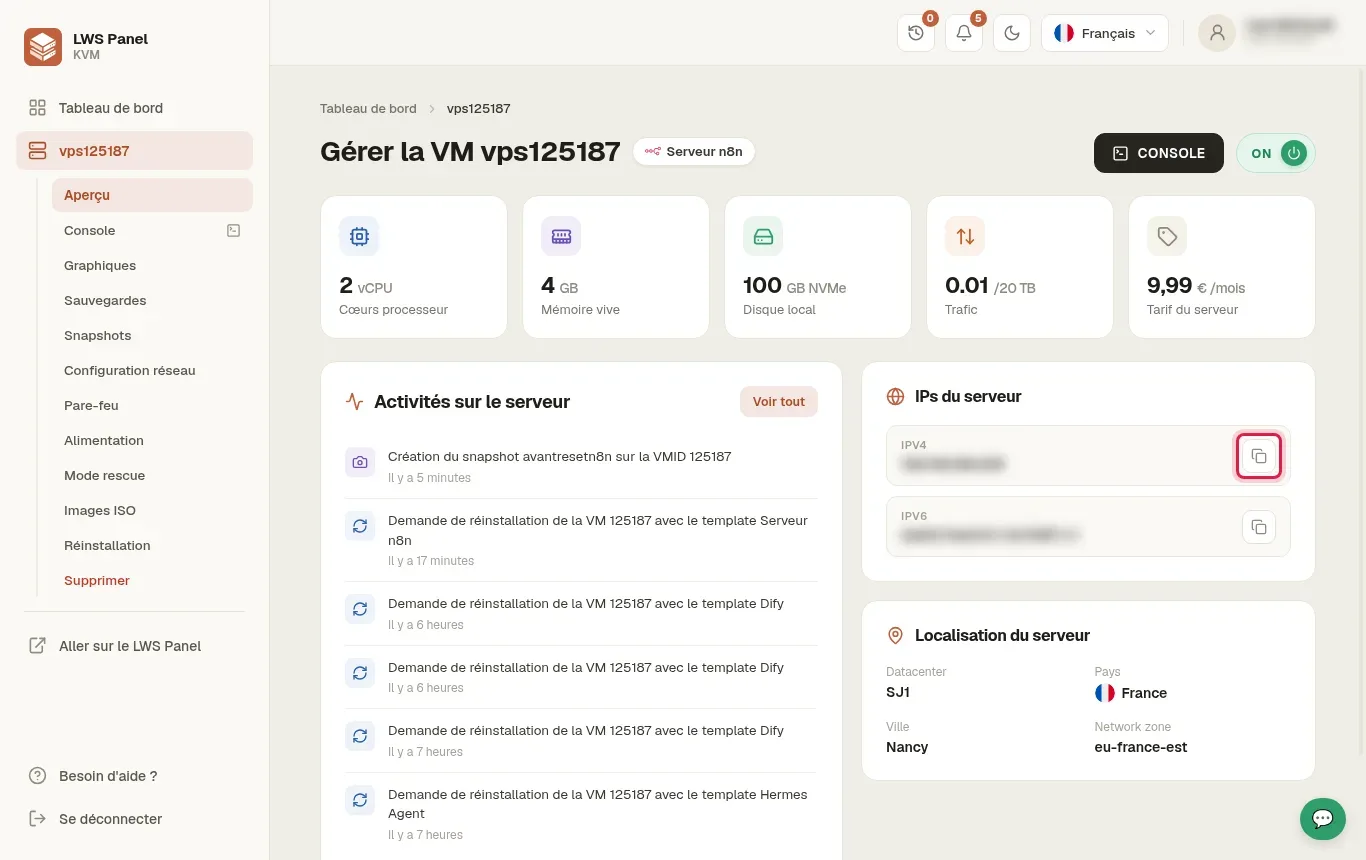
Go to the Overview section of your KVM Panel. In the Server IPs box, note the public IPv4 address of your machine (for example, the fictitious IP 203.0.113.10).
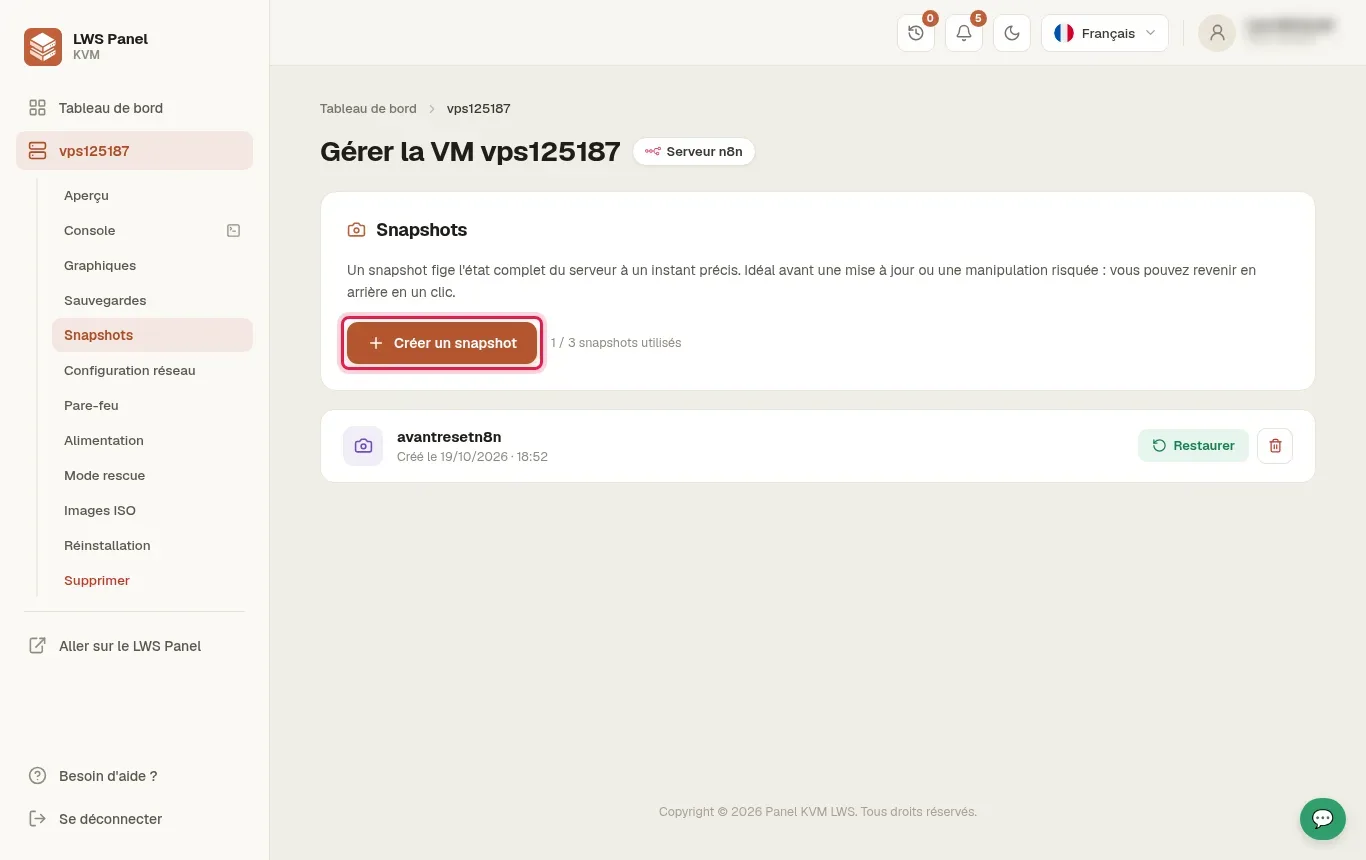
Click Snapshots in the left sidebar menu, then click the + Create a snapshot button. This instant image freezes the server’s complete state and ensures your data stays safe before any intervention.
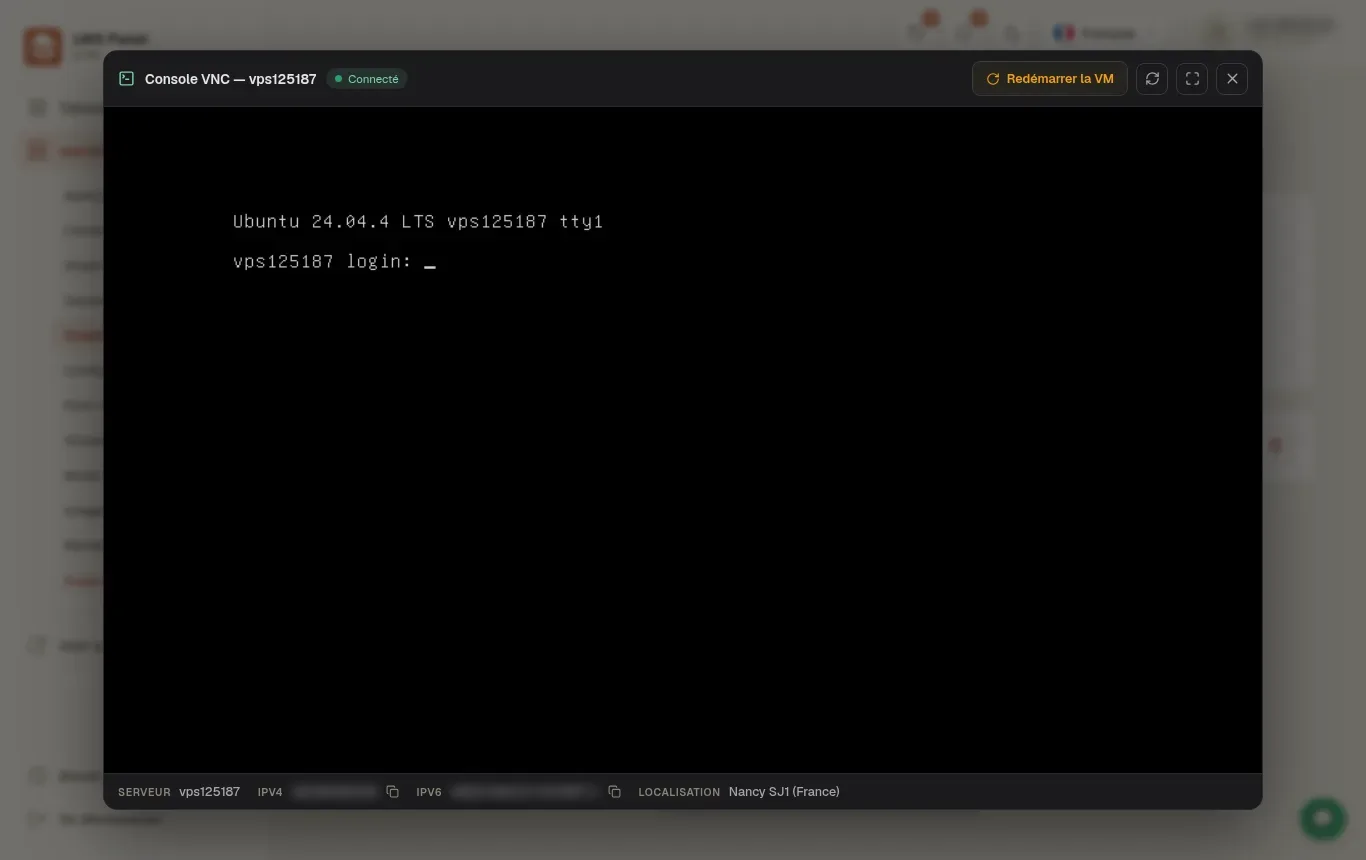
Open your terminal and connect with the command ssh root@203.0.113.10 (replacing it with your real IP address). If you do not have direct SSH access, click the Console menu in the KVM Panel to open the noVNC rescue session.
In the root terminal, enter the command docker ps. Find the name of the container linked to the n8n service shown in the right-hand column.
Run the command docker exec -it by replacing
Restart the container using the command docker restart . Then open your n8n URL in your browser to recreate the owner administrator account and verify that all your workflows are present.
Here are the common issues encountered in the console and how to fix them quickly:
ssh-keygen -R before trying the connection again.docker ps.su - or run your commands with root privileges.Yes. The user-management:reset command acts exclusively on the credentials and permissions table. All created flows, saved API credentials, and execution histories remain intact in the Docker volumes.
The reinstall button completely resets the VPS NVMe disk. This erases the Docker engine, containers, and all volumes containing your creations. Only the internal Docker command should be used.
Check the exact spelling of the name returned by the docker ps command. If no container appears, list all stopped containers with docker ps -a and start the n8n container before trying the reset again.
This error occurs if you are not connected with administrator privileges. Make sure to open the session as the root user or prefix your commands with sudo.
This message means that the server’s cryptographic fingerprint has changed in your local known_hosts file. Remove the old saved key with ssh-keygen -R 203.0.113.10 (using your VPS IP) and then restart the SSH connection.
Ask the LWS team and the community. Answers are published after moderation.
 About LWS :
LWS is a 100% French web hosting company that focuses on quality and innovation and offers a responsive and competent technical service at affordable prices.
About LWS :
LWS is a 100% French web hosting company that focuses on quality and innovation and offers a responsive and competent technical service at affordable prices.



 Yes
Yes No
No