Procédure
Why do you have a blank page on your WordPress site?
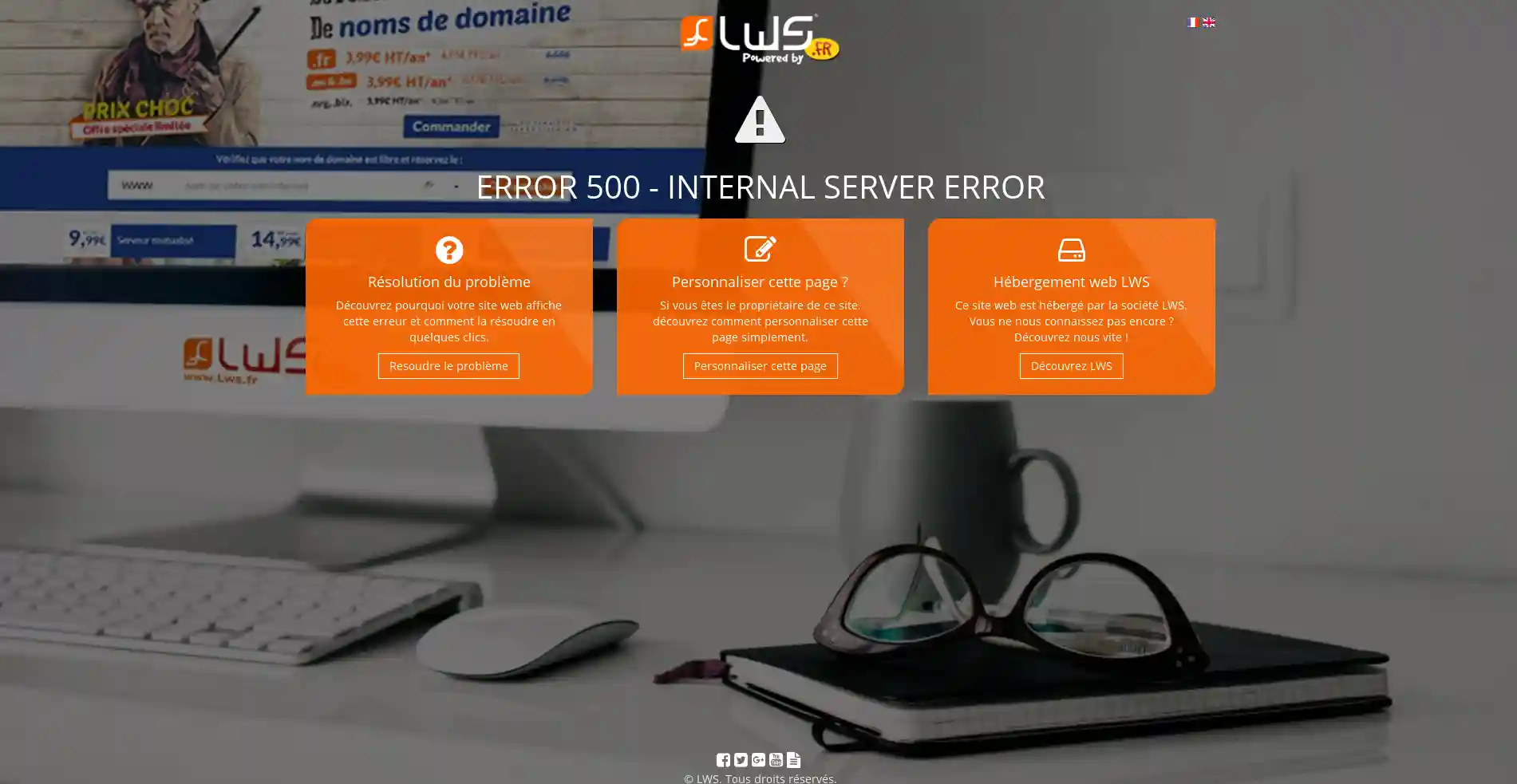
You go to your website and discover a blank page or a 500 error. This is classic WordPress behaviour when it encounters an error of some kind. This error can affect your entire website or just a few pages.
This error may be due to :
- A memory problem: Web hosts have memory quotas. As soon as the quotas are reached, a blank page or a 500 error may appear on your website.
- A problem with your theme or with certain modules: When certain themes and/or modules are not compatible with your WordPress version, the problem may arise. It is imperative to check before installing a theme or an extension that they are compatible with the WordPress version you have deployed to create your website.
- Problem with your .htaccess file at the root of your site: this file is created automatically by the WordPress software, and is modified each time you change the configuration or add a module to your website. The configuration of this file may be causing problems.
How do you rename your .htaccess file?
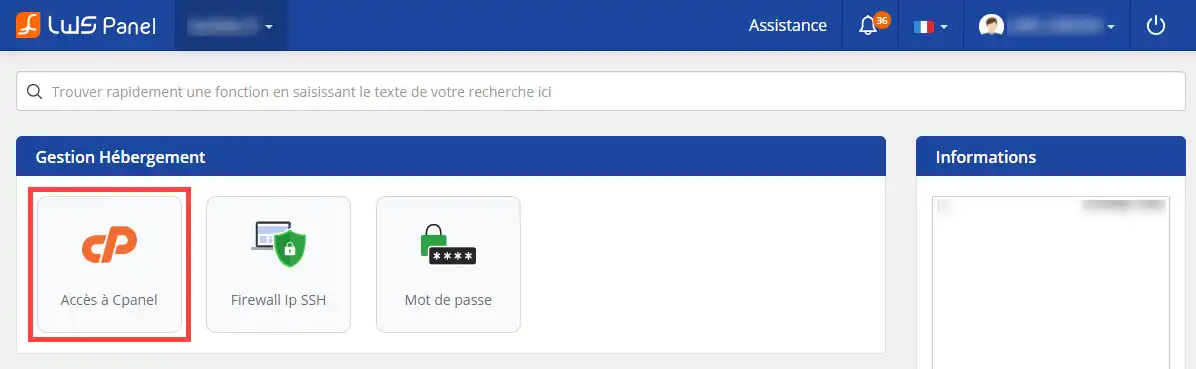
11. Log in to your customer area and click on the"Access to cPanel" button.
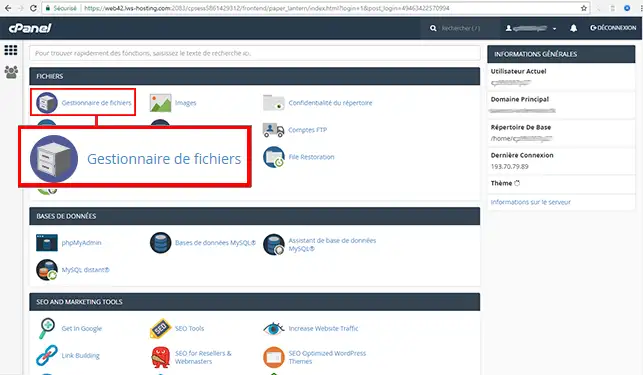
22. Click on the"File manager" button to access your various folders and files. The File Manager lets you rename, modify, delete and add files in just a few clicks, without having to install any software on your computer.
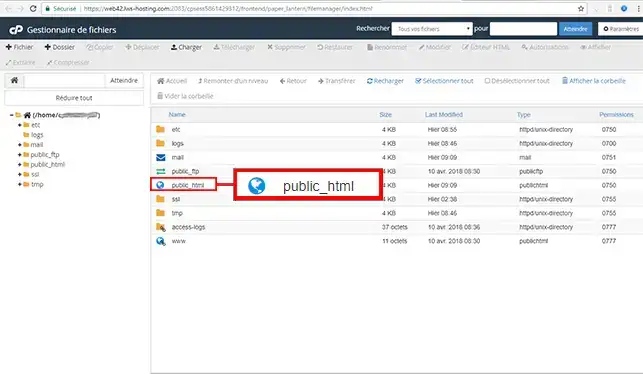
33. Double-click with your mouse on the"public_html" or"www" folder to open it.
44. By default, the ".htaccess" file is hidden by your FTP space. To make the file visible, click on the"Settings" tab at the top right of your screen. Tick the"Show hidden files" box in the pop-up window and confirm your choice by clicking the"Save" button.
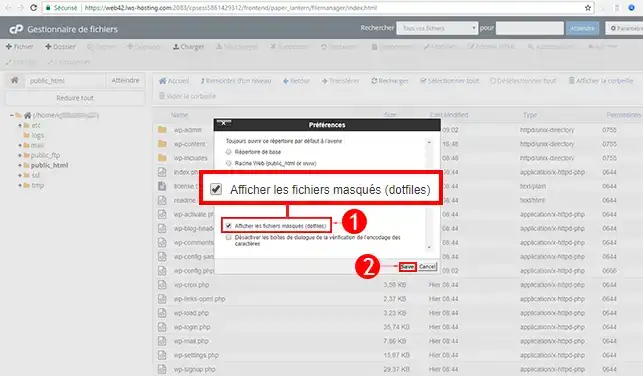
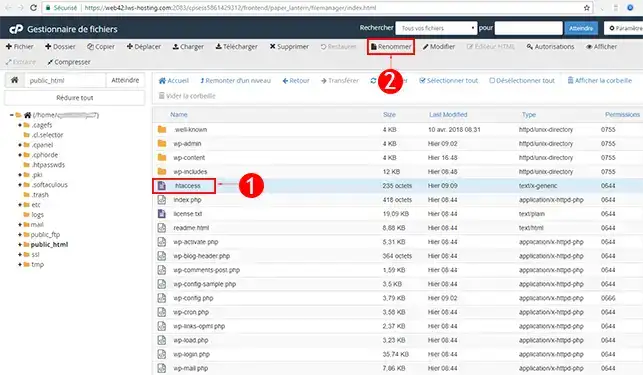
55. Select the ".htaccess" file and click on the"Rename" button.
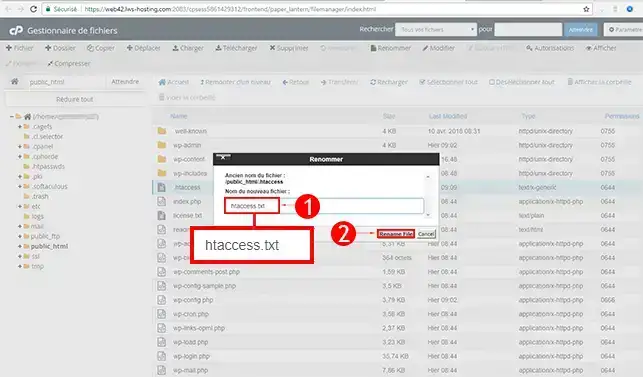
66. Rename the ".htaccess" file to"htaccess.txt" in order to deactivate it. Click on the"Rename File" button to save the new file.
How do I change the name of plugins?
11. To find the module causing the problem, go to"wp-content/plugins/".
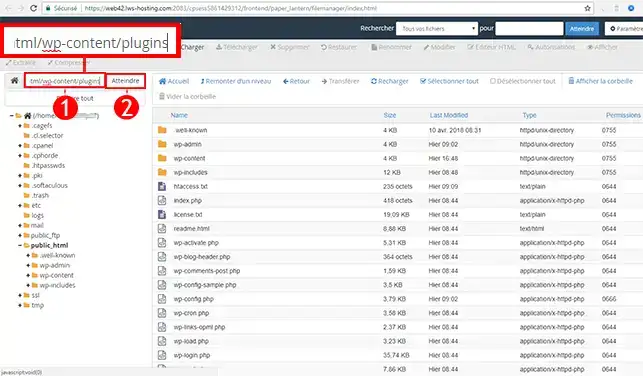
22. Select the first module and rename it. Once the module has been renamed, test your site to see if the problem persists. If the problem persists, you will need to rename the next module.
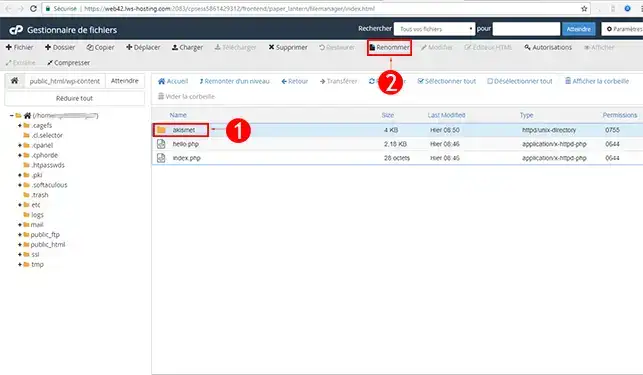
How do I change the name of a theme?
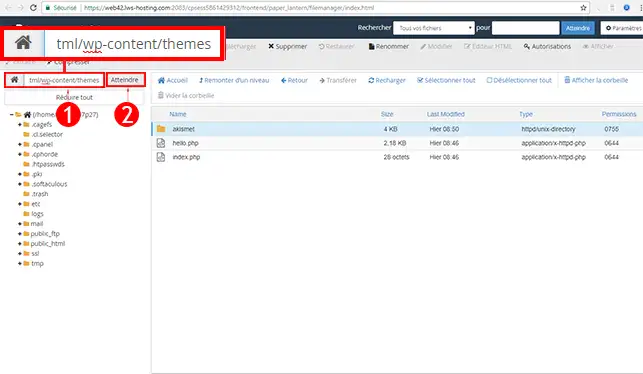
11. The method is the same as for renaming plugins. First, you need to go to the"wp-content/plugins" path. To do this, use the search bar at the top right of your web page and click on"Go to".
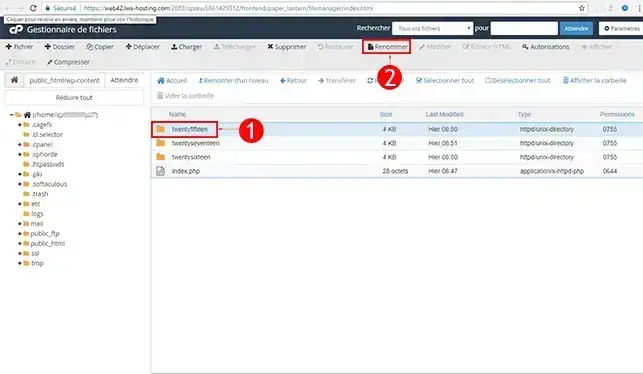
22. Click on the theme you are using by default and then on the"Rename" button to change its name.
How do I activate DEBUG mode on my WordPress site?
The debug mode will allow you to be aware of the errors on your website. When you have a 500 error or a blank page, the errors are not visible. By activating DEBUG mode, you can see the error displayed and find out more about the problem your site is experiencing.
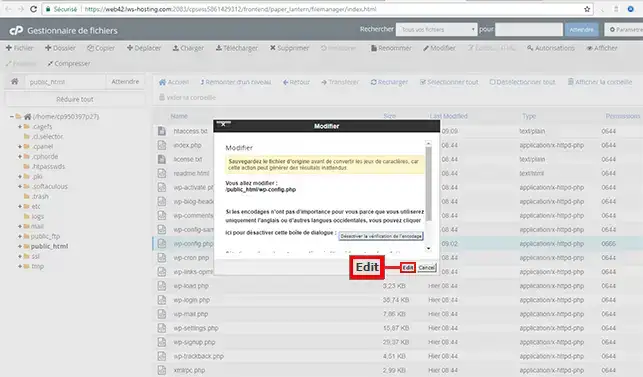
11. Select the file"wp-config.php" then click"Modify".
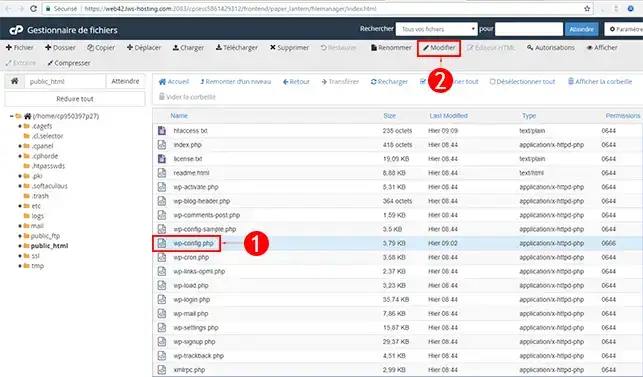
22. Click on "Edit" to be able to edit the page concerned. Before modifying a file on your site, it is necessary to make a backup of the file so as not to lose any data which could have harmful consequences for your website.
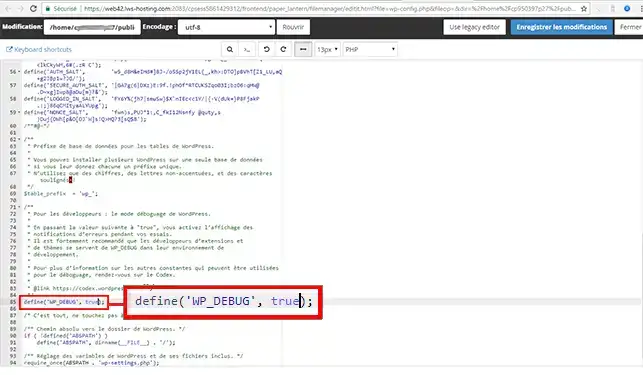
33. Look for the line"define('WP_DEBUG', false);" in the code. Change the word"false" to"true" in order to activate debug mode on your WordPress site.
Conclusion
You are now able to solve the white page or 500 error problem on your WordPress site with LWS. The 500 errors or white pages on WordPress are mainly due to a problem with themes, plugins and the .htaccess file.
Don't hesitate to share your comments and questions!



 Yes
Yes No
No About
About 