
Online help
The web host accessible to all
Procédure
Open Element is an editor for creating your website. Its features include image and code optimisation, element editing, support for HTML5 and CSS3, and optimisation of your site for the main search engines.
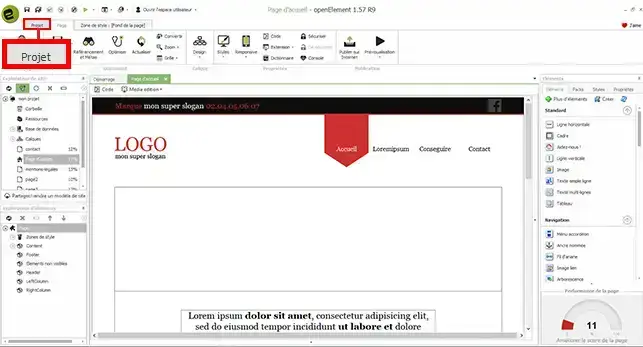
1. Open your software and click on the"Project " button at the top left of your screen.
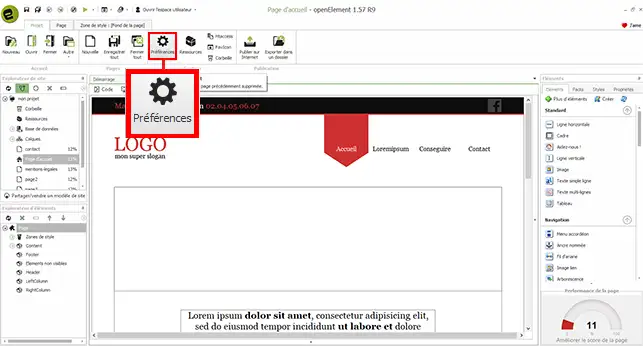
2. Click on the"Preference" button to open the Open Element software configuration window.
3. There are a number of items to fill in on the software. First, you need to fill in the'mandatory information':
You also need to fill in the"additional information" as follows:
The last information to be configured is the email sending configuration information. This information will be used to operate your contact form on your website:
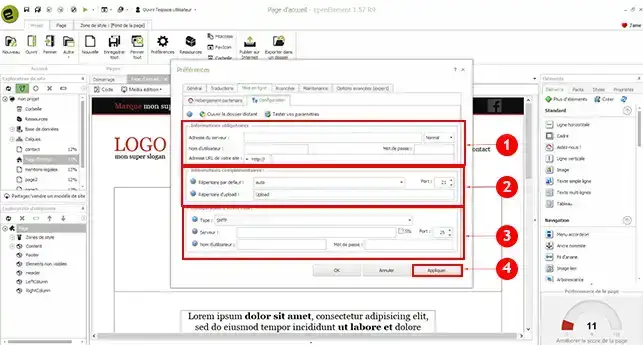
You are now ready to configure your Open Element software to publish your site on your cPanel shared hosting. Be careful about the directory in which you publish your website. If you enter the wrong directory, it could overwrite the existing website on your FTP space.
Don't hesitate to share your comments and questions.
Ask the LWS team and the community. Answers are published after moderation.
 About LWS :
LWS is a 100% French web hosting company that focuses on quality and innovation and offers a responsive and competent technical service at affordable prices.
About LWS :
LWS is a 100% French web hosting company that focuses on quality and innovation and offers a responsive and competent technical service at affordable prices.



 Yes
Yes No
No