
Online help
The web host accessible to all
Procédure
In this documentation, we will look at how to set up an auto-responder on an email box created using ISPConfig.
An autoresponder is a system that automatically responds to each email received.
This makes it possible, for example, to notify the sender that the recipient is not yet ready to reply. This is very useful, especially during holidays.
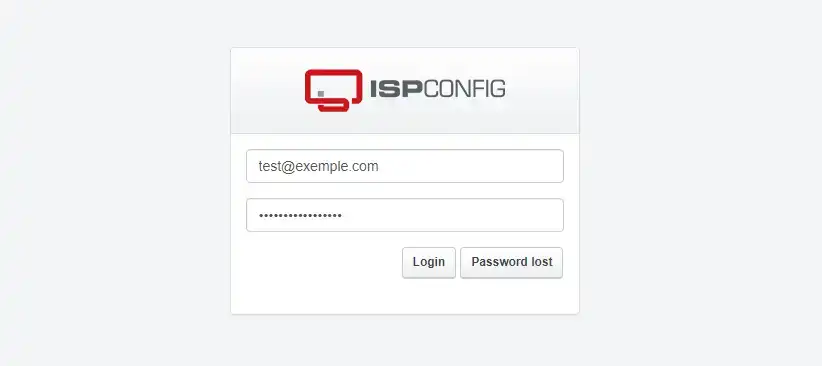
Usually, you log into ISPConfig as an administrator (with the "admin" account). Today, we are going to connect to ISPConfig as a simple email user. To do this
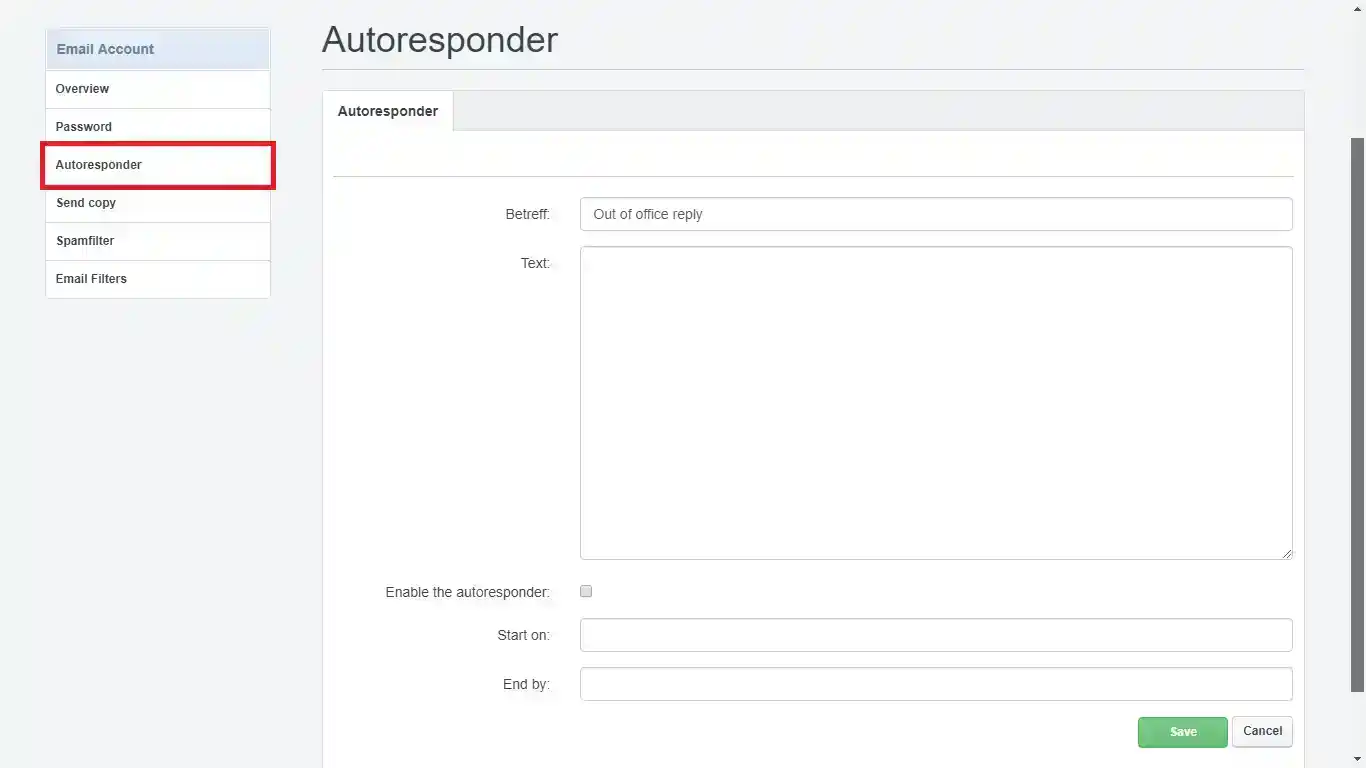
Then click on Autoresponder in the right-hand column and fill in the field :
Then click Save and you're done.
Ask the LWS team and the community. Answers are published after moderation.
 About LWS :
LWS is a 100% French web hosting company that focuses on quality and innovation and offers a responsive and competent technical service at affordable prices.
About LWS :
LWS is a 100% French web hosting company that focuses on quality and innovation and offers a responsive and competent technical service at affordable prices.



 Yes
Yes No
No