Procédure
Before restoring your data, consult the Backup policy for your cPanel web hosting to understand which backups are available and their retention period.
How do you restore your Web files on cPanel?
1. Log in to your cPanel
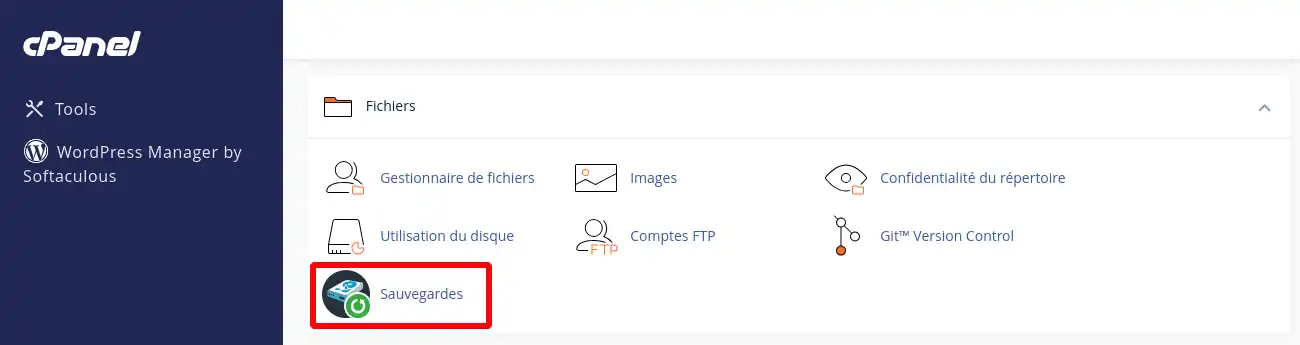
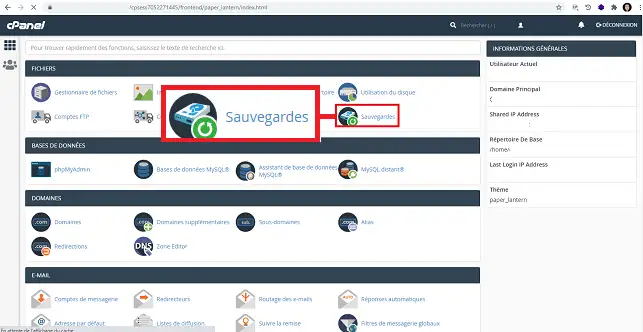
2. Click the "Backups" button located in the "Files" section of your cPanel interface.
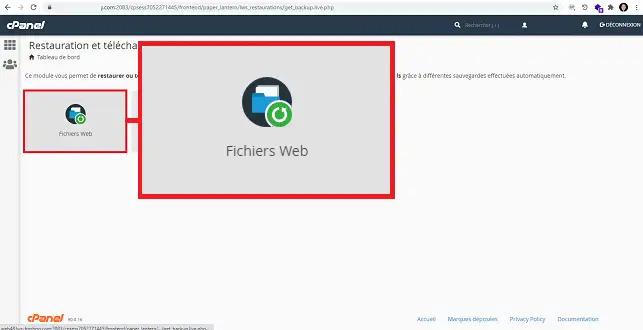
3. Click the "Web Files" button.
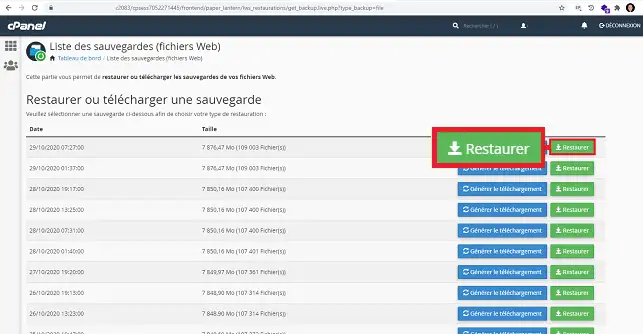
4. Click the "Restore" button located behind the backup you want to restore.
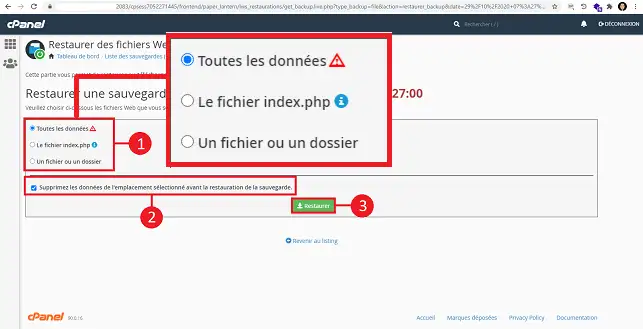
5. Fill out the form as follows:
- All data: This will restore all the data located at the root of your "public_html" directory
- The index.php file: This will restore the index.php file located at the root of your "public_html" directory.
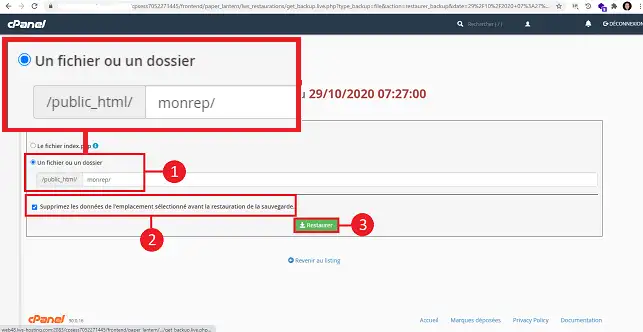
- A file or folder: Allows you to restore a file or folder located in the "public_html" directory.
To restore the data, choose the type of data to restore. You can check/uncheck the box "Delete data from the selected location before restoring the backup" in order to delete all data. Finally, click the "Restore" button.
If you want to restore a file or folder, select "a file or folder", specify the file or folder concerned by the restoration and click the "Restore" button.
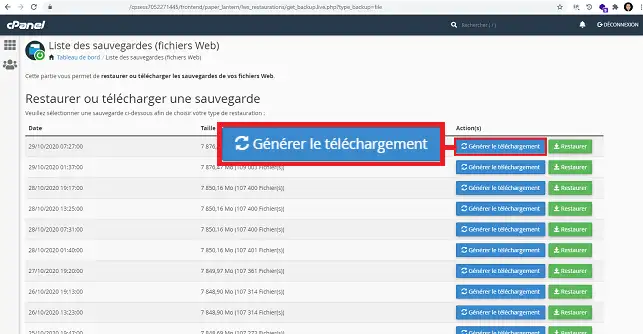
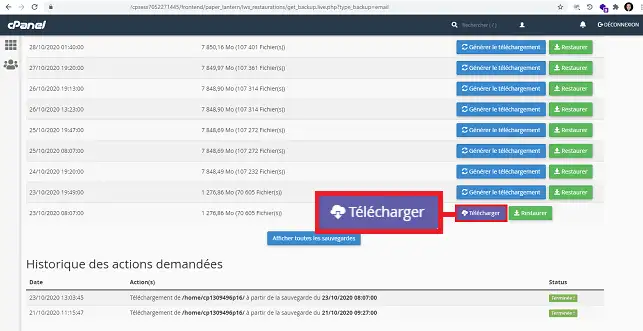
You can download a backup. To do this, to generate the backup of your site, click the "Generate Download" button located behind the backup concerned.
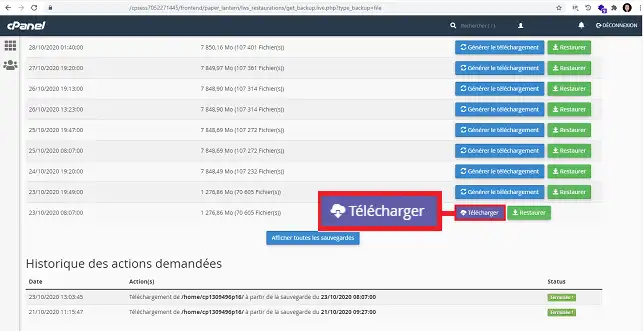
Once the backup is generated, click the "Download" button located behind it.
How do you restore your emails on cPanel?
1. Once logged into your cPanel management interface, click the "Backups" button located in the files section.
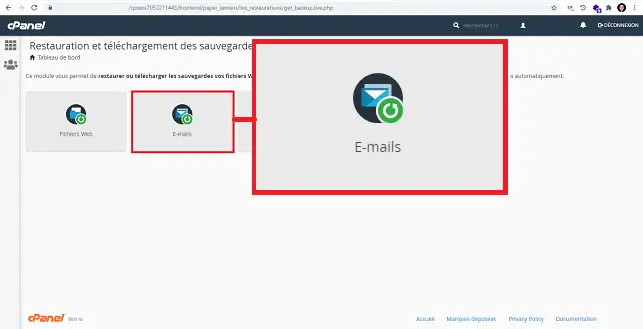
2. Click the "Emails" button to restore your emails.
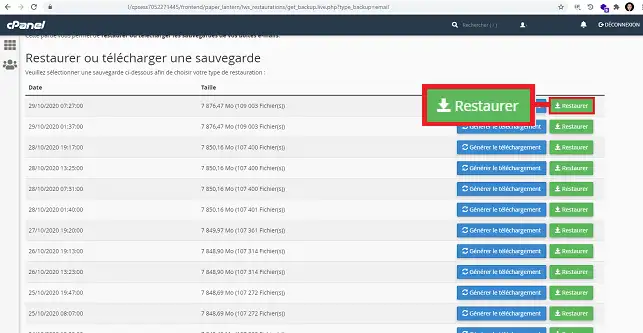
3. Click the "Restore" button located behind the relevant Email backup.
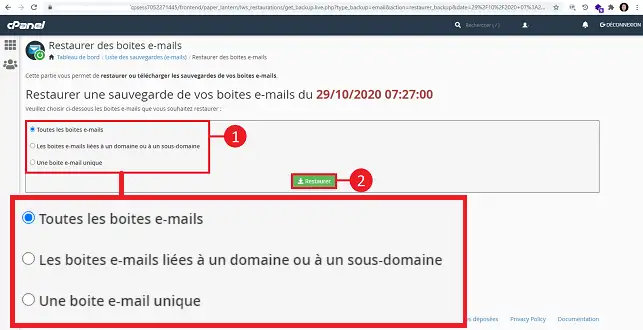
4. Fill out the form as follows:
- All email addresses: Restores all your mailboxes
- Mailboxes linked to a domain or subdomain: Restores all emails linked to a domain name or subdomain.
- A single mailbox: allows you to restore the mailbox of your choice.
Click the "Restore" button to proceed with restoring your data.
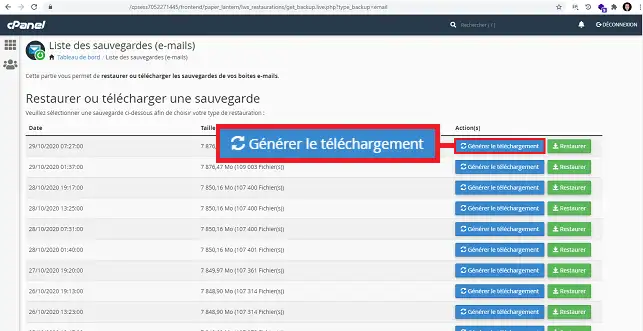
Just like for Web files, you can download a backup after generating it. To do this, click the "Generate Download" button located behind the desired backup date.
To download the generated file, click the "Download" button once the backup has been generated.
How do you restore your MySQL databases on cPanel?
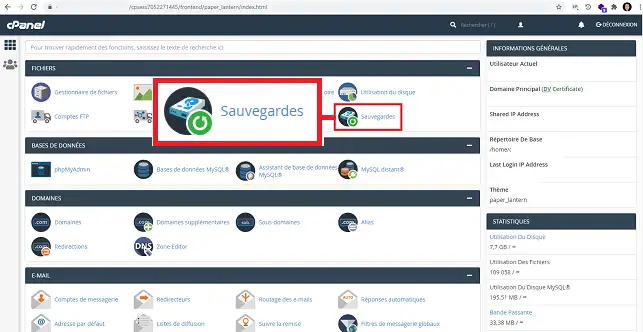
1. Once logged into your cPanel interface, click the "Backups" button located in the "Files" section.
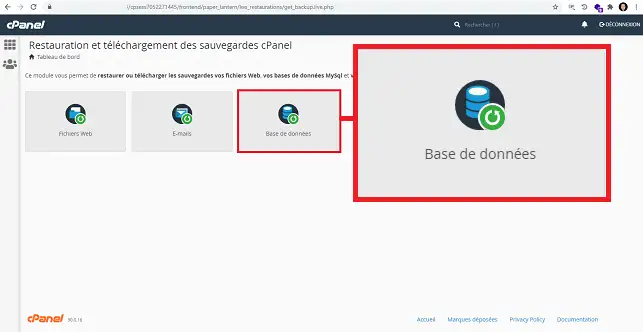
2. Click the "Database" button
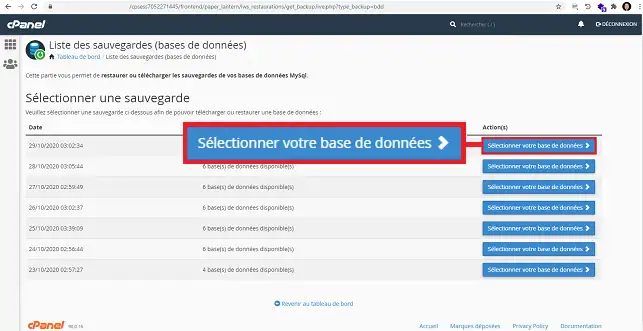
3. Choose the desired restore date and click the "Select your database" button located behind it.
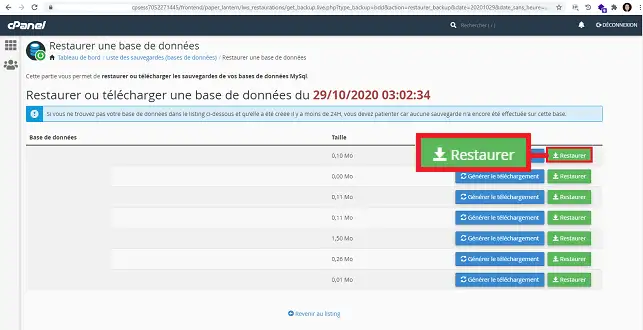
4. Choose the database to restore and click the "Restore" button located behind it.
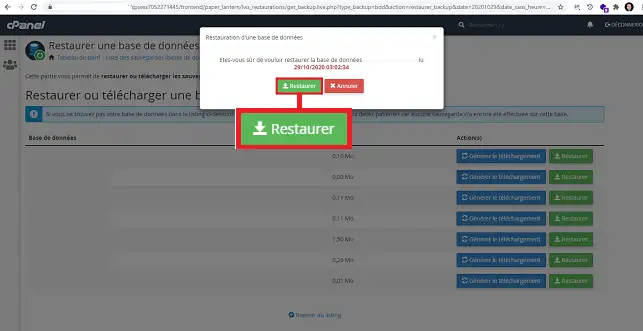
5. A new window will open asking you to confirm the restore date and the database you want to restore. Click the "Restore" button to confirm your choice.
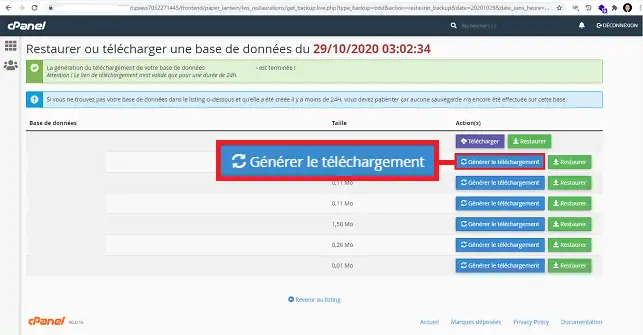
6. You can request the download of a MySQL backup. To do this, first click the "Generate Download" button.
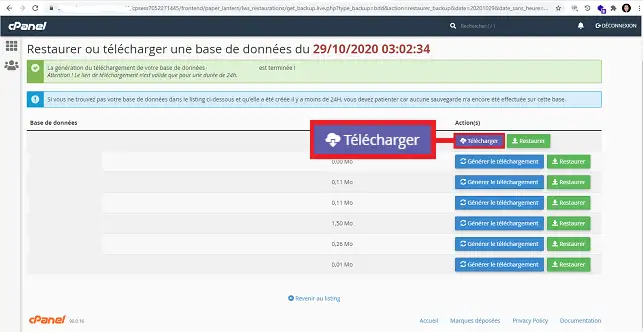
7. Once the backup is generated, click the "Download" button to download your database backup.
Conclusion
You now know how to:
- Access your cPanel management interface
- Use the backup and restore feature for your Web files
- Restore your emails and MySQL databases
- Download backups for offline storage
We hope this guide was useful to you. Thank you for taking the time to read it! If you have any questions or feedback to share, feel free to leave a comment on our service. Your opinions are valuable to us and help us improve our tutorials.



 Yes
Yes No
No About
About 