Procédure
Introduction
The purpose of this documentation is to explain how to use quotas on your formulas on the LWS Panel.
Prerequisites
You must have a domain name and a hosting package managed by the LWS Panel:
WordPress hosting packages ;
E-commerce packages;
SiteBuilder Pro packages;
LWS packages (personal, starter, performance).
For cPanel packages, please follow
this link to find out the quotas
How can I check the quotas for my hosting package?
To check your quotas, log in to your LWS Panel
On your panel, on the right-hand side of your screen, you'll see a summary of your quotas.
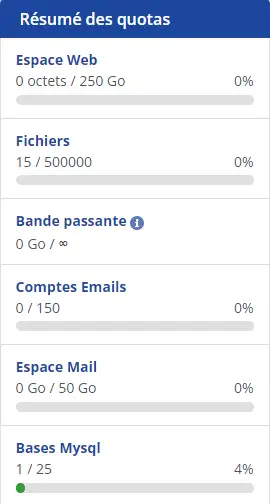
But what do all these quotas mean?
We're going to explain what all these quotas mean:
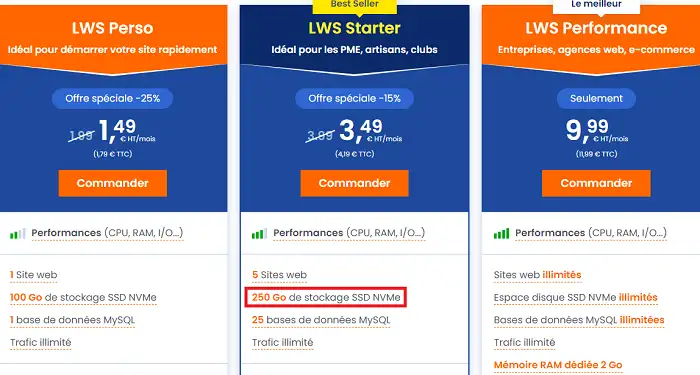
Web space:
Disk space is the amount of data you can store on your website server. For example, on the image below, we see 250 GB, if you have a formula lower or even higher than yours, the quota will change automatically.
Files :
These are the files that you upload or that are present on your web hosting space (folders, scripts, images, videos, etc...)
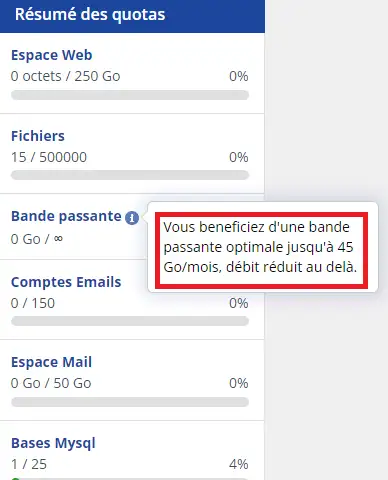
Bandwidth :
Unlimited traffic (monthly traffic, this is the maximum transfer limit authorised for hosting your site on our server)
Email account:
Create email addresses in order to communicate. Quota 5 GB/email box, quota for attachments 100 MB maximum.
Mail space:
You have a maximum quota of 50,000 MB for all your addresses. This maximum quota can be divided between your different mailboxes. For example, as soon as an e-mail address with a quota of 2000 MB is created, this creation directly reserves 2000 MB of your global storage space in order to guarantee the stability of our servers.
Mysql database :
1 GB Max per database created.
Trucs et astuces
If you wish to change your formula to have more quotas, we invite you to click here to see the procedure
Conclusion
You now know how to check your quotas on your plan.

 Contact us
 Customer Area


 Visit LWS


 Yes
Yes No
No Article read
18252 once
Article read
18252 once Merci ! N'hésitez pas à
poser des questions sur nos documentations si vous souhaitez plus d'informations et nous aider à les
améliorer.
Merci ! N'hésitez pas à
poser des questions sur nos documentations si vous souhaitez plus d'informations et nous aider à les
améliorer.
 About
About 