Procédure
Service concerned : external domain name, web hosting and shared LWS emails
Concerned panel : LWS Panel
Level : intermediate
You own a domain name with another provider and you want to use it with an LWS service?
You can do this without necessarily transferring the domain to LWS. Simply change its DNS configuration so it points to your web hosting, your emails, or all of your LWS services.
This help article explains the two possible methods: use the LWS DNS servers or modify only certain DNS records with your current provider.
Linking an external domain to LWS does not mean transferring the domain to LWS.
The domain can remain with your current provider while using LWS web hosting or an LWS email service.
Choose the right method
Before modifying your domain, choose the method that best suits your situation.
If you want to manage the entire DNS zone of the domain from LWS, use the LWS DNS servers. This method lets you centralize the management of the website, emails, and other DNS records in your LWS customer area.
If you only want to link a specific service to LWS, for example the website or email, keep the current DNS servers and modify only the necessary DNS records with your provider.
Use the LWS DNS servers if you want to entrust all DNS management of the domain to LWS.
Modify only the DNS records if you want to connect only the website, emails, or a specific service while keeping the DNS zone with your current provider.
Before you begin
Make sure you have access to the interface of the provider where the domain is currently managed. This is where you will need to change the DNS servers or DNS records.
Before pointing the domain to LWS, also make sure the relevant LWS service is ready:
- if you want to display a website, the site files must be present on the LWS hosting account;
- if you want to use LWS emails, the required email addresses must be created;
- if you want to keep certain services with the old provider, their DNS records should be noted before making any changes.
Changing a domain’s DNS servers switches the website, emails, and other services to the LWS DNS zone.
Before modifying the DNS, make sure your site is ready on LWS and that your required email addresses already exist.
Method 1: use the LWS DNS servers
This method consists of replacing the domain’s current DNS servers with those of LWS. Once the change is made, the domain’s DNS zone will be managed from your LWS customer area.
1. Retrieve the LWS DNS servers
The LWS DNS servers are indicated in the confirmation email received when ordering the service.
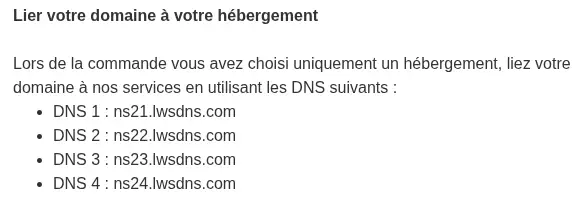
If you no longer have the email, you can retrieve the information from your customer area.
Log in to your LWS customer area, then open the management page of the relevant service.
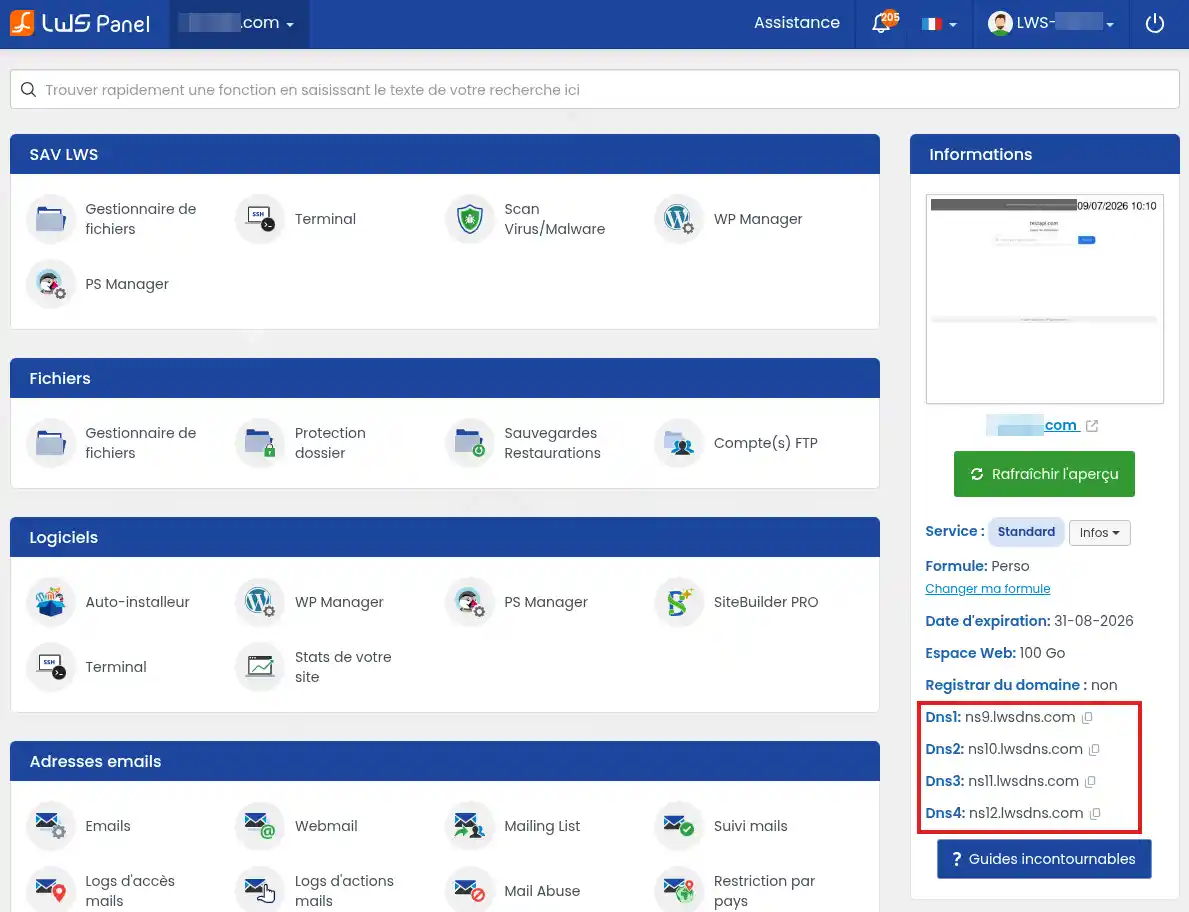
They generally look like this:
ns1.lws-hosting.biz
ns2.lws-hosting.biz
ns3.lwsdns.com
ns4.lwsdns.com
The exact DNS servers may vary depending on your plan. Always use the values indicated in your customer area or in the email associated with your service.
2. Change the DNS servers with your provider
Log in to the interface of the provider where the domain is registered.
Look for the section related to DNS servers. Depending on the provider, it may be called DNS servers, Nameservers, Domain DNS, DNS management, or DNS delegation.
Replace the current DNS servers with the LWS DNS servers, then validate the change.
If a domain transfer is already in progress, it may no longer be possible to change the DNS servers until the transfer is complete. In that case, wait until the transfer is finished or use method 2 by modifying only the DNS zone records.
3. Wait for DNS propagation
After validation, the change is not always visible immediately. Internet service providers and DNS servers may temporarily keep the old configuration.
After a DNS change, it may take several hours before the change is visible everywhere. In some cases, full propagation can take up to 24 to 48 hours.
Method 2: modify only the DNS records
This method allows you to keep the DNS zone with your current provider while directing only certain services to LWS.
It is useful if you want, for example:
- to display only your site hosted at LWS;
- to use only LWS emails;
- to keep other services active with your current provider.
Link the website to LWS hosting
To display your LWS site with your external domain, you must modify the DNS record that points to the web server.
In your LWS customer area, retrieve the IP address of your hosting account. It is indicated in the DNS Zone section.
With your current provider, open the domain’s DNS zone, then modify or create an A record. Contact their support service if you need help.
Example:
Name : @
Type : A
Value : IP address of your LWS hosting account
To make sure the address with www also works, check the www record as well.
Depending on your provider’s configuration, it may be:
Name : www
Type : CNAME
Value : your-domain.fr
or:
Name : www
Type : A
Value : IP address of your LWS hosting account
Replace your-domain.fr and the IP address with the values corresponding to your domain and hosting account.
Link emails to LWS
To use LWS emails with your external domain, you must modify the domain’s MX records.
In your LWS customer area, retrieve the MX values indicated for your mail service. Then create the required email addresses before modifying the DNS zone.
You will then need to enter them in the DNS zone of your domain with your current provider. Contact their support service if you need help.
First configure the A record for the mail subdomain. It links the address mail.your-domain.fr to the LWS mail server.
Example:
Name : mail
Type : A
Value : IP address of the LWS mail server
Then configure the domain’s MX record. It indicates which server the domain’s emails should be sent to.
Example:
Name : @
Type : MX
Priority : 10
Value : mail.your-domain.fr
Replace your-domain.fr and the IP address with the values corresponding to your LWS service.
You must also configure the SPF, DKIM and DMARC records. These records are necessary for the email service to work properly and allow mail servers to better identify messages sent from your domain.
If you replace the existing MX records, new emails will be routed to LWS. Make sure you have created your mailboxes at LWS before making the change to avoid any interruption in receiving mail.
Check that everything works
Once the changes have been made, test the domain after a few minutes, then again after several hours if the change is not yet visible.
To check the website, enter your domain name in a browser. The site hosted on LWS should appear.
To check emails, send a test message to an address created on LWS, then check its reception from webmail or your email client.
You can also use an online DNS checking tool to verify that the DNS servers, A records, or MX records display the expected values.
Your domain is correctly linked to LWS when the site displays from your domain and/or when emails are correctly delivered to the mailboxes configured at LWS.
Common issues
My site still does not display
DNS propagation may still be in progress. Wait a few hours, then test again from another browser or another Internet connection.
Also check that the domain’s A record points to the IP address of your LWS hosting account and that the site files are present on the hosting account.
My address with www does not work
The main domain and the www subdomain may use two different records. Check that www has a DNS record of type A or CNAME pointing to your LWS hosting account.
I am not receiving my emails
Check that the email addresses were created at LWS before changing the MX records.
Then verify that the domain’s MX records match the values indicated by LWS. If the change is recent, DNS propagation may still be in progress.
I cannot find where to change the DNS with my provider
Each provider uses a different interface. Look for a section called DNS, DNS zone, DNS servers, Nameservers, or DNS delegation.
If you cannot find this section, consult your current provider’s help documentation or contact their support to find out where to change the DNS of your domain.
I want to transfer the domain to LWS
DNS linking allows you to use an LWS service with an external domain, but it does not transfer the administrative management of the domain to LWS.
If you also want the renewal and management of the domain to be handled from LWS, you must start a domain transfer.



 Yes
Yes No
No About
About 