
Online help
The web host accessible to all
Procédure
RustDesk is a remote desktop application built in Rust. It allows you to control a computer remotely from another device, whether it is another computer, a smartphone, or a tablet.
In this section, we will explain how to install RustDesk on different platforms.
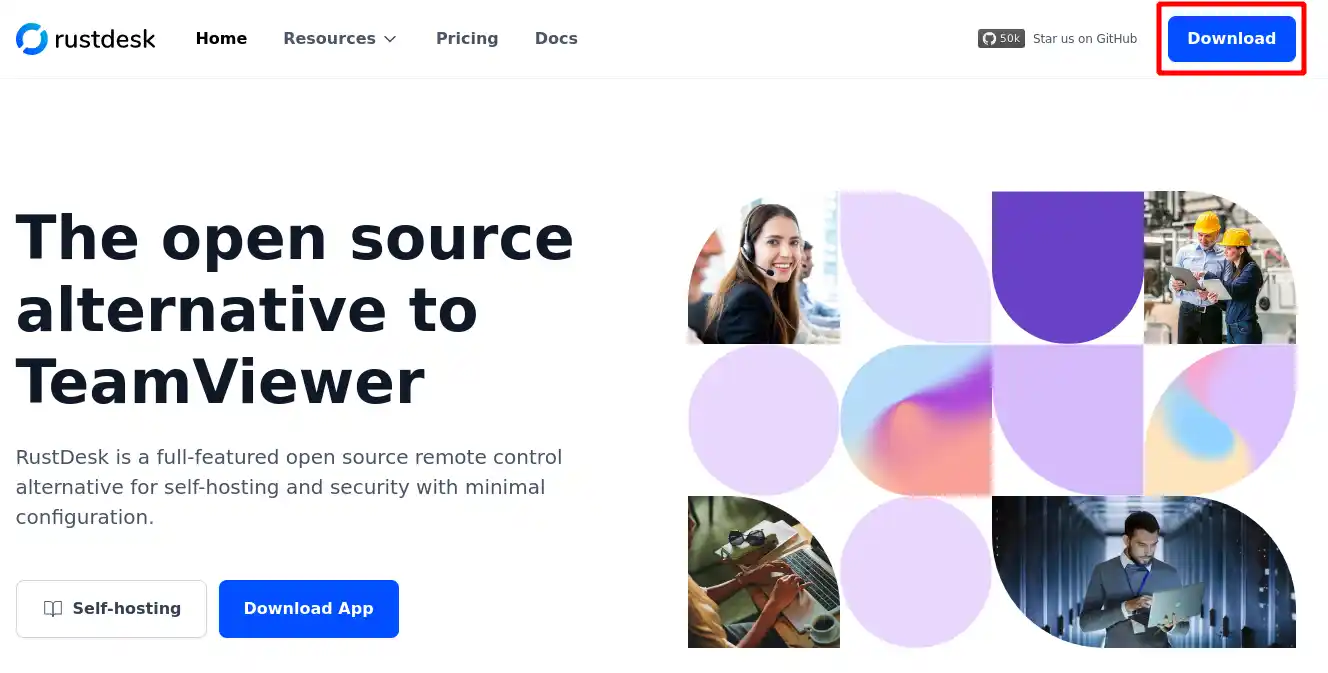
1. From a browser, go to the official RustDesk website, then click the "Download" button.
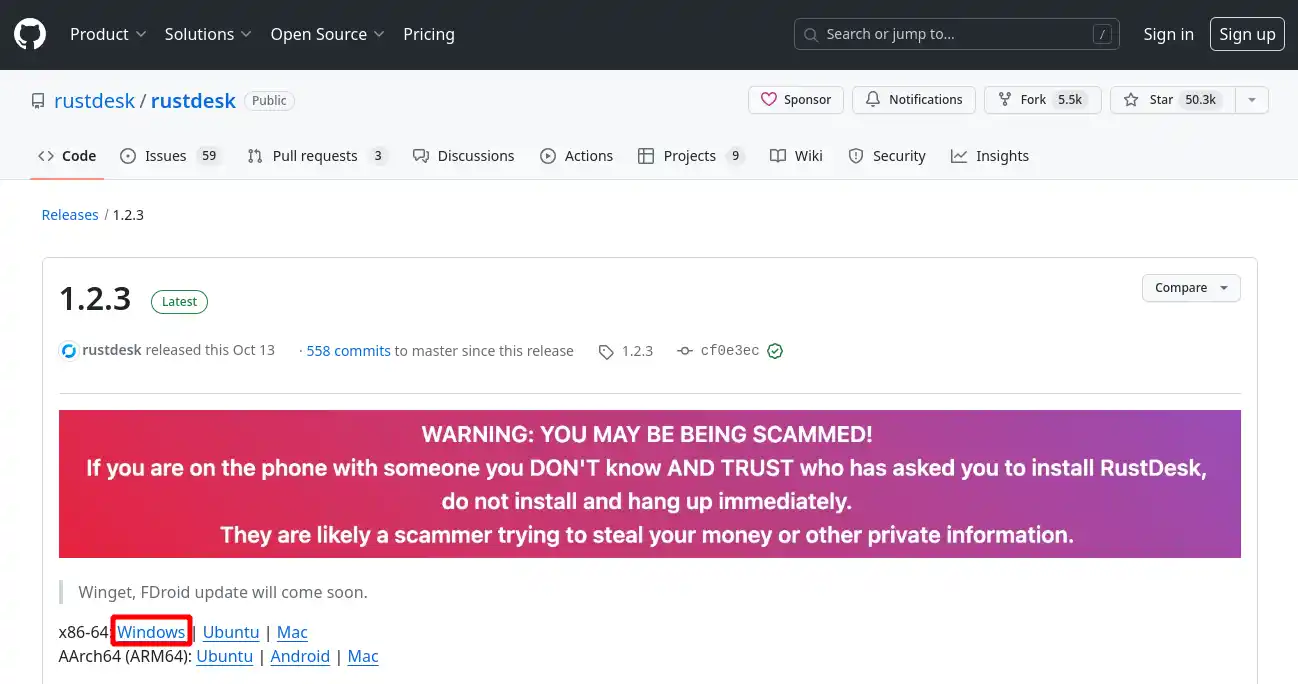
2. On the page that appears, click the "Windows" link as shown in the image below to download the application:
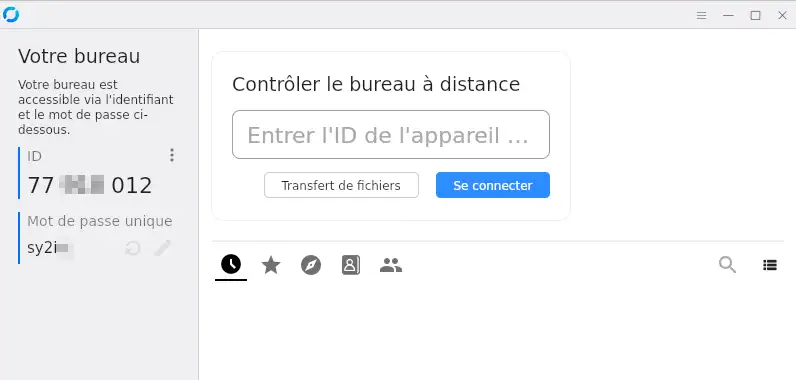
3. You do not need to install RustDesk; simply double-click the downloaded file to launch the application.
1. From a browser, go to the official RustDesk website, then click the "Download" button.
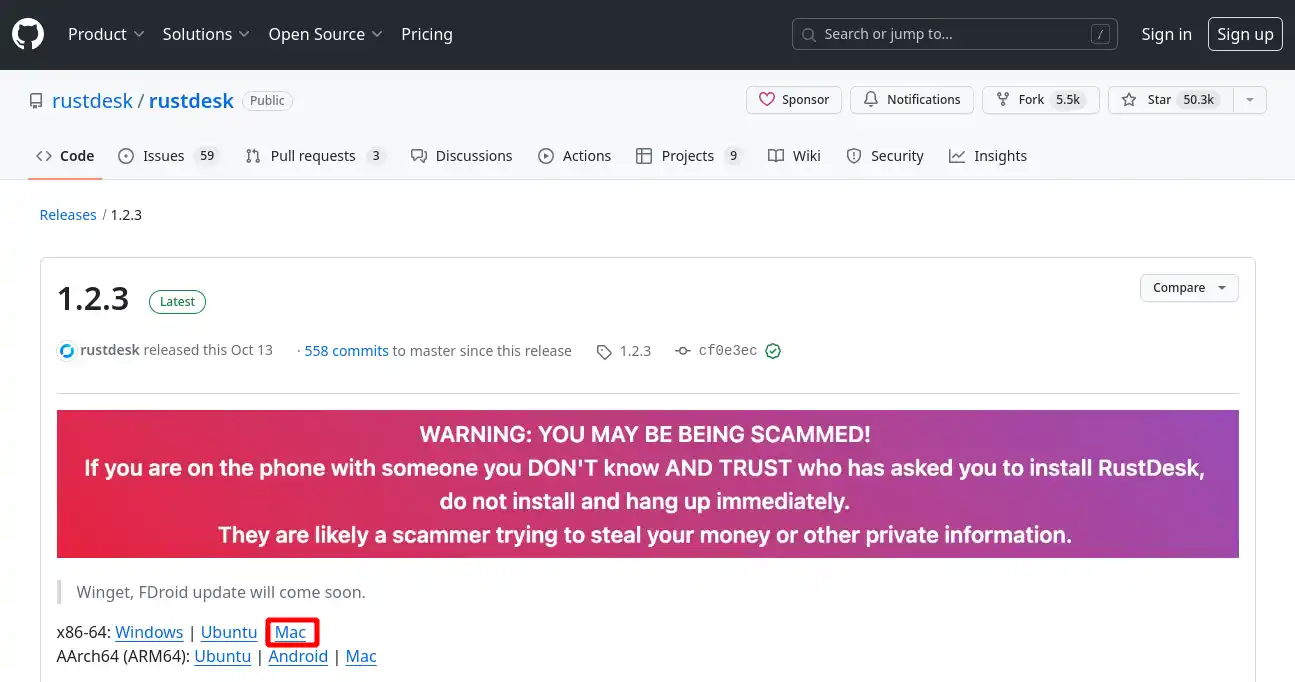
2. On the page that appears, click the "Mac" link as shown in the image below to download the application:
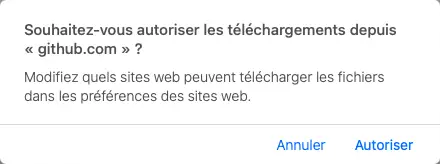
3. Allow the file to be downloaded.
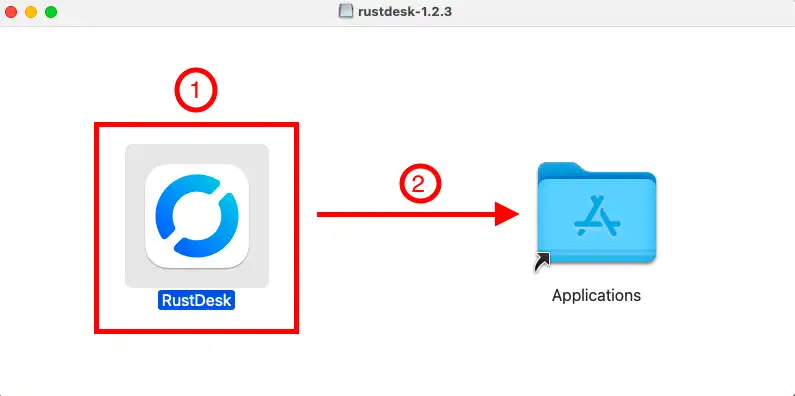
4. Once the file has finished downloading, launch it by clicking on it. In the window that appears, click on the RustDesk application and drag it into the "Applications" folder to proceed with the installation.
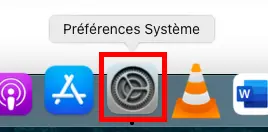
5. Then go to your computer's system preferences by clicking the icon in the shortcuts bar.
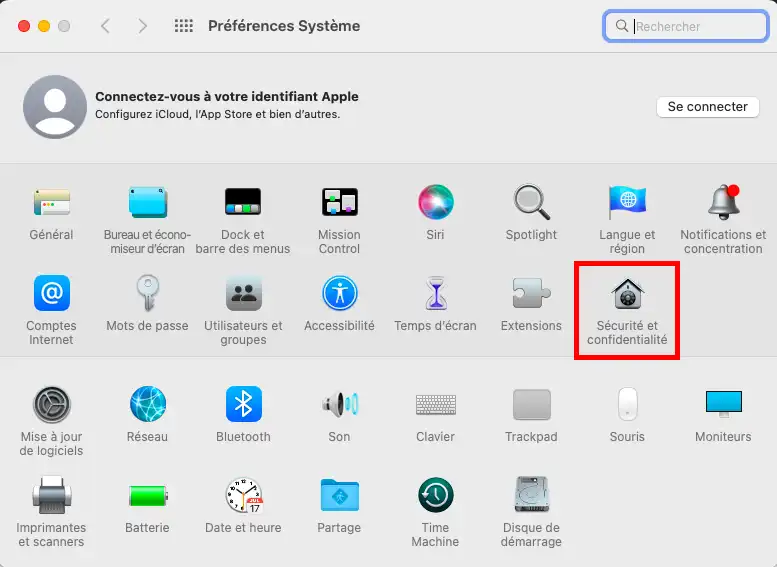
6. Then click the "Security and Privacy" icon
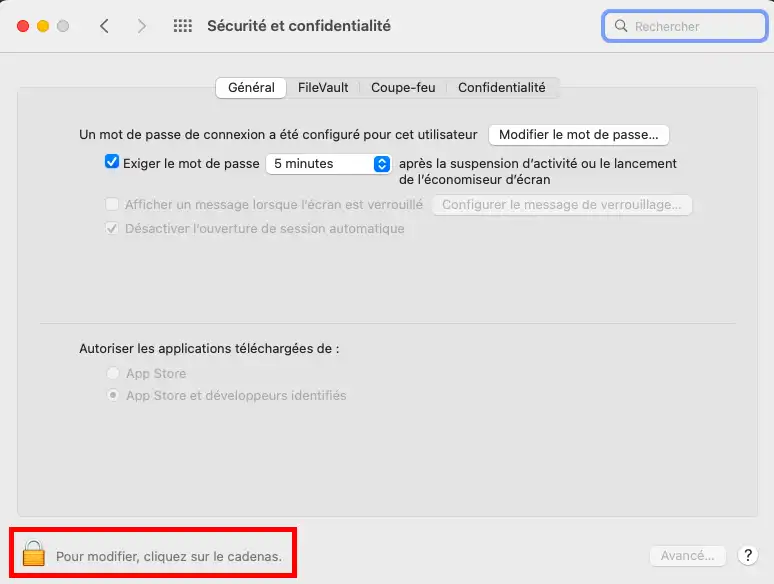
7. In the general tab, click the padlock at the bottom left to unlock changes.
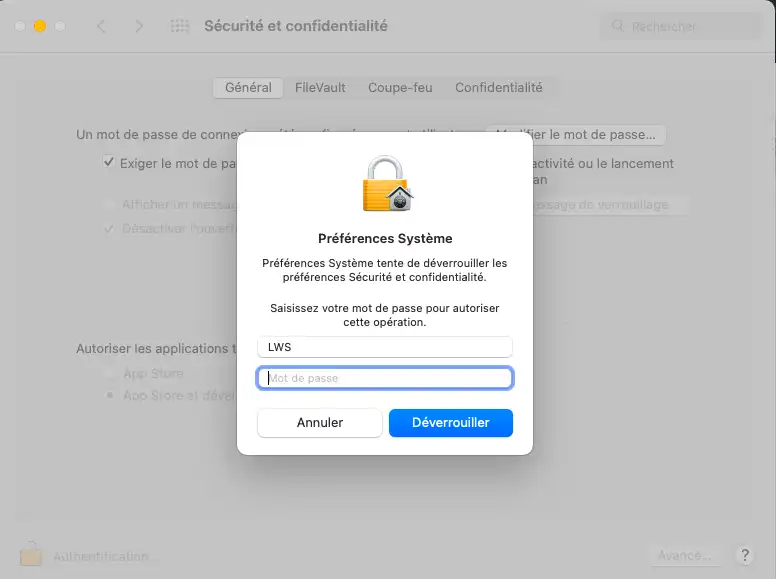
8. Enter the password for your Apple keychain (computer password)
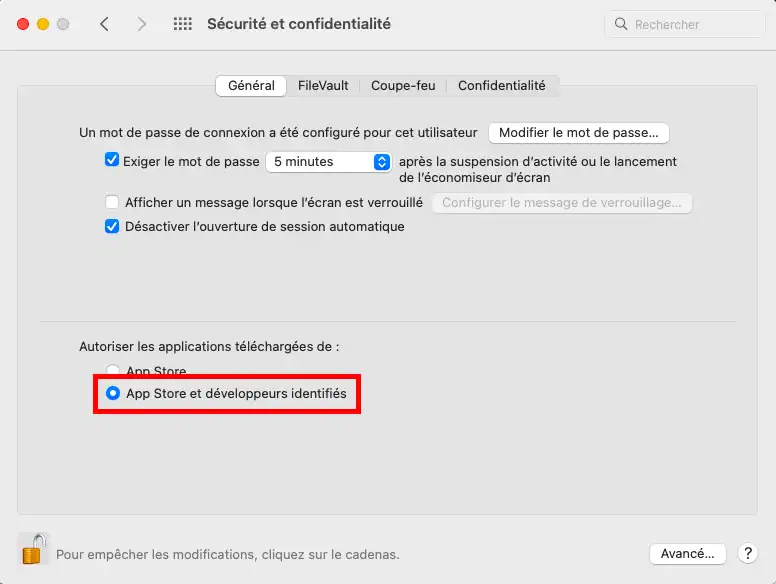
9. Then make sure that the "App Store and identified developers" option is enabled
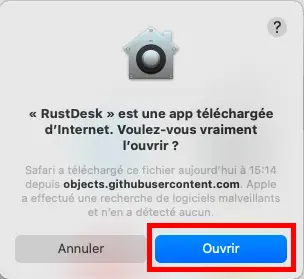
10. Close the window and launch the RustDesk application.
11. Once the application is launched, you must allow RustDesk to record your screen. To do this, click the "configure" button in the left column.
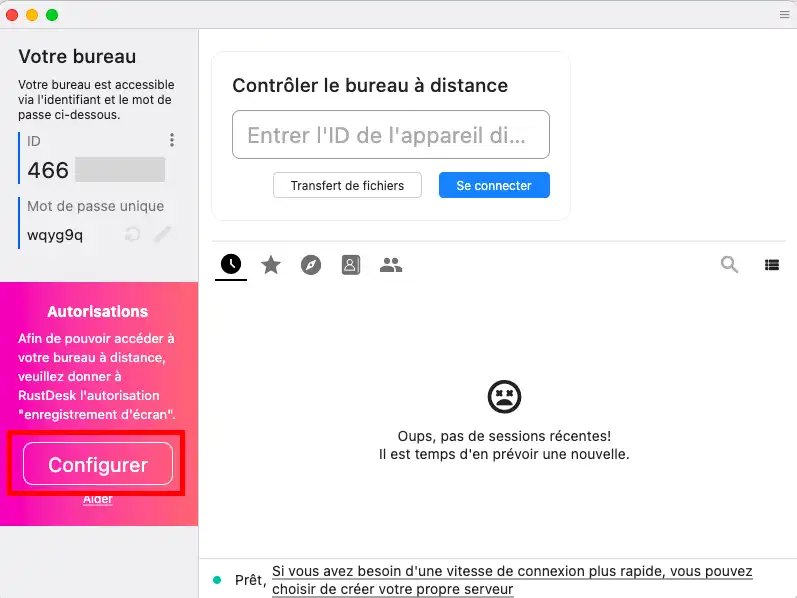
12. Then click "Open System Preferences"
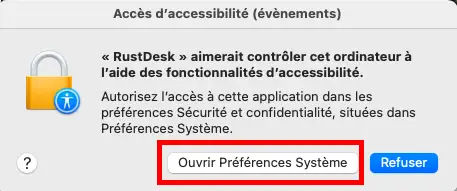
13. In the Accessibility section, check the RustDesk box.
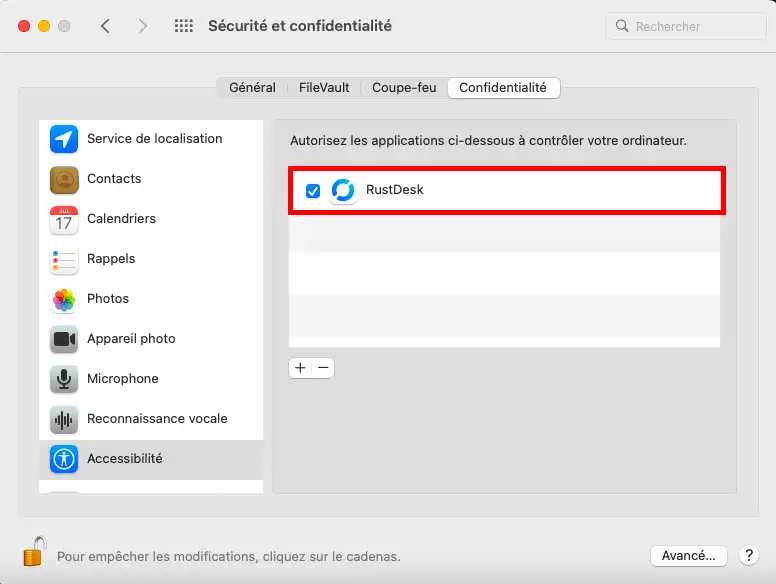
14. Do the same in the "Screen Recording" section
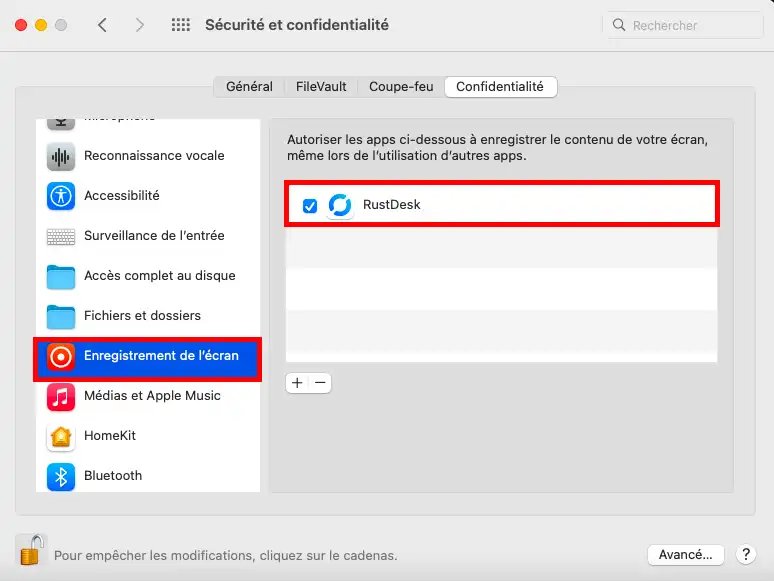
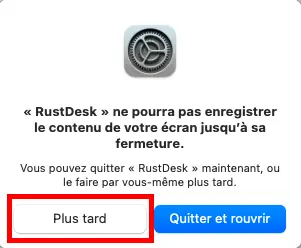
15. Click "Later" on the warning that appears.
RustDesk is now ready to work on your Apple computer.
To start a remote support session, simply launch the application:
On the screen that appears, provide the ID number as well as the password to the other person so they can take remote control of your computer.
You can end remote control at any time. You can view the actions performed by the remote user.
At the end of the remote support session, you can generate a new password to ensure that no one can remotely access your computer without your authorization. As long as the application on your computer is not launched, no one can remotely access your computer.
Ask the LWS team and the community. Answers are published after moderation.
 About LWS :
LWS is a 100% French web hosting company that focuses on quality and innovation and offers a responsive and competent technical service at affordable prices.
About LWS :
LWS is a 100% French web hosting company that focuses on quality and innovation and offers a responsive and competent technical service at affordable prices.



 Yes
Yes No
No