
Online help
The web host accessible to all
Procédure
Introduction
If you have recently tried to access your site and were faced with a message saying that something is "forbidden" or that you do not have permission to access part of your site, you have likely encountered the 403 Forbidden error.
Discovering such an error on your site can be frustrating and discouraging. That is why we have put together this detailed guide to help you fix the 403 Forbidden error and restore your site’s proper functioning as quickly as possible.
When you encounter the 403 Forbidden error, it means that the server understood your request but cannot grant you further access. In other words, the web page you are trying to open in your browser is a resource you are not authorized to access.
When you encounter the 403 Forbidden error, it indicates a specific status that the web server communicates to your browser, but more generally, this error is a sign that your access to a resource is restricted. Indeed, every time you browse a website, exchanges between your browser and the server take place in the background. Normally, everything works fine and you get the status code 200, but when problems occur, different codes may appear. The 403 Forbidden error, in particular, indicates that the server has understood your request, but it refuses to give you access to the requested resource. This could be compared to a situation where you try to attend a private event, only to discover that your name has been removed from the guest list without explanation.
| Error code | 403 |
| Error type | Authentication error |
| Error variations | Forbidden – You don’t have permission to access / on this server 403 – Forbidden: Access is denied Error 403 – Forbidden 403 – Forbidden Error – You are not allowed to access this address 403 – Forbidden – nginx |
| Error causes |
Corrupted .htaccess file |
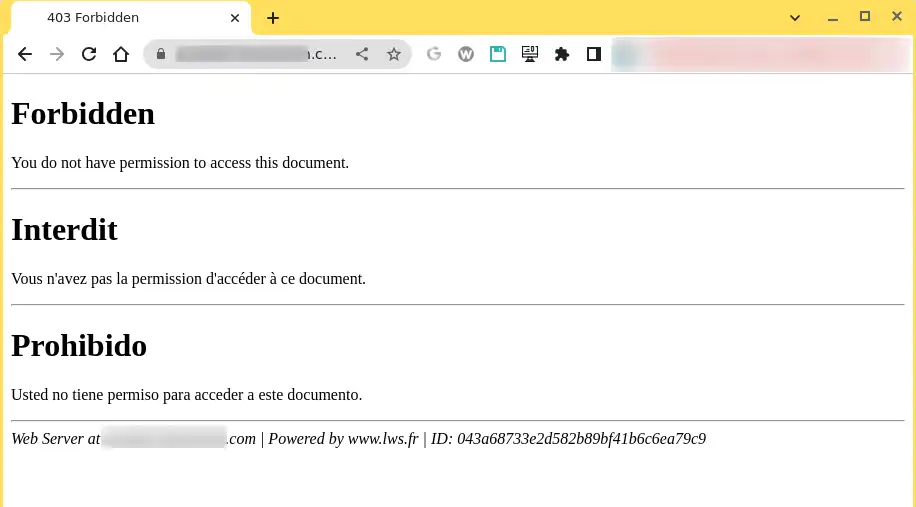
The 403 Forbidden error can have two main origins:
It is also possible for this error to occur due to a malfunction related to an extension used on your site.
As with many other HTTP status codes, the 403 Forbidden error can appear in various ways.
Here are some common examples you might encounter:
In general, if you notice a mention of "forbidden" or "not allowed to access," you are likely encountering a 403 Forbidden error.
The nine steps below may help you correct the 403 Forbidden error.
Sometimes simple solutions can solve complex problems. So try refreshing the page you are having trouble accessing. The 403 error may be temporary, so you may succeed in accessing the page after a refresh.
Also make sure to check the spelling of the URL. If the address you are trying to reach is a directory rather than a web page, you will likely encounter a 403 error. For example: www.domain.ext/wp-content/uploads/2024/03/
Another practical method is to clear your browser cache.
The cache is a useful tool that helps websites load faster. However, it can sometimes happen that the cached version of a page does not match its actual version.
Each folder and file on your server has its own specific permissions that determine the allowed actions:
These permissions are represented by a three-digit number, each digit indicating the permission level for the three categories mentioned above.
Normally, these permissions are only relevant to your site. However, problems with file permissions can lead to the 403 Forbidden error.
To check and modify your site’s file permissions, you can use the file manager provided with your hosting.
Once in the file manager, you can view the permissions of a file or folder (2) and change them (1).
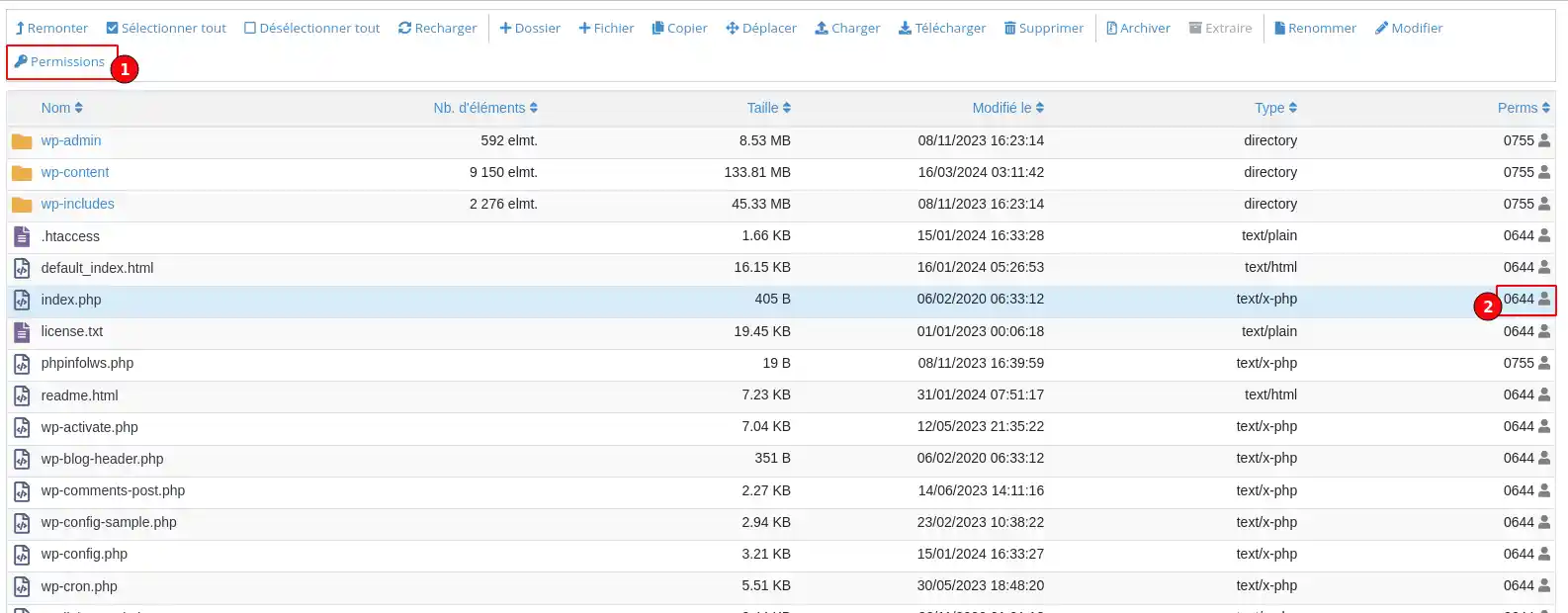
Of course, manually checking permissions for every file or folder is not practical. Instead, you can automatically apply file permissions to all files or folders in a directory.
According to the WordPress Codex, the ideal file permissions for WordPress are:
An exception is made for your wp-config.php file, which should have permissions of 440 or 400.
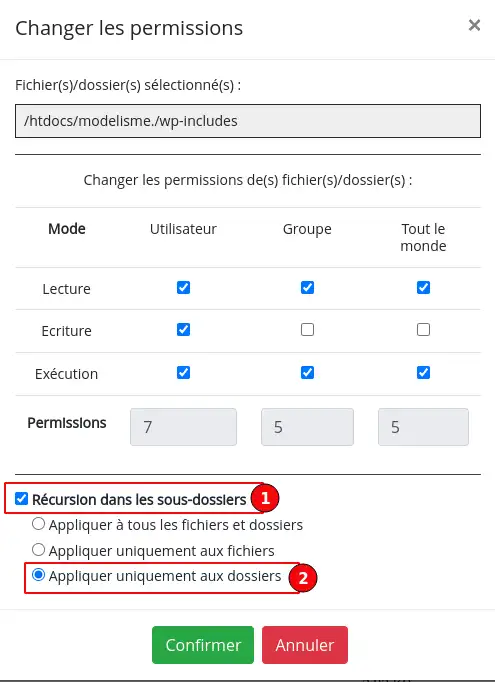
To set these permissions, right-click the folder containing your site (the folder name is htdoc at LWS) and select "File access rights". Then enter 755 or 750 in the Numeric value box, choose "Recurse into subdirectories" (1) and "Apply to folders only" (2).
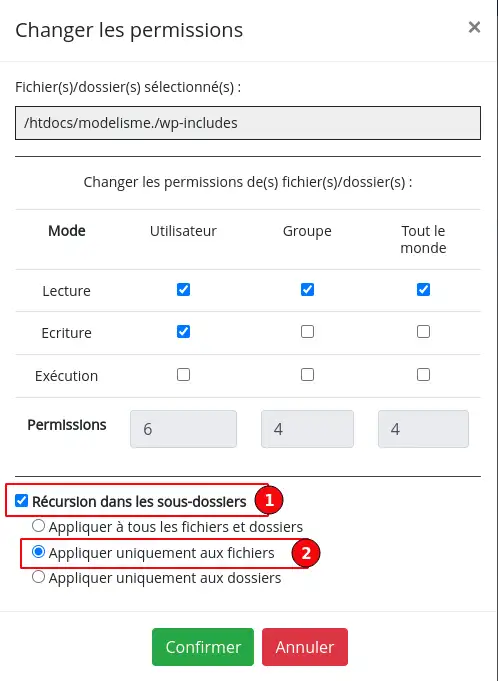
Next, follow the same process for files by entering 644 or 640 in the Numeric value field, selecting "Recurse into subdirectories" (1) and "Apply to files only" (2).
Finally, manually adjust the permissions of your wp-config.php file to 440 or 400.
If file permission problems caused the 403 Forbidden error, your site should now work properly.
A common cause of the 403 Forbidden error is a problem in your site’s .htaccess file.
The .htaccess file is a configuration file used by the Apache web server. It allows you to configure redirects, restrict access to certain parts of your site, and more.
Because it is so powerful, even a small mistake can cause a major problem, such as the 403 Forbidden error.
Instead of trying to troubleshoot the .htaccess file itself, a simpler solution is to force WordPress to generate a new, clean .htaccess file.
Here is how to do it:
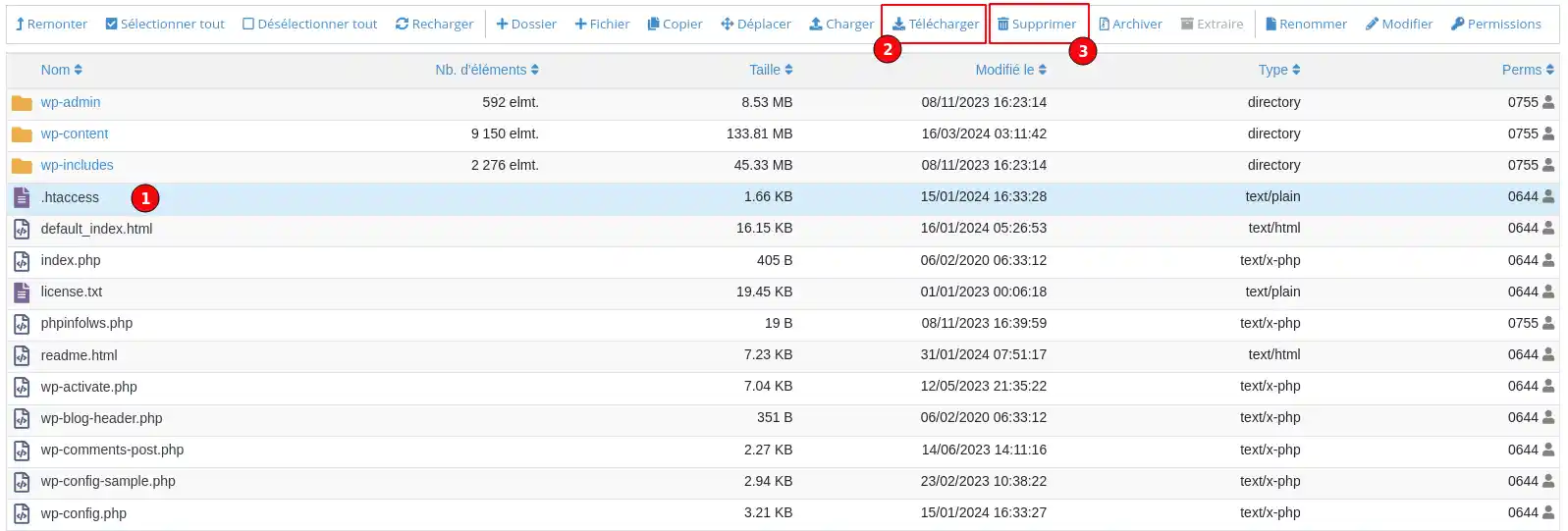
Now, you should be able to access your WordPress site if your .htaccess file was the problem.
To force WordPress to generate a new clean .htaccess file:
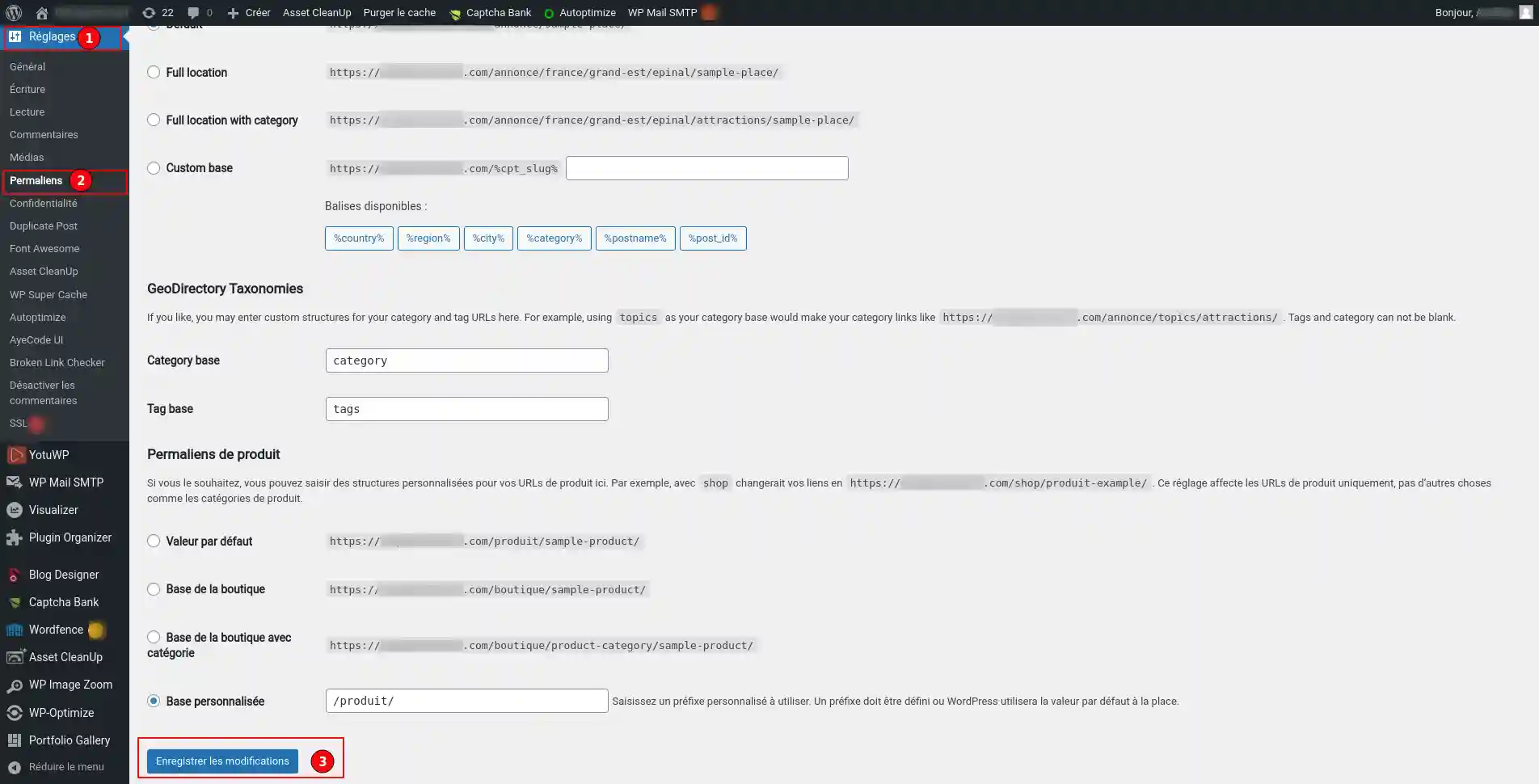
And that is it — WordPress will now generate a new .htaccess file for you.
If neither your site’s file permissions nor the .htaccess file seem to be the issue, the next place to check is your WordPress plugins. There may be a bug in a plugin or a compatibility issue between different plugins.
To find the plugin responsible, we invite you to follow this documentation.
If you are getting 403 forbidden errors on your resources (images, JavaScript, CSS), this could be a problem with your content delivery network (CDN).
If you use a CDN service such as Cloudflare, we recommend temporarily reconfiguring LWS default DNS settings to check whether the problem comes from the CDN.
Hotlinking happens when someone embeds an image on their site, but the link to that image still points to someone else’s site. To prevent this, some people set up what is called "hotlink protection" with their hosting provider or CDN provider.
When hotlink protection is enabled, it usually generates a 403 Forbidden error. That is completely normal. However, if you are encountering a 403 Forbidden error on something that should not be blocked, make sure hotlink protection is configured correctly.
Here is another simple tip that could solve this issue.
Some sites may block access for users using a VPN, which could explain why you are encountering the 403 Forbidden error.
To check whether this is the case, disconnect from the VPN and try accessing the site another way. You can also try switching to another server offered by your VPN service.
If none of the solutions above worked for you, we recommend that you contact our technical support to benefit from a personalized analysis of your problem.
You now know how to:
🔧 With these tools in hand, you are now equipped to deal with this frustrating error and restore access to your site. 🌐 Remember that every problem has its solution and that sometimes a simple page refresh or configuration tweak can make all the difference. 💡
Thank you for reading, and we hope this article was helpful to you. If you have any questions or would like to share your experience with the 403 Forbidden error, feel free to leave a comment below. Your feedback is valuable and helps improve our service. 🙏
Ask the LWS team and the community. Answers are published after moderation.
 About LWS :
LWS is a 100% French web hosting company that focuses on quality and innovation and offers a responsive and competent technical service at affordable prices.
About LWS :
LWS is a 100% French web hosting company that focuses on quality and innovation and offers a responsive and competent technical service at affordable prices.



 Yes
Yes No
No