
Online help
The web host accessible to all
Procédure
The WordPress Manager includes functions for checking the loading speed of your website and advises you on how to optimise your site to improve its performance. In this documentation, we'll look at how to take advantage of these features.
First of all, you need to connect to your LWS account and access the shared hosting for which you want to analyse the speed of your WordPress site.
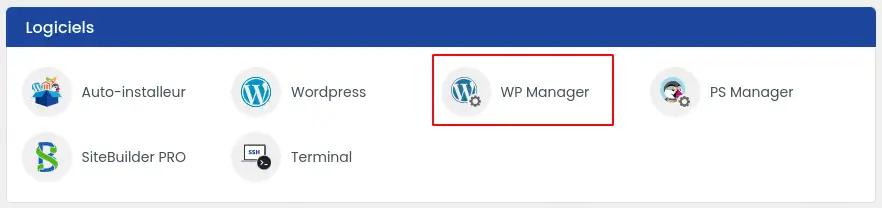
Then click on"WP Manager" in the"Software" section of your web hosting.
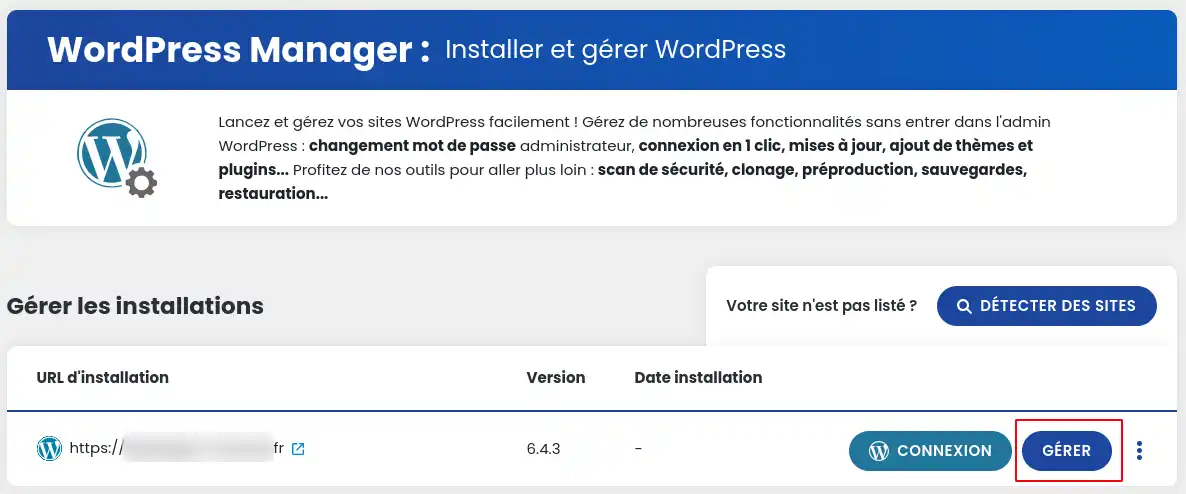
Then click on the"Manage" button for the site whose speed you want to analyse.
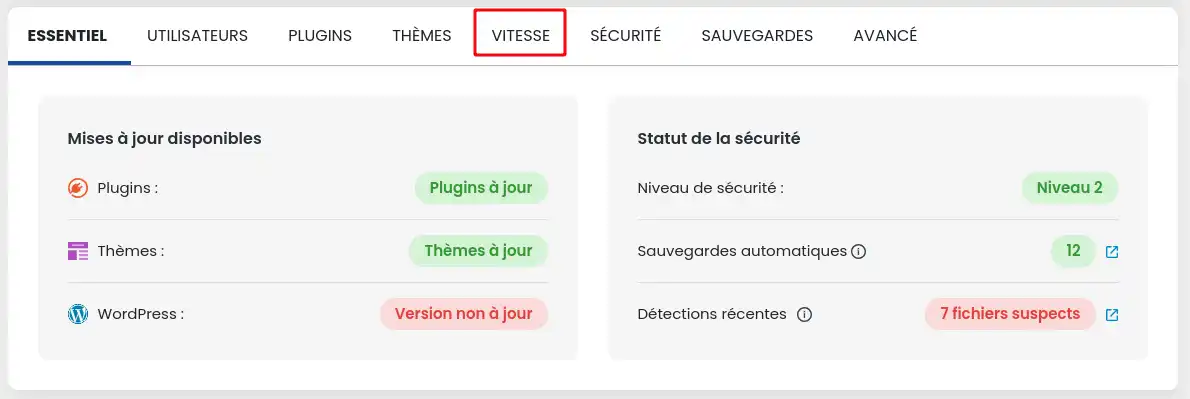
Once in the Manager for your WordPress site, click on the"Speed" tab.
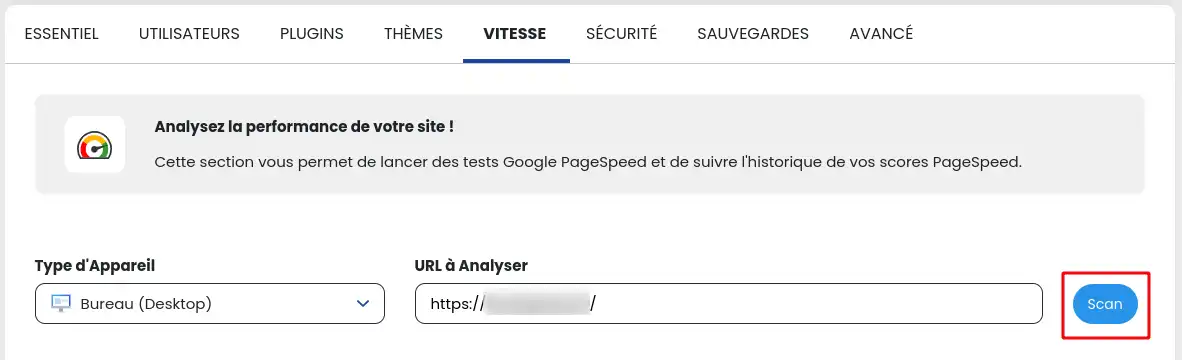
The speed analysis tool is based on the Google PageSpeed utility.
On the page that appears, you can select whether you want to simulate your site's page loading like a desktop computer or like a mobile phone.
Enter the address (URL) of the page you want to analyse, which can be the home page or any other page on your website.
Finally, click on the"Scan" button to launch the performance analysis.
Once the analysis is complete, the result will be displayed below:
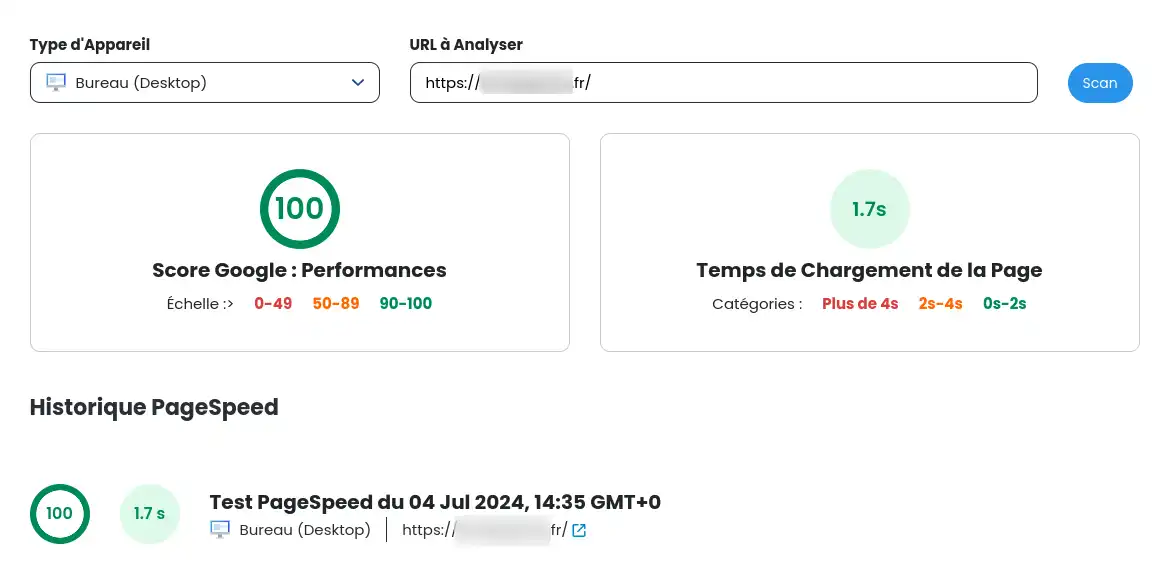
Depending on the result, you can decide whether or not you need to take action to improve the loading of your website. To do this, we offer various modules that can help you:
LWS Cache (improves loading times, manages automatic cache purging, etc.)
LWS Optimize (minimises and combines CSS, JS, HTML files and other tools)
LWS Cleaner (cleans up content, drafts, revisions, orphaned metadata, etc.)
You now know how to :
With this information in hand, you have the keys to boosting your site's loading speed and offering an optimal user experience 🚀. Don't forget that the performance of your website is crucial not only for the satisfaction of your visitors but also for your SEO ranking! ✨
We hope you've found this guide useful and thank you for reading. If you have any questions or feedback to share, please don't hesitate to leave us a comment below. Your opinion counts and helps us improve our services! 📝👍
Ask the LWS team and the community. Answers are published after moderation.
 About LWS :
LWS is a 100% French web hosting company that focuses on quality and innovation and offers a responsive and competent technical service at affordable prices.
About LWS :
LWS is a 100% French web hosting company that focuses on quality and innovation and offers a responsive and competent technical service at affordable prices.



 Yes
Yes No
No