
Online help
The web host accessible to all
Procédure
The WordPress Manager allows you to make mass changes to expressions in the database of your WordPress site. While this functionality may not seem very useful to many users of the CMS, it can be very useful for changing the domain name of a WordPress site or making it fully compatible with an SSL certificate and the HTTPS protocol.
In this documentation, we'll show you how to use WP Manager's advanced functionality in the two cases mentioned above.
The advanced functionality of the WP Manager is reserved for experienced users with a good knowledge of how WordPress works. If this is not the case for you, we recommend that you seek the assistance of a professional who has this knowledge to prevent your site from becoming inoperable as a result of incorrect handling.
First of all, you need to log in to your LWS account and access the shared hosting for which you want to change the domain name of your WordPress site.
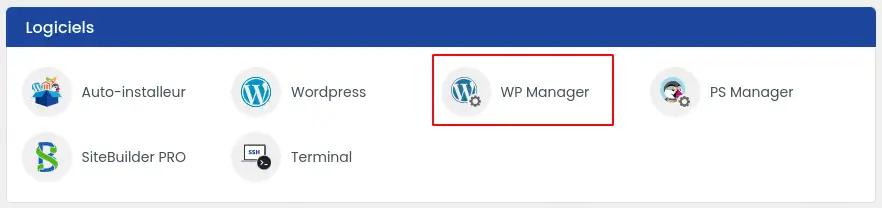
Then click on"WP Manager" in the"Software" section of your web hosting.
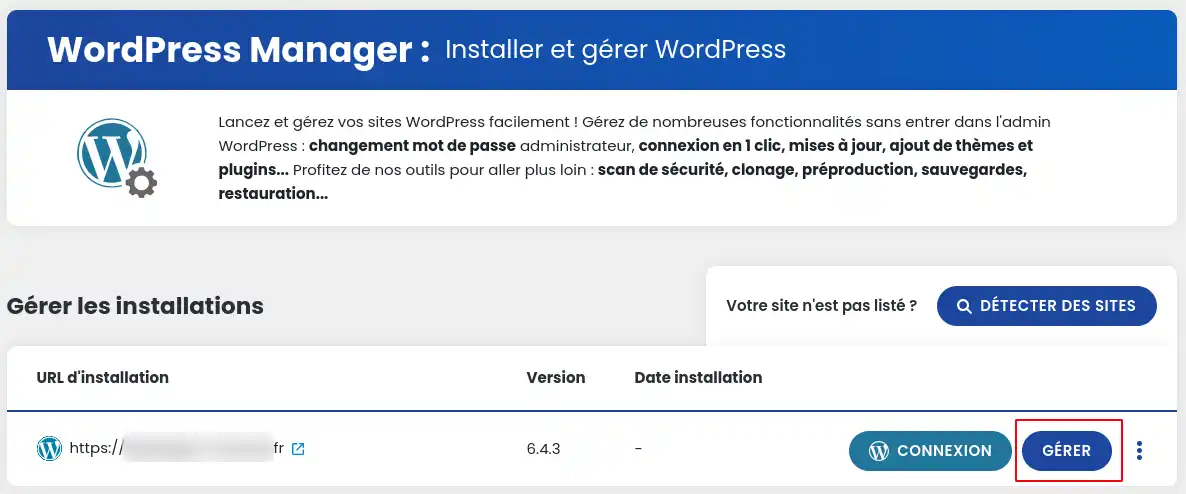
Then click on the"Manage" button for the site you want to change.
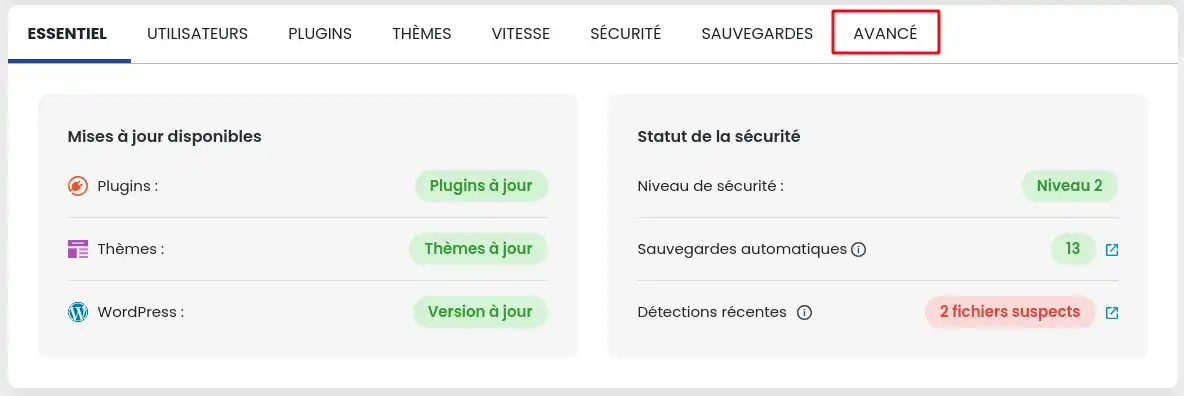
On the page that appears, go to the"Advanced" tab.
To change all the occurrences in your database referring to your old domain name and replace them with the new domain name, simply enter the old domain name with its extension in the"Text to search for" box and the new domain name with its extension in the"Replace text with" box.
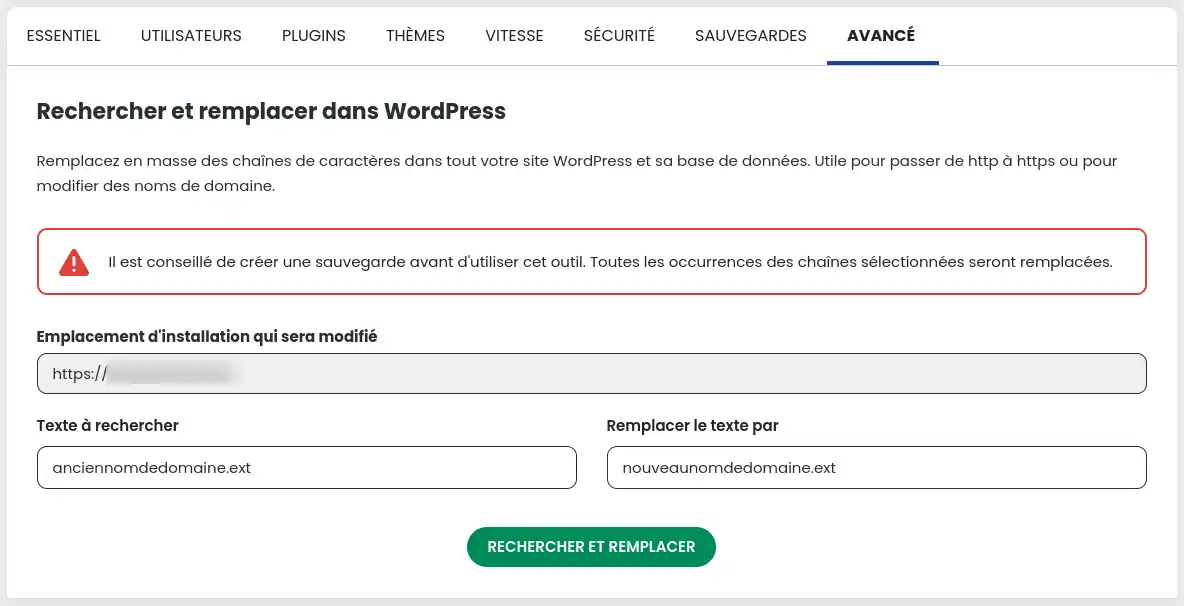
All that's left is to click on the"Find and replace" button to start replacing the occurrences in your WordPress site.
Have you installed an SSL certificate on your hosting, but it's not working because your WordPress site uses URLs with the HTTP and HTTPS protocols? Then please follow this procedure to solve your problem.
First of all, you need to log in to your LWS account and access the shared hosting for which you want to change the URLs of your WordPress site.
Then click on"WP Manager" in the"Software" section of your web hosting.
Then click on the"Manage" button for the site you want to modify.
On the page that appears, go to the"Advanced" tab.
To change all the occurrences in your database referring to the HTTP protocol and replace them with the HTTPS protocol, simply enter your domain name with its extension preceded by the HTTP protocol in the"Text to search for" box and your domain name with its extension preceded by the HTTPS protocol in the"Replace text with" box. Here's an example in the screenshot below:
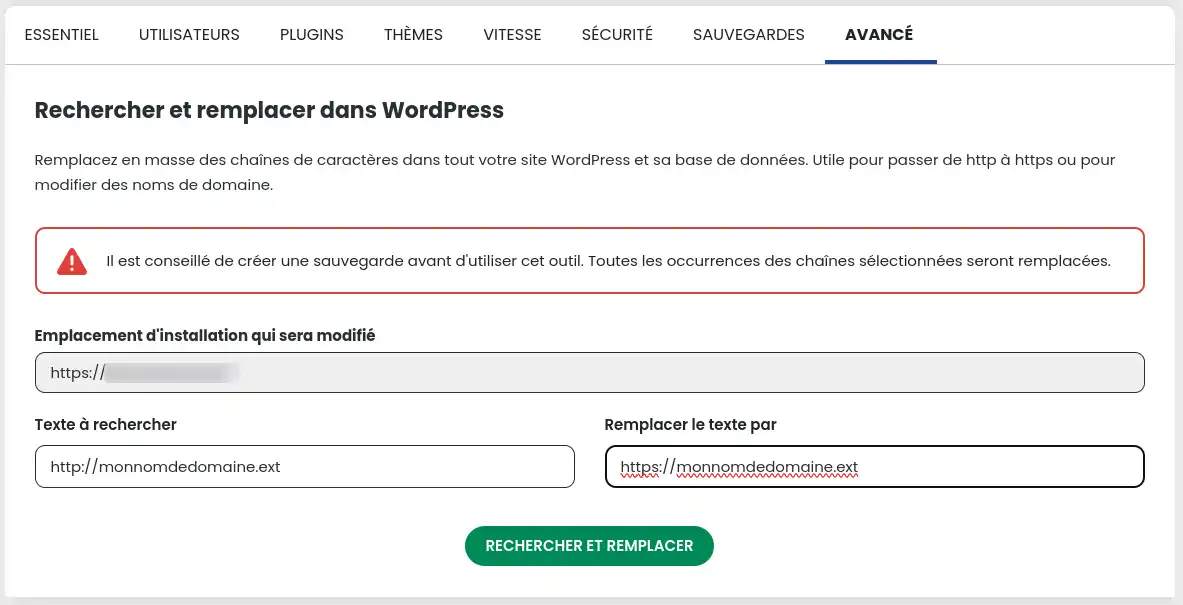
All you have to do now is click on the"Find and replace" button to start replacing the occurrences in your WordPress site.
You now know how to :
With these simple yet powerful steps, you can ensure your site stays secure and reflects changes to your brand or online strategy with ease. 🌐✨ Keep in mind that these manipulations are intended for users with a good command of WordPress. If you're not sure, don't hesitate to call in a professional. 🔒💡
Many thanks for reading and we hope this information helps you optimise your online presence. If you have any questions or need further assistance, leave us a comment - we'd love to help! 🙌📝
Ask the LWS team and the community. Answers are published after moderation.
 About LWS :
LWS is a 100% French web hosting company that focuses on quality and innovation and offers a responsive and competent technical service at affordable prices.
About LWS :
LWS is a 100% French web hosting company that focuses on quality and innovation and offers a responsive and competent technical service at affordable prices.



 Yes
Yes No
No