
Online help
The web host accessible to all
Procédure
In this documentation, we will see how to configure your shared calendar from your iPhone or iPad (with sharing and synchronization functions for contacts and the calendar).
Connect to your Roundcube webmail from the mobile device concerned, simply open your web browser and enter the URL "mail.domaine.ext" in the address bar. (replace "domaine.ext" with the domain name of your email address)
Once you are logged in, you will simply need to follow the steps below:
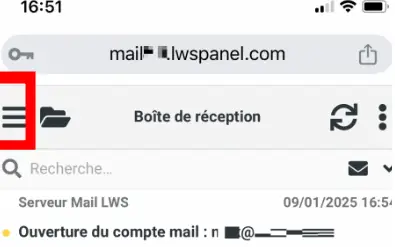
Select the 3 small lines at the top of the page:
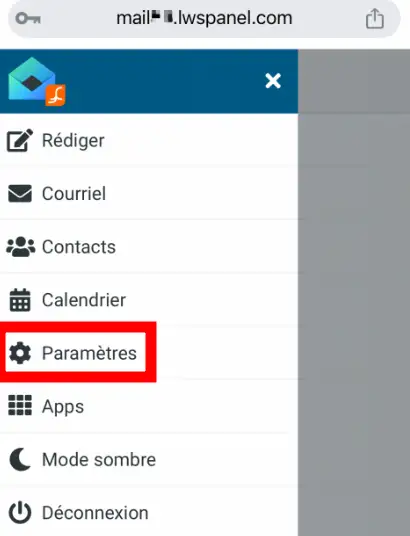
Click on settings:
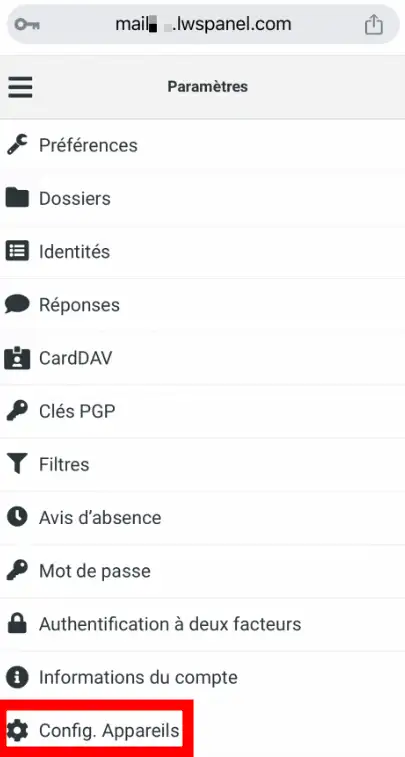
Click on Device config.:
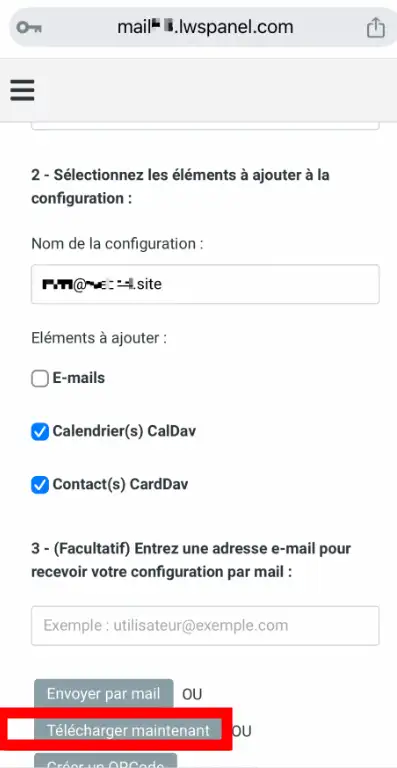
Click on Download now (making sure to check "CalDav Calendar(s) and CardDav Contact(s)):
Click on Continue:
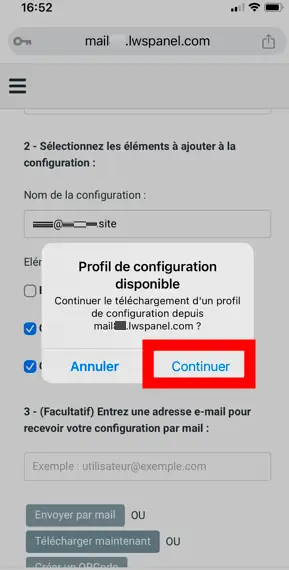
Simply click on 'Create a QRCode' and scan it from the device in question and follow the steps below
At this stage, in all cases, your profile is saved on your iOS device, you must now activate it:
Go to the Settings app, then General on your device.
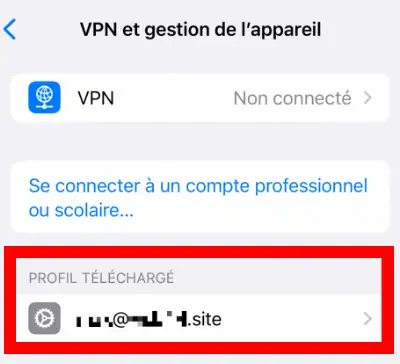
A 'VPN and device management' section is then available; you need to open it and click on the downloaded profile:
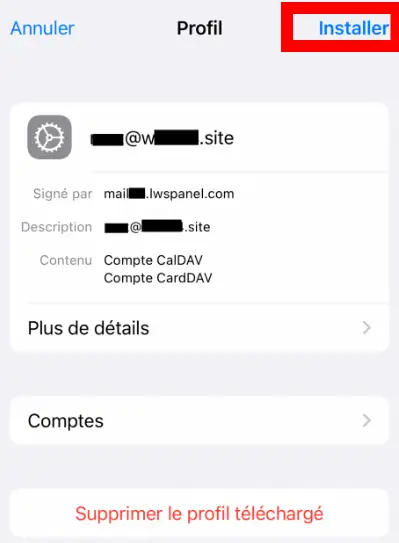
Once the profile is selected, proceed with its installation:
Select the Settings icon:
Then Mail, Contacts, Calendars:

Add Account:

Select Other:
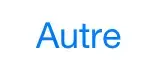
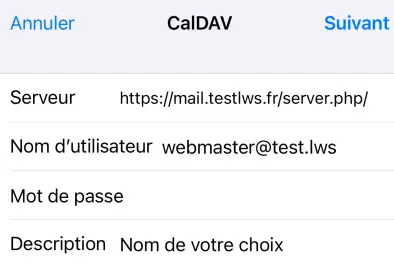
Add CalDAV Account:

Here we indicate the various connection settings to the caldav server. We will use the address webmaster@testlws.fr as an example:
Server: https://mail.testlws.fr/dav/server.php/
Username: webmaster@testlws.fr
Password: The one provided when the mailbox was created
Description: Name of the address book
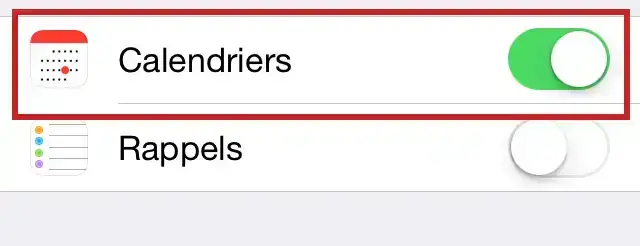
Select what you want to synchronize, here Calendars:
Calendar icon:
Then Calendars:

Select the previously created calendar:
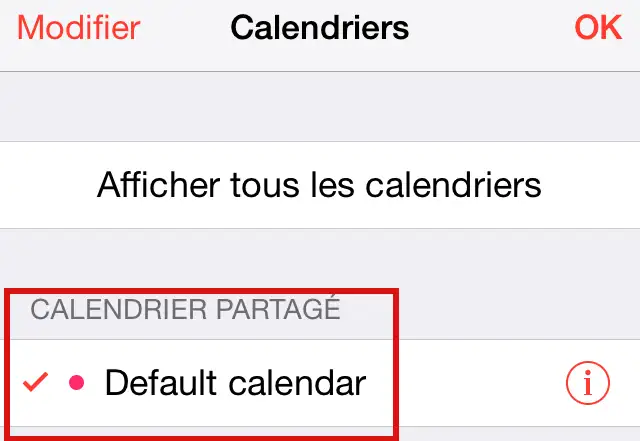
Then OK and we find our shared event.

Settings used:
Server: https://mail.testlws.fr/dav/server.php/
Username: email@mondomaine.com
Password: my email password
Ask the LWS team and the community. Answers are published after moderation.
 About LWS :
LWS is a 100% French web hosting company that focuses on quality and innovation and offers a responsive and competent technical service at affordable prices.
About LWS :
LWS is a 100% French web hosting company that focuses on quality and innovation and offers a responsive and competent technical service at affordable prices.



 Yes
Yes No
No