
Online help
The web host accessible to all
Procédure
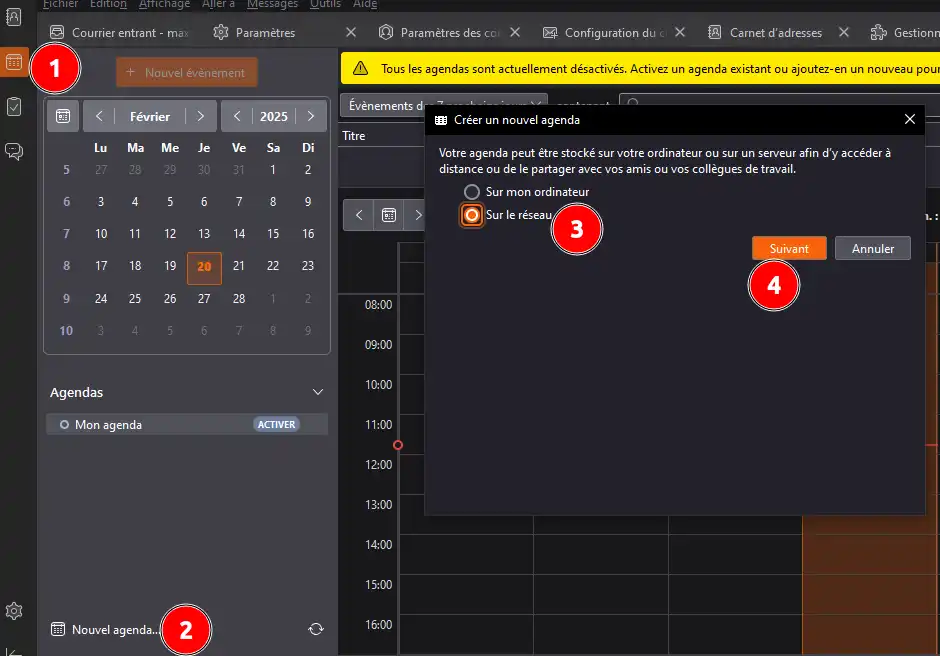
In this documentation, we will see how to add a CalDAV account in order to retrieve events entered in the calendar linked to your email inbox.
Click on the numbered icons following the indicated order:
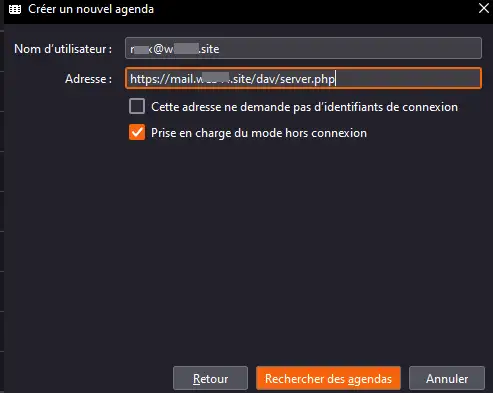
Enter your calendar information:
Username: Your email address
Address: https://mail.yourdomainname.extension/dav/server.php (replace the fields in bold with your domain name, example lws.fr)
Click on "Search for calendars", note that before the search results are displayed, you must enter your email inbox password:
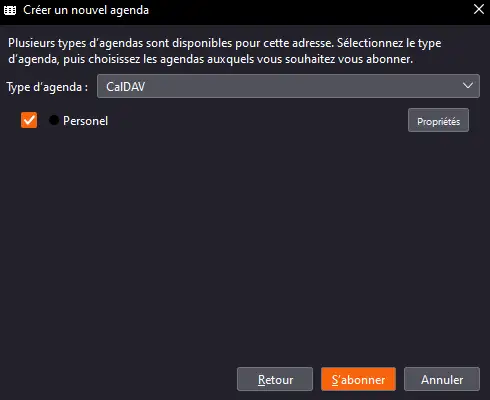
Subscribe to the calendars of your choice.
Once the subscription is complete, your calendar becomes visible as well as the shared items:
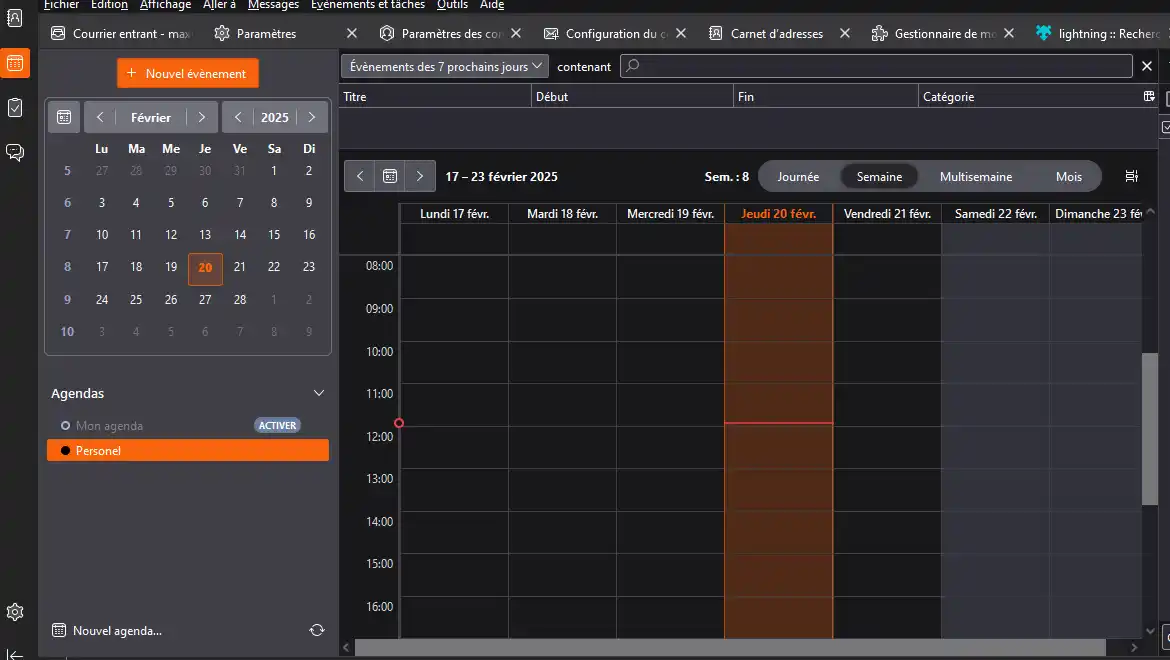
You are now able to modify/view events entered on your other devices and from webmail; adding events is also possible, and they will be shared across all your devices that support CalDAV.
Feel free to share your feedback and questions!
Ask the LWS team and the community. Answers are published after moderation.
 About LWS :
LWS is a 100% French web hosting company that focuses on quality and innovation and offers a responsive and competent technical service at affordable prices.
About LWS :
LWS is a 100% French web hosting company that focuses on quality and innovation and offers a responsive and competent technical service at affordable prices.



 Yes
Yes No
No