Moodle is a CMS (online website editor) that makes it quick and easy to manage the content of a website. This CMS is suitable for both small and large companies.
Moodle also adds a number of tools for pedagogical and communicative interaction, creating an online learning environment: this application enables interaction between teachers, learners and teaching resources to be created via the network.
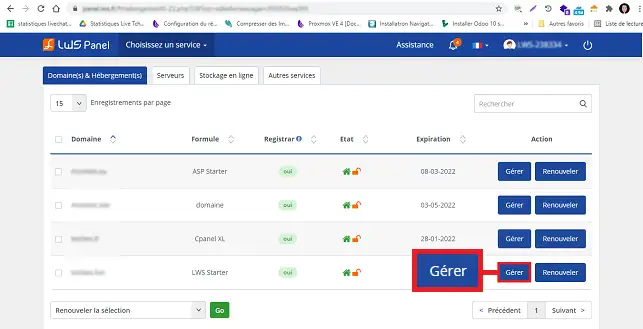
22. Click on the "Manage" button behind the package on which you wish to install the Moodle CMS.
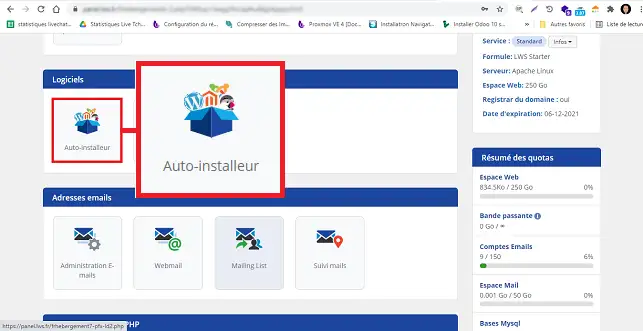
33. Click on the"Auto-installer" button in the"Software" section.
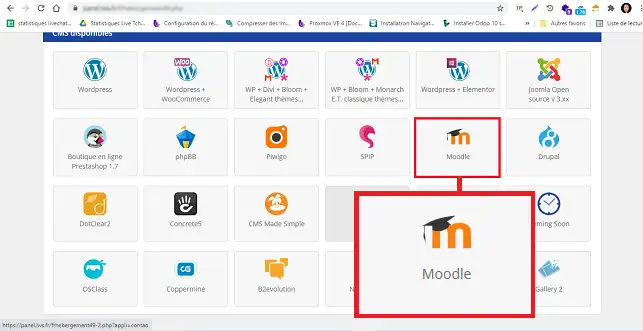
4. Choose Moodle by clicking on the relevant icon.
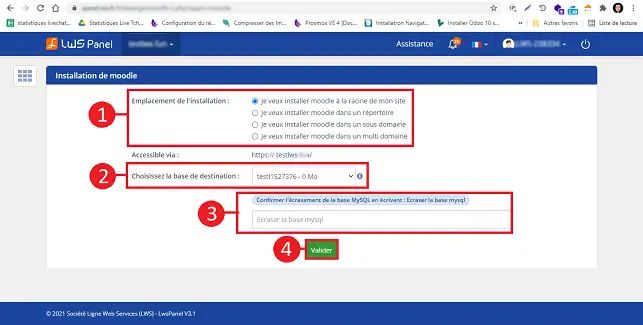
3. Indicate where you would like to install Moodle. You can choose between :
I want to install Moodle in the root directory
I want to install Moodle in a directory
I want to install Moodle on a sub-domain
I want to install Moodle on a multi-domain
Then choose the database to be used for the installation and fill in the field to confirm that the database to be used can be overwritten.
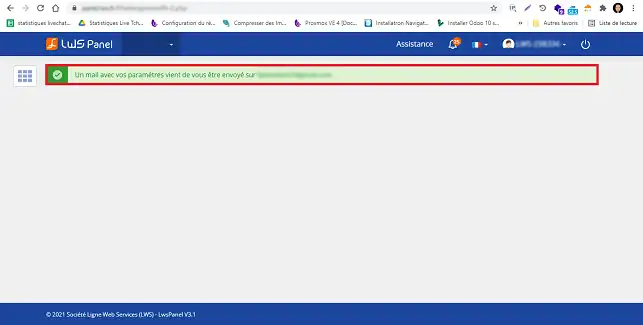
4. Once the installation is complete, the login details for your Moodle interface will be emailed to you.
How do I access Moodle?
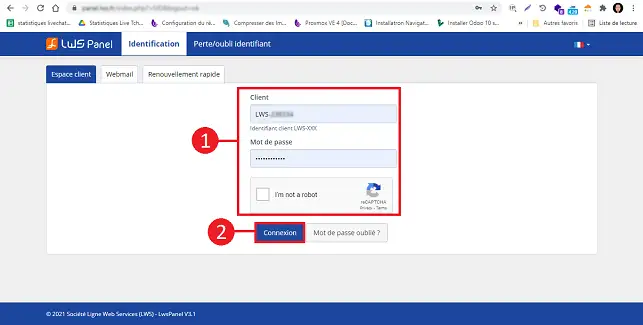
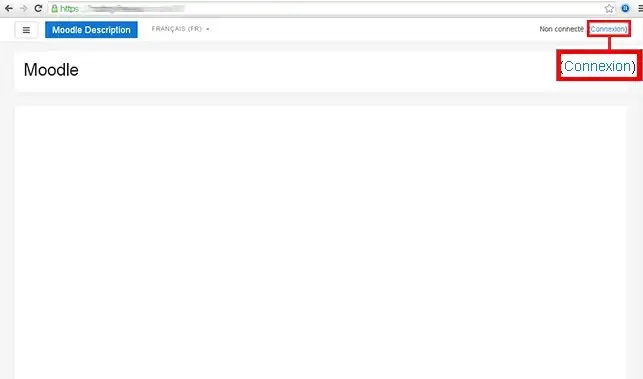
11. Click on Login (the address was sent to you by email during installation)
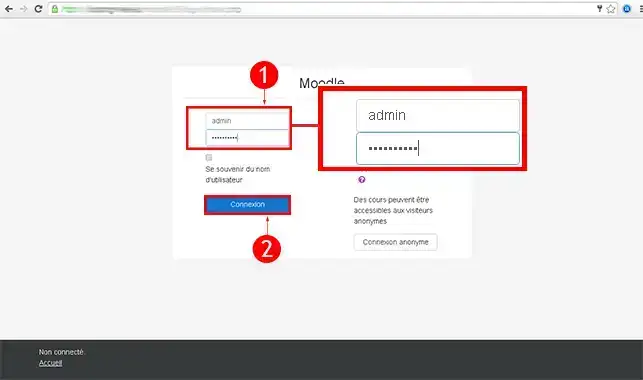
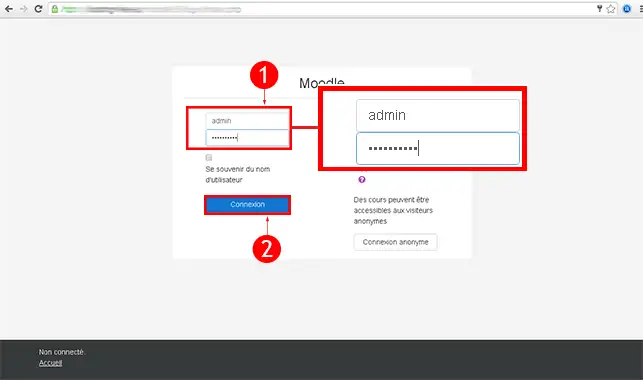
2. Enter the default login details you received in your email. Then click on Connection
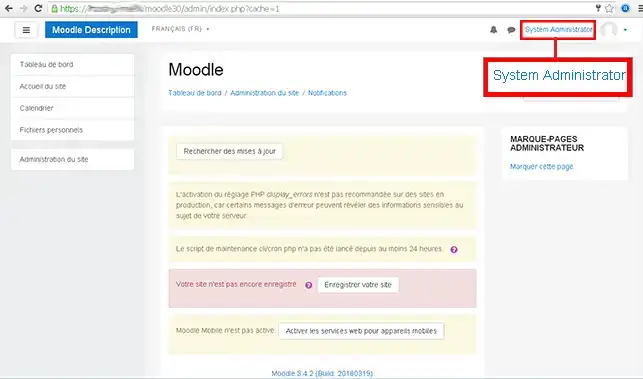
3. Click on "System Administrator".
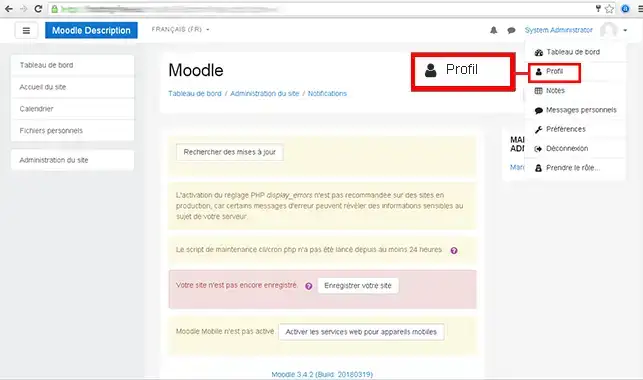
4. Click on the"Profile" tab.
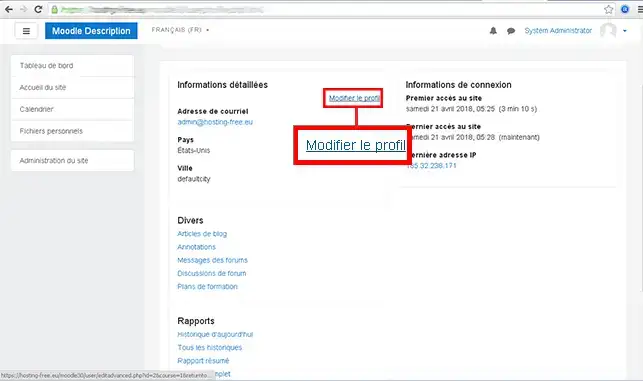
5. Click on Modify my profile
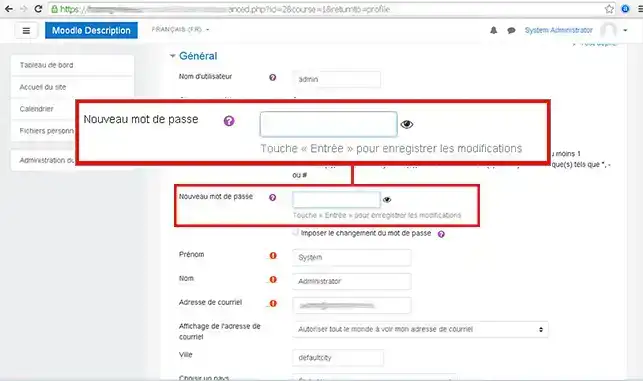
6. Enter your new password and click on Save profile.
How do I create a course in Moodle?
11. Click on Login (the address was sent to you by email when you set up your course)
2. Enter the default login details you received in your email. Then click on Connection
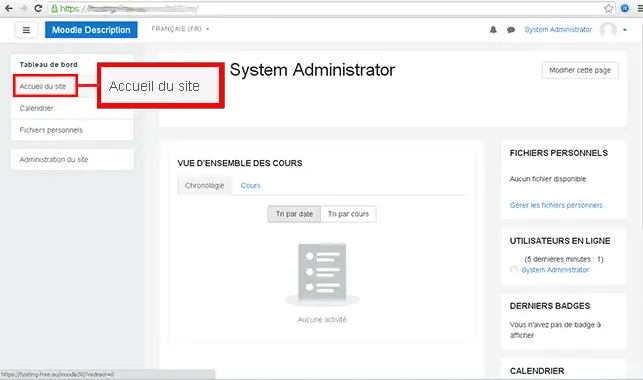
3. Click on the"Home page" button in the left-hand menu.
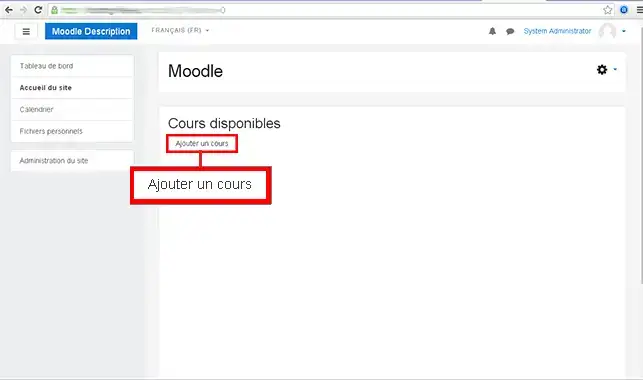
4. Then click on Add a course
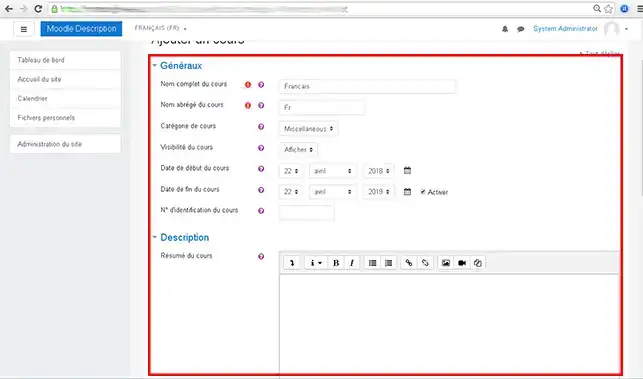
5. Fill in the details of your course then click on Save and display.
How do I create an event in Moodle?
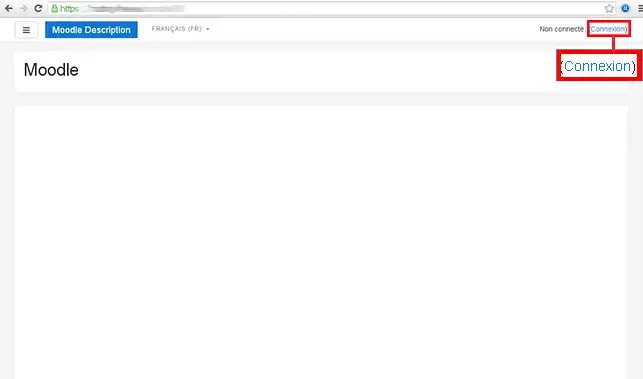
11. Click on Login (the address was sent to you by email when you set up your Moodle account)
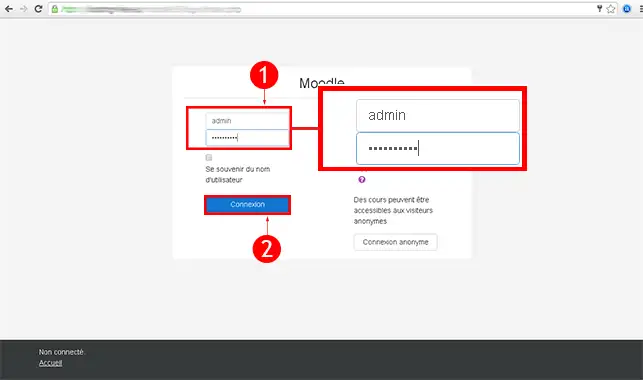
2. Enter the default login details you received in your email. Then click on Connection
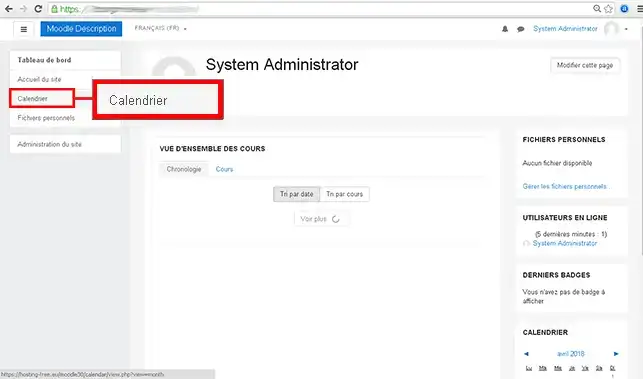
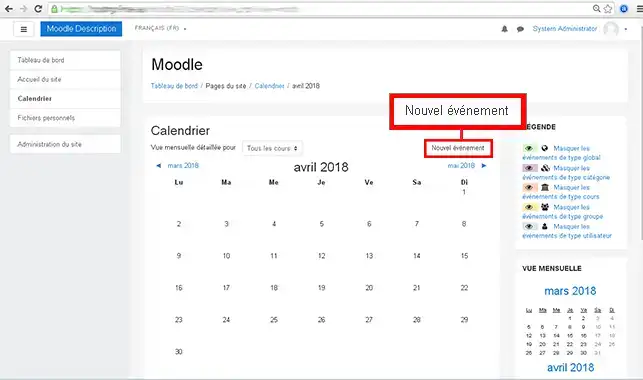
3. On the right-hand side click on Calendar.
4. Click on the"New Event" button.
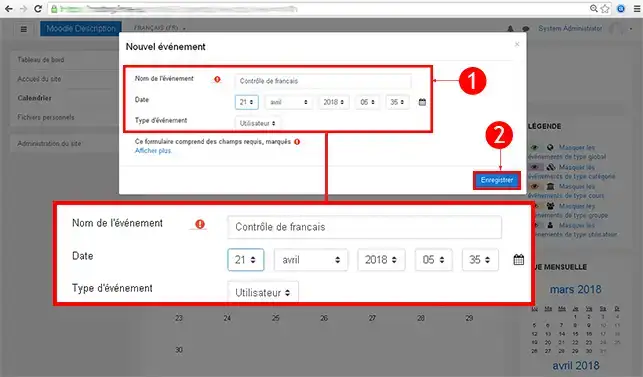
5. Enter the Event Name and the Event Type, then click Save.
How do I add a block in Moodle?
11. Click on Connect (the address was sent to you by email when you installed Moodle)
2. Enter the default login details you received in your email. Then click on Connection
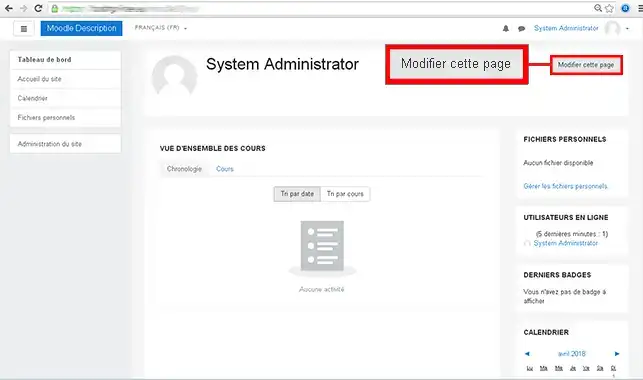
3. Click on Modify this page.
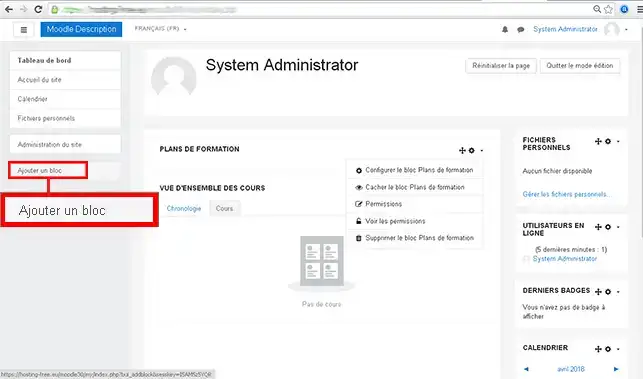
4. Click on Add a block in the left-hand menu .
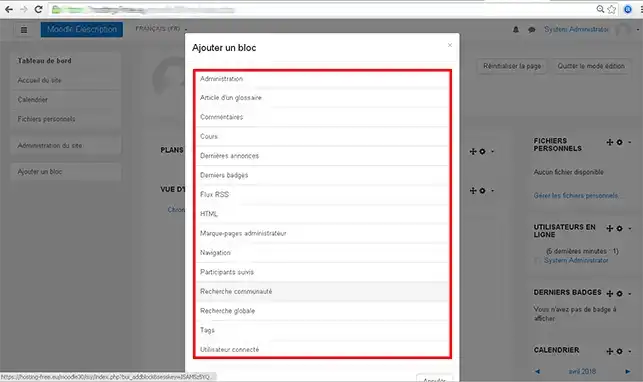
5. Click on the block you wish to add to your page.
How do I change the settings in Moodle?
11. Click on Login (the address was sent to you by email when you installed Moodle)
2. Enter the default login details you received in your email. Then click on Connection
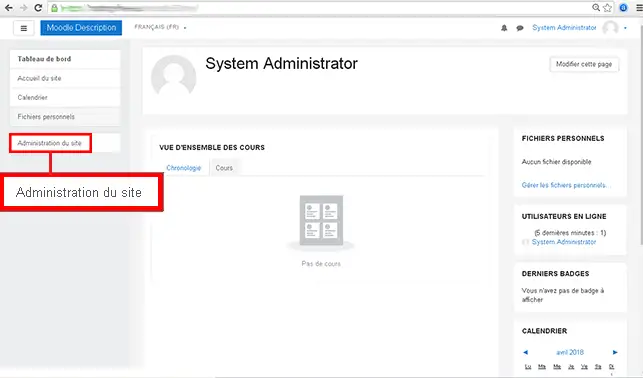
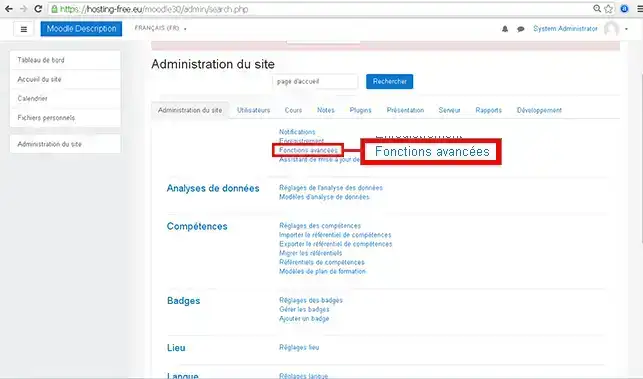
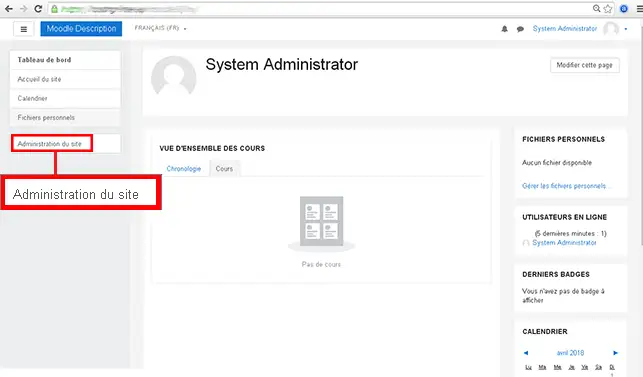
3. Click on the"Site administration" button in the left-hand menu.
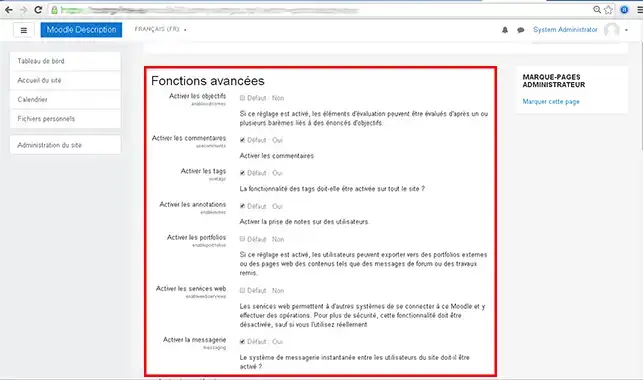
4. Click on the "Advanced functions" tab.
5. Choose the settings you want for your website and click the"Save" button to confirm your changes.
How do I install an extension in Moodle?
11. Click on Connection (the address was sent to you by email during installation)
2. Enter the default login details you received in your email. Then click on Connection
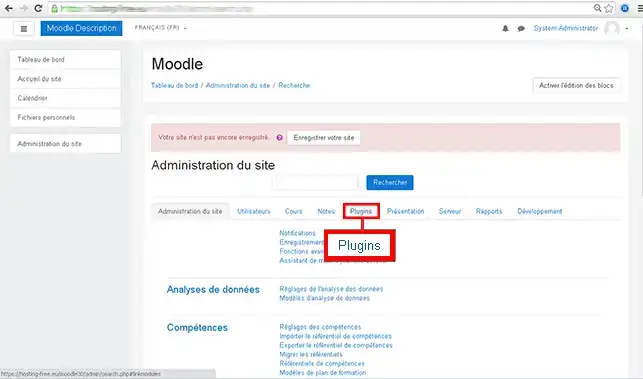
3. Click on the"Site administration" button in the left-hand menu.
4. Click on the"Plugins" tab.
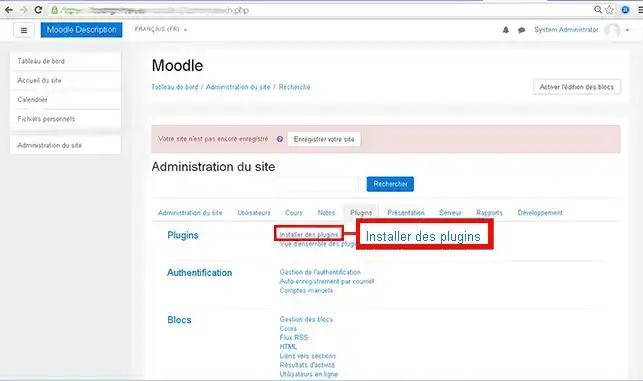
5. Click on the"Install plugins" tab in the"Plugins" section.
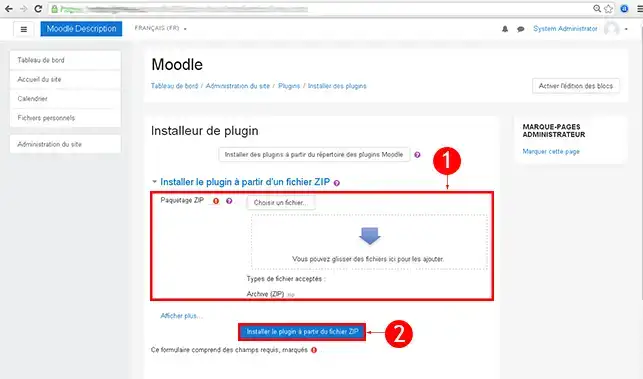
6. Choose whether you want to use the Moodle plugins directory or install the plugin from a ZIP file. If you are installing from a zip file, simply click on Install plugin from ZIP file to confirm.
How do I create a Moodle website?
How can I get help with Moodle?
To find out more about Moodle you can consult the official resources:
comment importer un cours déjà crée sur Moodlecloud vers Moodle LMS intallé via auto-installeur de LWS?
B✓
Benjamin-LWS Official answer
10 Oct 2023
Bonjour,
Merci de votre retour.
L'auto-installeur LWS installe la version classique de Moodle, pour toute autre installation, je vous invite à vous reporter vers forums ou communauté de spéciale en Moodle afin qu'il vous aide à effectuer cela.
Je vous remercie de votre attention et reste à votre disposition pour toute autre question ou complément d'information.
Nous vous invitons à contacter notre service support à travers votre espace client, afin de vous apporter une aide si vous rencontrez des difficultés quelconque. (Contacter le support)
Cordialement, L'équipe LWS
Was this answer helpful?
M
Mike
22 Apr 2025
Bonjour, quelle version de Moodle proposez vous en installation simplifiee ? La derniere ? Comme se passent les mise-a-jours par la suite ? Merci Mike
J✓
Jordan-LWS Official answer
23 Apr 2025
Bonjour,
Merci pour votre message.
Vous avez la possibilité d’installer votre CMS directement via notre auto-installeur, disponible depuis votre espace client. La version actuellement proposée est la 4.5.
Nous attirons toutefois votre attention sur le fait que toute mise à jour au-delà de cette version nécessitera une intervention manuelle de votre part. De plus, nous ne pouvons garantir le bon fonctionnement des versions supérieures si celles-ci requièrent des fonctions PHP spécifiques non activées par défaut sur l’hébergement.
N’hésitez pas à revenir vers nous si vous avez besoin d’assistance pour l’installation initiale ou si vous avez des questions concernant la compatibilité.
Je vous remercie pour votre attention et reste à votre disposition pour toute autre question ou complément d'information.
Bien cordialement,
Was this answer helpful?
D
Désiré
10 Oct 2025
Bonjour. LWS nous propose la version MOODLE 4.5. que je trouve d'ailleurs très stable. Cependant j'aimerais bien passer à la version plus avancée notamment Moodle 5.2. Pourriez vous me dire comment procéder? Disposez vous d'un tuto?
J✓
Jordan-LWS Official answer
13 Oct 2025
Bonjour,
Je vous remercie pour votre message.
Si la version de Moodle que vous souhaitez installer (5.2) n’est pas proposée dans l’auto-installeur LWS, il faudra procéder à une installation manuelle.
Vous pouvez suivre la procédure complète directement depuis la documentation officielle de Moodle :



 Yes
Yes No
No About
About 