
Online help
The web host accessible to all
Procédure
Service concerned : SiteBuilder Pro
Panel concerned : SiteBuilder Pro and the hosting file manager
Level : intermediate
If the content present in the SiteBuilder Pro editor no longer matches the version currently visible on the Internet, it is possible to retrieve the latest published version of your site and restore it in the editor.
At each publication, SiteBuilder Pro keeps on the hosting the files needed to reconstruct the project as it was at the time of that publication. This procedure therefore makes it possible to return exactly to that published version.
Restoration replaces the project currently loaded in SiteBuilder Pro. Changes made in the editor since the last publication and that have never been published may therefore be lost.
If you want to be able to return to the current version of your project, first create a backup.
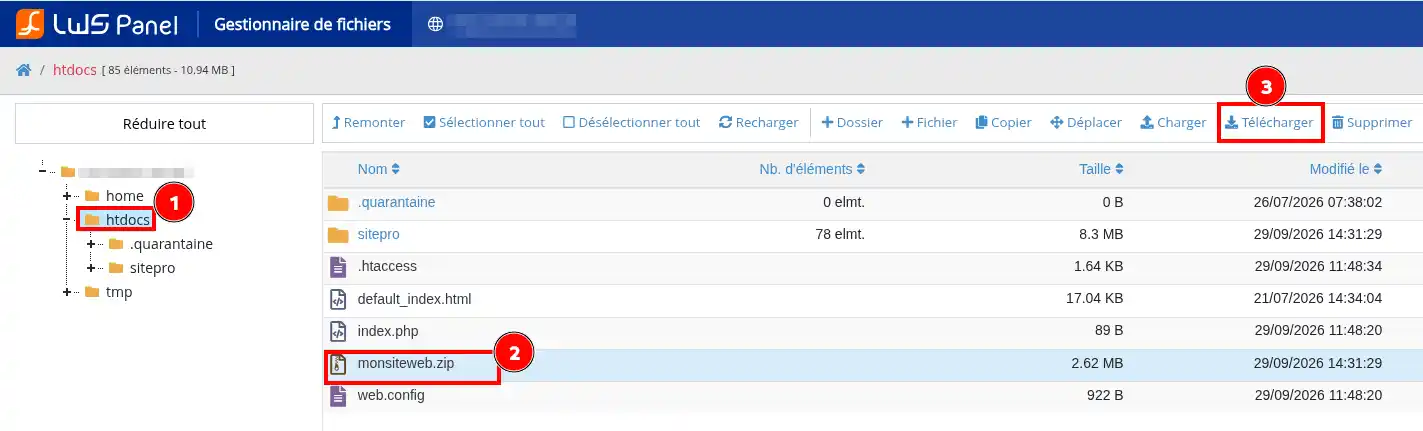
Go to the file manager of the hosting on which your SiteBuilder Pro site is published.

Open the folder containing your site files (on cpanel for example it will be the public_html folder, on lws panel it will be the htdocs)
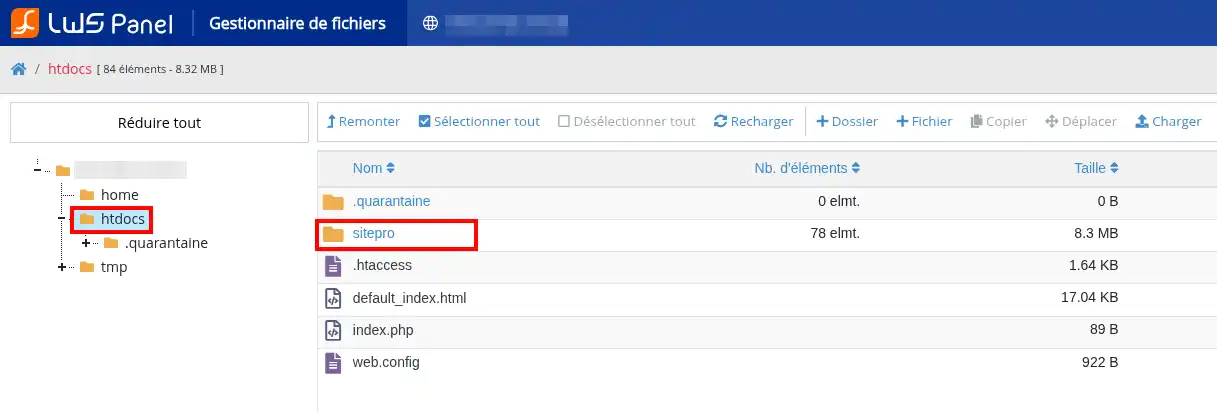
Then look for the folder:
sitepro
Open it. You should notably find the following two folders there:
datgalleryThese two folders contain the data allowing SiteBuilder Pro to reconstruct the project corresponding to the site’s latest publication.
Select the dat and gallery folders, then use the file manager compression function to create an archive in ZIP format.
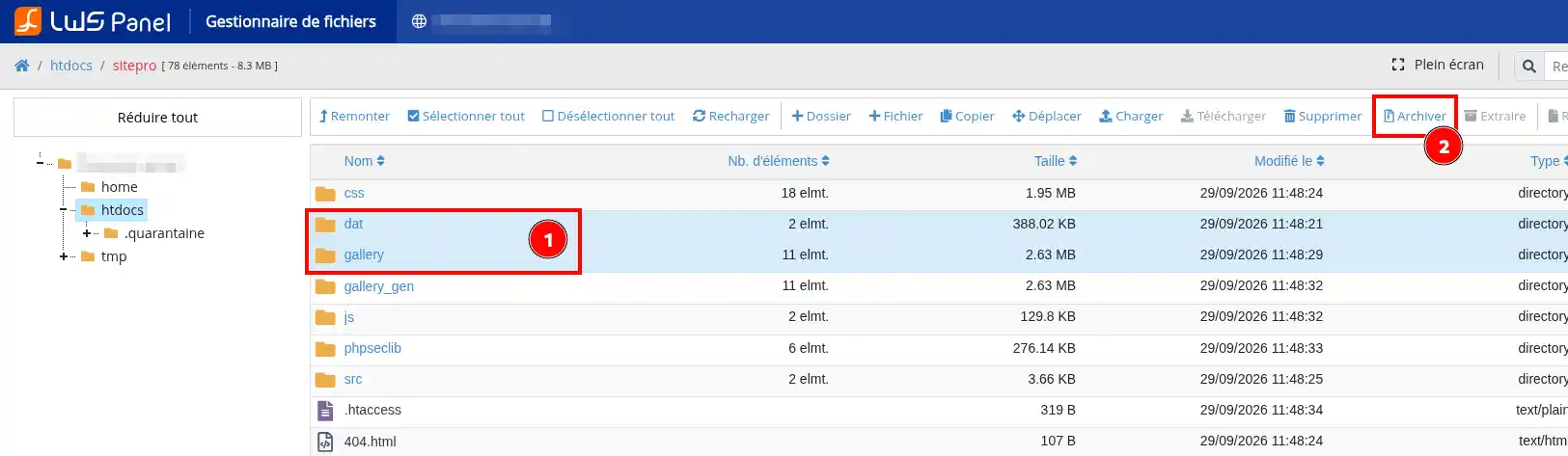
The name given to the ZIP file does not matter.
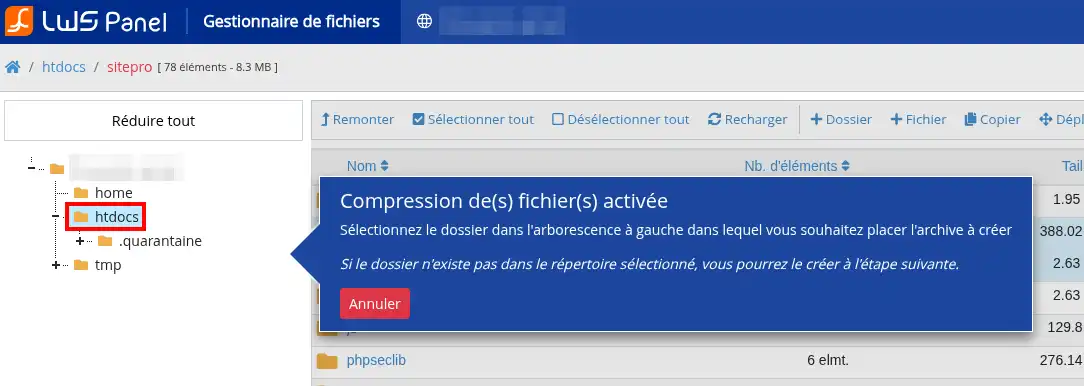
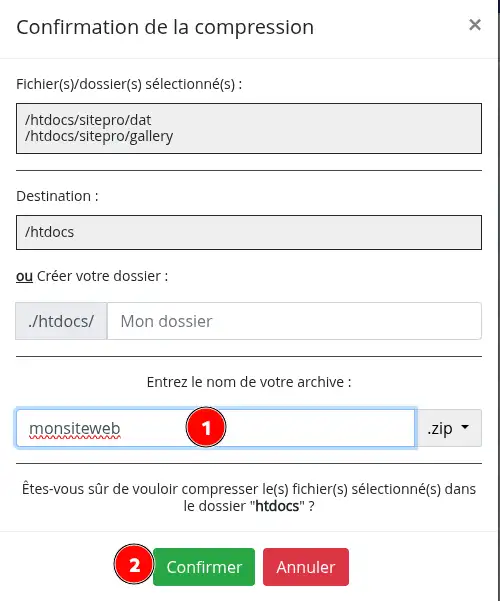
The dat and gallery folders must be located directly at the root of the ZIP file.
When you open the archive, you must therefore immediately see:
dat/
gallery/
They must not be placed inside an additional folder.
Then download this ZIP file to your computer.
Now open your site in SiteBuilder Pro.
In the editor:
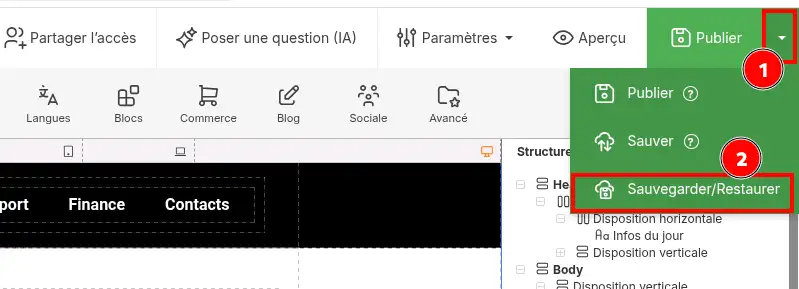
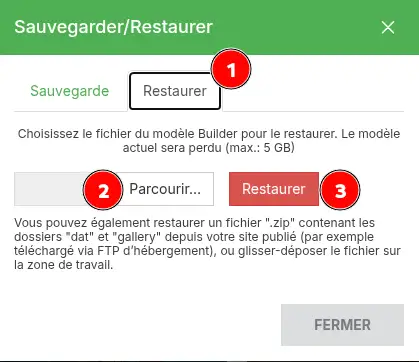
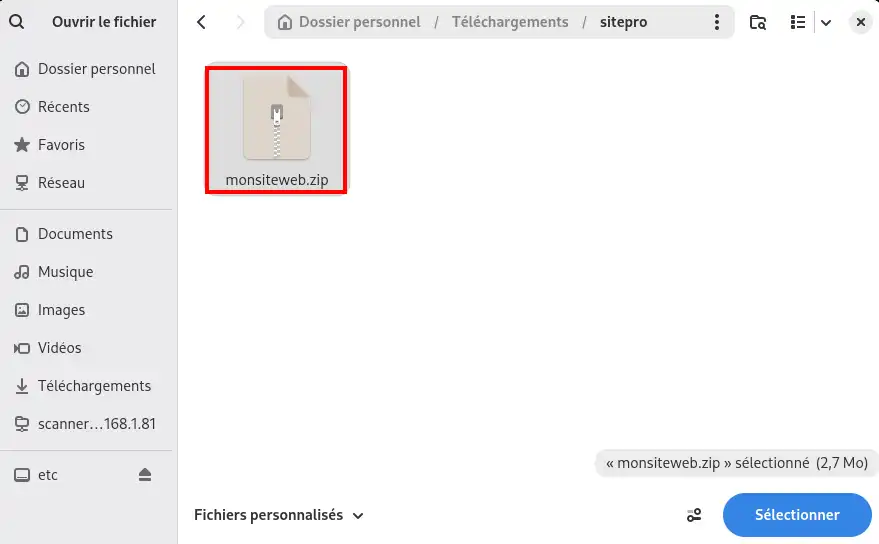
dat and gallery folders.SiteBuilder Pro then loads into the editor the project that corresponded to your site at the time of its last publication.
Your SiteBuilder Pro editor should now display the same version of the site as the one currently published on the Internet.
Browse the different pages in SiteBuilder Pro and compare them with your site currently accessible online.
Check in particular:
If the content displayed in the editor matches the site currently online, the restoration was successful.
The restoration retrieves the state of the project corresponding to the site’s last publication. It does not make it possible to recover a modification that had never been published.
Restoration puts the published version back into the SiteBuilder Pro editor. You can then modify it normally.
The site already accessible on the Internet does not need to be republished just to perform this recovery. However, after making new changes in SiteBuilder Pro, you will need to use the Publish button to make them visible online.
I cannot find the sitepro folder
Make sure you are looking in the folder where the SiteBuilder Pro site is published.
The path may vary depending on your hosting and domain configuration. The sitepro folder is normally located in the directory containing the published site files.
SiteBuilder Pro refuses my ZIP file
Check the archive structure.
The dat and gallery folders must be located directly in the ZIP file. For example:
my-site.zip > dat
my-site.zip > gallery
The following structure is not correct:
my-site.zip > my-folder > dat
my-site.zip > my-folder > gallery
Recreate the archive by directly selecting the dat and gallery folders.
The restored version does not contain my latest changes
This procedure restores only the version present at the last publication.
If some changes had been made in SiteBuilder Pro but had never been published, they are not present in the online site files and therefore cannot be recovered with this method.
My online site is correct, but my editor is not anymore
This is precisely the case in which this restoration is useful. As long as the correct version is still published on your hosting and the dat and gallery folders are present in the sitepro folder, you can use them to put this version back into the editor.
Ask the LWS team and the community. Answers are published after moderation.
 About LWS :
LWS is a 100% French web hosting company that focuses on quality and innovation and offers a responsive and competent technical service at affordable prices.
About LWS :
LWS is a 100% French web hosting company that focuses on quality and innovation and offers a responsive and competent technical service at affordable prices.



 Yes
Yes No
No