
Online help
The web host accessible to all
Procédure
To reinstall your KVM server with the Hermes Agent template, go to the management section for your machine in the LWS Panel KVM, then validate the replacement of the operating system with this ready-to-use image. A KVM server (a standalone private virtual server whose hardware resources are entirely dedicated to you) works like a remote computer that you can reset at any time. Installing a model or template (a preconfigured system image containing the Linux operating system and software already installed) lets you start again from a clean configuration without having to configure each package manually. This operation restores your disk to a clean state by erasing all previous data. The process takes only a few minutes, and you then receive your complete login details by email.
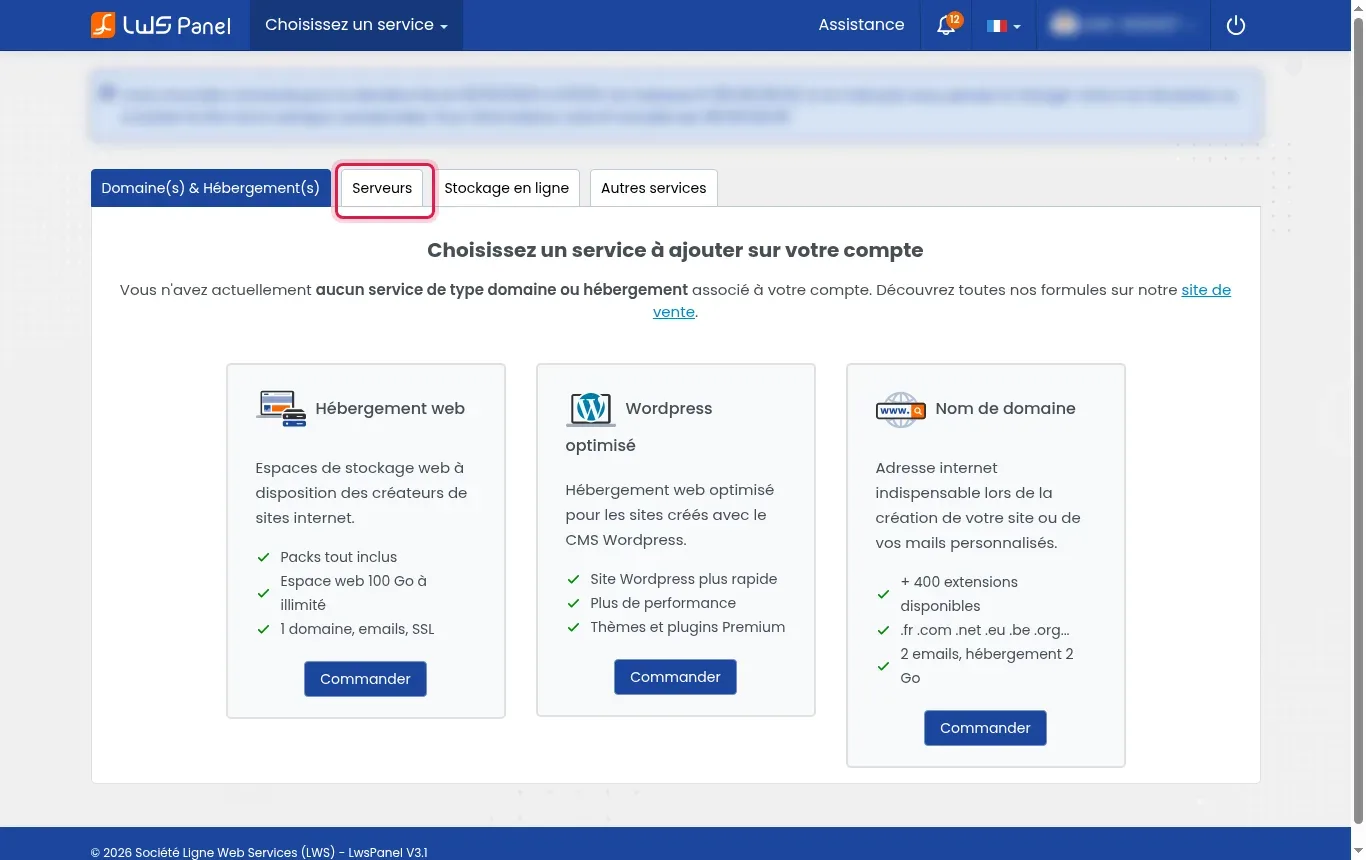
Log in to your usual LWS client area by entering your login details. On the main management home page, locate the horizontal navigation bar beneath the top banner. Then click the Servers tab positioned between the domain and online storage sections. This screen lists all your dedicated and virtual hosting infrastructures associated with your contract. If you remain on the default tab, your virtual machines will not appear in the service list.
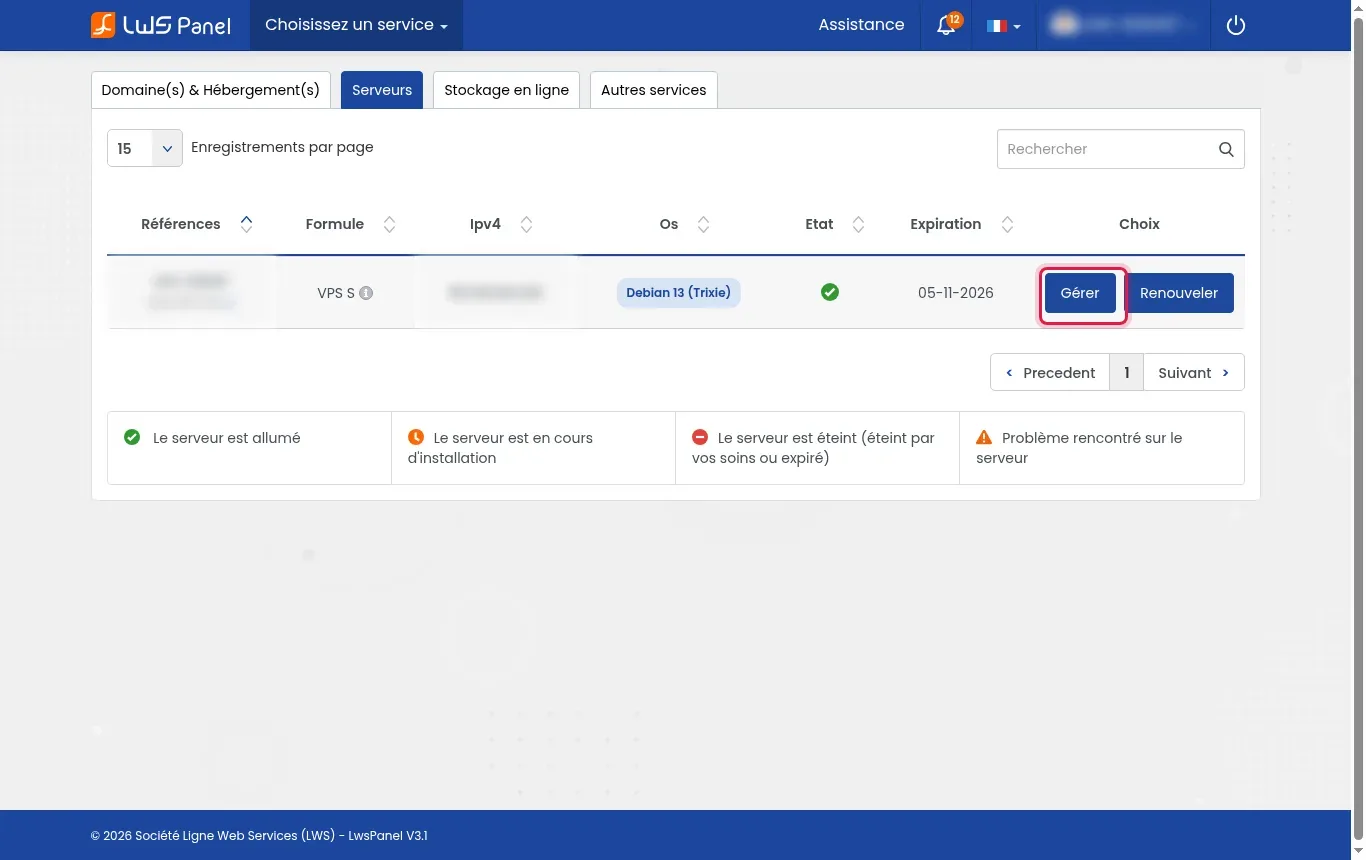
You will now see the table listing all of your servers with their references, plans, IP addresses, and statuses. Find the row corresponding to the KVM server you want to reset with the new application environment. Click the blue Manage button located all the way to the right of this row in the Choice column. This action automatically opens the specialized LWS Panel KVM interface dedicated to the technical control of this virtual machine. Do not click the renew button if your intention is only to change the operating system.
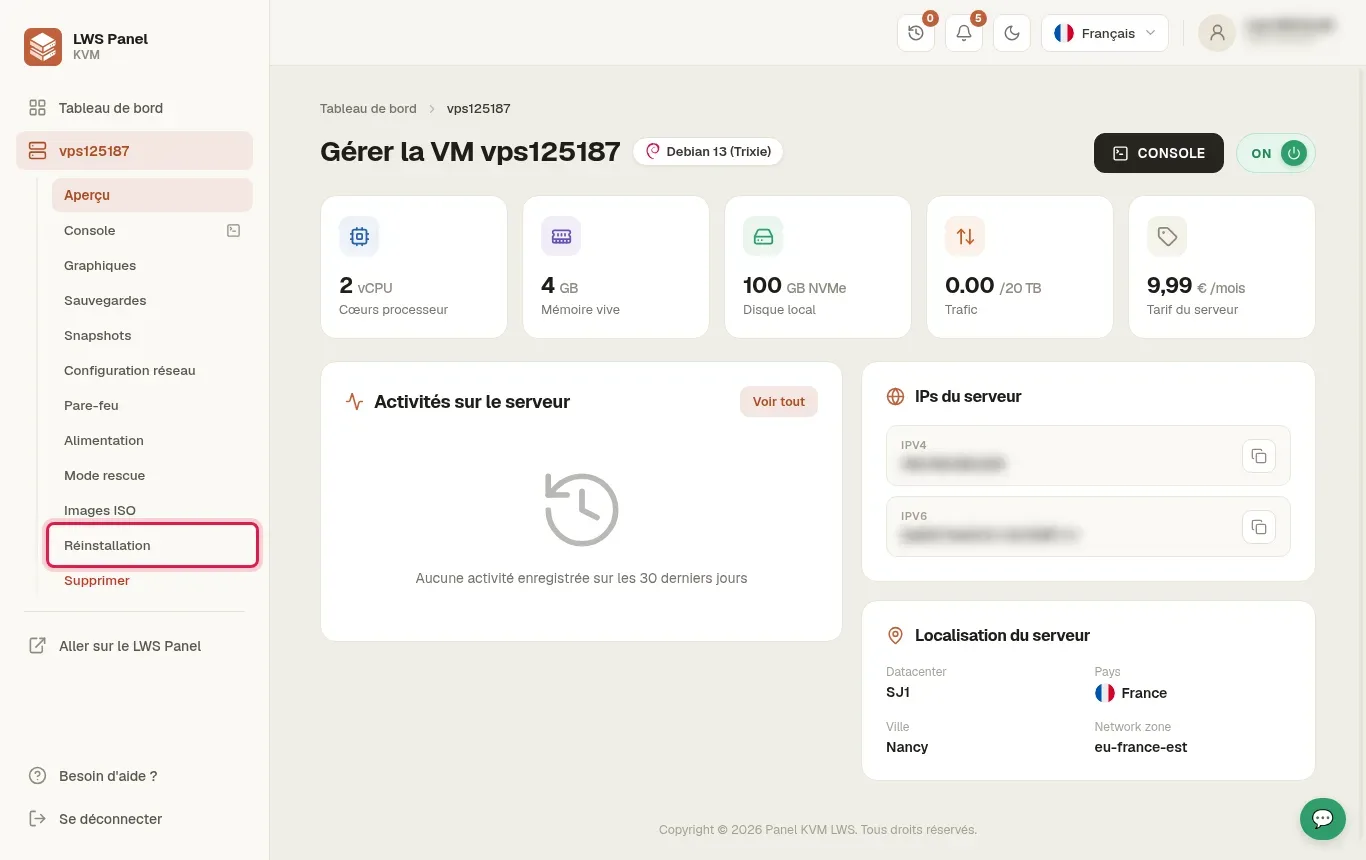
On your virtual machine dashboard, you can view the server’s technical characteristics such as CPUs, RAM, and NVMe disk. Turn your attention to the left side menu grouping all system administration tools. Click the Reinstallation option located in the lower part of the side column, just above the delete link. This menu provides access to the deployment catalog of Linux distributions and preinstalled applications. A common mistake is to look for this function in the network settings or rescue mode.
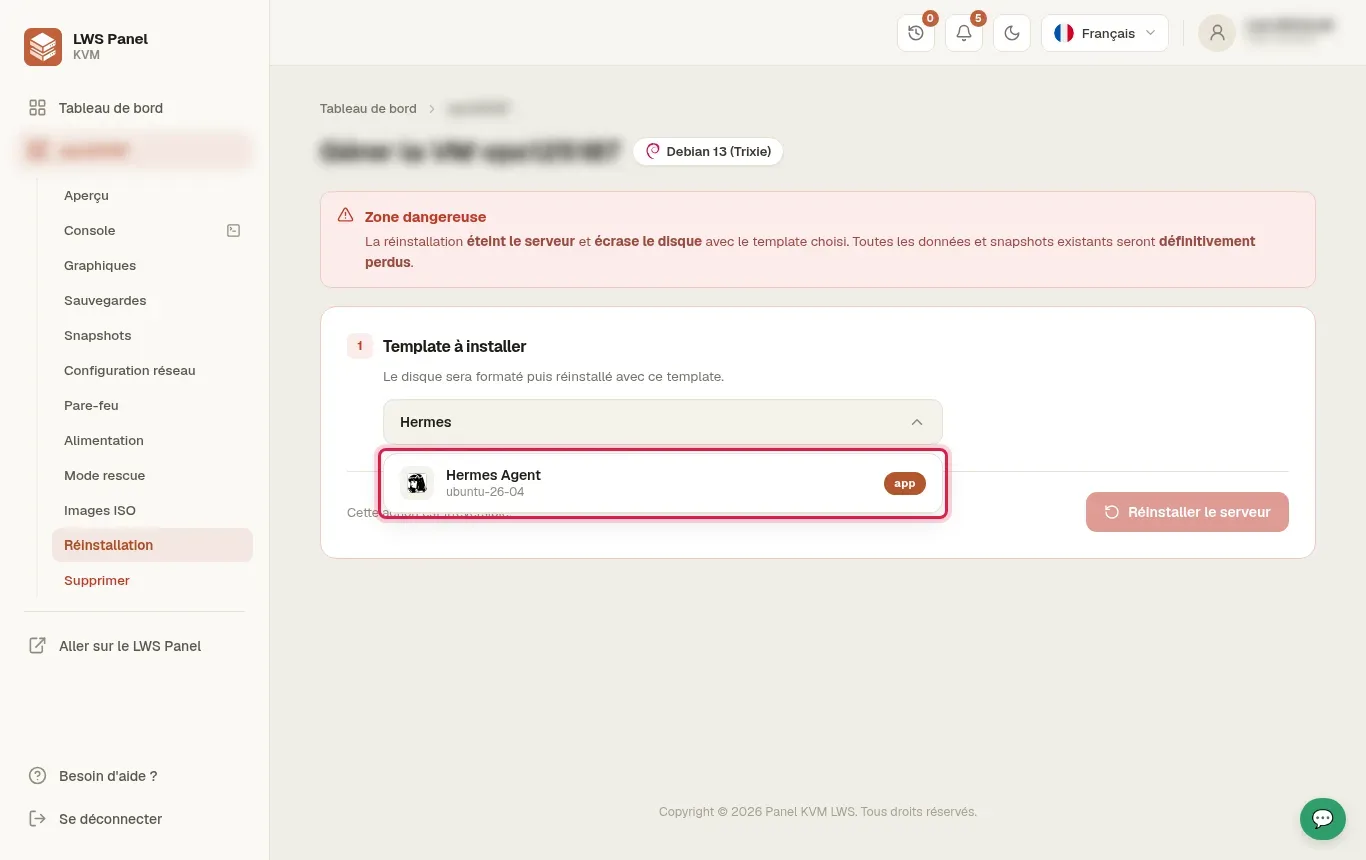
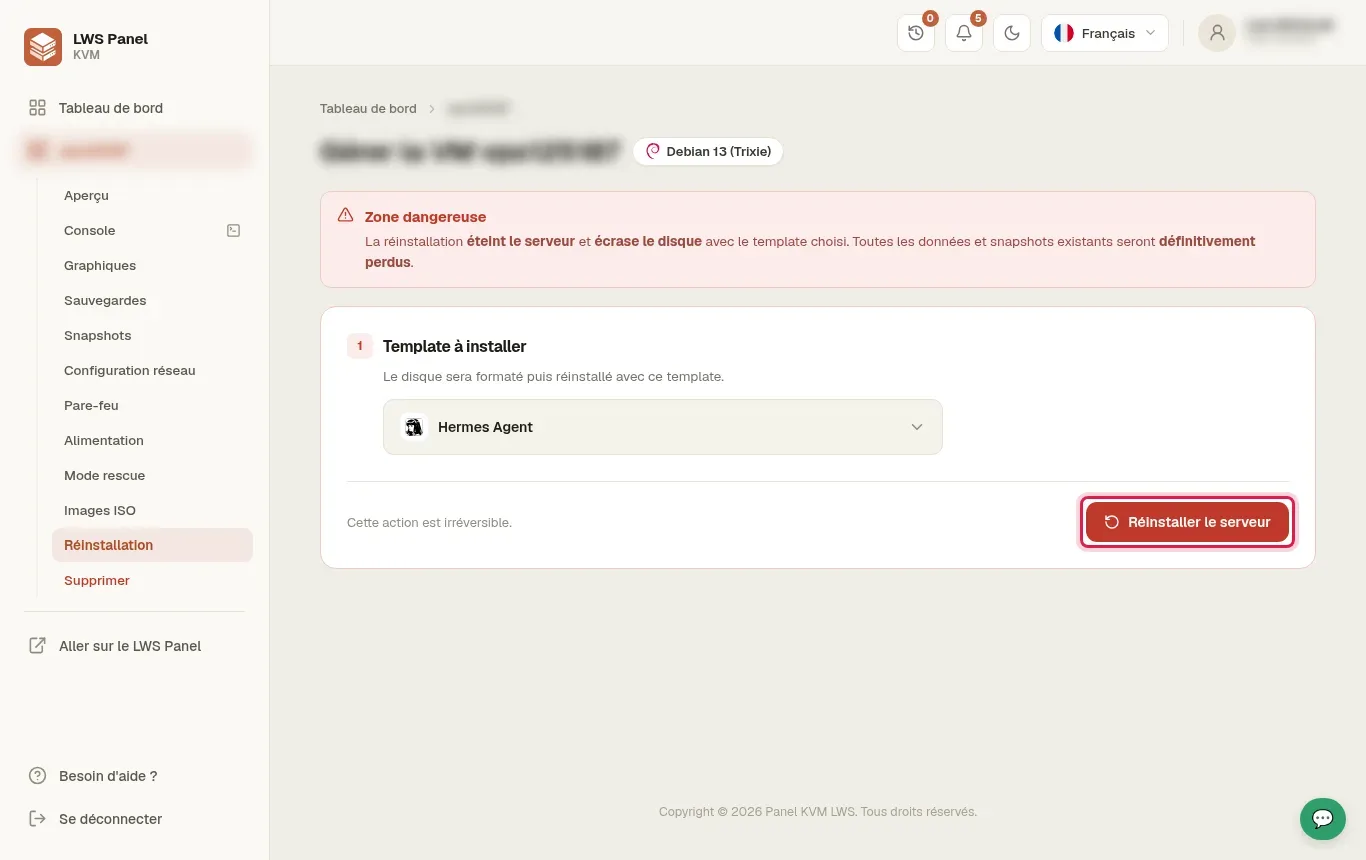
The reinstallation page displays a red box reminding you that this is a sensitive area that will reset the storage medium. In the drop-down list titled Template to install, browse the various systems and application images offered by LWS. Click precisely on the Hermes Agent choice, which is based on a stable Ubuntu foundation. Selecting a ready-to-use application template saves you from having to compile or manually install the conversational agent and its web server. Do not select a plain, bare Linux distribution if you want to have the Hermes Agent tools available immediately.
Once the image is selected, the form summarizes your choice with a note that the local disk will be completely formatted. Read the security warning carefully, stating that this action powers off the server, overwrites the entire disk, and permanently deletes the data as well as any existing snapshots. This alert is there to protect your data from any hasty manipulation. When you are absolutely certain that you no longer need the machine’s current files, click the red Reinstall the server button. The classic mistake at this stage is to confirm without having safeguarded your old databases.
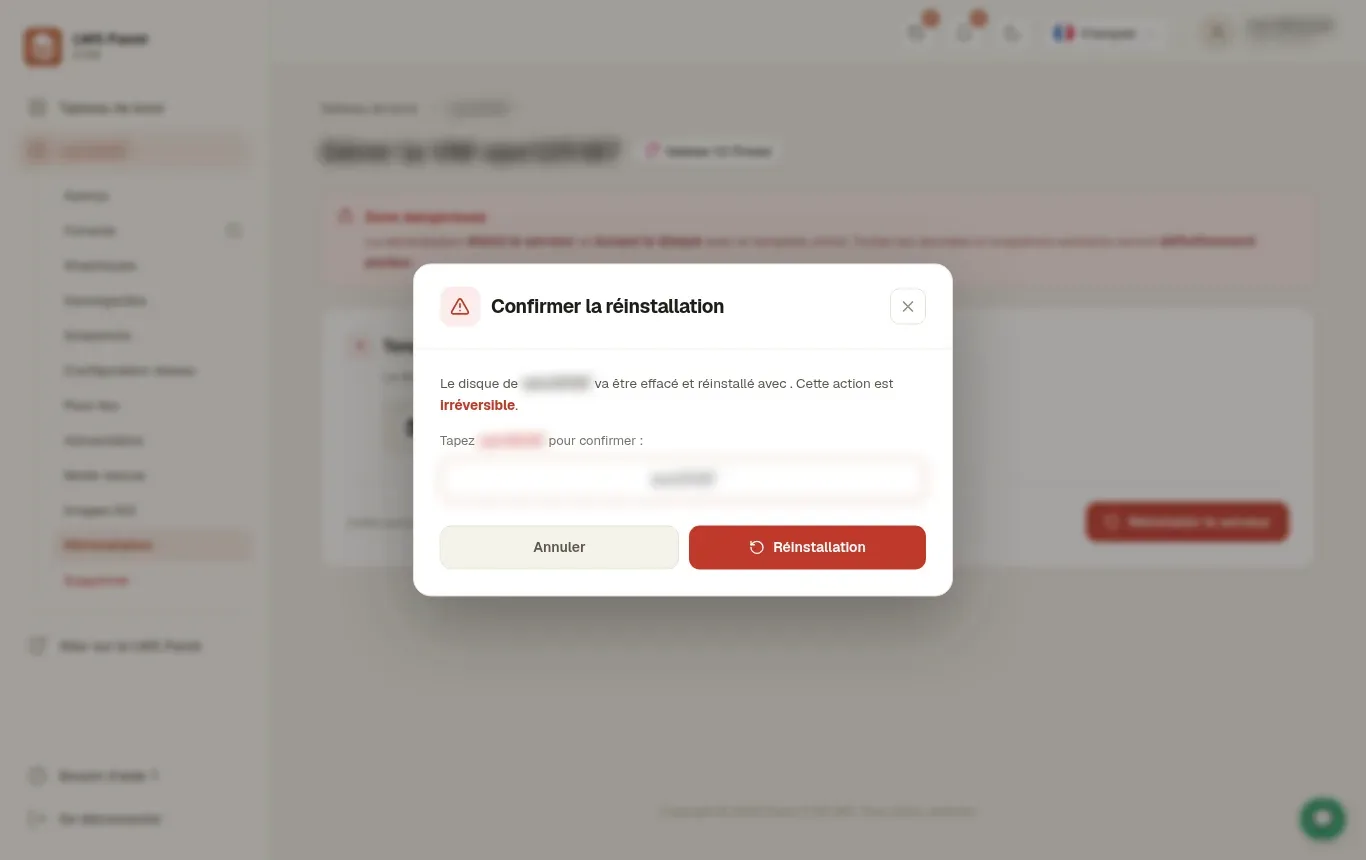
A modal dialog pops up in the center of your screen with the title Confirm reinstallation. This protection mechanism asks you to manually enter the exact identifier of your virtual machine in the form field provided for that purpose. Carefully copy the server reference requested by the system to unlock the confirmation command. As soon as the entered name matches exactly, click the red Reinstallation button. This strict protocol prevents any accidental reset following a wrong action or an unintended click.
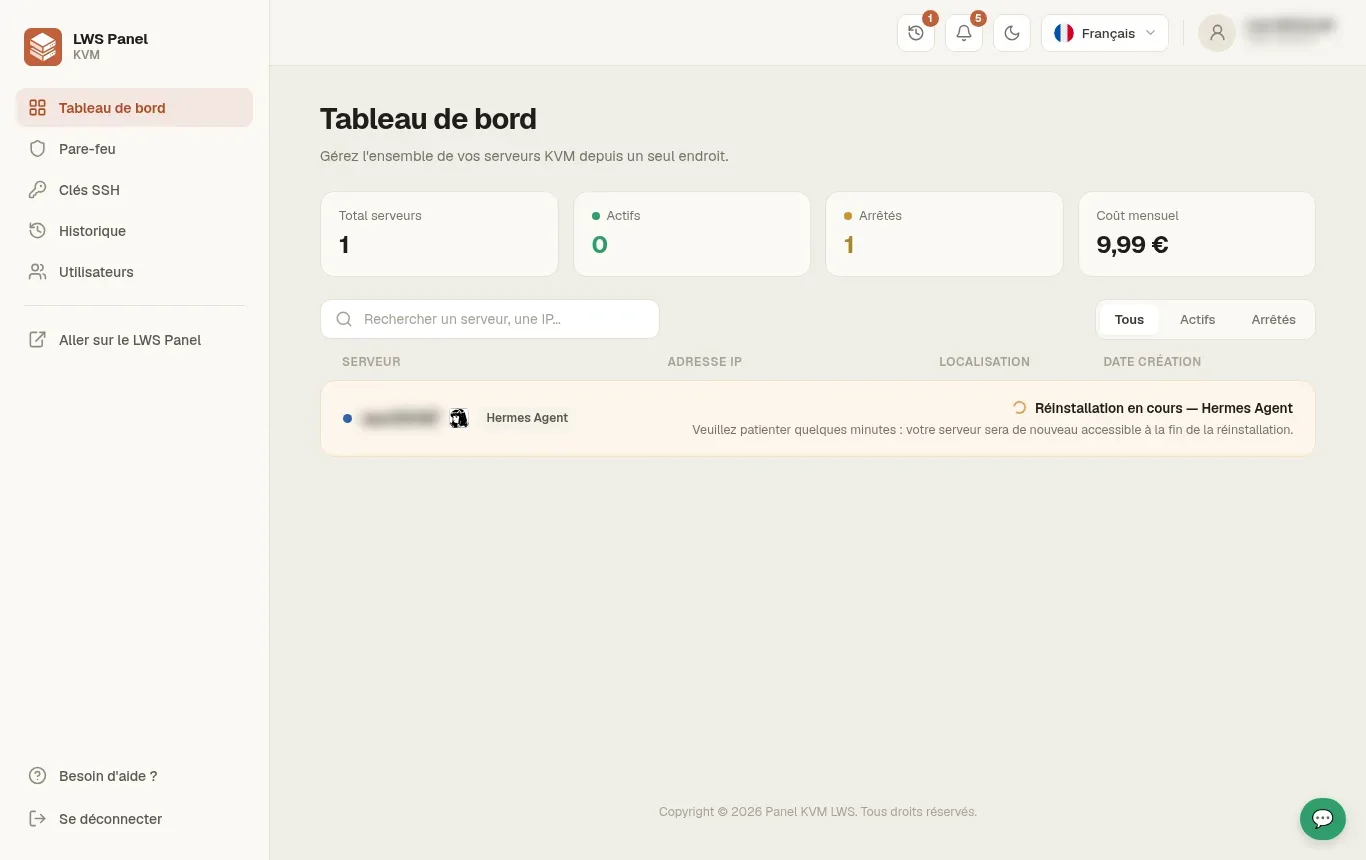
The system switches to the list of your machines and automatically applies the new operating system to your KVM’s virtual disk. The message Reinstallation in progress - Hermes Agent appears with a notice inviting you to wait a few moments. The technical processing in the background usually takes between 3 and 5 minutes, during which the disk is partitioned and configured. Under no circumstances should you attempt to power-cycle the machine or start another installation during this phase. Let the LWS installation automation work calmly until completion.
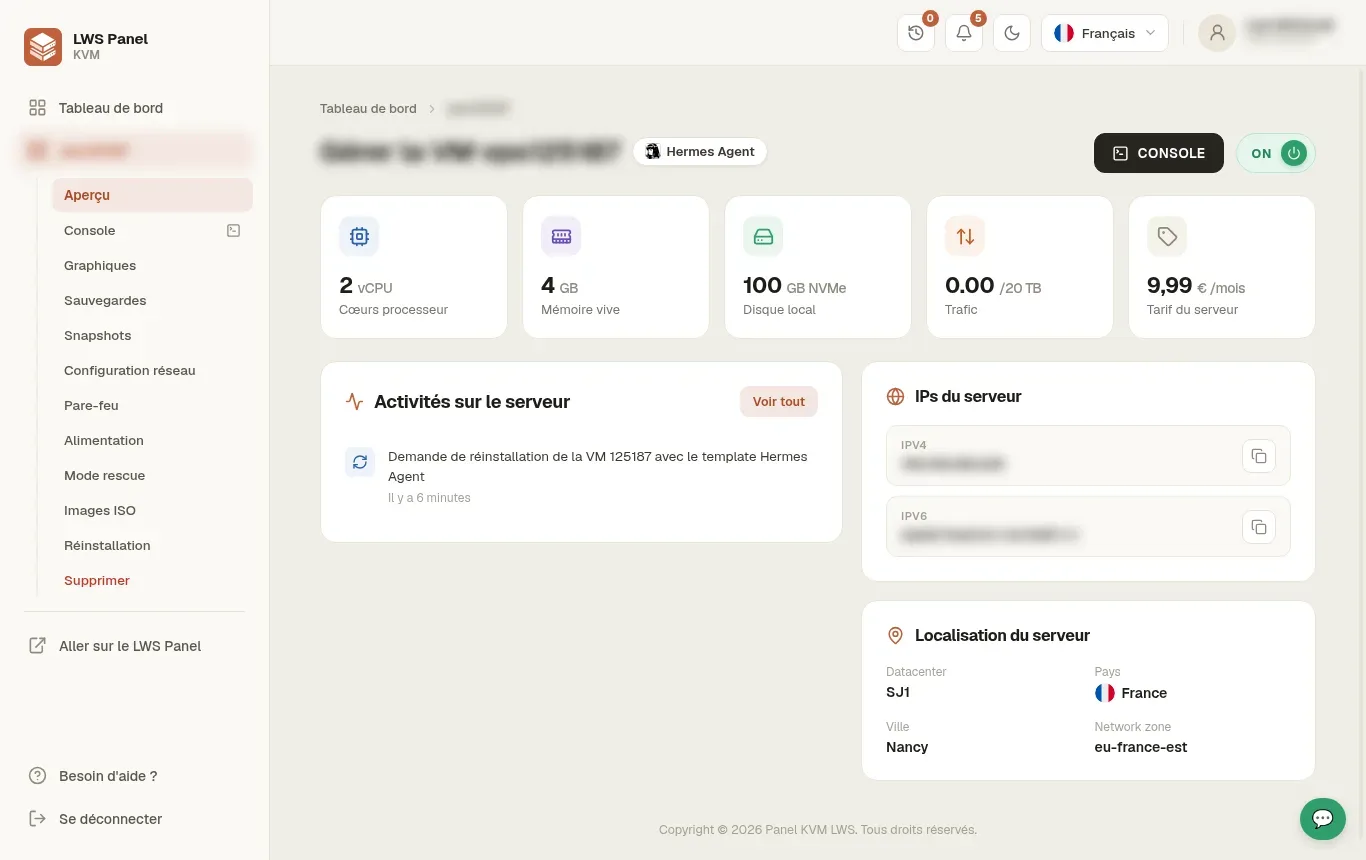
When the operation is complete, return to your virtual machine management page to confirm it has been fully restored. The status indicator now displays the green ON badge, showing that the system is up and fully reachable. The active template name now proudly shows the Hermes Agent label at the top of your dashboard. Your public IPv4 and IPv6 addresses remain unchanged and appear in the right-hand side panel, while the emergency rescue console remains available if needed. Avoid changing the firewall rules immediately before testing the original access.
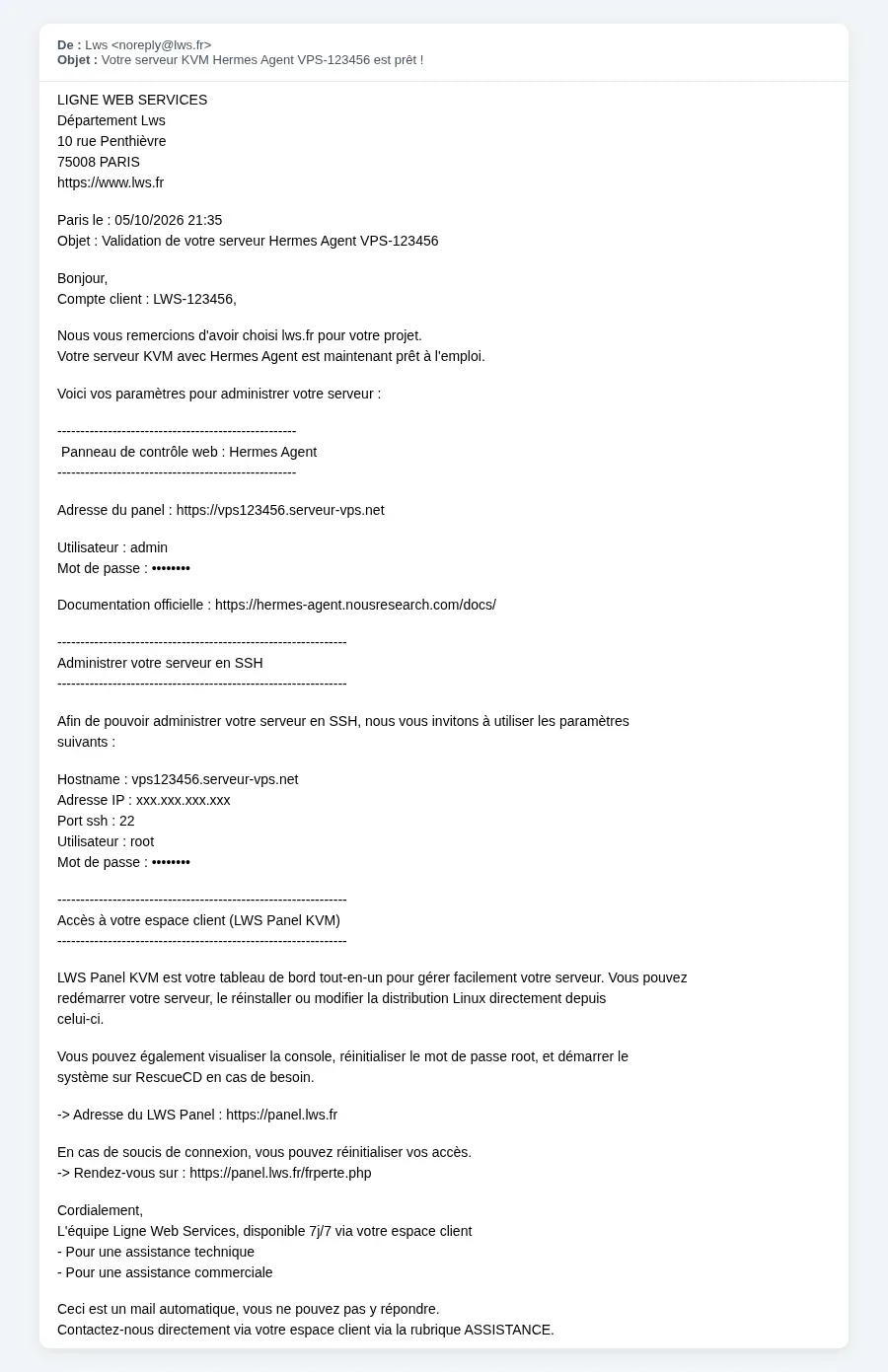
Open the inbox of the email address linked to your LWS client area. You will find an email sent by LWS whose subject announces the validation and availability of your Hermes Agent server. This confidential document brings together the full URL address of the Hermes Agent web administration panel as well as the administrator username and the automatically generated password. It also contains the SSH login details (port 22, root user, and associated password) to manage your machine from the command line. Keep this email safe or store these secrets in a password vault.
Yes, reinstallation completely overwrites the virtual hard disk of your KVM machine. All data, custom configurations, databases, and snapshots present on the machine are permanently deleted during the operation. It is essential to copy your important documents to an independent medium before confirming the procedure.
Deploying the Hermes Agent template on an LWS KVM server usually takes between 3 and 5 minutes. During this interval, the system image is copied to NVMe storage and the necessary services are initialized. A summary email is immediately sent to you as soon as your server is ready to use.
No, your IPv4 and IPv6 addresses remain strictly the same after reinstalling your KVM VPS. You keep the same public network address, which saves you from having to modify the DNS zone of your domain names already pointing to this machine.
Hermes Agent is a preconfigured application image integrating the Hermes environment developed for artificial intelligence and autonomous agent automation. This ready-to-use template includes a web control panel that can be accessed directly through your internet browser without requiring complex manual configuration.
First, check the junk or spam folder in your email inbox. Also make sure to check the mailbox associated with your main LWS client account. If you lose the login details, you can reset the root password directly from the LWS Panel KVM via the dedicated menu item.
To access the Hermes Agent administration interface, open your web browser and enter the panel URL provided in your delivery email. Then use the administrator credentials (username and temporary password) included in that same message to log in to your dashboard.
Yes, you are free to reinstall your LWS KVM VPS server as many times as you wish from the LWS management panel. You can return to a standard Linux distribution or try another application template by following exactly the same steps.
No, it is absolutely not necessary to shut down your server beforehand. The reinstallation robot handles the clean shutdown of the virtual machine, disk reformatting, and final restart in a 100% automated way.
Ask the LWS team and the community. Answers are published after moderation.
 About LWS :
LWS is a 100% French web hosting company that focuses on quality and innovation and offers a responsive and competent technical service at affordable prices.
About LWS :
LWS is a 100% French web hosting company that focuses on quality and innovation and offers a responsive and competent technical service at affordable prices.



 Yes
Yes No
No