
Online help
The web host accessible to all
Procédure
To start your KVM VPS on an ISO image that is already mounted, simply restart the server from the management panel. The KVM system automatically gives priority to the virtual drive as long as the media remains attached. You can then follow the boot process step by step via the integrated VNC console.
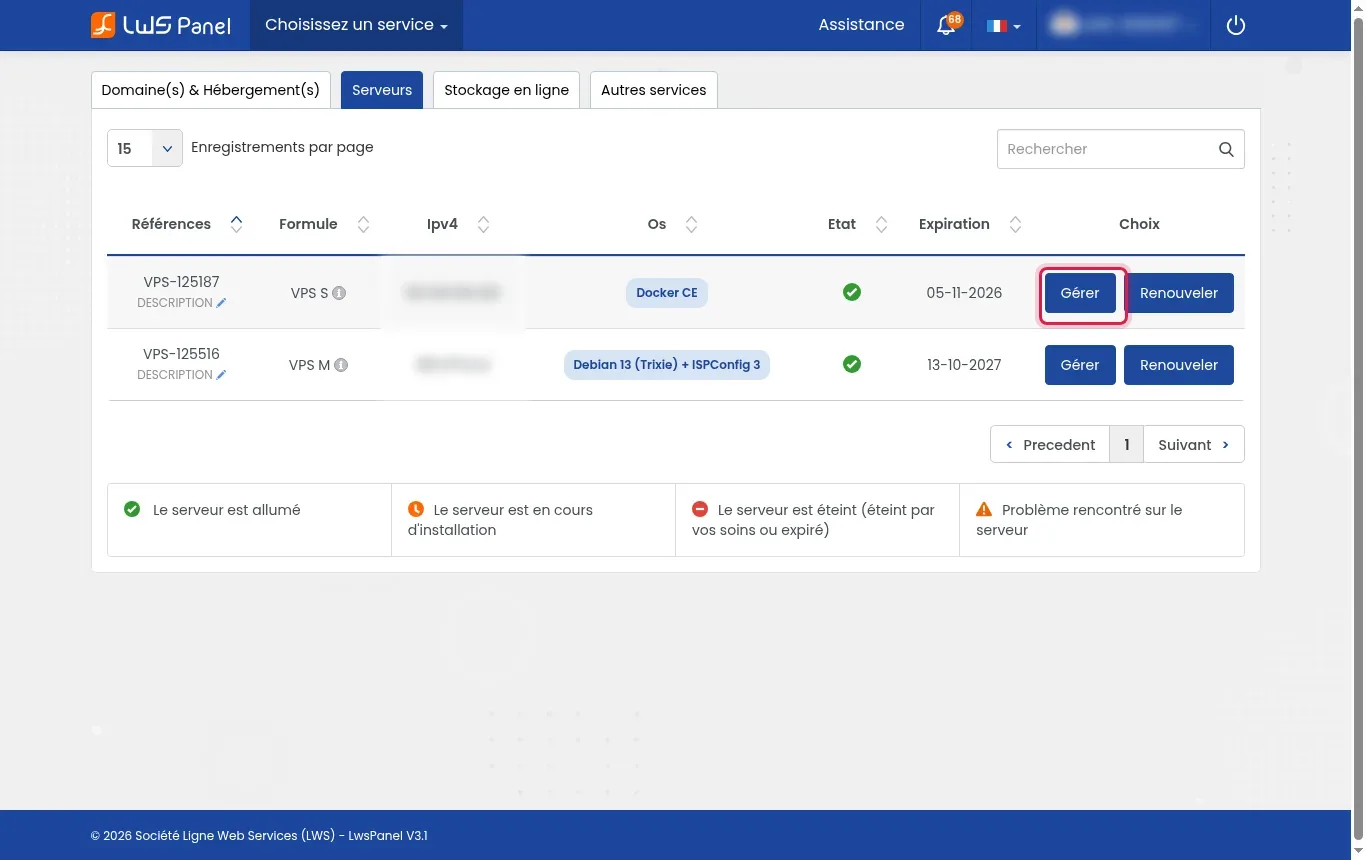
Log in to your LWS customer area, go to the Servers tab, then click the Manage button next to your KVM VPS.
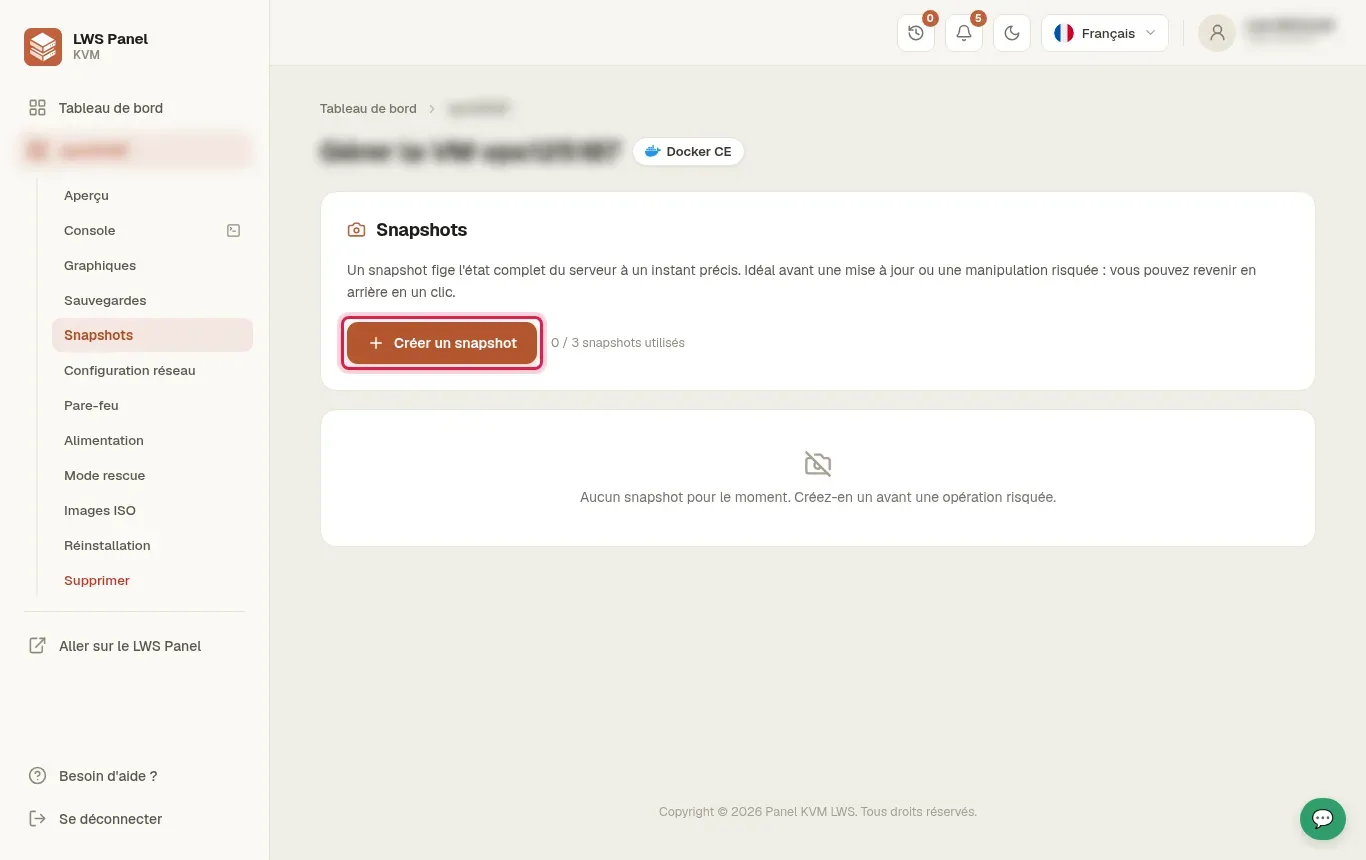
In the left-hand side menu, click on Snapshots. Then click the + Create a snapshot button to freeze the current state of your system before making any changes.
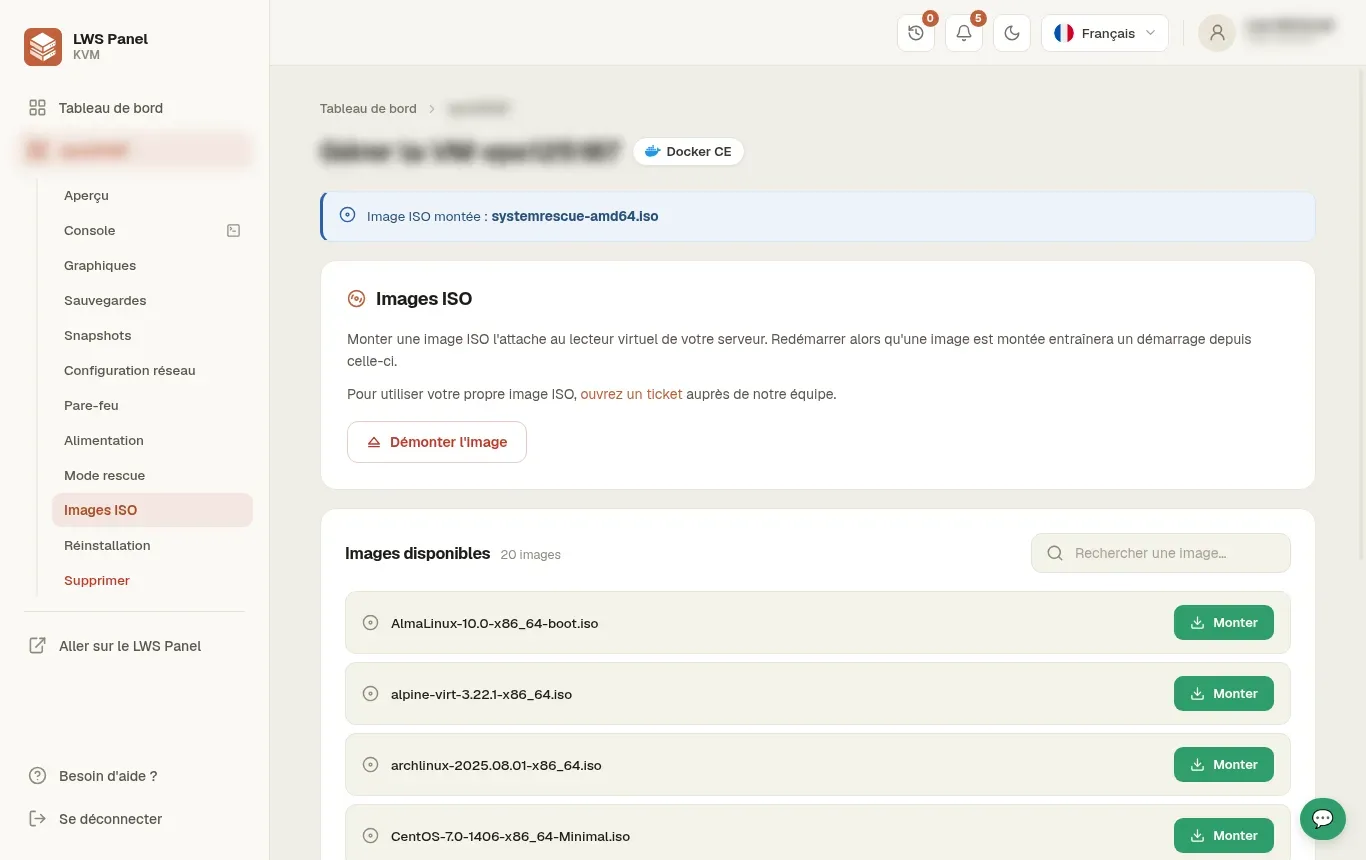
Open the ISO Images menu to make sure your image file is correctly mounted on the virtual drive. As long as the image is attached, the KVM hypervisor will automatically boot the machine from this media without any additional boot order setting being necessary.
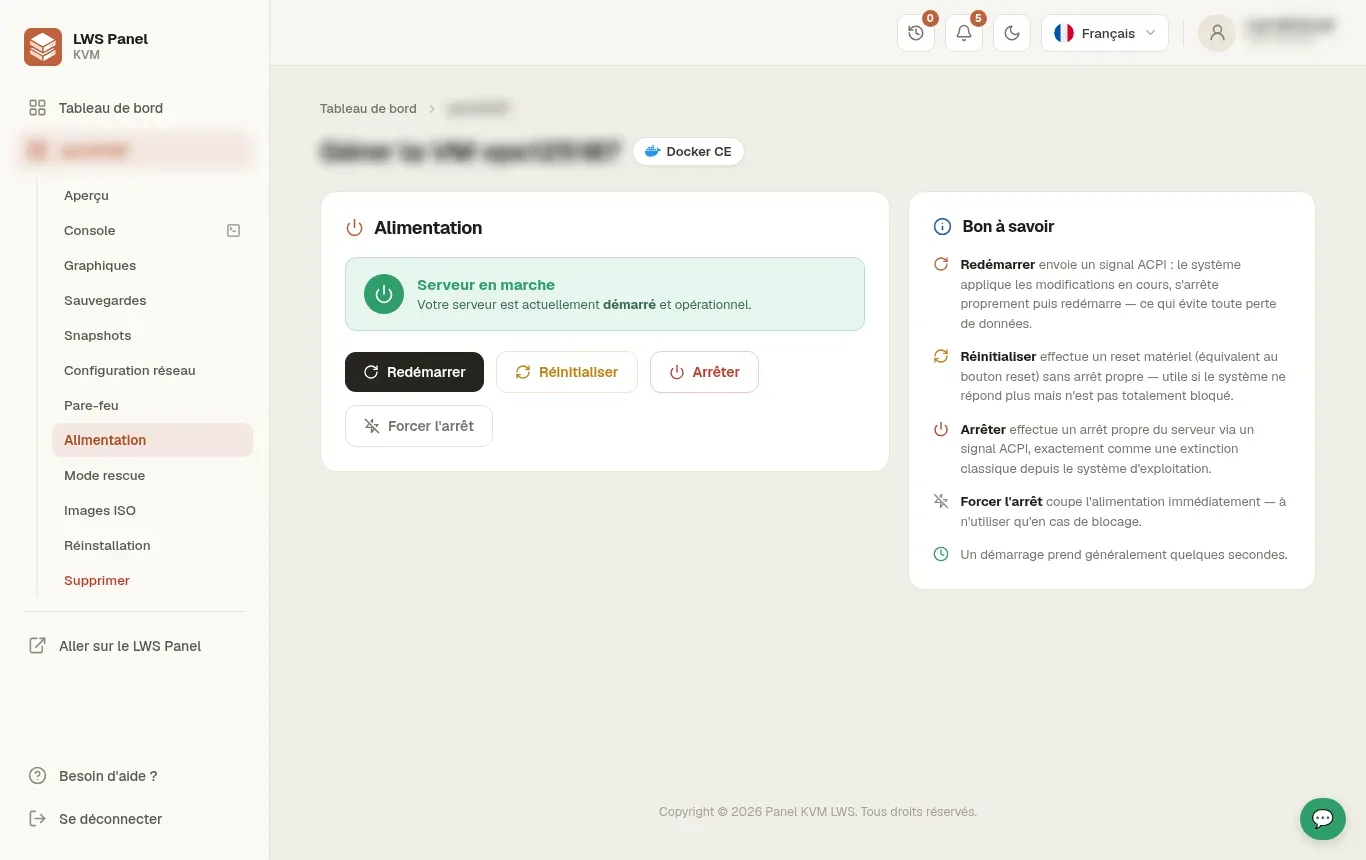
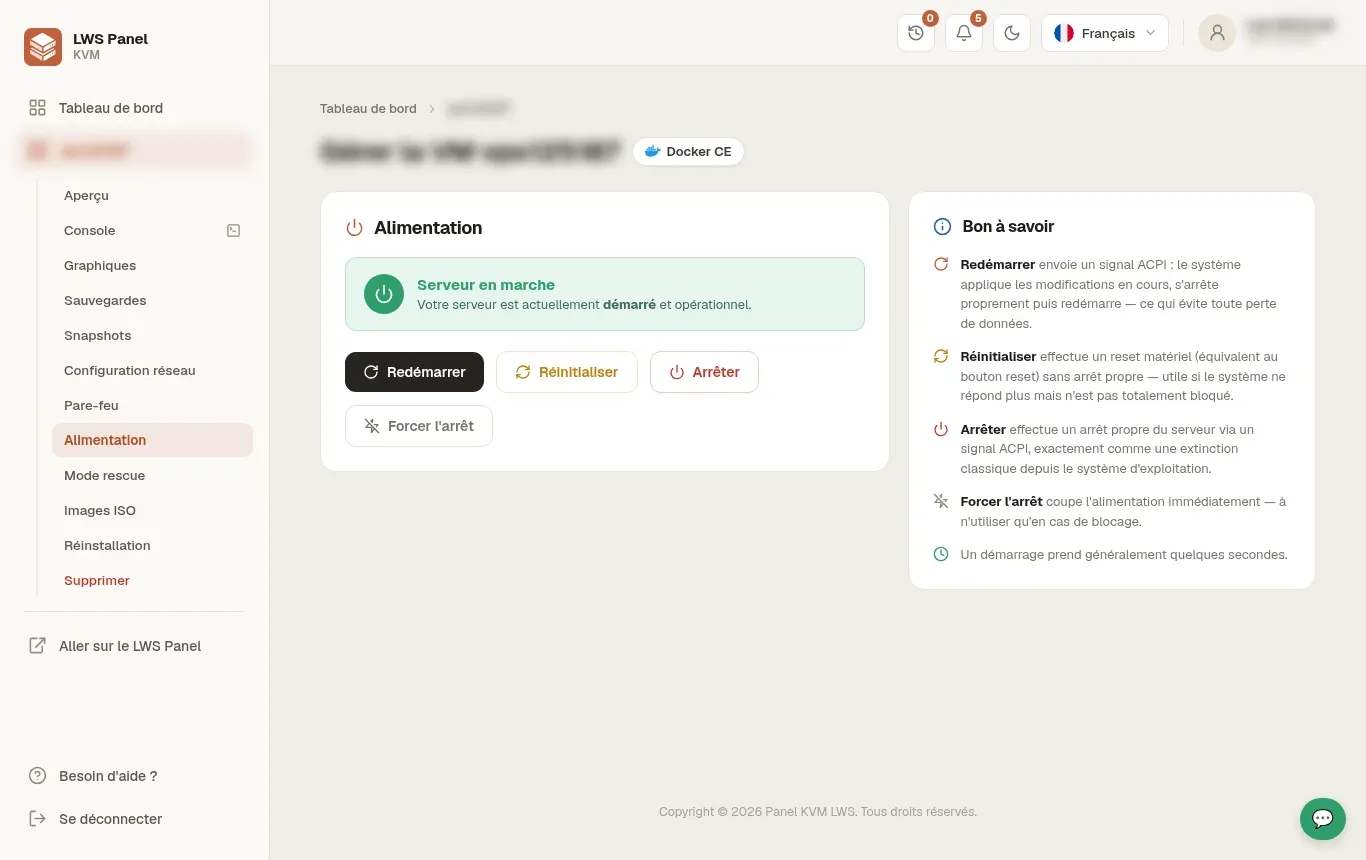
Go to the Power section in the left menu, then click the Restart button. This action sends a clean signal to the machine to apply the restart and launch the virtual media.
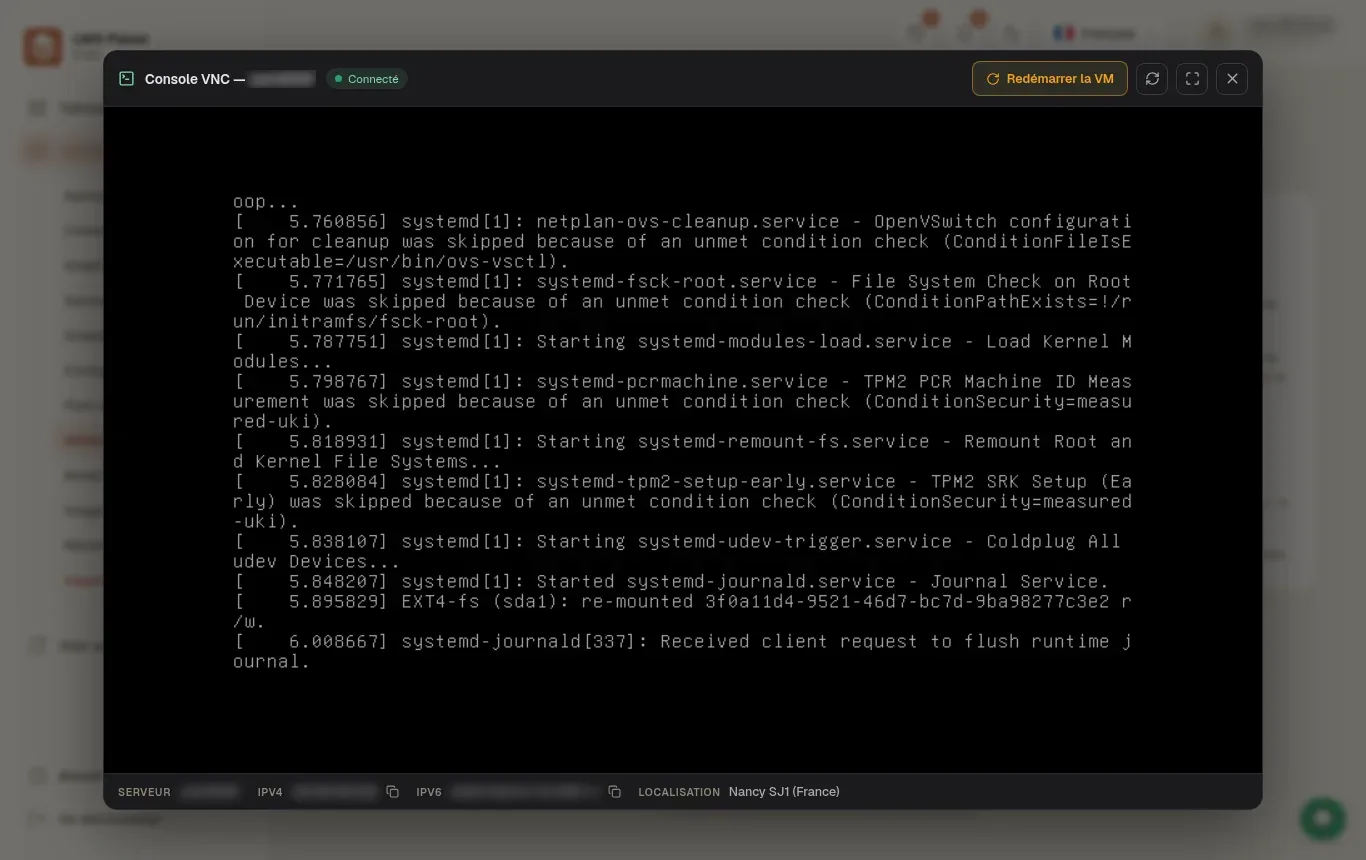
Click Console in the side panel to open the noVNC window and view the system loading live. This gives you access to the boot screen or the troubleshooting tools provided by your ISO image.
Once your operations are complete, go back to the ISO Images section and click the red Unmount image button. Then go to Power and click Restart again to launch your original operating system.
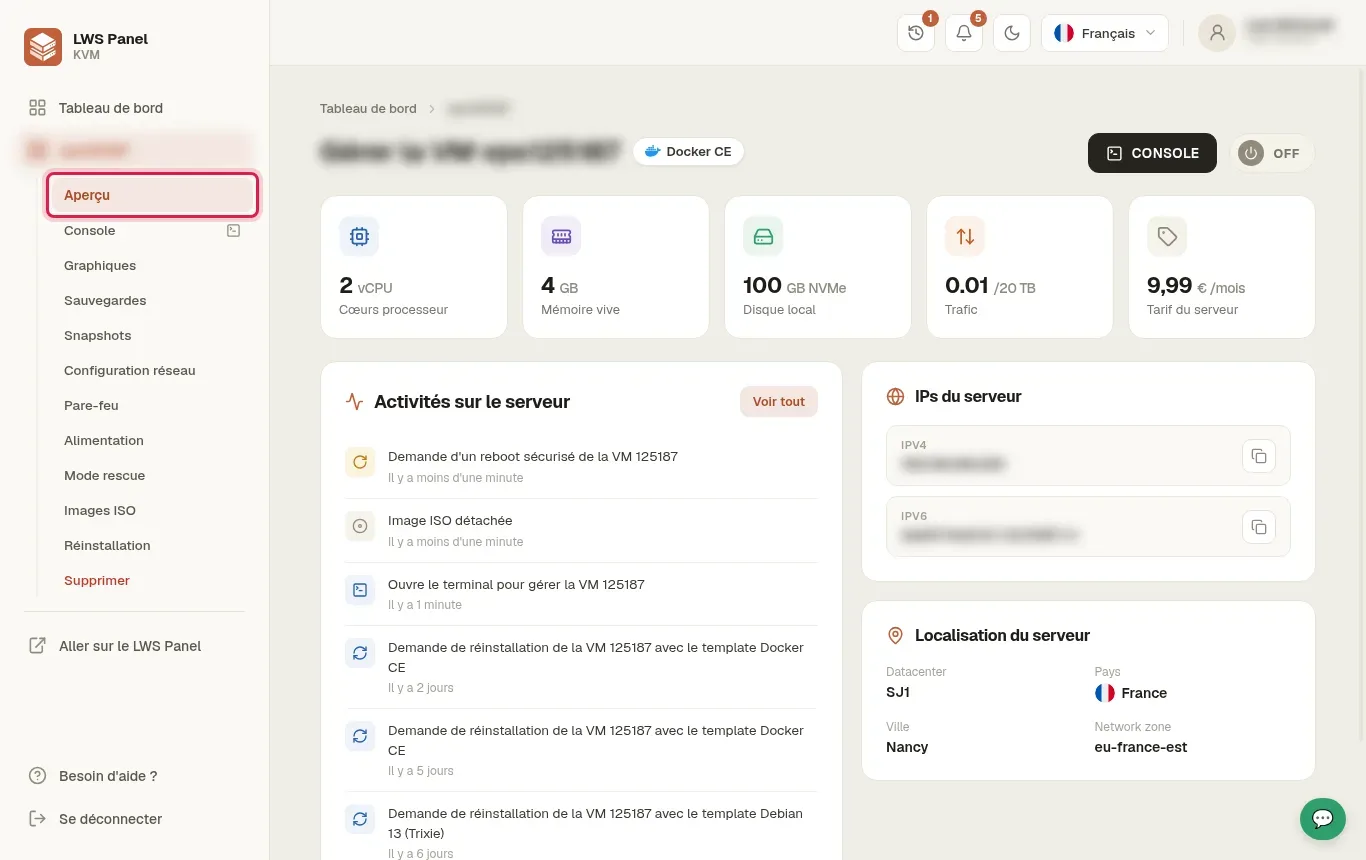
Consult the Overview tab in the side menu to monitor your virtual machine indicators. The list of recent activities lets you confirm that the ISO has been detached and that the system has restarted successfully.
No, no BIOS setting or boot order menu adjustment is required. As soon as a file is present in the ISO Images section, the KVM infrastructure automatically assigns boot priority to the virtual drive on the next restart.
Yes, restarting the virtual server briefly interrupts the host operating system as well as any running containers or services. They will resume normal operation once the server has restarted on its original disk.
The server will continue to boot the image as long as it remains attached to the virtual drive. To return to your usual system, you must go to ISO Images, click the red Unmount image button, then restart the machine from the Power section.
Yes, you can use the Rescue Mode section accessible directly from the side menu of your KVM panel. This feature allows the server to boot into a minimal Linux network environment to diagnose and repair the system without manually mounting an ISO.
Yes, the top bar of the VNC console offers a Restart VM button. It has the same effect as the Restart button in the Power section and allows you to immediately reboot the machine while keeping the screen in view.
Ask the LWS team and the community. Answers are published after moderation.
 About LWS :
LWS is a 100% French web hosting company that focuses on quality and innovation and offers a responsive and competent technical service at affordable prices.
About LWS :
LWS is a 100% French web hosting company that focuses on quality and innovation and offers a responsive and competent technical service at affordable prices.



 Yes
Yes No
No