
Online help
The web host accessible to all
Procédure
To display your website designed on Canva with your own domain name, you need to point your DNS records to the platform's servers. Canva is an online graphic design and publishing tool (accessible at canva.com) that lets you create simple and interactive websites. This guide walks you step by step through adding the required entries in your customer area without disrupting your other services such as your emails.
Open your site project in Canva, click Publish website, then Get a new domain and choose Use your own domain. Enter the main domain or a subdomain (for example “canva.mydomain.com”, useful for keeping your current site) and carefully note the DNS records displayed by Canva. Example given by Canva's help: an A record on “@” with the value 103.169.142.0. Canva may also request a verification TXT record, whose value is specific to your site.
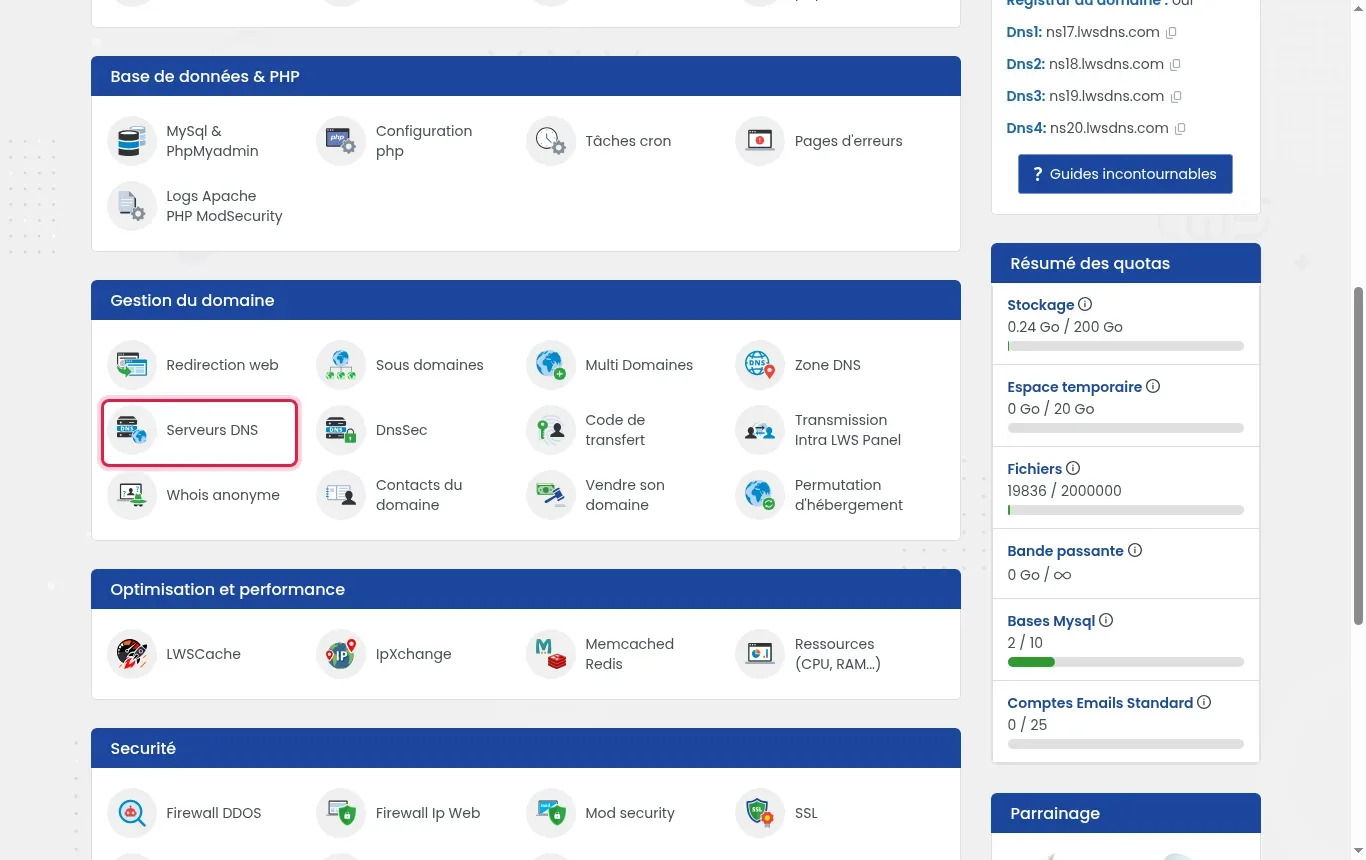
Log in to your customer area, click Manage in front of your domain, then go to the Domain management section and click DNS servers.
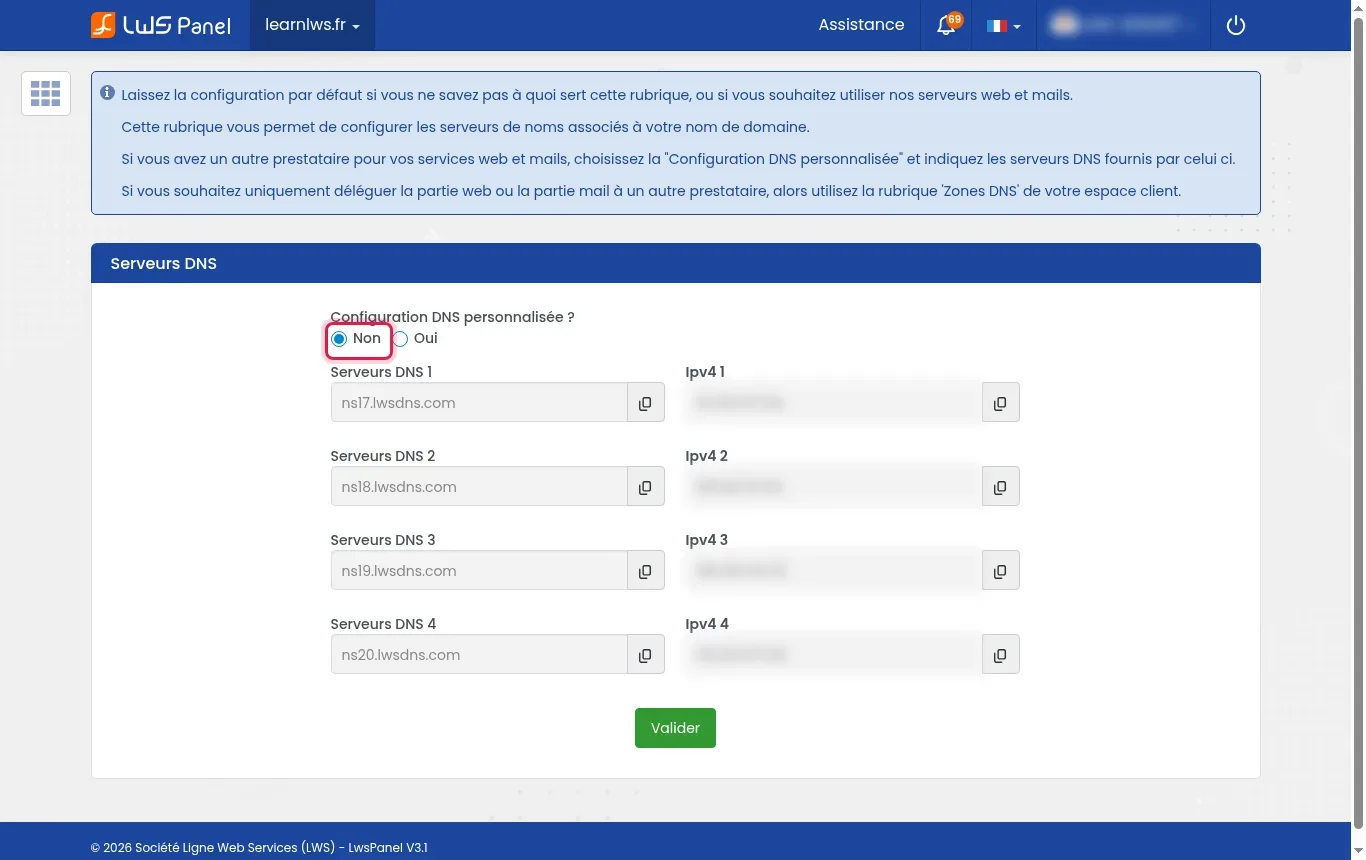
Make sure the Custom DNS configuration? option is checked as No. This ensures that record management is handled from your hosting DNS zone (with the ns17.lwsdns.com and ns18.lwsdns.com servers).
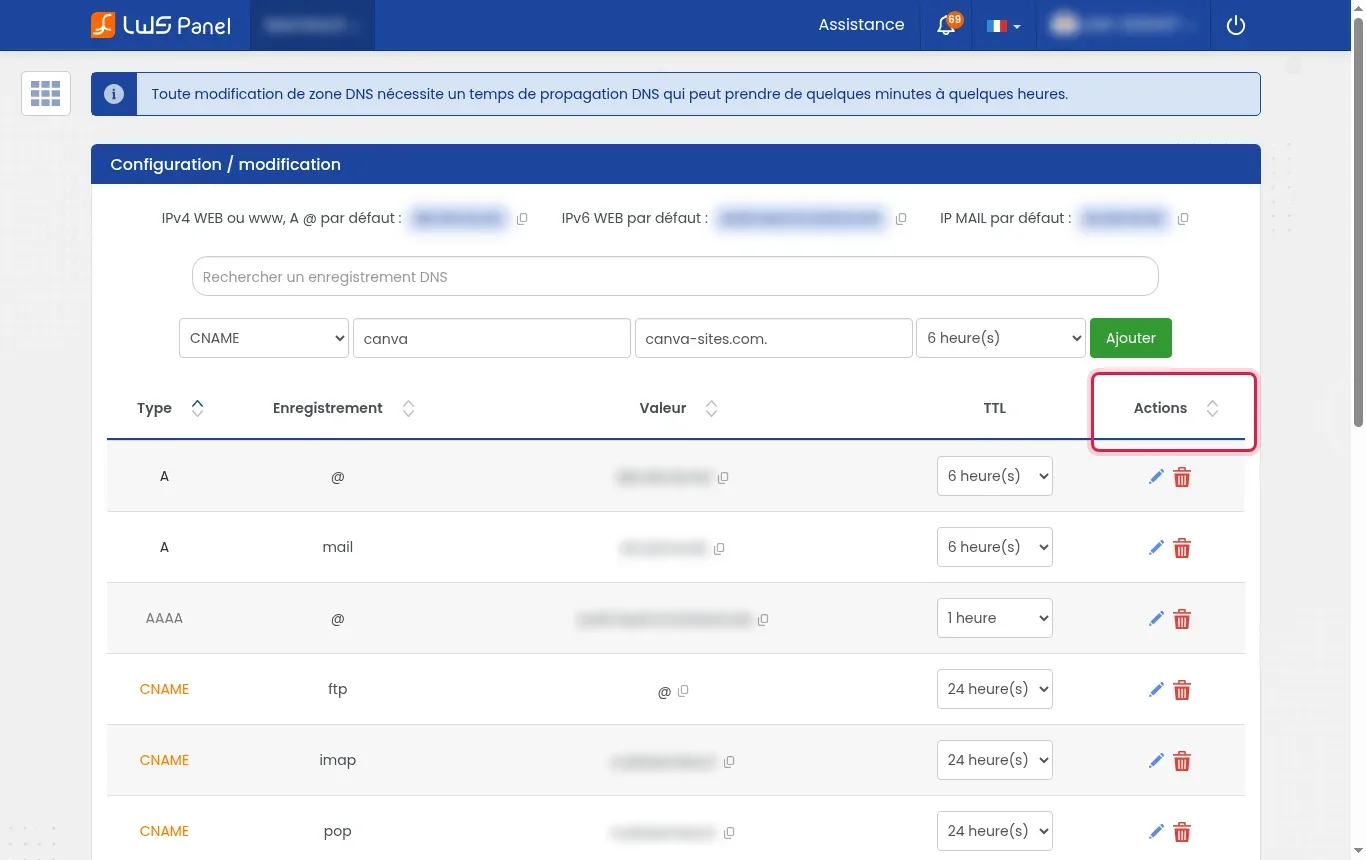
Go back to the service management and open DNS Zone. In the summary table, inspect the existing entries and use the Actions column to modify or delete any pre-existing A or CNAME record that uses the same host name requested by Canva.
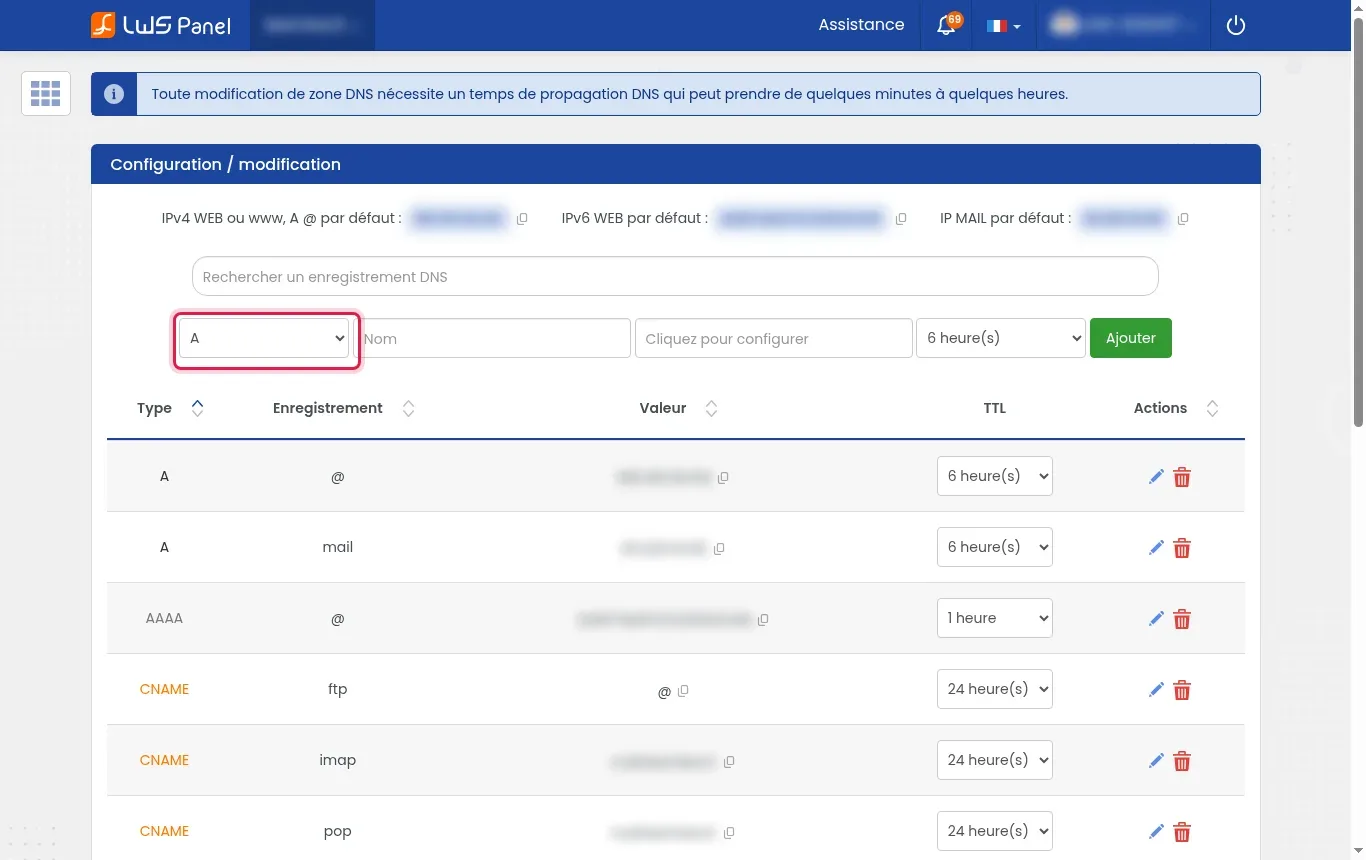
In the top banner Configuration / editing, choose from the dropdown list the record type requested by Canva (most often A, sometimes TXT for verification) and enter the desired subdomain in the Name field, or leave “@” for the main domain.
In the window that appears, enter exactly the value provided by Canva (for example 103.169.142.0 for an A record), then click Save.
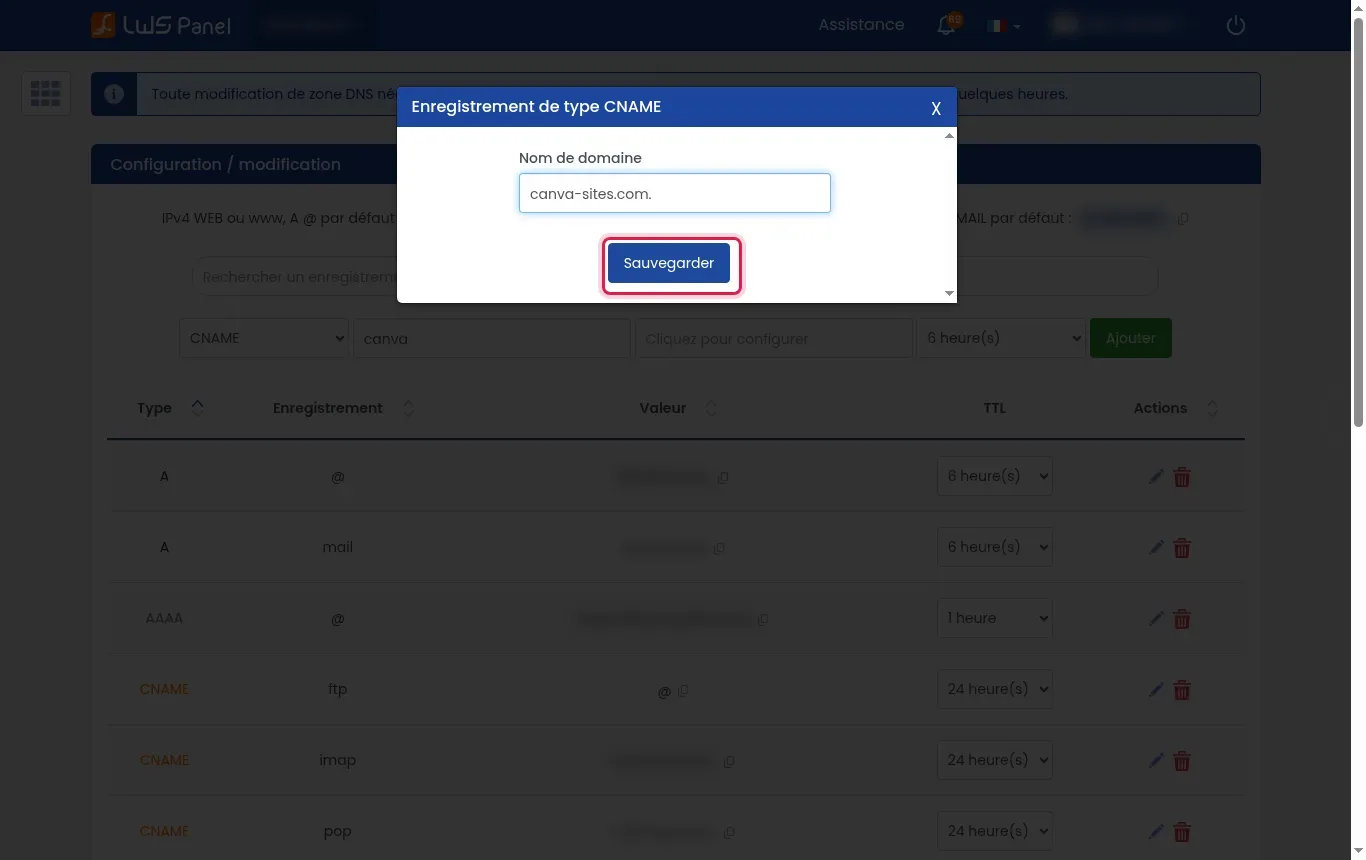
Check the settings of your new line, leave the TTL at the default value, then click the green Add button to permanently save the directive.
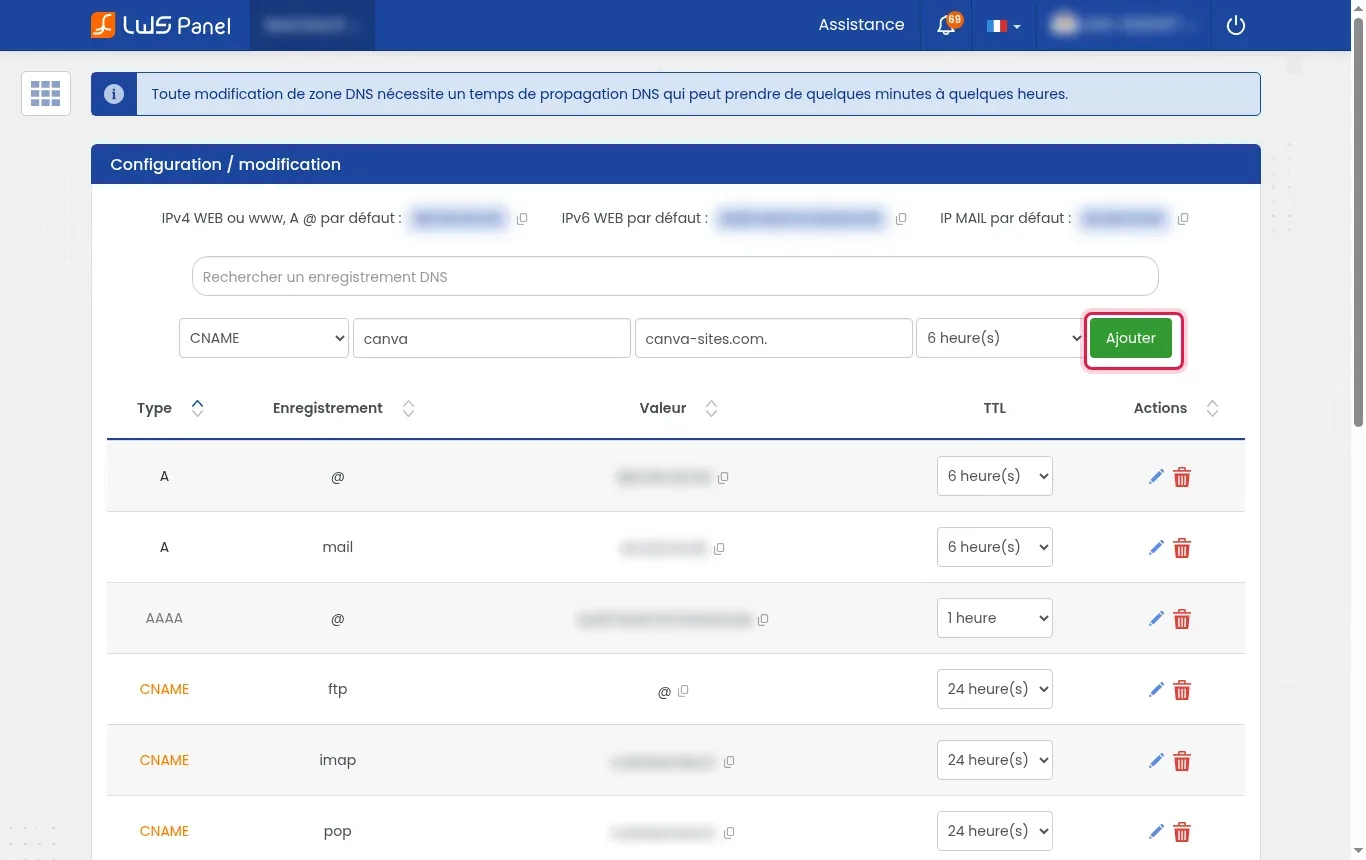
Return to the Canva interface and click the domain verification button. As soon as DNS detection succeeds, Canva deploys your site and automatically provisions an SSL security certificate for HTTPS access.
Yes, Canva allows you to configure the root domain and its www prefix. All you need to do is add the required CNAME or A record for the “www” host in addition to the root one.
Absolutely. As long as you do not modify the MX records or the SPF rules in your DNS zone, sending and receiving your emails remains fully operational.
Updating the DNS zone generally takes from a few minutes to a few hours, but a global propagation delay of up to 24 or 48 hours may be necessary.
Canva automatically issues an HTTPS certificate once DNS propagation is complete. If you see a security alert, wait for the SSL validation to run on Canva's side.
Check that no old A or CNAME record remains on the same host name in your records table.
Ask the LWS team and the community. Answers are published after moderation.
 About LWS :
LWS is a 100% French web hosting company that focuses on quality and innovation and offers a responsive and competent technical service at affordable prices.
About LWS :
LWS is a 100% French web hosting company that focuses on quality and innovation and offers a responsive and competent technical service at affordable prices.



 Yes
Yes No
No