
Online help
The web host accessible to all
Procédure
You can deploy the Dify platform on your KVM VPS in just a few clicks without using a terminal. Dify is an open source platform that makes it easy to create, test, and orchestrate artificial intelligence applications such as chatbots or custom assistants, without complex programming. Using the dedicated template resets the server and delivers a fully operational environment in a few minutes.
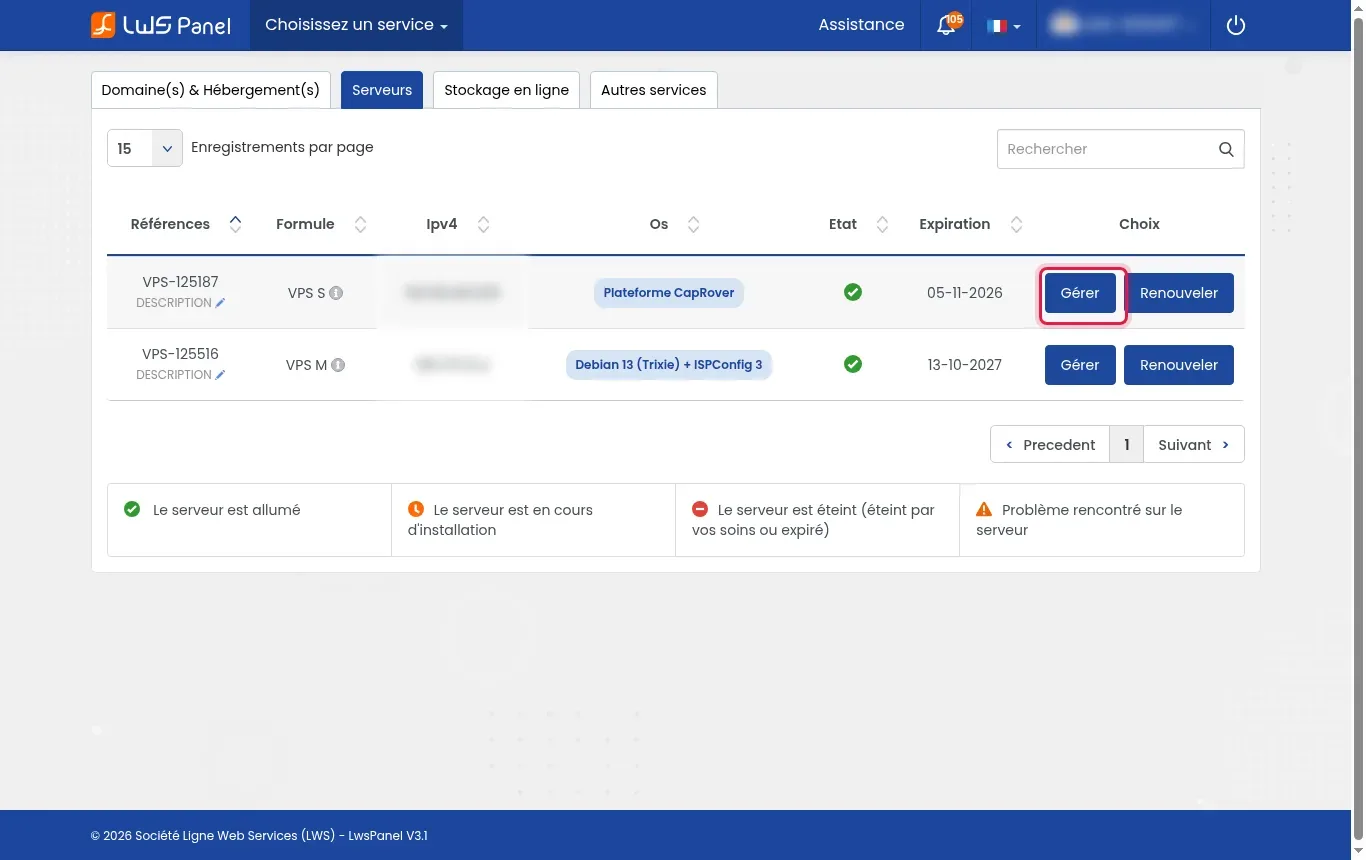
Log in to your client area then open the Servers tab. Next to the relevant server (e.g. VPS-123456), click the Manage button to access the KVM management panel.
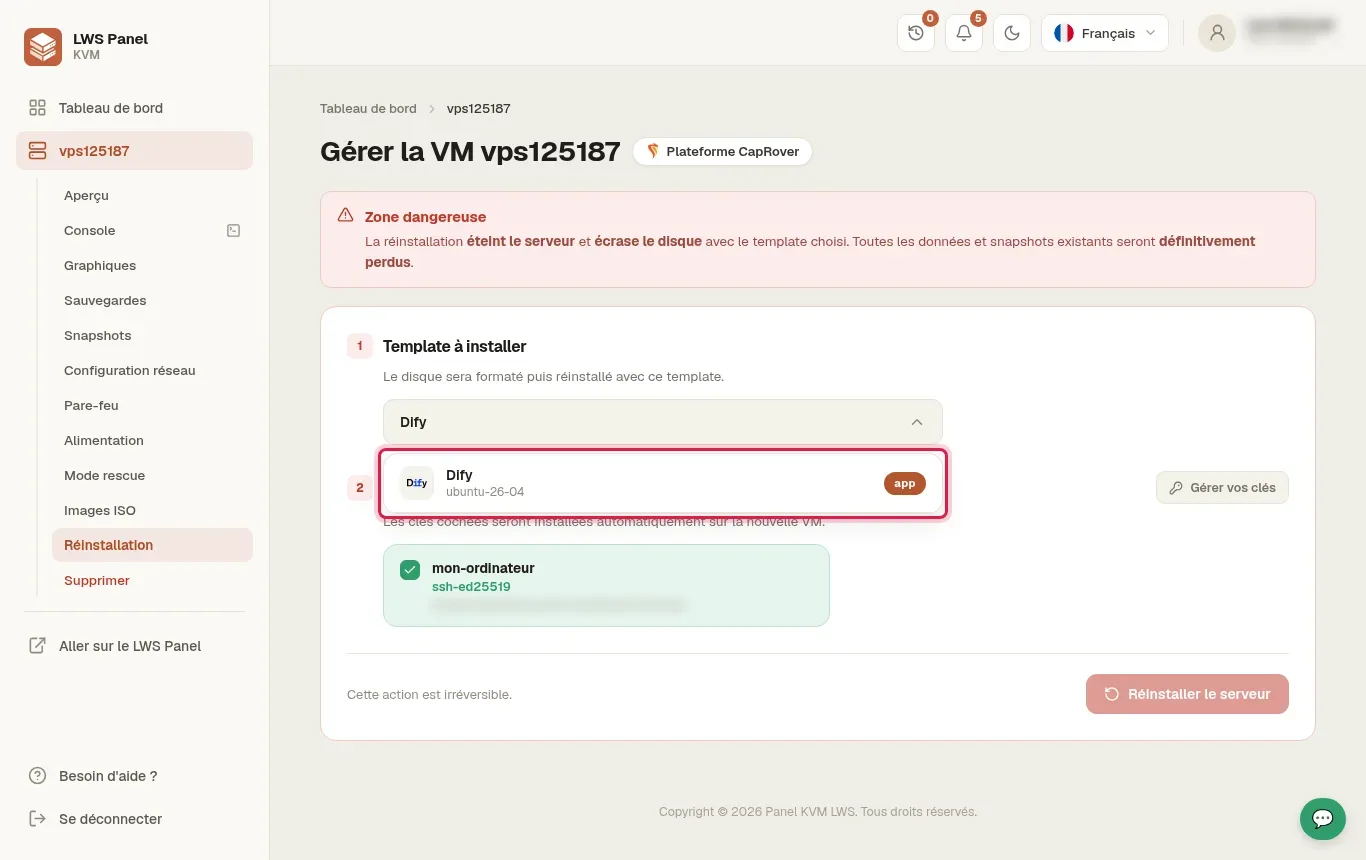
In the left-hand side menu, click Reinstallation. In the template search field, type “Dify” then select the entry Dify (ubuntu-26-04).
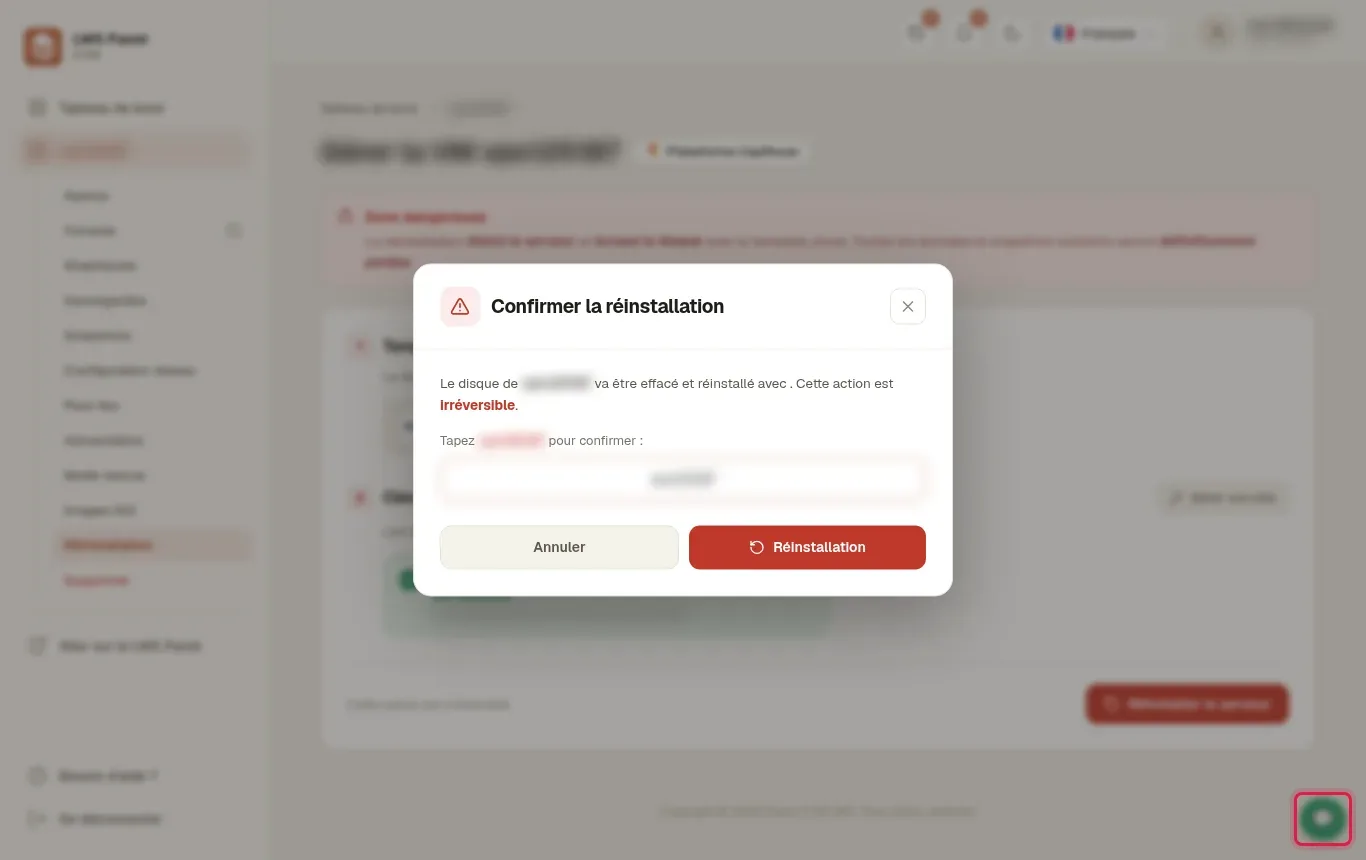
In the confirmation modal window, enter the exact name of your server (for example vps123456) in the provided input field, then click the red Reinstallation button.
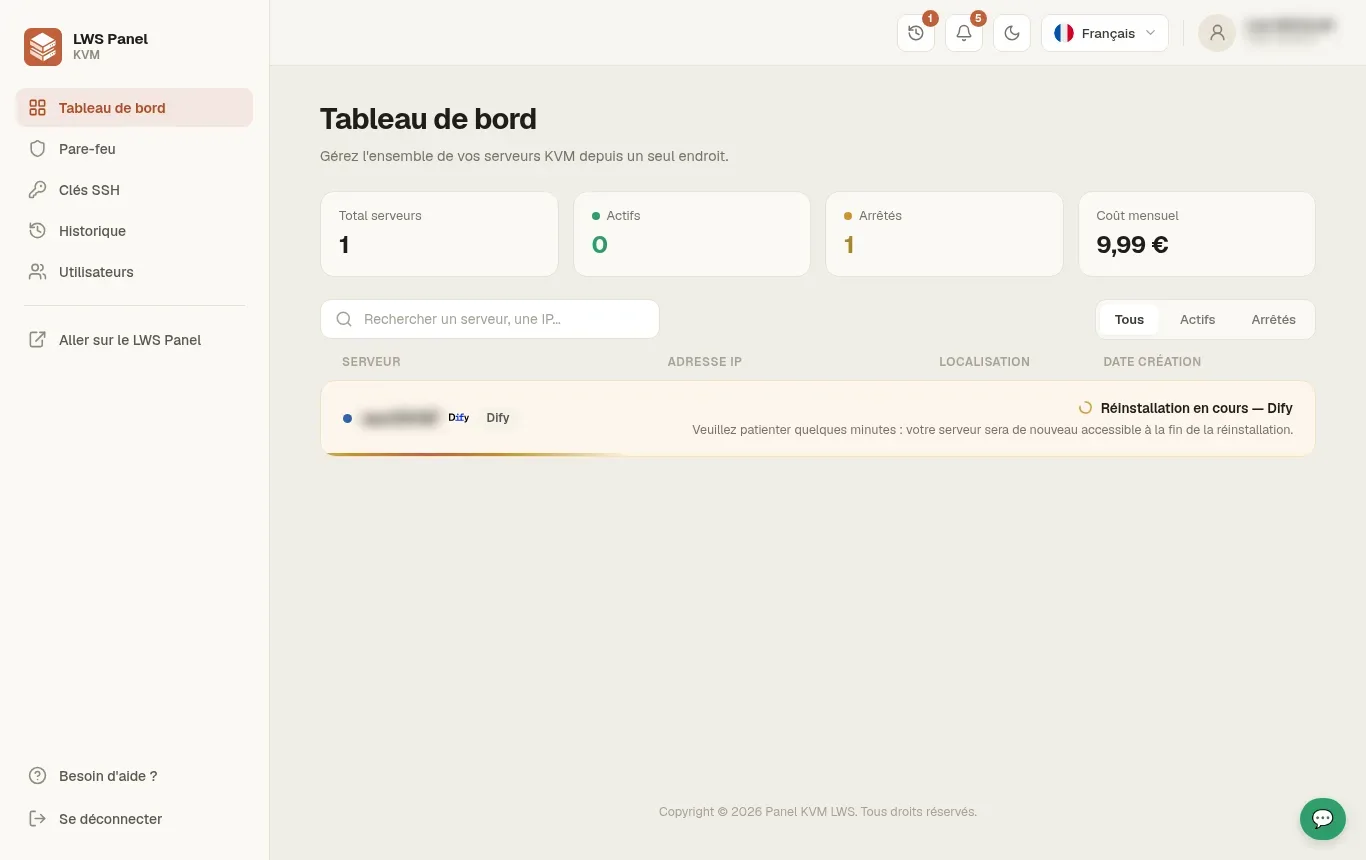
The server switches to reinstallation mode. Wait about 4 to 5 minutes without restarting the operation while the system components and Dify containers are configured automatically.
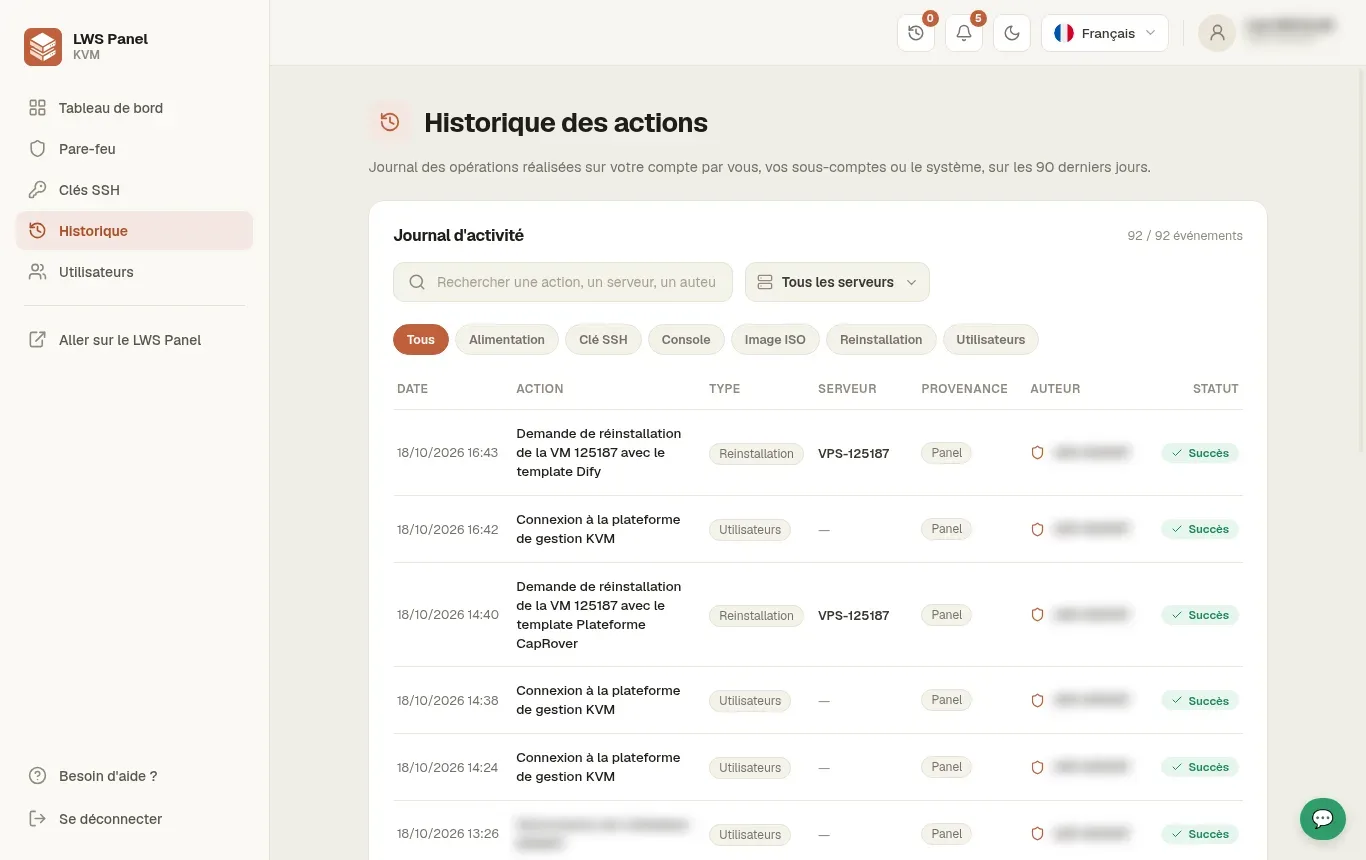
In the left menu, click the History section to view the activity logs. The line corresponding to the reinstallation request with the Dify template should display the green Success status.
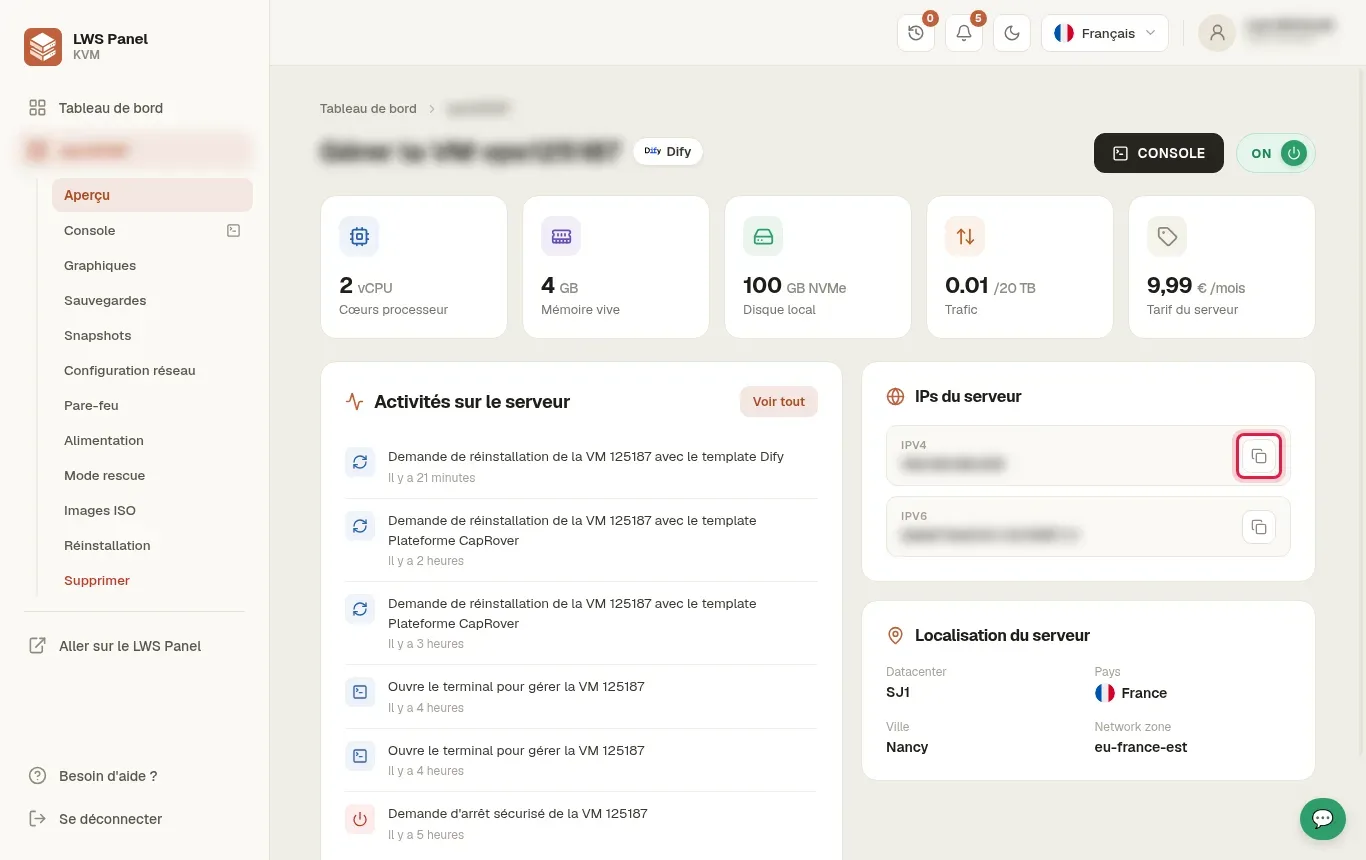
Go to the Overview section in the left menu. In the Server IPs block, find your public IPv4 address and copy it using the copy icon.
Open a new tab in your web browser and go to your VPS address using HTTP (for example http://203.0.113.10). Enter the email address, username, and password of your choice to create the main administrator account.
Once logged into the Dify workspace, click Create from scratch or choose a predefined template to design your first conversational agent or AI workflow.
Dify makes it easy to connect the main AI engines on the market using your own access keys.
This is a known display behavior in the modal window. As soon as you have selected “Dify (ubuntu-26-04)” in the previous step, the Dify template is indeed the one applied during confirmation.
No, a domain name is entirely optional to get started. You can use and test all Dify features directly through your VPS public IP address over HTTP.
The “Success” status in the LWS panel confirms the server reset. Dify application containers then need an additional 1 to 3 minutes to initialize the internal database.
No. Choosing a new template during a reinstallation fully formats your VPS server disk. Make sure to download your backups before validating the action.
Yes. Dify includes a model manager that allows you to add the API keys of several different artificial intelligence services at the same time.
Ask the LWS team and the community. Answers are published after moderation.
 About LWS :
LWS is a 100% French web hosting company that focuses on quality and innovation and offers a responsive and competent technical service at affordable prices.
About LWS :
LWS is a 100% French web hosting company that focuses on quality and innovation and offers a responsive and competent technical service at affordable prices.



 Yes
Yes No
No