
Online help
The web host accessible to all
Procédure
You can set up secure command-line access for your website directly from your server’s administration panel. The SSH (Secure Shell) protocol is an encrypted communication protocol that allows you to take remote control of a server and execute system commands securely. This guide shows you how to create a shell user account in ISPConfig, configure your access, and successfully make your first connection.
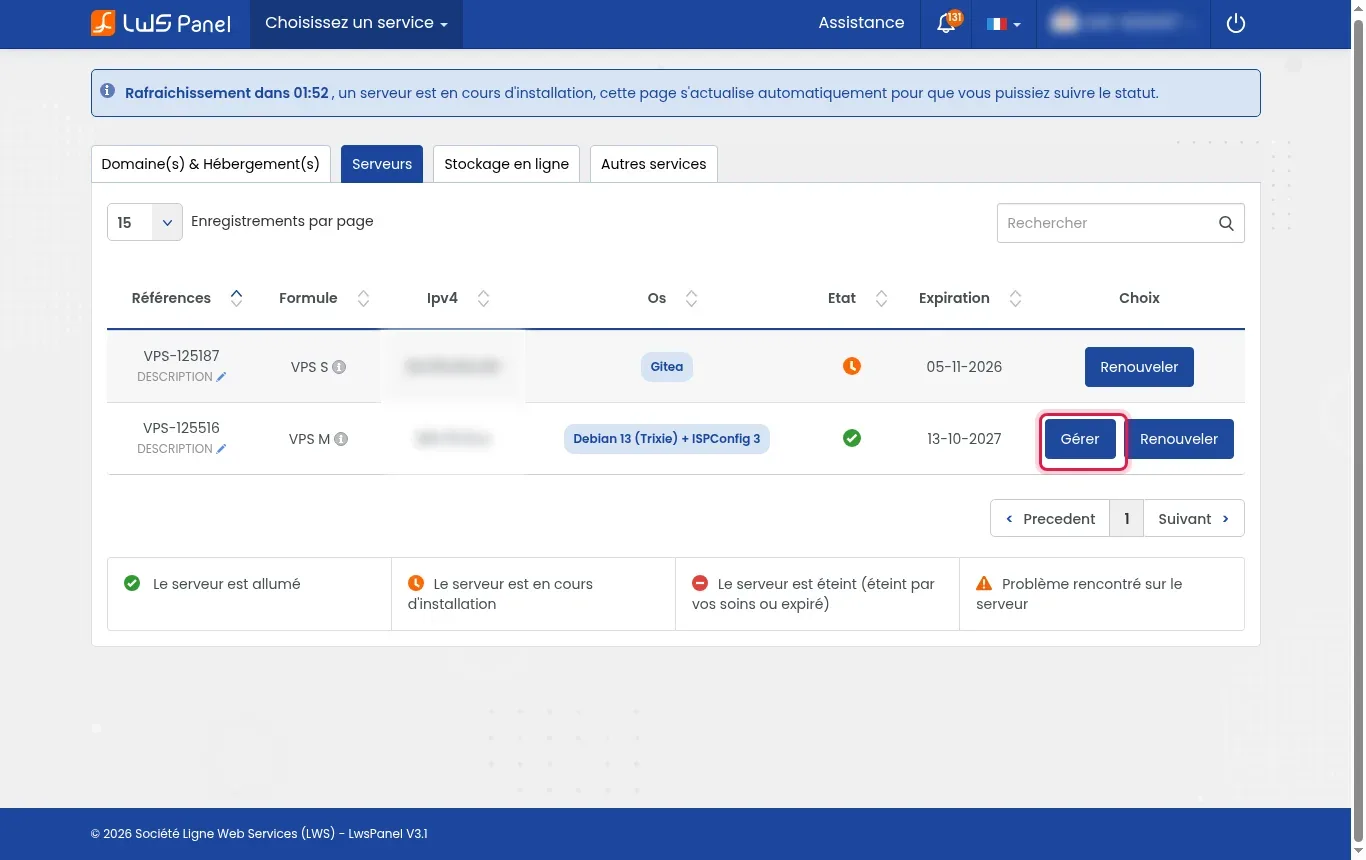
Log in to your LWS customer area, go to the list of your servers, and click Manage next to your ISPConfig VPS.
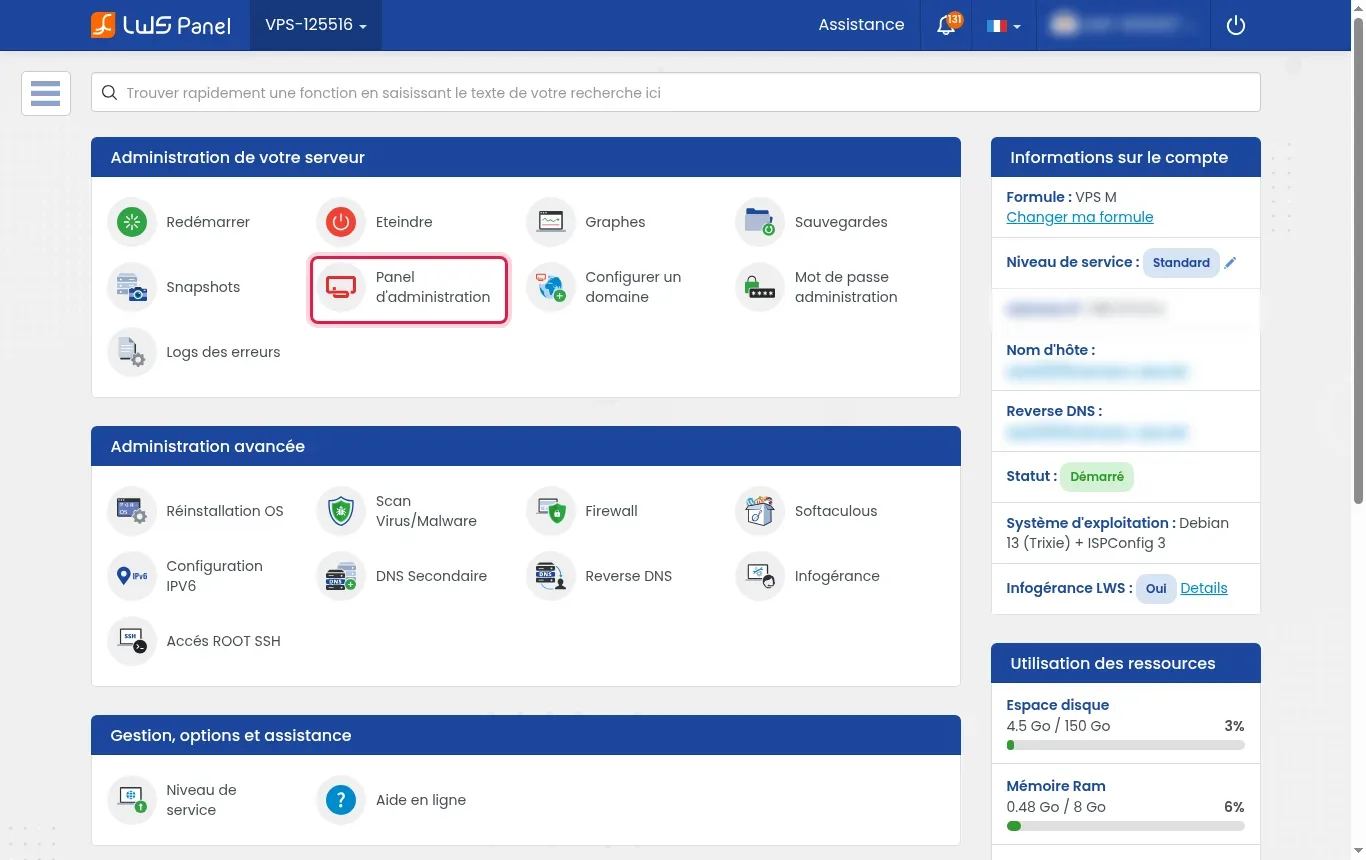
In the Server Administration section, click Administration Panel to launch the ISPConfig web interface.
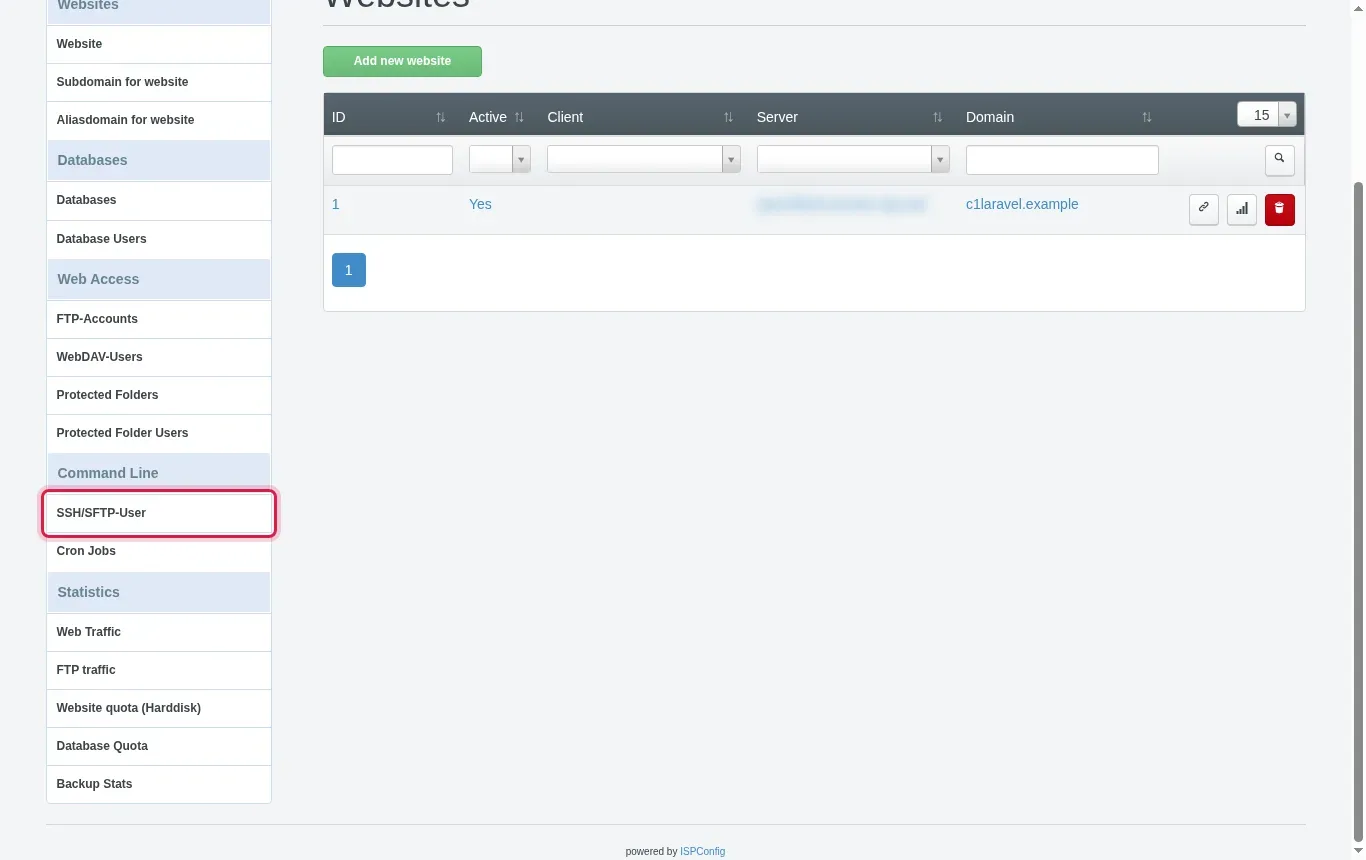
In the top menu, click Sites, then in the side panel under Command Line, click SSH/SFTP-User.
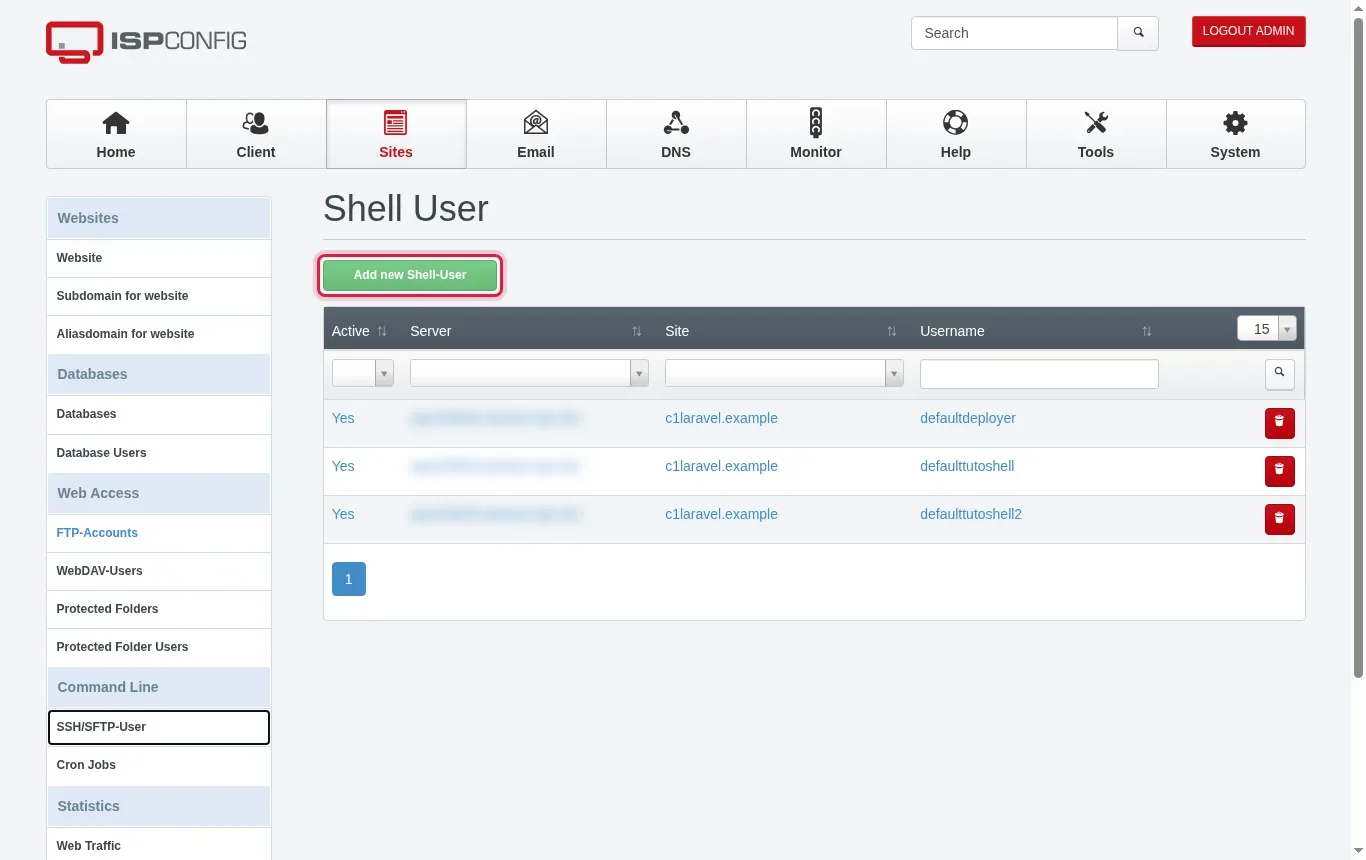
In the list of shell accounts, click the green Add new Shell-User button to open the creation form.
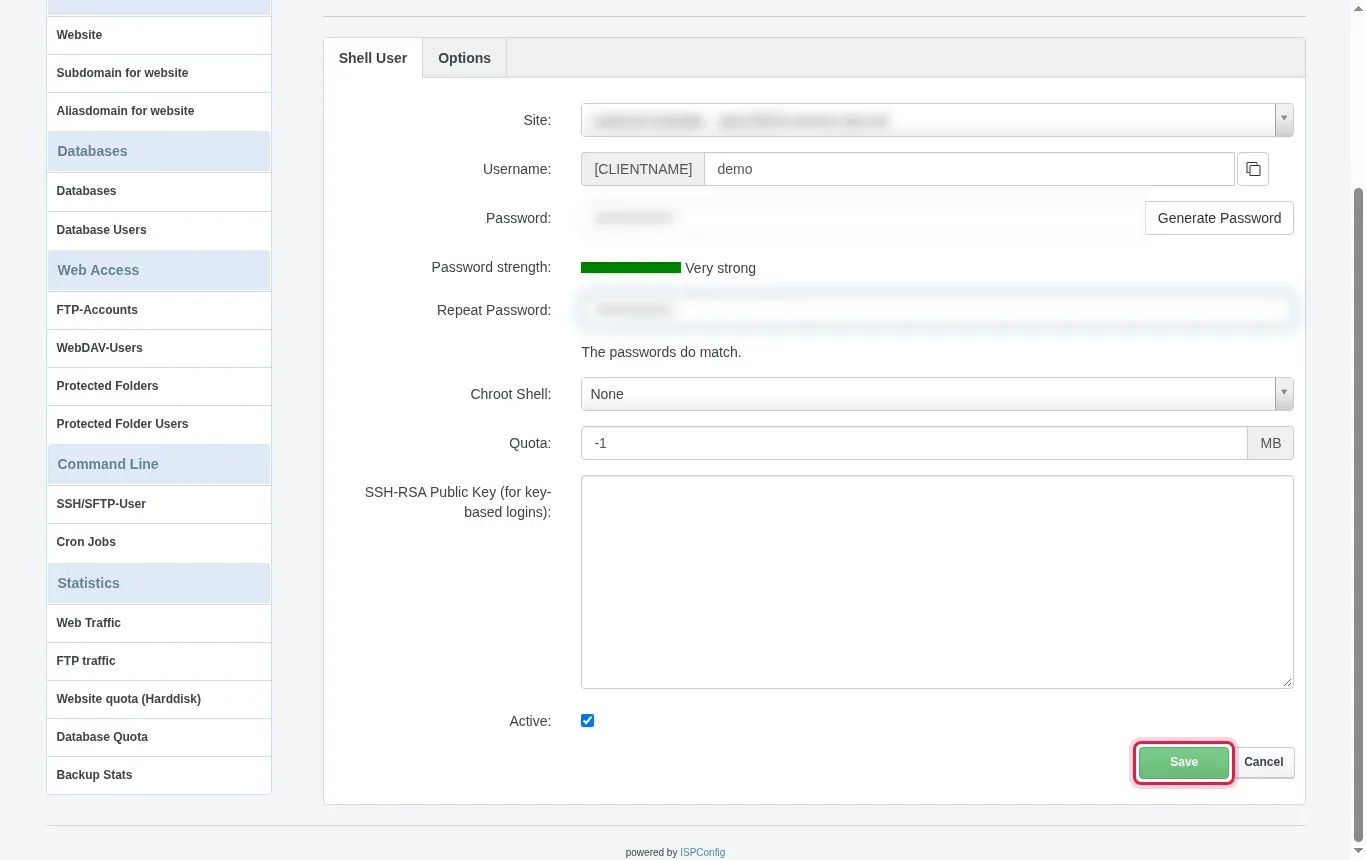
Select the relevant site in Site, enter a name in Username, then define a strong password or paste your public key in SSH-RSA / ED25519 Public-Key. Choose your environment in Chroot Shell (for example Jailkit), make sure the Active box is checked, then click Save.
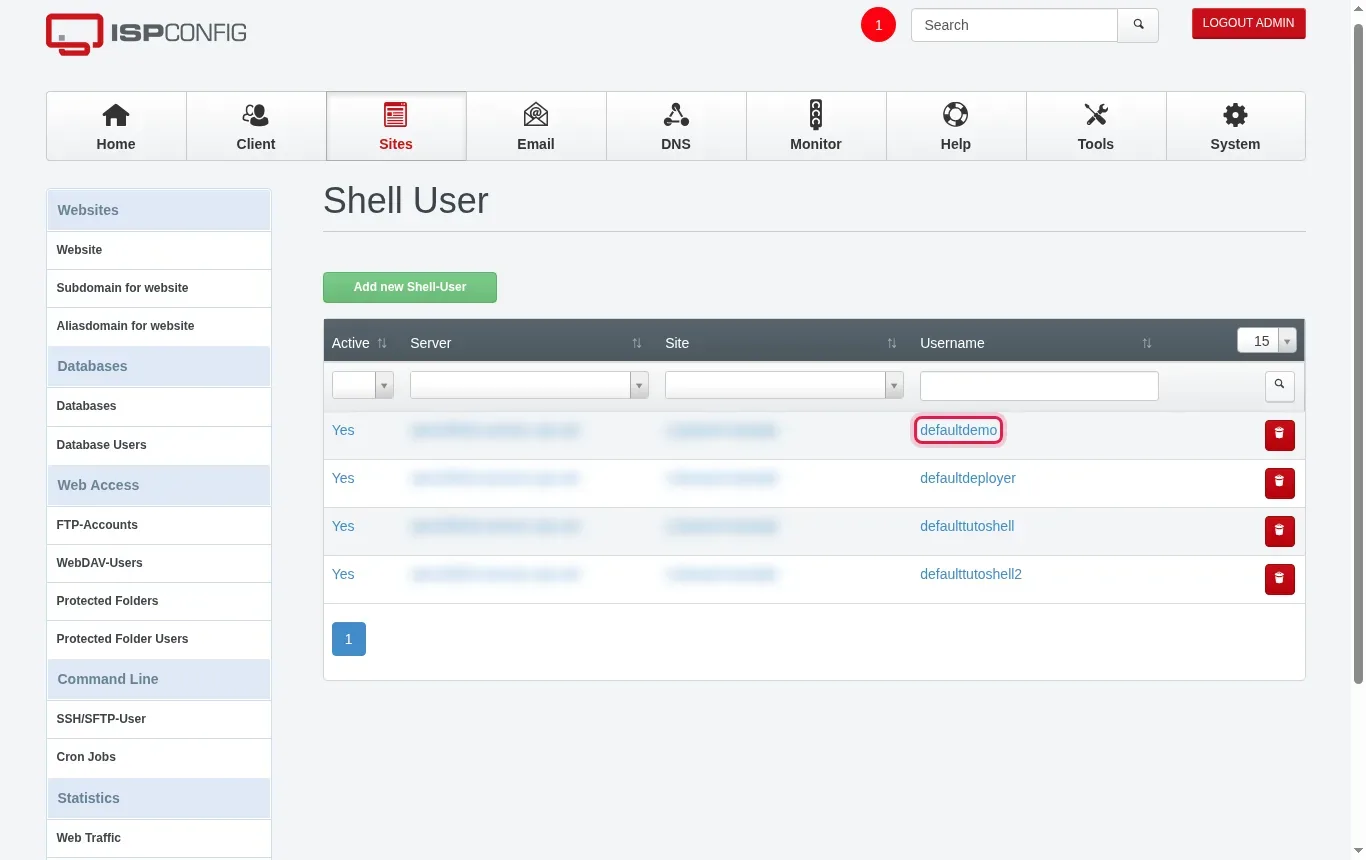
Check that your new access appears with the Yes status in the table and note the full username shown in the Username column.
Before starting the connection, make sure in your customer area that your server’s firewall does indeed allow incoming connections on the SSH port.
Open your computer’s terminal and run the connection command, replacing it with your information: ssh defaultdemo@203.0.113.10 (fictitious example IP address). Confirm with your password or your key passphrase.
Check your session with whoami, locate your folder with pwd and list the files with ls. To create or edit a document, use the nano fichier.txt command (save and exit with the Ctrl+X combination, then confirm with O), copy or compress your items as needed, then type exit to disconnect.
Here are the basic commands to manage your files once connected to your hosting account:
The ISPConfig shell user is limited to their website space and has no administrative privileges on the system. The root user administers the entire machine. On managed VPS servers, direct root access is blocked for security reasons; consult our dedicated help article “ROOT SSH Access” if you manage your system yourself.
Chroot isolates the user in a closed directory tree corresponding to their site. It prevents the account from exploring the server’s system directories or accessing the data of other customers hosted on the same VPS.
This error indicates an authentication refusal. Check that you are using the full prefixed username (e.g. defaultdemo), verify the password entry, or make sure the public key was pasted without any extra spaces.
This message indicates that the remote machine is not responding on the requested port. Check that the SSH service is running and that your VPS firewall allows traffic on the connection port.
This alert appears when the server’s security fingerprint has changed (for example after a reconfiguration). Clean the old entry on your local computer using the ssh-keygen -R 203.0.113.10 command (replacing it with your VPS IP address).
Ask the LWS team and the community. Answers are published after moderation.
 About LWS :
LWS is a 100% French web hosting company that focuses on quality and innovation and offers a responsive and competent technical service at affordable prices.
About LWS :
LWS is a 100% French web hosting company that focuses on quality and innovation and offers a responsive and competent technical service at affordable prices.



 Yes
Yes No
No