
Online help
The web host accessible to all
Procédure
Deploying a Laravel application on a VPS with ISPConfig is done by configuring your domain and the website in the management panel, then installing the project from the command line with a dedicated account. Laravel is an open source web framework in PHP designed to create robust and modern web applications thanks to a clear and elegant architecture. This complete procedure guides you step by step all the way to displaying the secure HTTPS home page, without needing to use the server's root privileges.
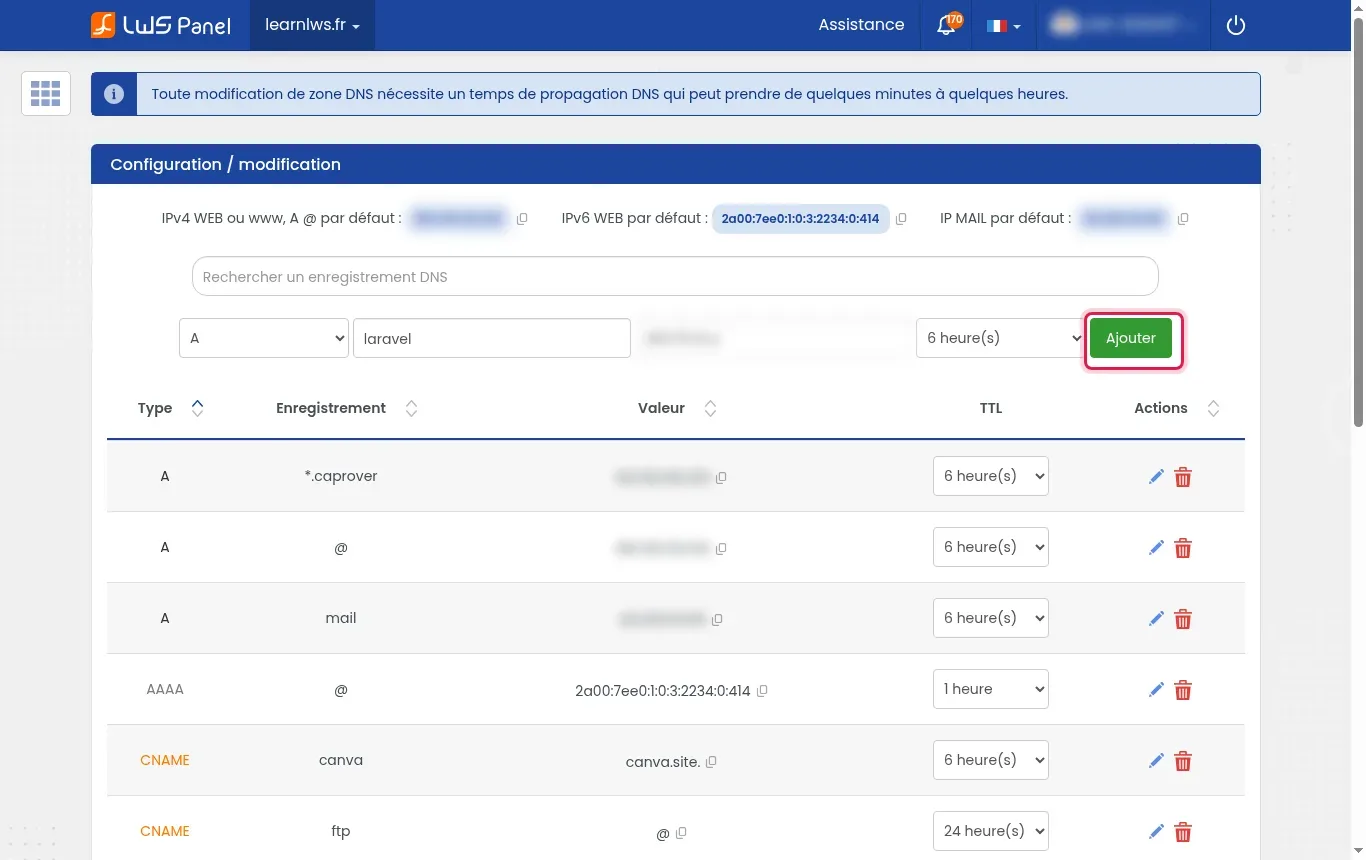
Go to the management section for your domain, open the DNS Zone tab, then create a new entry. Choose the A type, enter the desired subdomain (for example laravel for laravel.learnlws.fr), enter your VPS server's IP address (e.g. 203.0.113.10), then click Add.
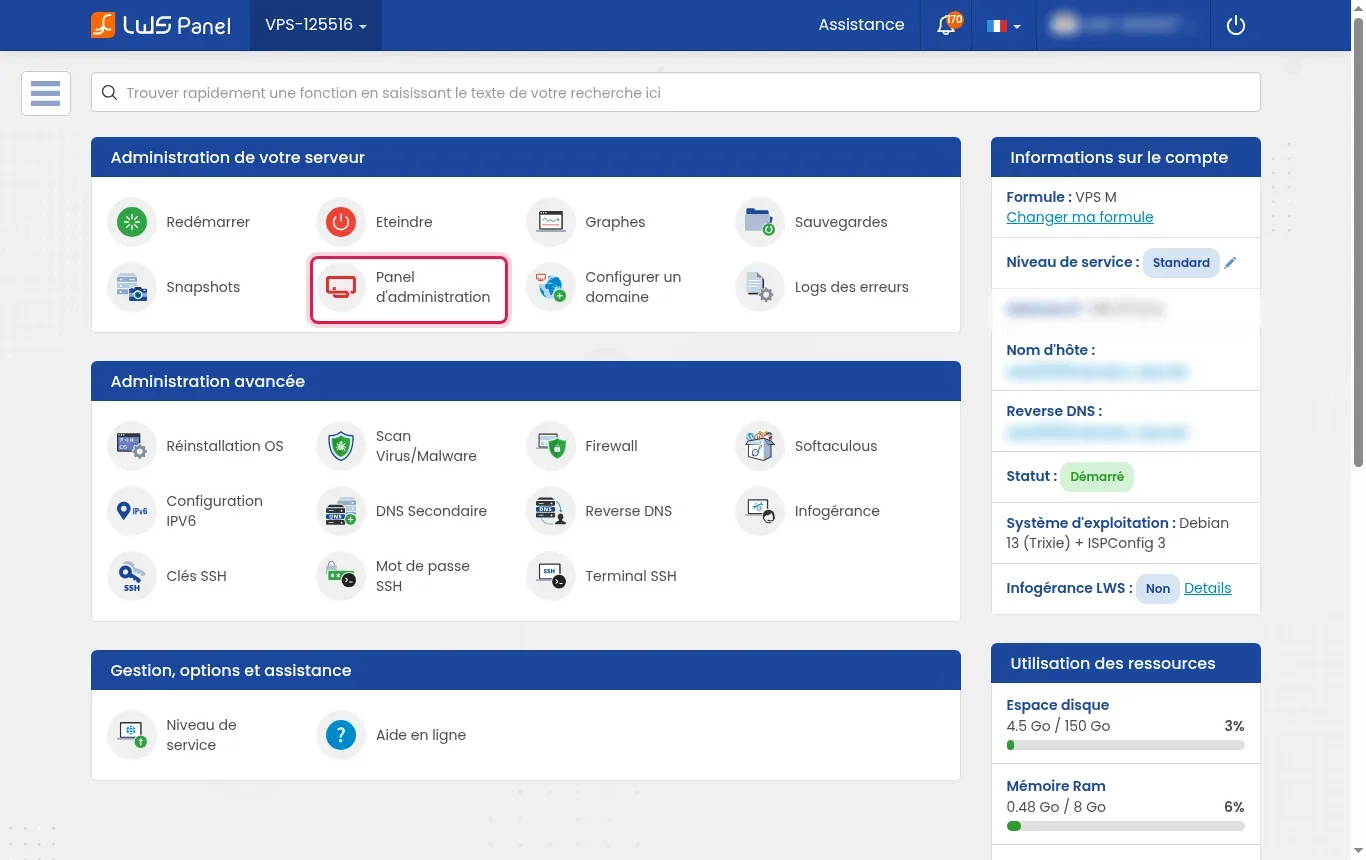
From your LWS VPS customer area, locate the Server Administration block and click the Administration Panel button to log in to ISPConfig.
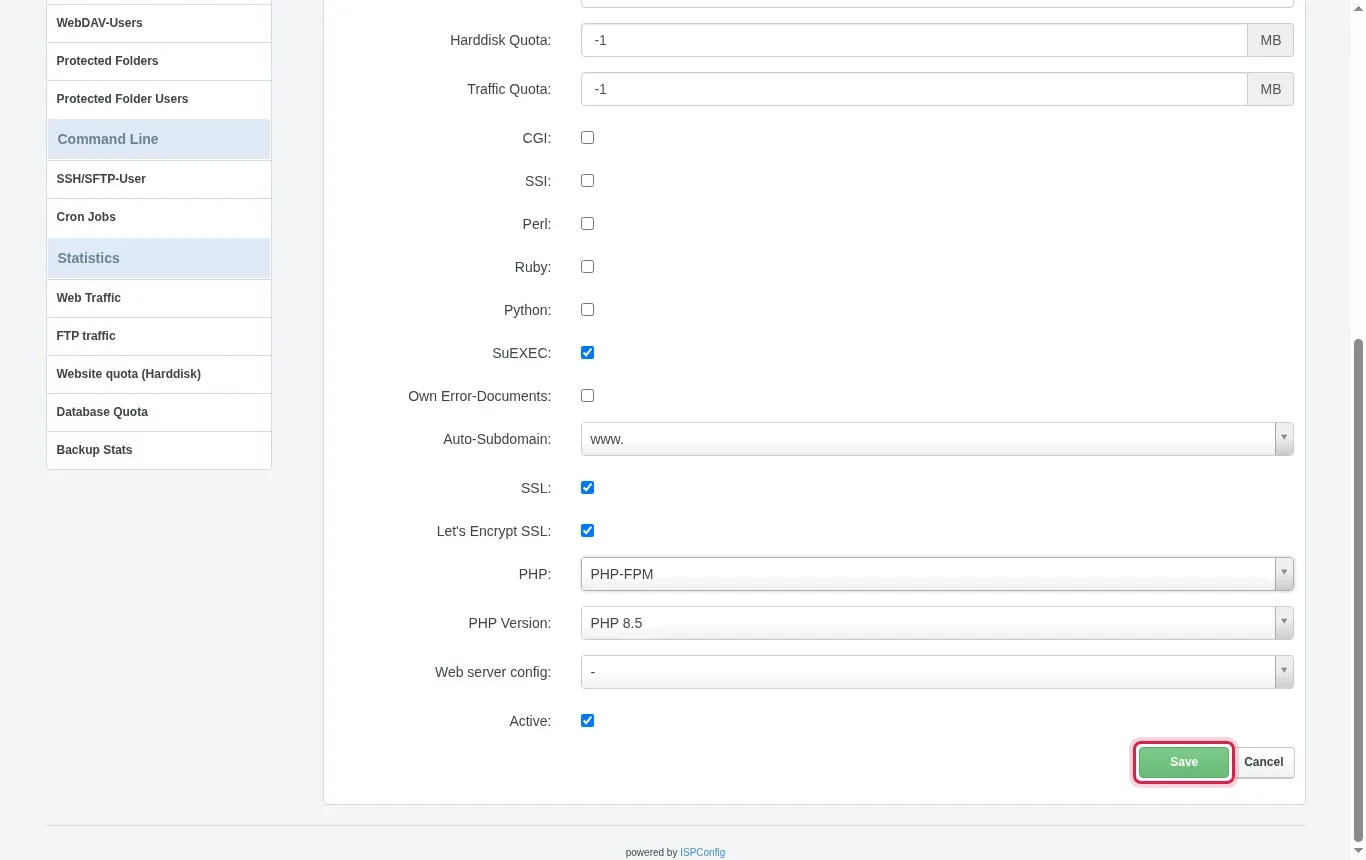
In ISPConfig, navigate to the Sites menu then click Add new website. Enter your full domain (e.g. laravel.learnlws.fr), select the Auto-Subdomain alias if needed, make sure to check the SSL and Let's Encrypt SSL boxes, set the PHP field to PHP-FPM, choose a recent PHP version, then click Save.
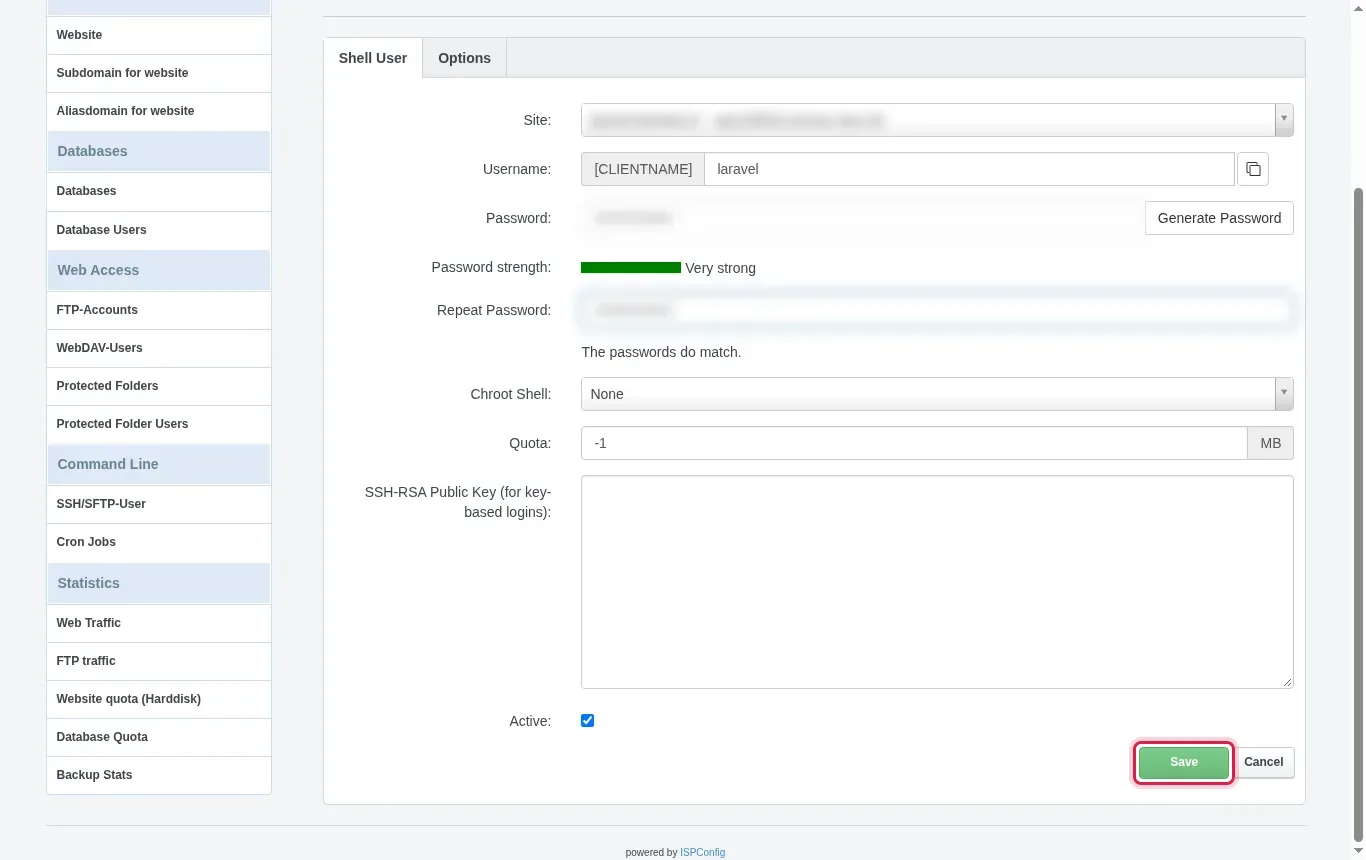
In the left-hand menu, go to the Command Line section and click SSH/SFTP-User, then Add new SSH-User. Select your website, enter the username (which will be preceded by an automatic prefix such as defaultlaravelapp), provide a secure password, leave the Chroot Shell setting on None to allow the global execution of PHP tools, then click Save.
In the left-hand menu under Databases, first add a MySQL user via Database Users and assign it a strong password. Then go to Databases, click Add new Database, select your site, name the database, and attach the MySQL user you just defined before validating.
Open your terminal and connect using your shell user: ssh defaultlaravelapp@203.0.113.10. Check that Composer (the standard dependency manager for PHP) is available with the composer -V command; if it is not yet present, download its executable directly into your account. Move to your hosting directory and initialize the project with composer create-project laravel/laravel . (or clone your Git repository before running composer install).
Edit the .env file at the root of your Laravel project with an editor such as nano: set APP_URL=https://laravel.learnlws.fr and complete the MySQL settings (DB_HOST=203.0.113.10, DB_DATABASE, DB_USERNAME, DB_PASSWORD). Then run the encryption key generation with php artisan key:generate, followed by the migrations with php artisan migrate to create the tables.
Laravel serves its entry point from its public/ subfolder. In ISPConfig, adjust your website's Apache document root directive to point to this public/ folder (or link the web/ folder to public/), then apply the necessary write permissions on the cache and log folders by running chmod -R 775 storage bootstrap/cache.
Open your web browser and enter your site address (for example https://laravel.learnlws.fr). The default Laravel home page appears with the SSL security padlock active, confirming the installation was completed successfully.
After installing your Laravel application, several Artisan console commands make operation and maintenance of the project easier.
The 'None' mode allows your user to execute the Debian system's global binaries (notably PHP CLI, Git, and Composer). A standard chrooted environment restricts access and would block the normal execution of Artisan and Composer commands.
An HTTP 500 error generally comes from a missing application key in the .env file (run php artisan key:generate) or insufficient permissions on the storage and bootstrap/cache folders, which must be writable by the web server.
You can add a custom Apache directive in the website options on ISPConfig to redefine the DocumentRoot to /var/www/votresite.com/web/public, or replace the standard web folder with a symbolic link pointing to your project's public folder.
No, all file management operations, Composer dependency installation, .env configuration, and Artisan commands are performed entirely with the shell user attached to the website created in ISPConfig.
Make sure the A-type DNS record points correctly to your VPS's IP address and that propagation has finished. Let's Encrypt checks the domain's accessibility from outside before validating and issuing the certificate.
Ask the LWS team and the community. Answers are published after moderation.
 About LWS :
LWS is a 100% French web hosting company that focuses on quality and innovation and offers a responsive and competent technical service at affordable prices.
About LWS :
LWS is a 100% French web hosting company that focuses on quality and innovation and offers a responsive and competent technical service at affordable prices.



 Yes
Yes No
No