
Online help
The web host accessible to all
Procédure
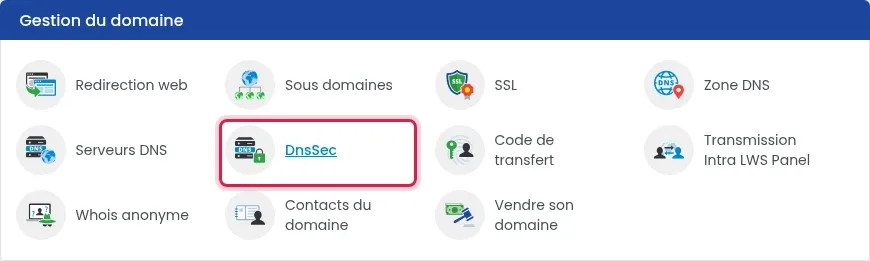
DNSSEC can be enabled or disabled in just a few clicks in the LWS Panel: go to the “Domain management” section, the “DnsSec” box, then “Enable” or “Disable” and “Confirm”. The option is included with your LWS domain name, disabled by default, and works only with LWS DNS servers. If you ever need to switch to another provider’s DNS servers, disable it first.
When someone types your address or sends you an email, their computer queries DNS to find out where your website and email are located. DNSSEC adds a digital signature to these responses: a hacker can no longer forge them to send your visitors or emails to a fake server. ICANN summarizes it as follows: DNSSEC “strengthens DNS authentication using digital signatures” (DNSSEC, what is it and why is it important?).
It is an additional security measure: your website and emails work without it. You enable it by choice, or because an organization (bank, government agency, security audit) requires it.
In your customer area, under “Domain(s) & Hosting(s)”, click “Manage” next to your domain. In the “Domain management” section, open “DNS servers”.
The “Custom DNS configuration?” option must be set to “No”: your domain then uses LWS DNS servers. Do not change anything on this page and return to the dashboard using the grid button at the top left.

If “Yes” is selected, your domain uses another provider’s DNS servers: DNSSEC cannot be enabled from the LWS Panel (see the FAQ below).
In the “Domain management” section, click “DnsSec”. The window may take one to two seconds to open: there is no need to click again.
The window shows the current DNSSEC status (“Disabled” until it has been enabled). On the “DnsSec” line, check “Enable”, then click the green “Confirm” button.
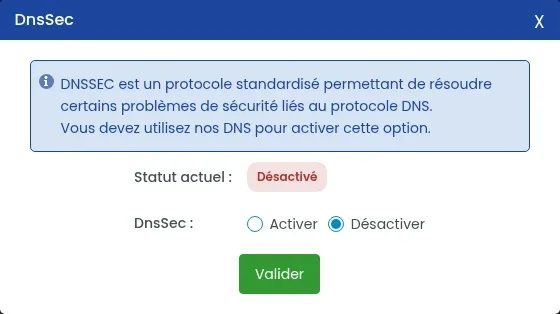
Reopen the “DnsSec” window from the “Domain management” section: the “Current status” should no longer show “Disabled”.
If it still shows “Disabled”, first check that “Custom DNS configuration?” is set to “No” in “DNS servers”. If so, open a support request with LWS from “Support” at the top of your customer area, indicating your domain name.
Open the “DnsSec” window, check “Disable”, then click “Confirm”. Then reopen the window: the “Current status” should show “Disabled”.
Open “DNS servers” in the “Domain management” section. If “Custom DNS configuration?” is set to “Yes”, your domain uses another provider’s DNS servers: the “DnsSec” option in the LWS Panel only works with LWS DNS servers.
In that case, that provider manages your domain’s DNS zone, and the “DnsSec” window in the LWS Panel does not apply. For a DNSSEC request on an LWS domain whose DNS zone is managed elsewhere, open a support request with LWS from “Support”, indicating your domain name and the provider that manages your DNS servers.
No. DNSSEC is part of the services included with an LWS domain name, at no additional cost, for the extensions whose registry allows it.
No. It is disabled by default, even on a newly ordered domain: it is up to you to enable it if you want to.
Open the “DnsSec” window in the “Domain management” section and read the “Current status”.
Ask the LWS team and the community. Answers are published after moderation.
 About LWS :
LWS is a 100% French web hosting company that focuses on quality and innovation and offers a responsive and competent technical service at affordable prices.


 Yes
 No