
Online help
The web host accessible to all
Procédure
Concerned service: WordPress
Concerned panel: WordPress administration
Level: beginner
WordPress updates fix security vulnerabilities and bugs, and can also add new features. They apply to the WordPress core, as well as to the extensions and themes installed on your site.
This guide explains how to perform these updates from the WordPress dashboard and how to check that your site is working properly after the operation.
This guide applies to updates performed from the WordPress administration area.
Would you rather use the LWS Panel? See the guide: How do I manage updates for my WordPress site with WP Manager?
You must have a WordPress account with the Administrator role.
Also create a recent backup of your site files and database. This will allow you to restore the previous state if an update causes an incompatibility.
Before a major WordPress update, make sure your theme and main extensions are compatible with the new version. This precaution is especially important for an online store or a site using a page builder.
An update may replace files from the WordPress core, an extension, or a theme. Changes made directly to these files may be lost. Save your customizations before continuing.
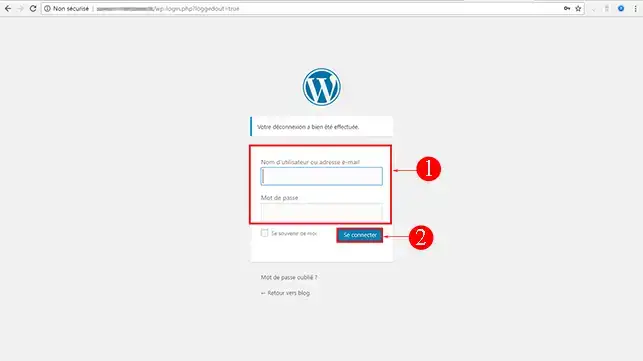
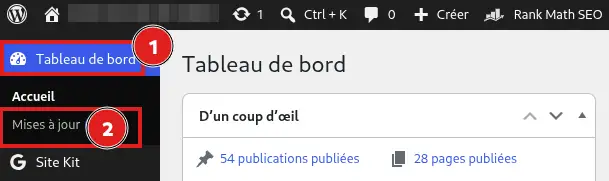
This page lists the updates available for WordPress, extensions, themes, and translations.
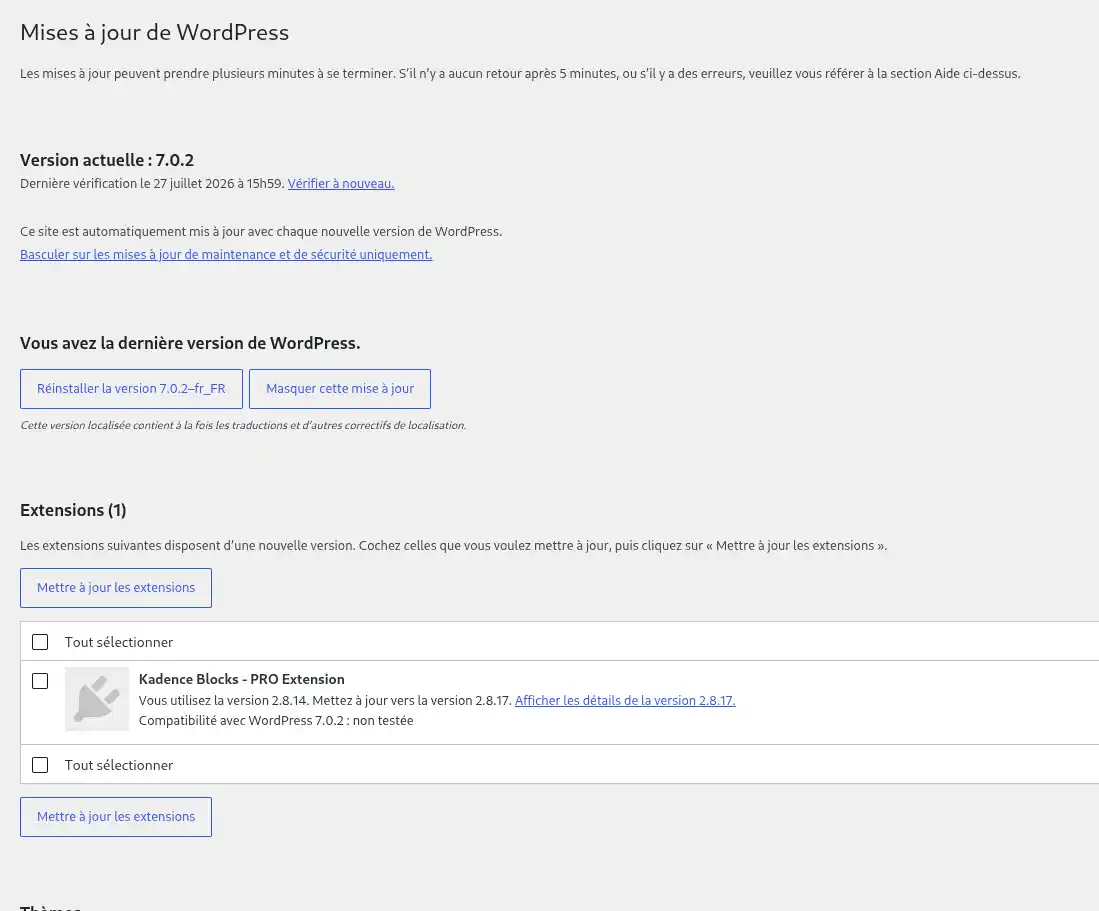
You can click Check again if an announced update does not yet appear.
When WordPress offers a new version, it appears at the top of the Updates page.
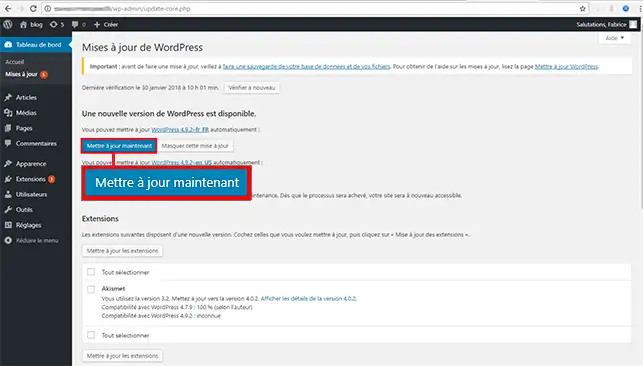
Do not close the page and do not click the button a second time during the update. Your site may temporarily display a maintenance message: wait for WordPress to confirm before testing it.
Once installation is complete, WordPress may ask you to update its database. If so, click Update WordPress Database, then follow the instructions displayed.
Extensions add features to your site. They should also be updated regularly.
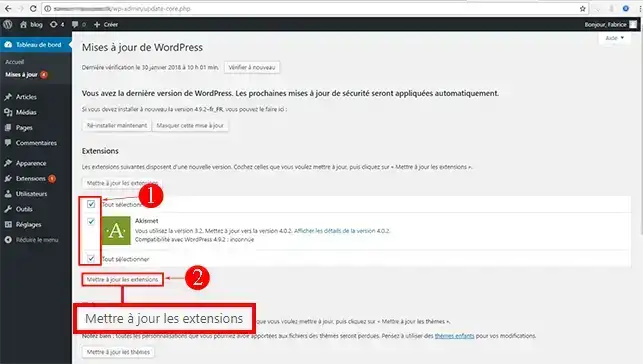
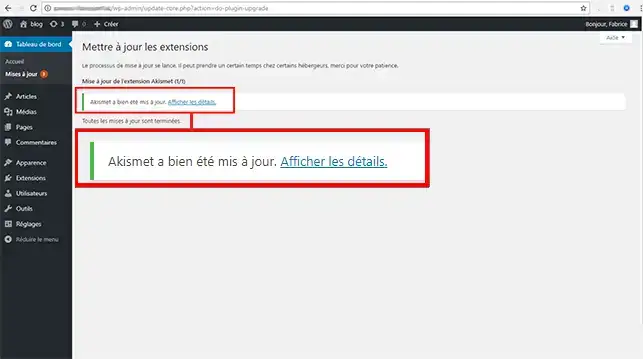
When several extensions are offered, update them in small groups. This will make it easier to identify the extension involved if a problem occurs.
A premium extension may require an active license to receive updates. If no new version is offered, check the license in the extension settings.
Installed themes can be updated from the same page, whether they are active or not.
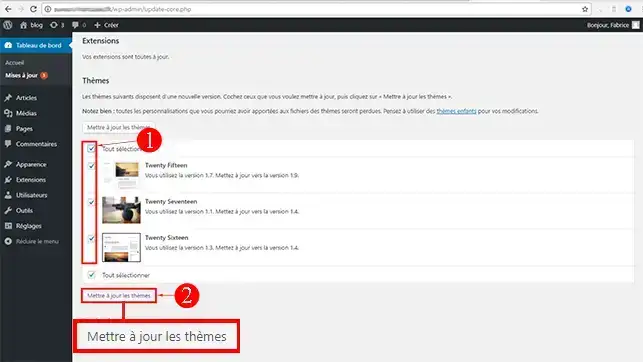
If WordPress also offers a translation update, you can install it from the corresponding section. This updates the interface text in your site’s language.
After the updates:
The update is complete when WordPress confirms success, no new version is offered for the relevant item, and your site works normally.
I do not see any updates
Your site may already be using the latest available versions. Click Check again from the Dashboard > Updates page.
Also make sure your WordPress account has the Administrator role.
My site stays in maintenance mode
Wait a few minutes and refresh the page.
If the message “Unavailable due to maintenance” remains displayed, connect to your hosting files with the file manager or an FTP client. Delete only the file named .maintenance, located in the main WordPress directory, then reload the site.
WordPress is asking me for FTP credentials
Enter the FTP credentials associated with your hosting account. WordPress needs them when it cannot directly modify the site files.
If you do not know these credentials, see the help corresponding to your panel to find them or change their password.
My site shows an error after the update
Do not launch any other updates.
If the WordPress administration area is still accessible, disable the extension that was updated just before the problem appeared. Also check that the PHP version used by your hosting is compatible with WordPress, your theme, and your extensions.
If the problem persists, restore the backup created before the update.
The changes are not visible
Clear the cache of your cache extension, then refresh your browser cache. If your hosting also uses a cache system, purge it from your panel.
Ask the LWS team and the community. Answers are published after moderation.
 About LWS :
LWS is a 100% French web hosting company that focuses on quality and innovation and offers a responsive and competent technical service at affordable prices.
About LWS :
LWS is a 100% French web hosting company that focuses on quality and innovation and offers a responsive and competent technical service at affordable prices.



 Yes
Yes No
No