Procédure
Service concerned: SiteBuilder Pro (LWS Panel, cPanel and compatible Cloud cPanel offers)
Concerned panel: SiteBuilder Pro editor
Level: Beginner
With SiteBuilder Pro, you can add new pages to your website with no programming knowledge. You can thus create a presentation, services, contact, or any other section suited to your needs.
This procedure explains how to create a new page, find it in the editor, and make it accessible to visitors.
Does your site use a OnePage template?
A OnePage site generally groups its content on a single page, with a menu allowing access to the different sections. To have several independent pages, a classic template is more suitable.
However, be careful : changing the template on an existing site can replace its design and content.
How do I create a new page with SiteBuilder Pro?
Open your site in the SiteBuilder Pro editor. If you do not know how to access it, see our documentation Getting started with the SiteBuilder Pro website editor.
1. Open page management
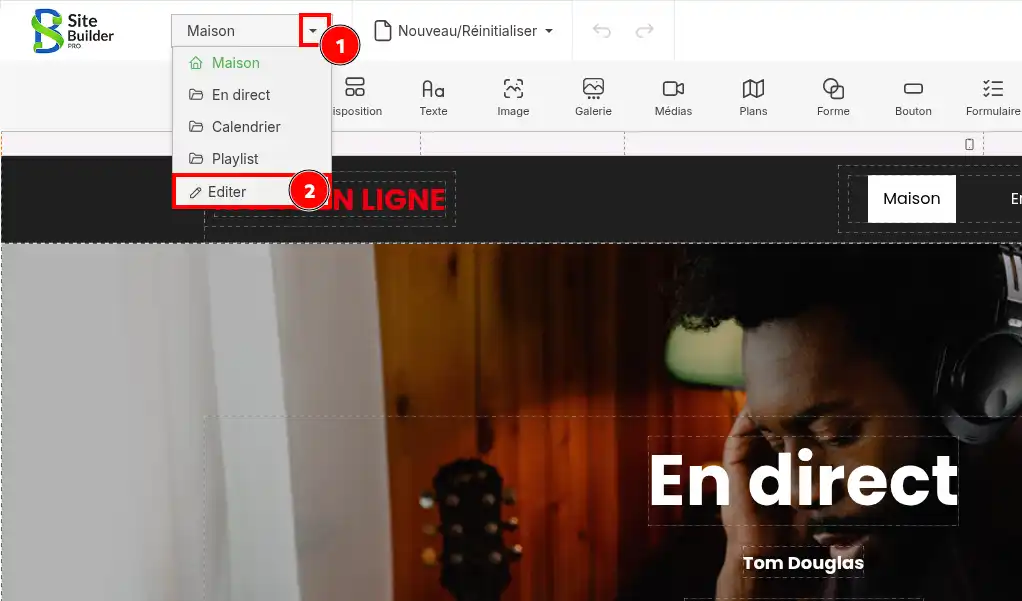
At the top left of the editor, click the small arrow (1) next to the name of the page currently displayed.
In the drop-down menu, click Edit (2).
2. Add a new page
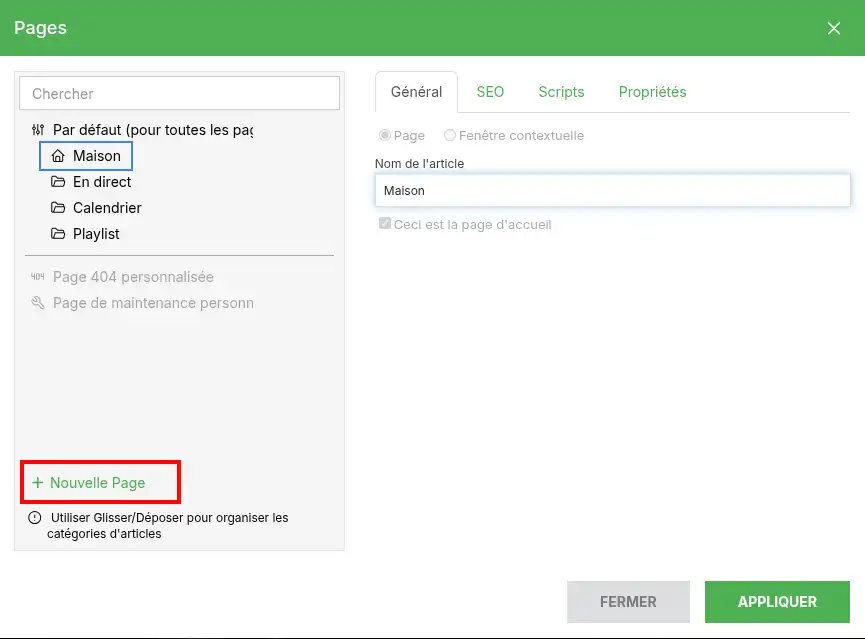
The Pages window opens. It displays the pages already present on your site.
Click the + New Page button at the bottom left of the window.
3. Configure the new page
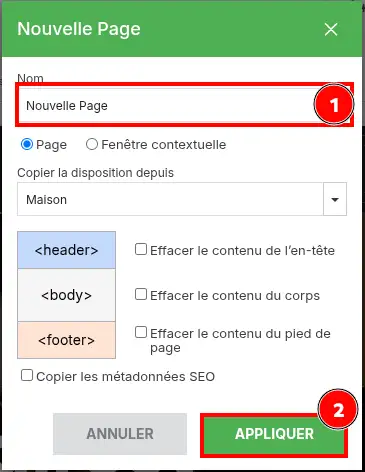
A window titled New Page appears.
In the Name field (1), enter the name you want to give your page, for example “Our services” or “Contact”.
Make sure the Page option is selected. The other option, Popup, is used to create a window that appears over the site content, not a classic page.
The Copy layout from menu lets you choose an existing page as a starting point. You can therefore reuse its design rather than build your new page from scratch.
If you want to start with empty sections, use the Clear header content, Clear body content or Clear footer content boxes, depending on the elements you do not want to keep.
Then click APPLY (2) to create the page.
Be careful when copying an existing layout.
The elements from the chosen page may also be reused in your new page. Remember to replace or remove the texts, images, and other content that do not match your new section.
Also avoid checking Copy SEO metadata if you do not need it. Ideally, each page should have its own title and description for search engines.
4. Open the new page
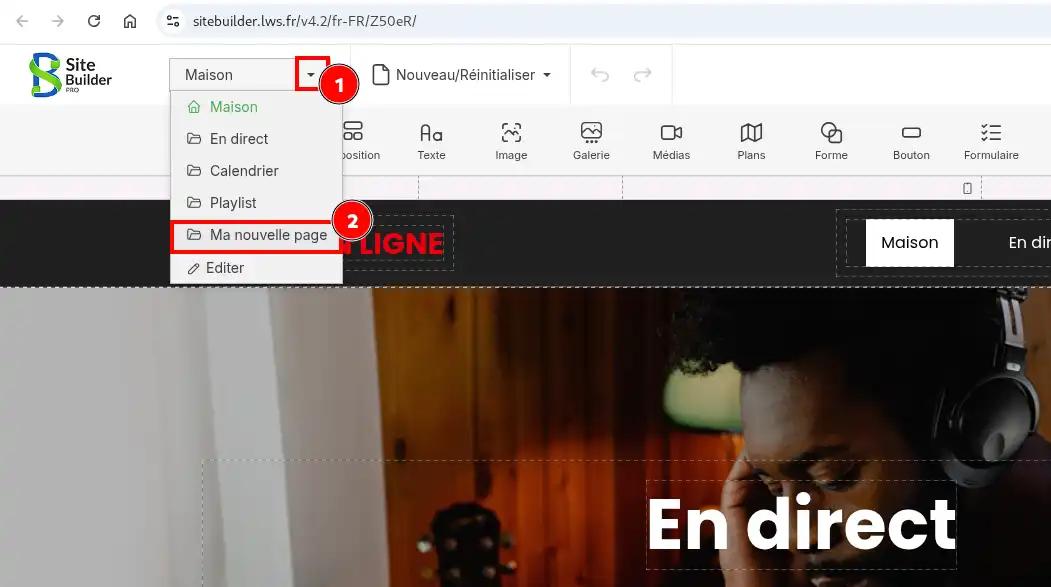
After creating it, click the drop-down list again at the top left of the editor.
Your new page appears in the list. Click its name to display it and start customizing it.
You can now add text, images, buttons, or forms using the tools located at the top of the editor.
To learn how to use them, see our help article How do I use the SiteBuilder Pro modules?.
Another method: create the page from the site menu
You can also add a page directly from the navigation menu displayed on your site.
In the SiteBuilder Pro editor:
-
Click your site's navigation menu (1).
-
Click Edit menu (2) in the toolbar that appears.
-
Use the New menu item button to add a new item and create your page.
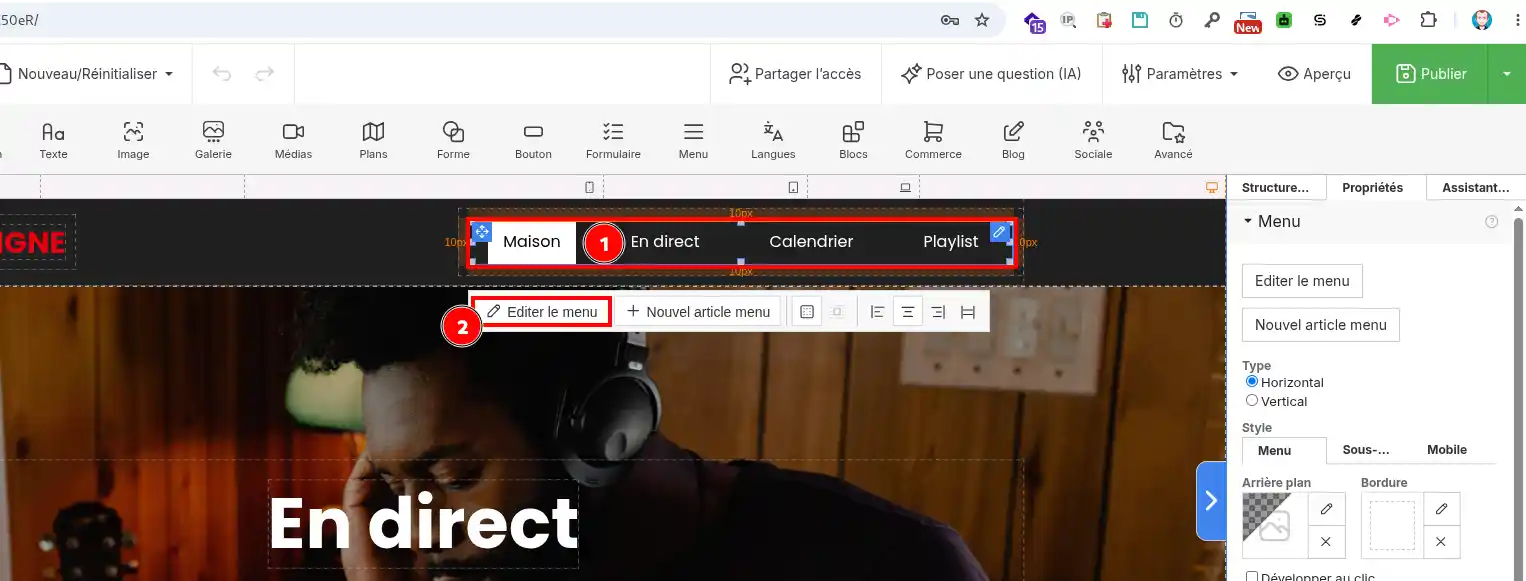
You will then find the creation options presented previously, including the page name, its type, and the possibility of reusing an existing layout.
This method is handy when you want to add a new section directly to your site's navigation.
Check and publish the new page
Once your page has been created and customized, click Preview at the top right of the editor to check its layout.
Make sure the text and images are correct, the links work, and the page displays properly on both desktop and mobile.
When you are satisfied with the result, click the green Publish button to update your site.
Your new page is ready!
It should appear in the list of pages in SiteBuilder Pro. After publishing, you can open its address in a browser to check that it is accessible to visitors.
Note: creating a page in the editor does not necessarily mean that a link to it already appears in all the menus on your site.
Common issues
I can't find the page I just created.
Open the page drop-down list at the top left of the editor. If it is not there, go back to the Pages window and check that it was created correctly. In particular, make sure you clicked Apply when creating it.
My new page does not appear in my site's menu.
Creating a page and displaying it in the menu are two different operations. Select the Menu module in the editor to check the navigation links and add your new page if necessary.
See our help article How do I create or edit a menu on SiteBuilder Pro?.
The new page or my changes are not visible on my website.
Make sure you clicked Publish after your changes. Then refresh your site in your browser. If the old version is still displayed, try opening it in a private browsing window.



 Yes
Yes No
No About
About 