Procédure
Introduction
In this documentation, we explain in detail what a snapshot is, its benefits and how to configure it. We will also guide you through the creation, management and advanced use of snapshots, focusing on good practice and solving common problems.
I. Definition of a snapshot
A snapshot is an instantaneous capture of the state of a dedicated VPS server at a specific moment in time. It includes all the files, configurations and data recorded at that time. Snapshots offer a number of advantages, such as the ability to quickly restore a server to a previous state and to carry out tests in complete security.
II. How do I create a snapshot?
Step 1 : Log in to your LWS account and go to the management of the VPS server whose distribution you want to change.
Step 2 : In the"Server Administration" section, click on the"Snapshots" icon.
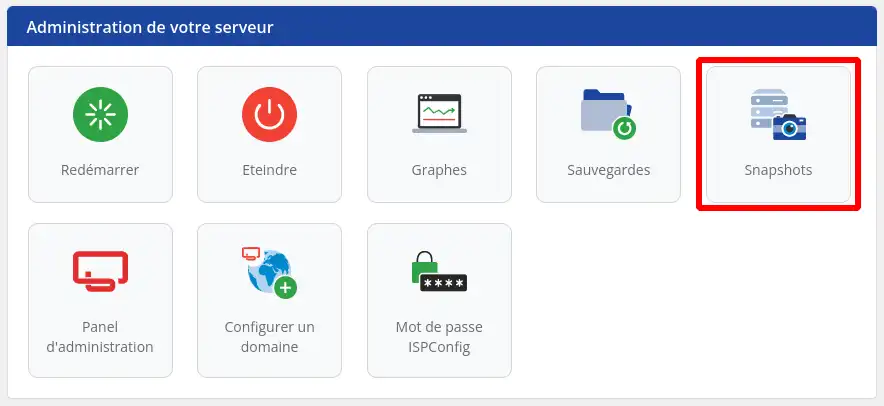
Step 3: Create the snapshot simply by entering a name and clicking on the "Create snapshot" button.

A snapshot does not replace a backup, it is not physically stored on a NAS unlike the backups available in your customer area. You have a maximum of 10 snapshots. A snapshot is stored for a maximum of 48 hours
.
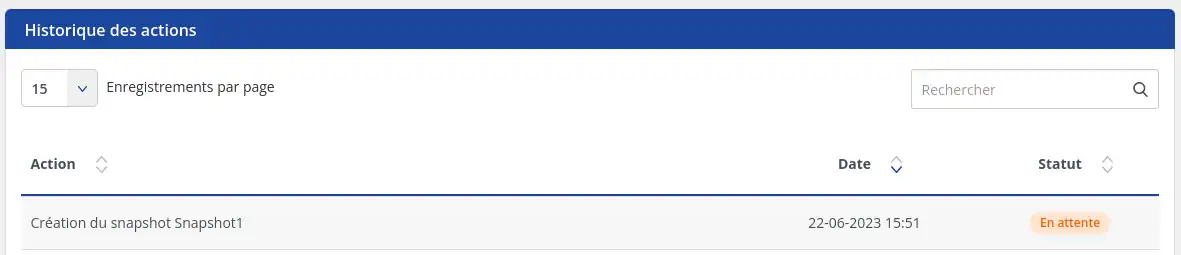
The creation of the snapshot is then displayed in the list of pending actions. The creation of the snapshot may take more or less time depending on the volume of data on the VPS.
If you reinstall the VPS after snapshots have been created, the snapshots will be automatically deleted and it will no longer be possible to restore them
.
III. How do I restore a snapshot?
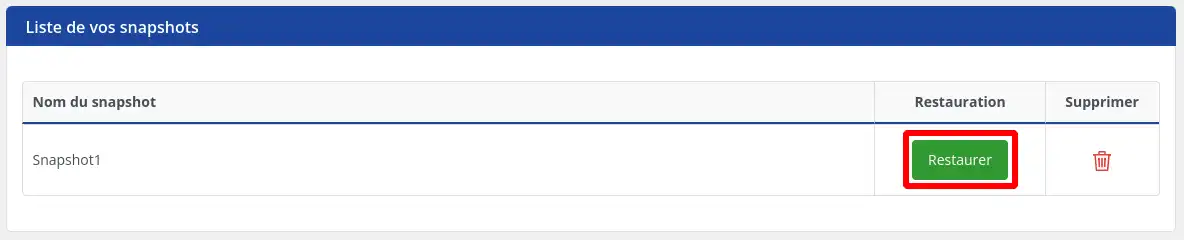
Step 1 : You can restore the snapshot by clicking on the"Restore" button.
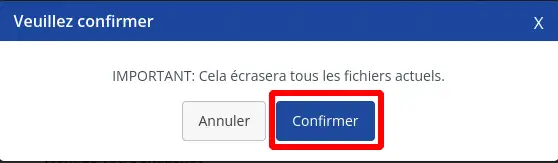
Step 2 : The following confirmation message will be displayed, click on the "Confirm" button
The Snapshot restore operation will be put on hold while the data is transferred. This process may take more or less time depending on the volume of data contained in the snapshot.
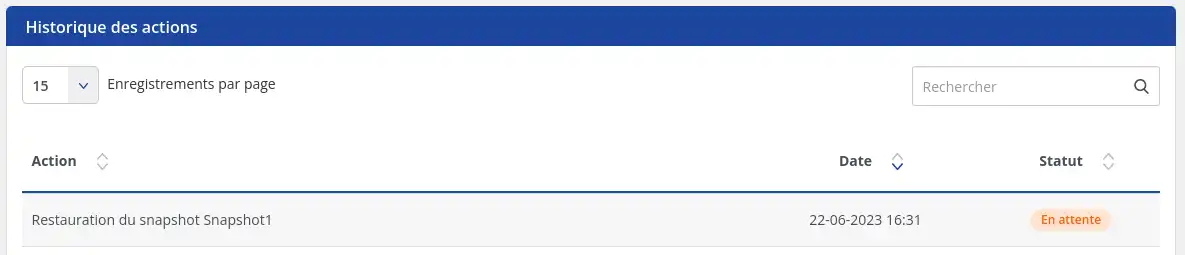
Restoring a snapshot restores your VPS to the same configuration as it had when it was created. This applies to everything, including the state of the VPS, the configuration of the operating system, the control panel (ISP Config), the sites, the databases, and so on.
The RAM memory is not included in the snapshot, so when it is restored, the VPS launches a normal start-up procedure. The processes and services that were running previously are not kept, but if they are launched at start-up then they will be restarted
.
IV. How to delete a Snapshot :
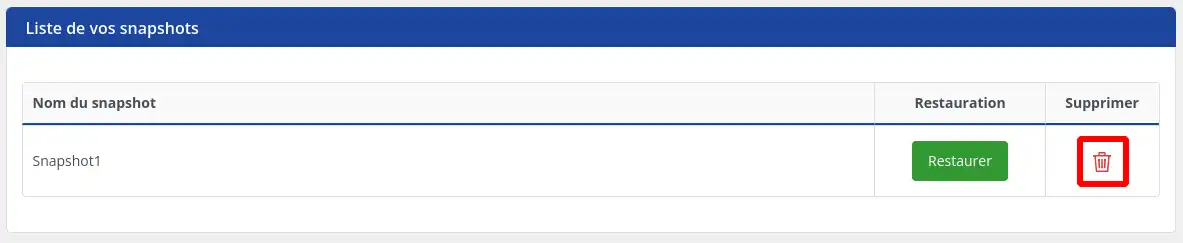
Step 1 : To delete a Snapshot, click on the bin button
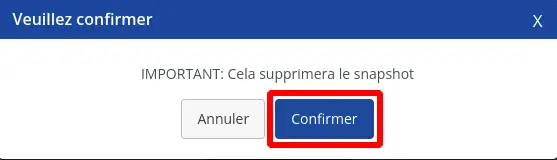
Step 2: Click on the "Confirm" button
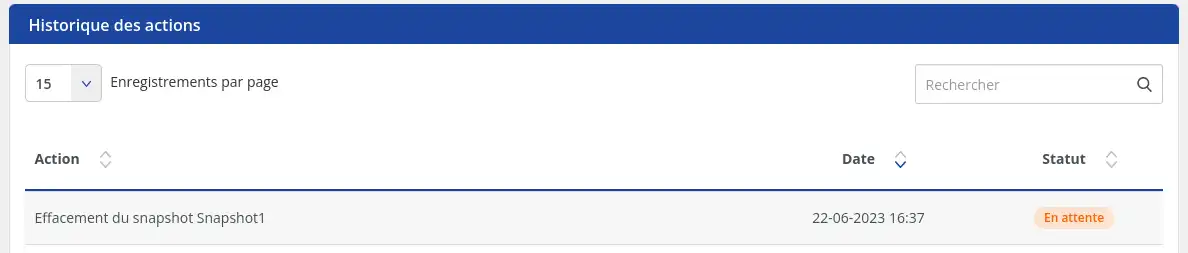
Deletion will be launched with the status"Pending". The snapshot will be completely deleted after a few minutes.
Conclusion
Managing snapshots of a dedicated VPS server is an essential practice for protecting your data, simplifying restores and carrying out tests in complete security. By following the steps and best practices described in this documentation, you will be able to use snapshots effectively for your VPS dedicated server. Don't forget to consult the additional resources and contact technical support if you need help.



 Yes
Yes No
No About
About 