
Online help
The web host accessible to all
Procédure
Service concerned : Dedicated Servers VPS
Concerned panel : LWS customer area
Level : beginner
Resetting a VPS allows you to start again with a clean installation of the operating system or the chosen template. This action is useful if you want to reset the server, fix a configuration that has become too degraded, or start from a clean base.
This procedure is carried out from your LWS customer area. It is not launched from ISPConfig, HestiaCP or from the server via SSH.
Reinstallation resets the VPS to zero. All data present on the server's storage space will be deleted: files, databases, configurations, access, installed services, SSL certificates, panels and customizations. Only launch this action if you have a usable backup or if you accept starting again from a clean server.
To reset the VPS without changing the environment, select the same system or the same template as the one currently installed.
To change the environment, choose another operating system or another template.
Before reinstalling your VPS, make sure you have retrieved everything that needs to be kept.
In particular, you should plan for a recent backup of your files, databases, websites, applications and important configurations. If you use a panel such as ISPConfig, HestiaCP or Plesk, also remember to note the access details, created accounts, configured domains, SSL certificates and specific settings that you will need to set up again after installation.
If domains, websites or applications use this VPS, they may no longer work after reinstallation until the required services, files, databases, certificates and configurations have been restored.
Avoid chaining several template reinstallations that automatically configure a Let's Encrypt certificate, such as ISPConfig or HestiaCP. If too many certificate requests are made in a short time, Let's Encrypt may apply a temporary limit.
In this case, access to the panel may remain protected by a self-signed certificate after installation. Your browser may then display a security warning when opening ISPConfig or HestiaCP. The Let's Encrypt certificate can be put back in place once the limit is lifted.
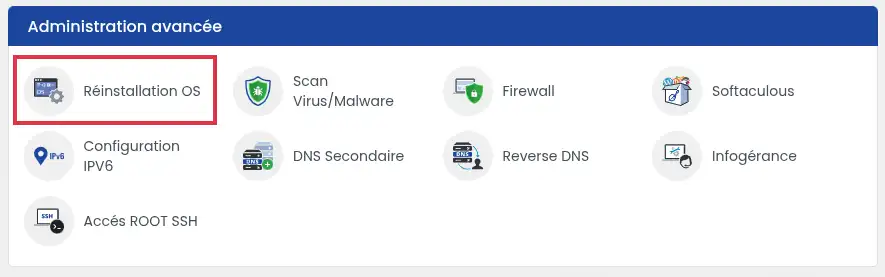
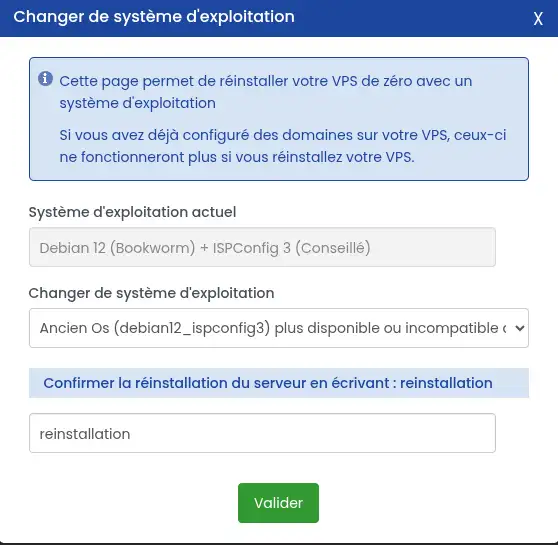
For a simple reset, choose the same system or the same template as the one currently installed.
If you select another system or another template, your VPS will be reinstalled with this new environment.
reinstallation
After validation, reinstallation is launched. The data present on the VPS is deleted and replaced by a clean installation of the selected system or template.
After validation, your VPS may appear with the status The server is being installed. This status indicates that reinstallation is in progress.
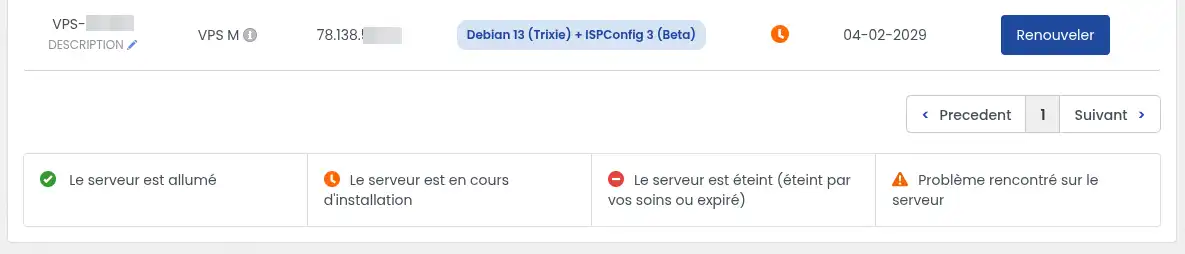
When the installation is complete, the server should return to the status The server is on. The system or template displayed on the VPS line must match the one you selected.
Your VPS is reinstalled when the server is on and the selected system or template is correctly displayed in the VPS management.
You can then check access to the server according to the installed environment:
I can't see the system or template I want
The proposed list depends on the systems and templates available for your VPS plan. If an older template appears as unavailable or incompatible, select another compatible system or use a newer version when it is offered.
The server remains in installation
Installation may take several minutes depending on the system or template chosen. Wait and refresh the VPS management page. If the status does not change after an unusually long time, check whether an error message appears in the server management.
My website no longer works after reinstallation
This is normal if the website has not yet been restored. Reinstallation deletes the previous files, databases, certificates and configurations. You must restore your data and reconfigure the required services before the website can work again.
I can no longer access my old panel
After a reinstallation, the old panel no longer exists unless you chose the same template or reinstalled it manually. Check the system or template installed on your VPS, then use the new access details provided or generated after installation.
A certificate warning appears when I open ISPConfig or HestiaCP
After several reinstalls in quick succession, Let's Encrypt may temporarily refuse to create a new certificate. In this case, the panel may work with a self-signed certificate, which causes a security warning in the browser.
This does not necessarily mean that the panel is incorrectly installed. You must wait until the temporary limitation indicated by Let's Encrypt is lifted, then manually restart the certificate setup.
If your VPS is unmanaged, this restart must be carried out by you from the server or the relevant panel.
If your VPS is managed, you can open a technical ticket with LWS support so that a VPS technician can carry out the action.
/tips
Ask the LWS team and the community. Answers are published after moderation.
 About LWS :
LWS is a 100% French web hosting company that focuses on quality and innovation and offers a responsive and competent technical service at affordable prices.
About LWS :
LWS is a 100% French web hosting company that focuses on quality and innovation and offers a responsive and competent technical service at affordable prices.



 Yes
Yes No
No