


Procédure
This manual FTP backup complements the automatic backups included with your hosting. See the backup policy to find out what is automatically retained.
It is advisable to back up your website regularly. Indeed, when you make major changes to your website or in the event of hacking, it is recommended to be able to restore these Web files easily and quickly.
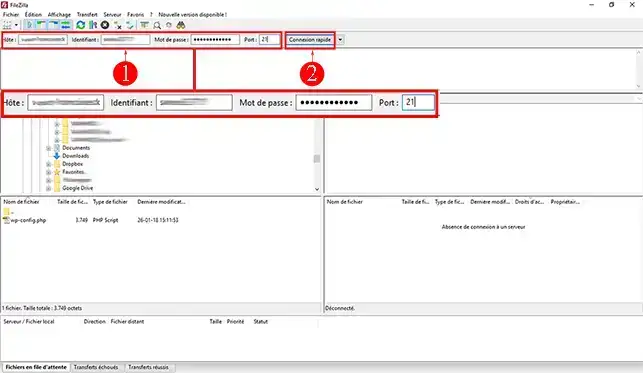
1. Connect to your FTP client such as FileZilla by entering the server host name, your username and password, then click the "Login" button. You received this information by email when you subscribed to a plan. If you have forgotten the information associated with your FTP account, you can still request it by going to the page https://panel.lws.fr/frperte.php
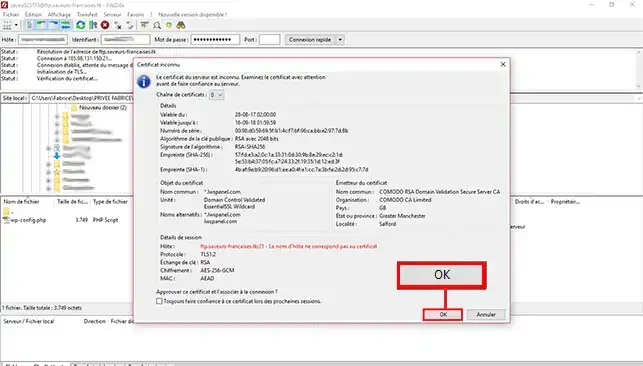
2. Upon connecting, if this is the first FTP connection, you will be asked to validate the certificate, click the "OK" button to move to the next step.
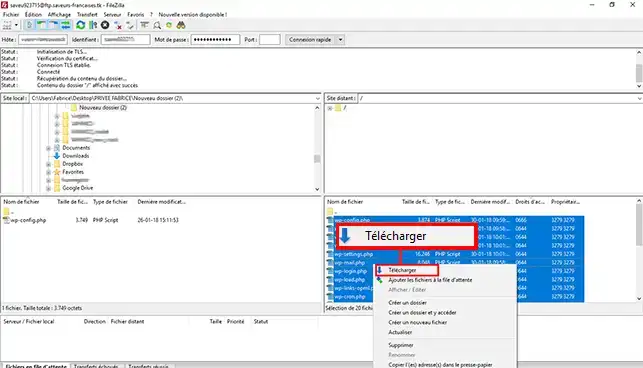
3. Select all the files located on the server side (right side of your screen). To select them all, simply press "[CTRL] + [A]" simultaneously. Right-click the mouse to open the menu and click the "Download" tab. You can also drag and drop all the files to your computer (left column of the software).
You can subscribe to a Web backup offer in order to benefit from automatic backups of your website. To do so, I invite you to visit the tutorial concerning the online backup solutions.
You are now able to back up the Web files of your shared hosting with LWS. Backing up your Web files will allow for faster restoration of them if needed.
Feel free to share your comments and questions!
Bonjour, merci de votre retour.
Nous comprenons que vous ayez des doutes quant à l'emplacement de vos données de site après avoir utilisé Filezilla. Nous sommes heureux de vous aider à vous y retrouver.
Les données de votre site sont stockées sur notre serveur, dans un espace dédié à votre compte d'hébergement. Lorsque vous utilisez un logiciel de transfert de fichiers tel que Filezilla, vous devez vous connecter à ce serveur en utilisant les informations de connexion fournies dans votre espace client LWS, pour accéder à cet espace et télécharger ou téléverser des fichiers.
Lorsque vous vous connectez à votre espace de stockage, vous devriez voir un répertoire appelé "www" ou "public_html" pour le cas des hébergements mutualisés LWS, c'est le répertoire "htdocs". C'est à l'intérieur de ce répertoire que vous devriez trouver les fichiers de votre site.
Et donc ici "htdocs" correspond à la racine de votre hébergement, il n'y a pas de dossier avec celui-ci donc c'est le premier dossier.
N'hésitez pas à nous contacter via notre service de support disponible depuis votre espace client, nous serons heureux de vous aider. (https://aide.lws.fr/a/268)
Ask the LWS team and the community. Answers are published after moderation.
