LWS Linux shared hosting and domain package6 November 2026By romain 19 min read
How do I download or restore a backup of your web files?
Procédure
Before restoring your web files, consult the Backup Policy for your shared web hosting to understand which backups are available depending on your plan and their retention period.
Objective
This documentation explains how to retrieve a backup of your web files or restore a previous version of your website from the LWS Panel.
Use this procedure if files from your site have been deleted, accidentally modified, or if you want to revert to an earlier state of your hosting.
Services concerned
This documentation is intended for customers with a :
LWS Linux shared hosting (Excluding domain-only plans).
Management is done from the LWS Panel.
Before you begin
Prerequisites
Before performing a backup or restoration, make sure :
you have access to your LWS customer account
you fully understand that a restoration replaces existing files
What to know before choosing an action
It is important to distinguish between the two available actions :
Download a backup
This action allows you to retrieve a copy of your web files.
It does not modify your hosting.
Restore a backup
This action allows you to reinject the backed-up files onto your hosting.
Existing files will be replaced.
Web files do not always represent your entire site.
If your site also uses a MySQL database, restoring the files alone may not be enough to bring the site back exactly to the desired state. In that case, you will also need to restore the database to a consistent date.
When should you use this documentation?
You can follow this procedure if :
your site no longer displays correctly after a mistake
one or more files have been deleted
you want to recover an older version of your web space
you want to download a backup to keep it locally
you want to restore only a file, a folder, the homepage, or a domain added to your hosting
Step 1: Check that your plan allows restoration
The LWS Panel offers backup and restoration functionality for web services.
Depending on the subscribed plan, backup retention can vary from 30 or 90 days.
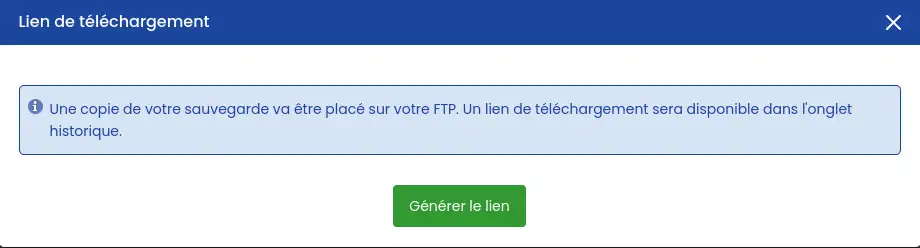
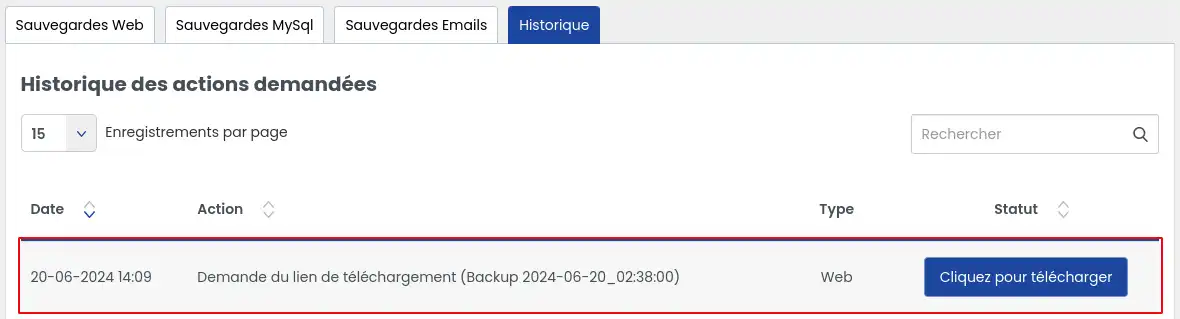
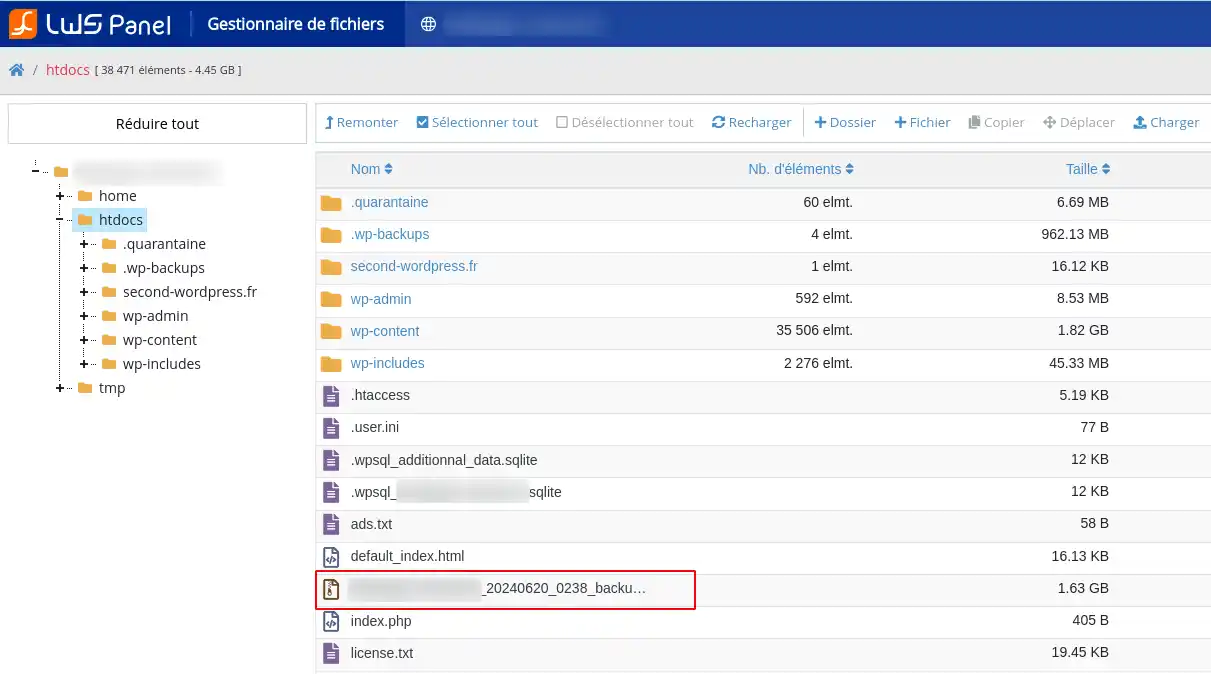
If you use this method, make sure you download the correct backup file.
Limitations to be aware of
Important limitations :
only backups of less than 20 GB can be restored using this method
for a larger backup, you must use a Business support option or a managed services contract
files larger than 500 MB placed on the FTP space may be automatically deleted if you leave them there too long
These points should be taken into account before generating or keeping a backup on the hosting.
Do not keep your backups on the hosting: what automatic maintenance deletes
Automatic maintenance regularly cleans LWS Panel hostings. A backup that you keep only on your hosting will therefore eventually be deleted. This maintenance deletes :
the *_backup.tar.gz backups placed in the site root, after 7 days ;
the .zip archives in the .wp-backups folder, after 30 days ;
the files in the tmp folder older than 30 days ;
PHP sessions older than 2 days ;
the PHP cache (OPcache) older than 7 days.
A file disappeared from your hosting without you deleting it ? First check whether it is part of this list. To recover a file from your site, use option B below, “Restore a specific file or folder”, as long as the desired date is still listed among the backups. If the tmp folder on your hosting is full, see the help article Full tmp folder (“Disk quota exceeded”): how do you empty it on LWS Panel ?
Option B - Restore a backup of your web files
Before restoring
Before starting a restoration, take a moment to identify what you actually need to put back in place.
You can restore :
the entire hosting
only the index.php file
a specific file or folder
a complementary domain or subdomain
Choose the right option
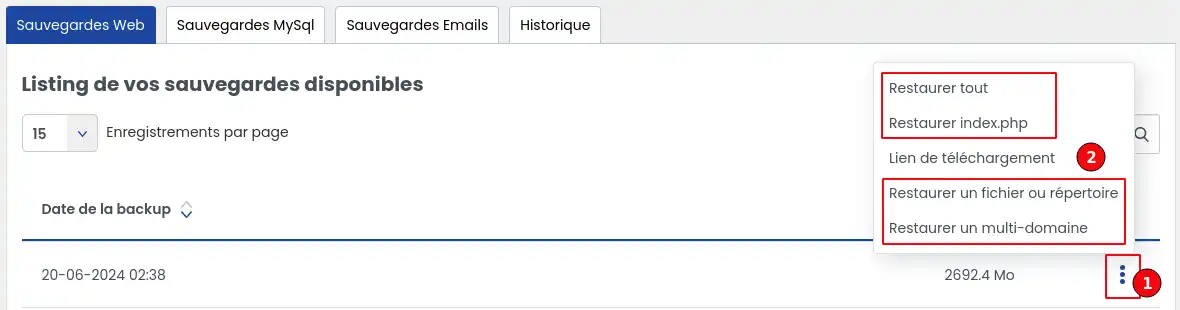
Restore everything : Use this if the entire site has been damaged, deleted, or replaced.
Restore index.php : Use this if only the main homepage of the site is affected.
Restore a file or folder : Use this if you know exactly which item needs to be recovered.
Restore a multi-domain : Use this if the issue concerns an additional domain or a subdomain hosted on the same plan.
Common procedure to access the restoration options
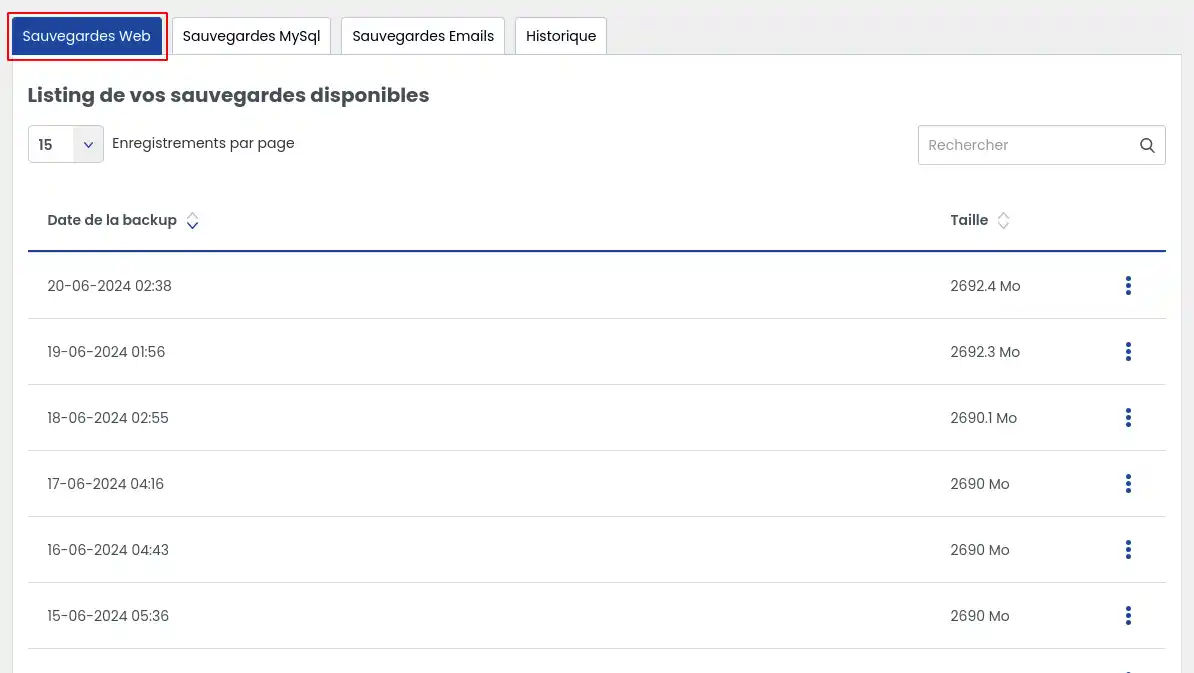
11. From the LWS Panel, access the list of available backups.
22. Choose the date corresponding to the state of your site you want to retrieve.
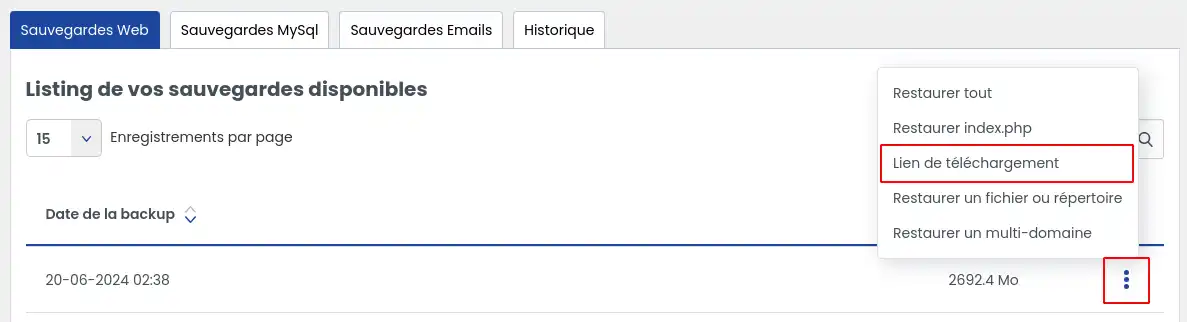
33. Click the button located to the right of the selected backup (1).
44. Select the restoration option corresponding to your need. (2)
1. Restore the entire hosting
When should you use this option?
Choose this option if you want to restore all web files on your hosting.
What this restoration does
The entirety of the hosting files is deleted, then the backup files are restored to the web space. This is therefore the most drastic option.
Steps
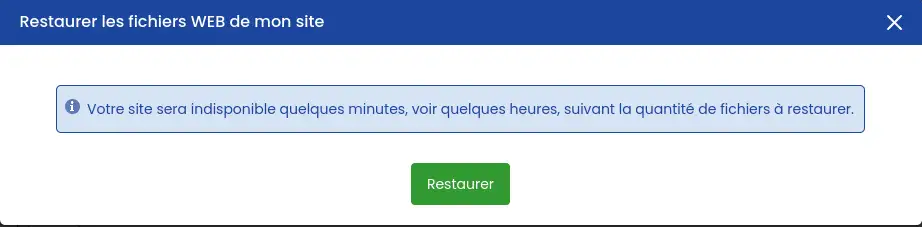
Click the Restore everything action.
A confirmation window opens.
Check that you have selected the correct backup date.
Confirm the action by clicking the "Restore" button
This operation replaces the current state of your hosting with that of the selected backup.
Do not use it if you only want to recover a specific file or folder.
2. Restore only the index.php file
What does index.php refer to?
The index.php file is generally the main homepage file of the site, located at the root of the hosting.
When should you use this option?
Use this restoration if :
the main homepage has been deleted
it has been modified by mistake
you do not want to affect the other site files
Steps
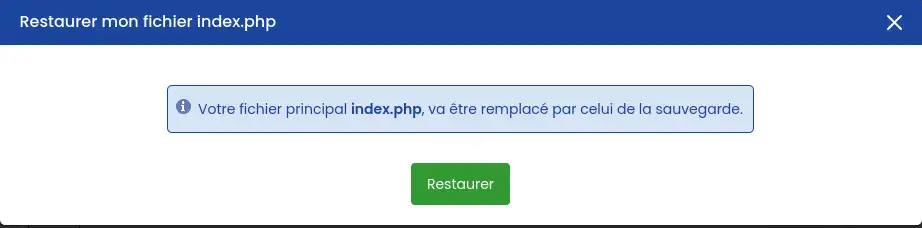
Click the Restore index.php action.
A confirmation window opens.
Check that you have selected the correct backup.
Confirm the action by clicking the "Restore" button
This option only concerns the main domain homepage file.
It does not allow you to restore an entire folder or other site elements. This scope is the one described in the source article.
3. Restore a specific file or folder
When should you use this option?
This is the most suitable option if you only want to recover part of the site, for example :
a deleted page
a file modified by mistake
an images folder
a directory containing a plugin, a theme, or specific resources
Steps
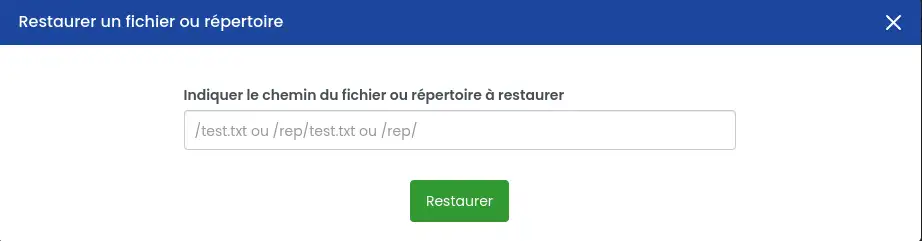
Click the Restore a file or directory action.
A confirmation window opens.
Enter the path of the file or folder to restore.
Carefully check the indicated location.
Confirm the action by clicking the "Restore" button
Examples of paths to enter
text.html
restores the text.html file located at the root of the backup
/myfolder/text.html
restores the text.html file located in the myfolder folder
/myfolder/
restores the contents of the myfolder folder
/myfolder/mysubfolder/
restores the contents of the mysubfolder subfolder present in myfolder
What this option actually does
This restoration :
puts back the files present in the backup if they no longer exist on the hosting
replaces existing files with those from the backup when they have the same name
does not delete additional files that are present on your hosting but absent from the backup
If you want to recover exactly the folder contents as they were on the backup date, you must first manually delete the extra files before starting the restoration. This behavior is explicitly described in the article.
4. Restore a multi-domain or subdomain
What is a multi-domain?
A multi-domain is an additional domain added to your hosting.
A subdomain corresponds for example to an address of the type blog.yourdomain.ext.
When should you use this option?
Choose this restoration if the issue concerns only :
an additional domain hosted on your plan
a specific subdomain
Steps
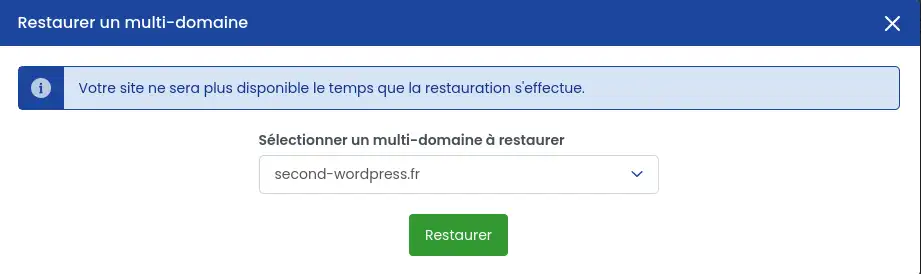
Click the Restore a multi-domain action.
A confirmation window opens.
Select the domain or subdomain concerned.
Confirm the action by clicking the "Restore" button
What this restoration does
As with folder restoration :
the files present in the backup are restored
files with the same name are replaced
additional files already present on the hosting are not automatically deleted
If you want to recover exactly the state of this domain or subdomain on the backup date, you must first remove the files that should no longer be present. Again, this point is indicated in the current article.
Regardless of the option chosen, once the action is confirmed, it is no longer possible to interrupt the restoration before it finishes.
Tracking the progress of a restoration
How do you know if the restoration is complete?
After launching a restoration :
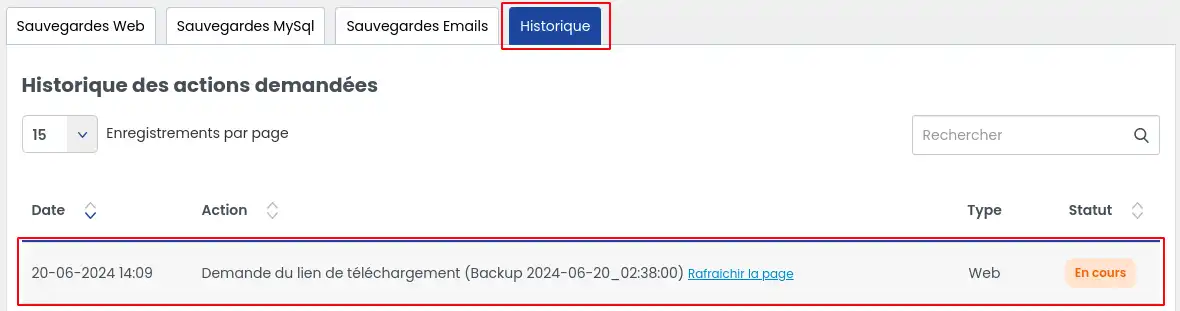
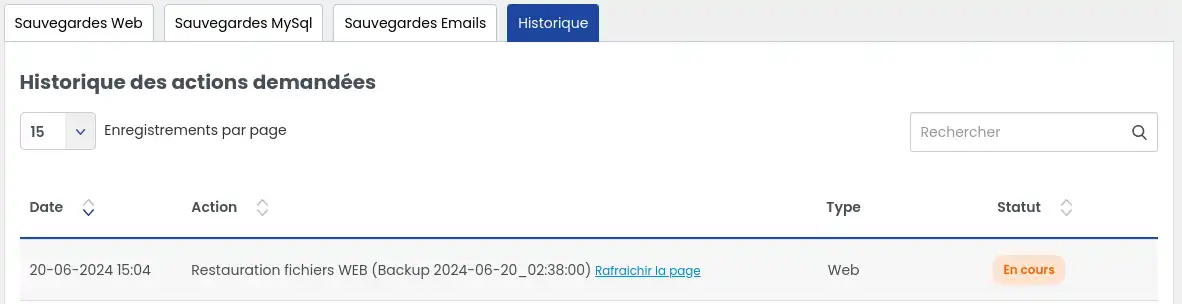
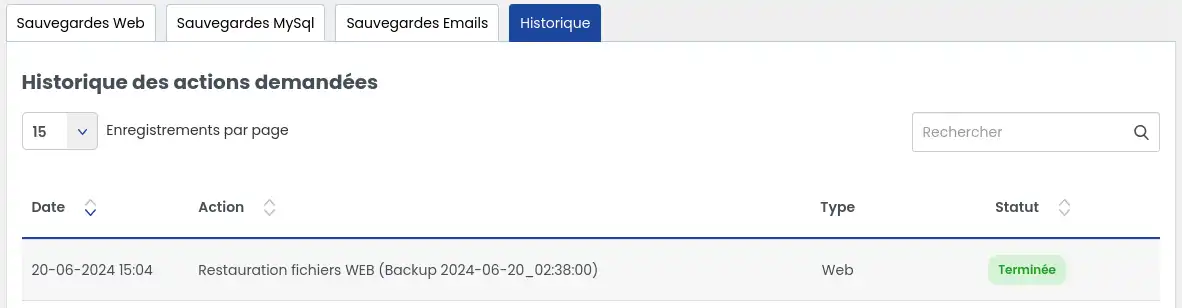
open the History tab
check the status of the operation
refresh the page if necessary; the restoration is complete when the status "Completed" appears.
Verification after restoration
Once the restoration is complete, check the following points :
The status displayed in the History tab must indicate that the operation is complete.
If you restored a specific file or folder, check that it is indeed present again on your hosting.
Open your site in a web browser and check that it works properly.
If the site seems unchanged, clear your browser cache or refresh the page several times.
What should you do if the desired backup does not appear?
If the backup you are looking for is not displayed, there may be several reasons.
The desired date probably exceeds the retention included in your plan: some offers provide access to 30 days of backups, others to 90 days. If the date you are looking for is too old, it may no longer be available.
If you need a backup older than your plan allows (+ than 30 days without a business support option within the limit of 90 days) or a specific intervention, it is possible to subscribe to :
You now know how to access the web backup service in the LWS Panel, download an existing backup, and restore your files in several cases: full restoration, restoration of the homepage, a file, a folder, a multi-domain, or a subdomain.
If your site also uses a database, remember to restore it to a consistent date as well to regain normal operation.
J'ai une formule hébergement actuellement mais mes données web sont sauvegardés sur un autre de mes hébergements. Je compte changer de formule et passer en mode domaine.
J'aimerais savoir si je vais retrouvé mes 2 boites e-mails et mes emails après çà ?
F✓
fabrice-LWS Official answer
18 Oct 2022
Bonjour, avant de changer de formule pour une formule Domaine, je vous invite à effectuer une sauvegarde de vos boites e-mails en suivant la procédure suivante: https://aide.lws.fr/a/1523 . Cela vous permettra de restaurer les e-mails, une fois le changement de formule effectué.
Was this answer helpful?
P
pierre93
28 Oct 2022
Bonjour ????. Comment pourrais-je télécharger un site de 300 megas ?
F✓
fabrice-LWS Official answer
31 Oct 2022
Bonjour, si vous désirez effectuer une sauvegarde de votre site, je vous invite à installer le plugin Duplicator pour cela. Vous pouvez vous aider de la procédure suivante : https://aide.lws.fr/base/Creation-de-site--Wordpress/Tutoriel-Wordpress/Comment-importer-un-site-Wordpress-avec-Duplicator
Vous pouvez aussi le faire en utilisant un logiciel FTP tel que FileZilla. Pour cela, vous pouvez vous aider de la procédure suivante: https://aide.lws.fr/a/79
Was this answer helpful?
C
chrisdes
il y a 9 mois
Pour une formule starter ,j'ai compris qu'il y avait une sauvegarde quotidienne des fichiers WP constituant le site ainsi que les données stockées dans la base Mysql.mais qu'en est il des extensions?Merci pour votre réponse
M✓
Maxence-LWS Official answer
il y a 9 mois
Bonjour,
Je vous remercie pour votre message.
Je vous rassure l'intégralitée des fichiers présent sur votre hébergement est sauvegardée (coeur WordPress et fichiers annexes, tel que les extensions, images...).
Je vous remercie de votre attention et reste à votre disposition pour toute autre question ou complément d'information.
Vous pouvez nous contacter depuis votre espace client ou sur cette page : https://www.lws.fr/contact
Cordialement, L'équipe LWS
Was this answer helpful?
A question about this article?
Ask the LWS team and the community. Answers are published after moderation.
Ask the LWS team and its community a question
!
To enable this form, please tick the two consent boxes below.




 Yes
 No
 About
